Document analysis
Belge Analizi (Document analysis) assesses a legal document you have (a contract, a statement of claim or defence, a formal notice, a court decision, a payment order) from your side. The document is checked against legislation and decisions in the legal database; the result lists risky provisions, missing points that would strengthen you, concrete recommendations and the document you should prepare now. You can draft that document on the same page.
Workspace → Belge Analizi → Belge Analizi
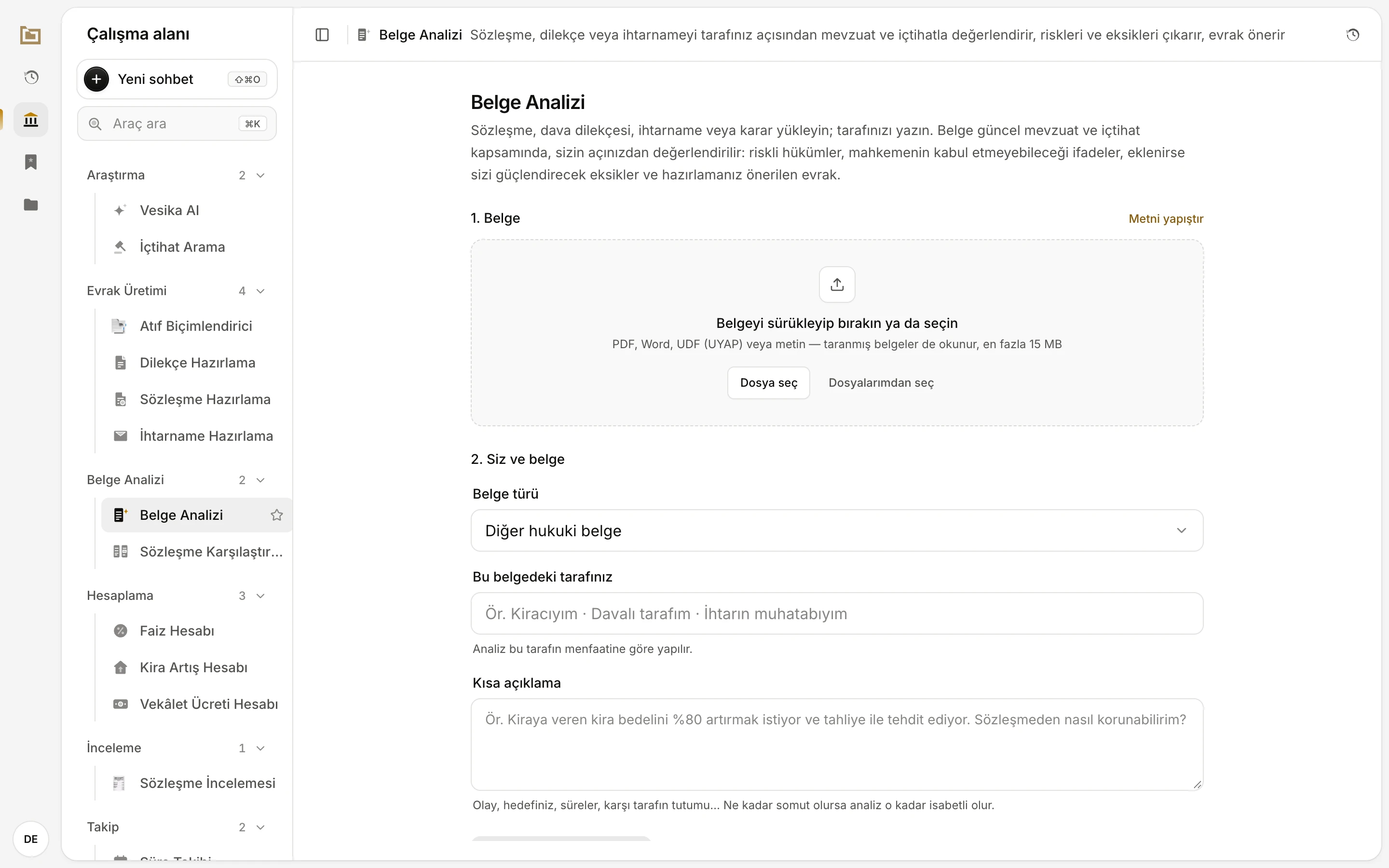
- 1. Belge (1. Document): drag the file here, or pick it with Dosya seç (Choose file) / Dosyalarımdan seç (Choose from my files).
- Click Metni yapıştır (Paste text) to paste the document's text instead of a file.
- Belge türü (Document type): guessed from the text; change it if needed.
- Bu belgedeki tarafınız (Your side in this document): the analysis is made in this side's interest.
- Kısa açıklama (Short description): the facts, your goal, deadlines, the other side's stance.
Step by step
- Open Belge Analizi in the workspace.
- In 1. Belge (1. Document), upload the document, or click Metni yapıştır (Paste text) and paste its text.
- In 2. Siz ve belge (2. You and the document), check Belge türü (Document type), then type your side in Bu belgedeki tarafınız (Your side in this document) or click one of the ready-made options below it.
- Optionally, describe the facts and your goal in Kısa açıklama (Short description).
- Click Belgeyi analiz et (Analyse the document). The analysis can take a few minutes; you can stay on the page.
- When the result opens, read the risks, gaps and recommendations; download the report if you need it, and draft the suggested document in the Evrak üret (Draft a document) section at the bottom of the page.
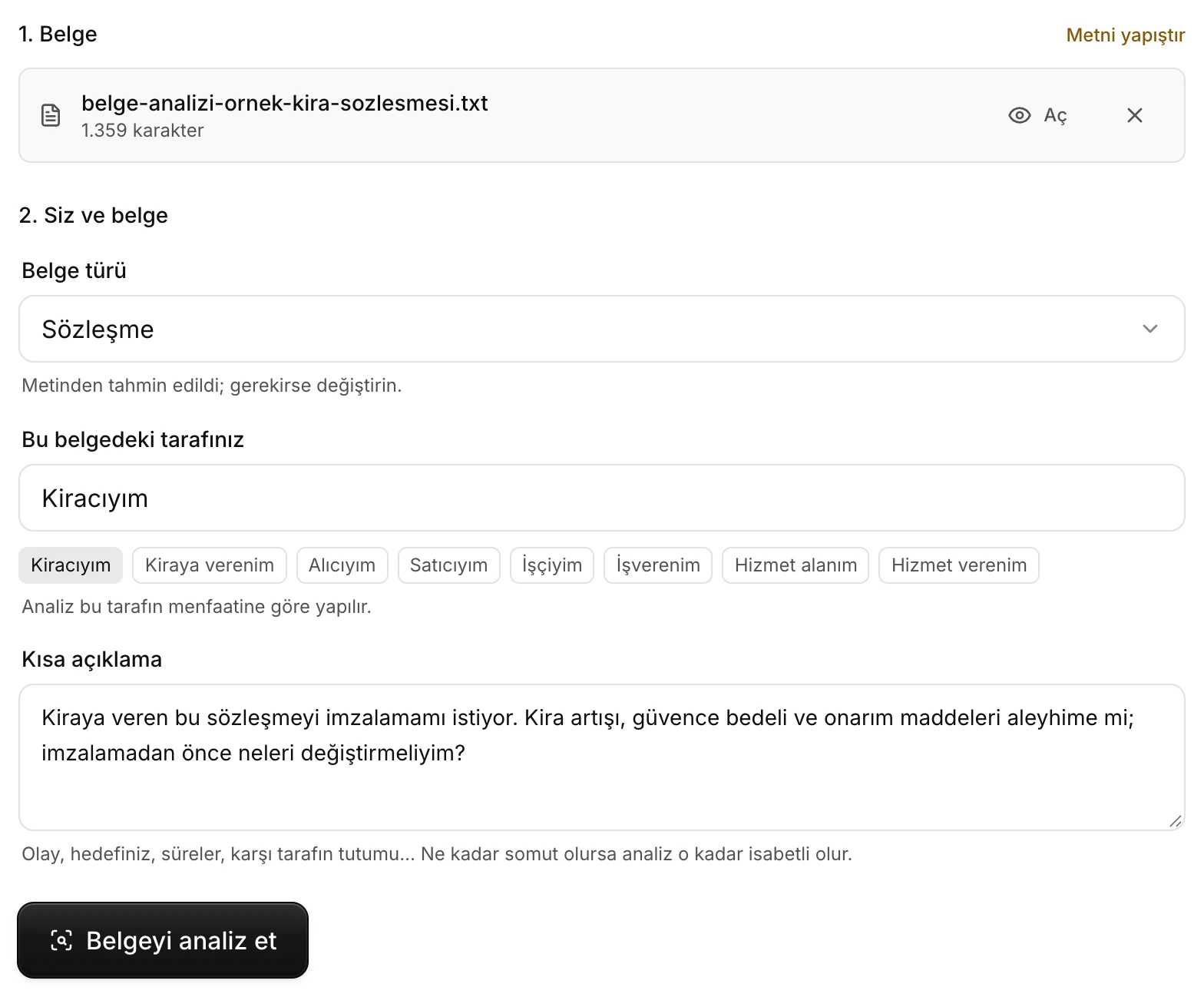
- The uploaded file and its character count; click its name or Aç (Open) to open it in the side panel.
- × removes the document.
- Guessed from the text as Sözleşme (Contract).
- Ready-made sides for this document type; a click fills in the field.
- The more concrete you are, the more accurate the analysis.
- Belgeyi analiz et (Analyse the document) becomes available once the document and your side are in.
Adding the document
Uploading a file
Drag the document onto the upload area or click Dosya seç (Choose file). With Dosyalarımdan seç (Choose from my files) you can pick a file you uploaded to Vesika before, from Files.
- Accepted formats: PDF, Word (.docx, .doc), UDF (UYAP), .rtf and plain text (.txt).
- The file can be at most 15 MB. Scanned documents are read too.
- The uploaded file is shown with its name, character count and, when known, page count. Click the name or Aç (Open) to open it in the side panel; × removes it.
- Problems while reading are shown in a Belge okunurken uyarı (Warning while reading the document) box. If no text can be read at all, a "Belgeden metin okunamadı" (No text could be read from the document) message appears; try a clearer copy or paste the text.
Pasting the text
Click Metni yapıştır (Paste text) and paste the document's text into Belge metni (Document text). The analysis needs at least 80 characters of text. To go back to uploading, click Dosya yükle (Upload a file).
If the document is very long, its first 60,000 characters are analysed; the page then says "Belge uzun: ilk 60.000 karakteri analiz edilecek." (The document is long: its first 60,000 characters will be analysed.)
Document type and your side
Belge türü (Document type) is guessed from the text ("Metinden tahmin edildi; gerekirse değiştirin.", guessed from the text; change it if needed). If you choose a type yourself, your choice is kept even when you add another document. The types and their ready-made sides:
| Document type | Ready-made sides |
|---|---|
| Sözleşme (Contract) | Kiracıyım (tenant), Kiraya verenim (landlord), Alıcıyım (buyer), Satıcıyım (seller), İşçiyim (employee), İşverenim (employer), Hizmet alanım (client), Hizmet verenim (service provider) |
| Dava dilekçesi (Statement of claim) | Davacı tarafım (claimant), Davalı tarafım (defendant), Davacı vekiliyim (claimant's counsel), Davalı vekiliyim (defendant's counsel) |
| Cevap / beyan dilekçesi (Defence / statement) | Davacı tarafım, Davalı tarafım, Davacı vekiliyim, Davalı vekiliyim |
| İhtarname / ihbarname (Formal notice) | İhtarı çeken tarafım (sender of the notice), İhtarın muhatabıyım (addressee of the notice) |
| Mahkeme kararı (Court decision) | Lehine karar verilen tarafım (the party the decision favours), Aleyhine karar verilen tarafım (the party it goes against), Davacı tarafım, Davalı tarafım |
| İcra takibi / ödeme emri (Enforcement / payment order) | Alacaklıyım (creditor), Borçluyum (debtor), Üçüncü kişiyim (third party) |
| Diğer hukuki belge (Other legal document) | (none; type your side yourself) |
Bu belgedeki tarafınız (Your side in this document) is required: the analysis is made in this side's interest. If none of the options fits, type your own wording (at most 200 characters), for example "İhtarın muhatabıyım".
Kısa açıklama (Short description) is optional (at most 3,000 characters). Describe the facts, your goal, your deadlines and the other side's stance.
How the analysis runs
When you click Belgeyi analiz et (Analyse the document), the page shows Belge analiz ediliyor (Analysing the document) and three steps.
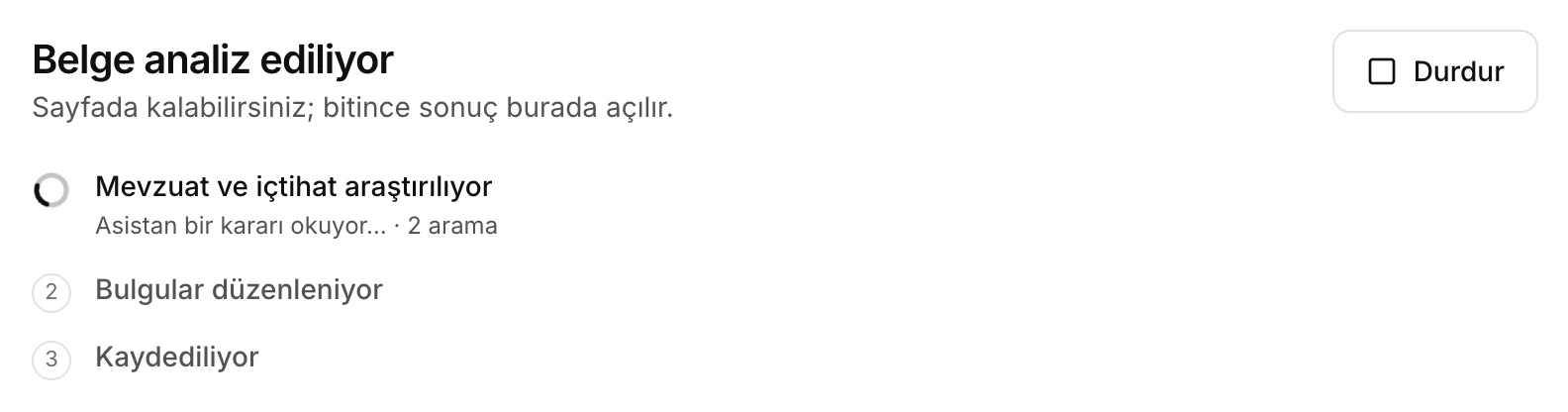
- You can stay on the page while it runs; the result opens here when it is done.
- Durdur (Stop) cancels the analysis; the document and what you entered stay on screen.
- The current step; below it, what is happening right now and how many searches were made.
- Mevzuat ve içtihat araştırılıyor (Researching legislation and case law): the document is assessed from your side against sources in the legal database. This step can take a few minutes.
- Bulgular düzenleniyor (Organising the findings): risks, gaps and recommendations are separated; quotations from the document are compared with its text.
- Kaydediliyor (Saving): the analysis is added to History.
Below the steps, the Araştırma notu (yazılıyor) (Research note, being written) card shows the note as it is written. The note has not been checked yet, so decision citations in it appear as "[künye doğrulanıyor]" (citation being verified) at this stage.
The result
When the analysis finishes, the report opens on the same page. From top to bottom:
Title and buttons
- The title is the document's short type followed by "analizi" (analysis); the document's contents and personal names never go into it. Below it: the document type, the file name (click it to open your document in the side panel), the date and Tarafınız (Your side).
- Yıldızla (Star) stars the analysis; starred analyses are listed under Favorites. While starred, the button reads Yıldızlı (Starred).
- Önizle (Preview) opens the report as a PDF in the side panel.
- PDF / Word download the report. It contains the summary, your position, risks, gaps, recommendations, the suggested document and the sources.
- Yeni analiz (New analysis) goes back to the start screen.
- The Riskler (n), Eksikler (n), Öneriler and Evrak üret shortcuts (Risks, Gaps, Recommendations, Draft a document) scroll to that section.
Summary and your position
The Özet (Summary) card says briefly what the document is. The Durumunuz (Your position) card explains where your side stands against this document, with the points for and against you; its corner carries an overall label: Genel görünüm lehinize (overall in your favour), Genel görünüm dengeli (balanced), Genel görünüm aleyhinize (against you) or Genel görünüm belirsiz (unclear).
Risky and dangerous provisions
Riskli ve tehlikeli hükümler (Risky and dangerous provisions) shows the number of risks, counts per level (yüksek, orta, düşük: high, medium, low) and, if any, how many provisions mahkemece kabul görmeyebilir (may not be upheld by a court). Vesika gives no risk score; it only uses these three levels. Each risk card has:
- A short title and a level label (e.g. yüksek risk, high risk); provisions that courts usually treat as invalid or do not enforce also get a Mahkemece kabul görmeyebilir label.
- Belgeden (From the document): a word-for-word quotation from your document. If the quotation cannot be found verbatim in the document, the heading reads İlgili kısım (belgede birebir bulunamadı) (Relevant part, not found verbatim in the document) and the text is shown faded, without quotation marks.
- Neden riskli (Why it is risky): the explanation.
- Hukuki dayanak (Legal basis): the legislation and decisions it rests on, with bracketed numbers, and links to those sources below. A link opens the source in the side panel.
If no clear risk is found, it says "Belirgin bir risk bulunmadı" (No clear risk found); review the document yourself anyway.
What is not written but should be
Yazılmamış ama yazılsa iyi olacaklar (Not written, but worth adding) lists provisions and arguments missing from the document that would strengthen it or your position. Each card says why it matters, lists its sources and offers wording to add in Önerilen ekleme (taslak) (Suggested addition, draft). Copy that text with Kopyala (Copy).
Recommendations and suggested document
Öneriler (Recommendations) is a numbered list of concrete steps. The Önerilen evrak (Suggested document) card names the document it would be most useful to prepare now (e.g. a formal notice, a defence, a contract amendment) and why; Evrakı üret (Draft it) takes you to the drafting section at the bottom.
Legal assessment and sources
Open Araştırma notunun tamamı (The full research note) to read the note the report is built on. The Kaynaklar (yan panelde açılır) (Sources, open in the side panel) list below it holds the legislation and decisions used. If no source could be cited from the database, it says so and asks you to research the grounds separately.
The analysis is an AI assessment, not a legal opinion. Vesika removes decision citations it cannot find in the database and compares quotations with your document; still, open every source and check it.
Drafting a document
In the Evrak üret (Draft a document) section below the report, you draft the suggested document based on the analysis and your side.
- Choose Evrak türü (Document type): İhtarname (formal notice), Cevabi ihtarname (reply notice), Cevap dilekçesi (defence), İtiraz dilekçesi (objection), Dava dilekçesi (statement of claim), İstinaf / temyiz dilekçesi (appeal), Beyan dilekçesi (statement), Sözleşme değişiklik taslağı (ek protokol) (contract amendment, additional protocol) or Diğer yazı (other letter). The type the analysis suggests is marked "(önerilen)" (suggested) and selected to begin with.
- Choose Biçim (Format): Vesika standart biçimi (Vesika standard format) or a template your firm has set up for this type. With a firm template, its section order and tone are followed. Manage templates through the Kurum Şablonları (Firm templates) link; see Firm templates.
- Optionally add a short instruction in Ek talimat (isteğe bağlı) (Extra instruction, optional; at most 600 characters), e.g. the addressee, the period to grant or the tone.
- Click … taslağı üret (Draft the …). First "Karar metinleri getiriliyor" (Fetching decision texts) and then "Taslak yazılıyor…" (Writing the draft) appear; the draft streams into the Yazılıyor — alıntı ve künyeler bitince denetlenecek (Being written; quotations and citations are checked when it is done) box. Durdur (Stop) cancels it.
When the draft is done it is checked: quotations from decisions are compared word for word with the decision's text in the database, and a quotation that does not match is left out; decision citations that cannot be verified are marked. The counts appear in a Taslak denetlendi (Draft checked) box.
The draft opens in Taslak (düzenlenebilir) (Draft, editable). There, # is a centred title, ## a section heading, > a verbatim quotation and **bold** bold. If you edit a line starting with > so that it no longer matches the source, a warning appears. The buttons below the draft:
- Önizle (Preview) opens the draft as a PDF in the side panel.
- PDF, Word, UDF download the draft. The UDF button appears when that format is available. The downloaded document carries your firm's letterhead.
- Kopyala (Copy) copies the draft text.
- Değişiklikleri kaydet (Save changes) saves your edits with the analysis; once saved the button reads Kaydedildi (Saved).
The draft is also saved to Files and updated as you edit it. … taslağını yeniden üret (Redraft the …) replaces the current text with a new one. Fill in the bracketed placeholders (e.g. [Tebliğ tarihi], date of service) and review the text before using it.
For a more thorough draft, the links at the bottom of the section open the petition, contract and formal-notice drafting tools: Petition drafting, Contract drafting, Formal notice drafting.
Past analyses
Every analysis is saved and listed in History. The Son analizler (Recent analyses) section at the bottom of the start screen shows your recent analyses with their dates; starred ones carry a Yıldızlı (Starred) label. Click one to reopen the report, together with any draft you saved. See History and favorites.
If an analysis finishes but cannot be saved, a Kaydedilmedi (Not saved) warning appears above the report; download it as PDF or Word before leaving the page.
Limits and things to check
- Files can be at most 15 MB; the first 60,000 characters of the text are analysed. An analysis needs at least 80 characters of text and your side.
- Analysis and drafting use AI. If your AI allowance is used up, a Yapay zekâ sınırına ulaşıldı (AI limit reached) notice appears and no analysis can start; see Plans and limits.
- The result relies on what the document and your description say; it does not take facts outside them into account. Put important details in Kısa açıklama (Short description).
- Always review the report and the draft; open the decisions and legislation they rely on and verify them.