Case-law search
İçtihat Arama (Case-law search) is the most direct way to search decisions and legislation in the legal database. You describe the facts or your question in your own words and mark important words as vurgu (emphasis); decisions containing those words come first and are coloured. If you have a petition, contract or decision at hand, the Belge ile ara (Search by document) tab searches from the document itself.
Workspace → Araştırma (Research) → İçtihat Arama
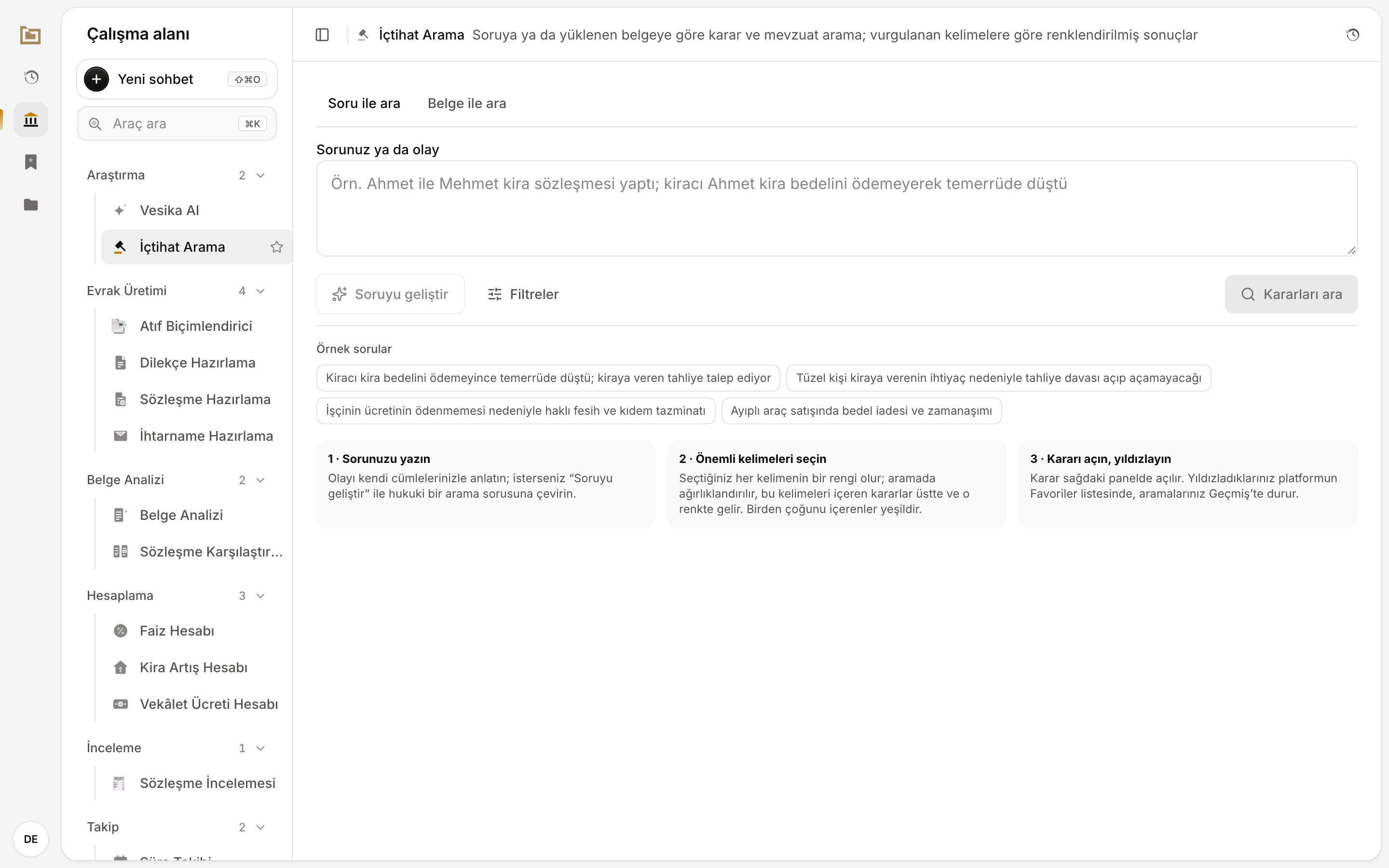
- Soru ile ara (Search by question) or Belge ile ara (Search by document).
- Sorunuz ya da olay (Your question or the facts): type the facts or your question.
- Soruyu geliştir (Improve the question) turns it into a legal search question.
- Filtreler (Filters): sources, dates, words and deep search.
- Kararları ara (Search decisions) starts the search.
- Örnek sorular (Example questions): a click puts one in the question box.
- This tool's history: your earlier searches.
Step by step
- In the workspace, open İçtihat Arama under Araştırma (Research).
- Type the facts or your question in Sorunuz ya da olay (Your question or the facts), for example "kira tespit davası emsal kira bedeli" (rent determination action, comparable rent).
- In the Vurgu (Emphasis) box that appears below, click the important words. Each word gets a colour.
- If needed, open Filtreler (Filters) and add a source, date or word filter.
- Click Kararları ara (Search decisions), or press ⌘ Enter (Ctrl Enter on Windows).
- In the results, click a decision's citation; it opens in the side panel on the right. Star the decisions you want to keep.
Search by question
Writing your question
In Sorunuz ya da olay you can describe the facts in your own words or type a short search phrase. A search needs at least two characters. Using the parties' roles ("kiracı", tenant; "işveren", employer) rather than names gives better results.
Click one of the Örnek sorular (Example questions) on the start screen to put it in the question box; edit it and search.
Choosing emphasis words
As soon as you type in the question box, a Vurgu (Emphasis) box appears below it, with the words of your question clickable.
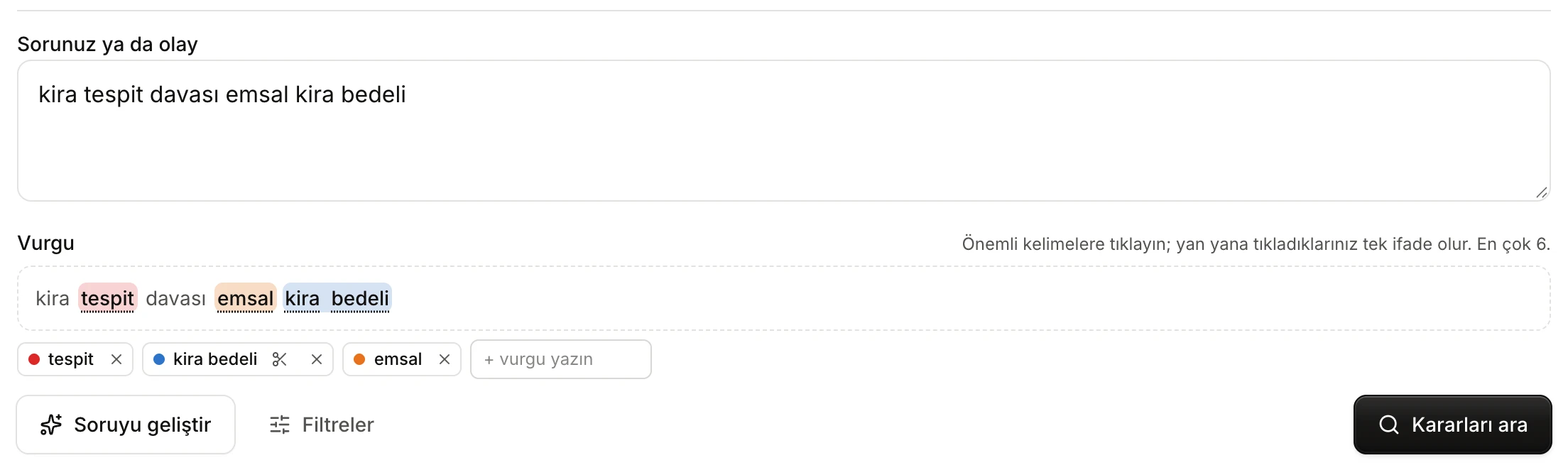
- Click a word to emphasise it; words you click next to each other become one phrase ("kira bedeli").
- + vurgu yazın (+ type an emphasis) adds a word or phrase that is not in the question. The coloured chips to its left are your emphasis words.
- The scissors split a phrase into words; × removes the emphasis.
- The emphasis words are sent with the search.
- Picking a word: click it; the word is coloured and a chip of the same colour is added below. Click an emphasised word again to remove it.
- Making a phrase: click the word right before or after an emphasised word and the two become one phrase (e.g. "kira" + "bedeli" → "kira bedeli", rent amount). A phrase can have at most four words.
- Splitting a phrase: click the scissors on the chip (Kelimelere ayır, split into words).
- Adding by hand: type a word or phrase in + vurgu yazın next to the chips and press Enter.
- Limit: you can pick at most 6 emphasis words.
Emphasis ignores upper/lower case and Turkish letters, and it catches inflected forms. For example, the emphasis "temerrüde" also matches texts that say "temerrüt" or "temerrüdü".
Emphasis does two things: during the search, decisions containing these words are lifted, and in the result list each decision takes the colour of the emphasis it contains. Decisions that contain more than one emphasis are green.
Improving the question
Soruyu geliştir (Improve the question) turns the facts you wrote into a short search question with a legal characterisation that is better suited to finding precedents; it removes personal names and adds no facts that are not in your question. It needs at least 5 characters and uses AI.
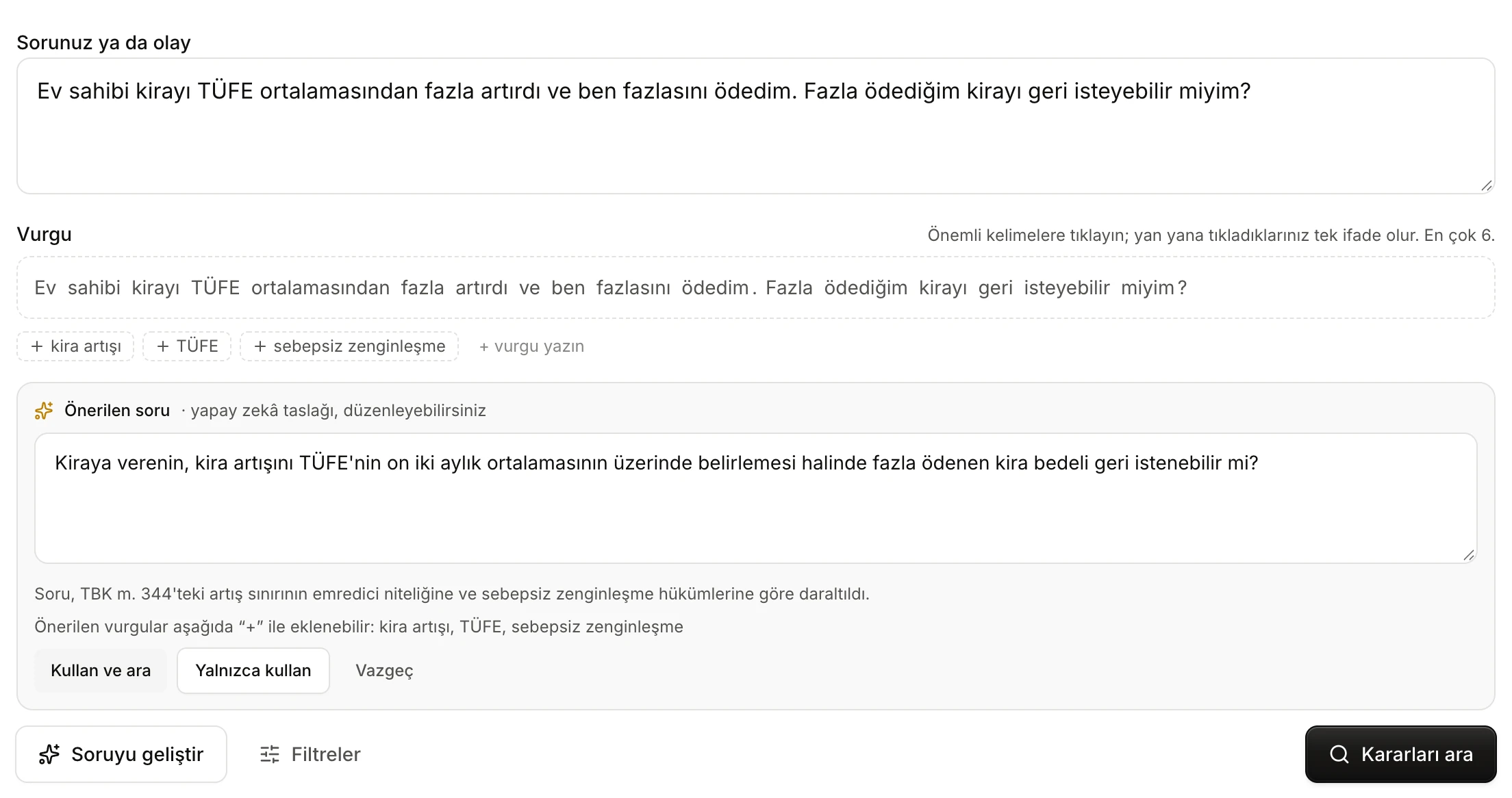
- Önerilen soru (Suggested question): an AI draft; you can edit it in the box.
- Suggested emphasis words can be added next to the chips with +.
- Kullan ve ara (Use and search), Yalnızca kullan (Use only) or Vazgeç (Cancel).
- Click the button again to ask for another suggestion.
When the suggestion arrives:
- Kullan ve ara (Use and search) puts the suggested question in the question box and searches at once.
- Yalnızca kullan (Use only) puts it in the question box; you start the search.
- Vazgeç (Cancel) closes the suggestion; your question stays as it was.
Below the suggestion there is a short note on what changed and the suggested emphasis words. These appear next to the emphasis chips as dashed + chips; click one to add it as an emphasis.
Filters
Click Filtreler (Filters) to open the filter panel. The number of active filters is shown on the button.
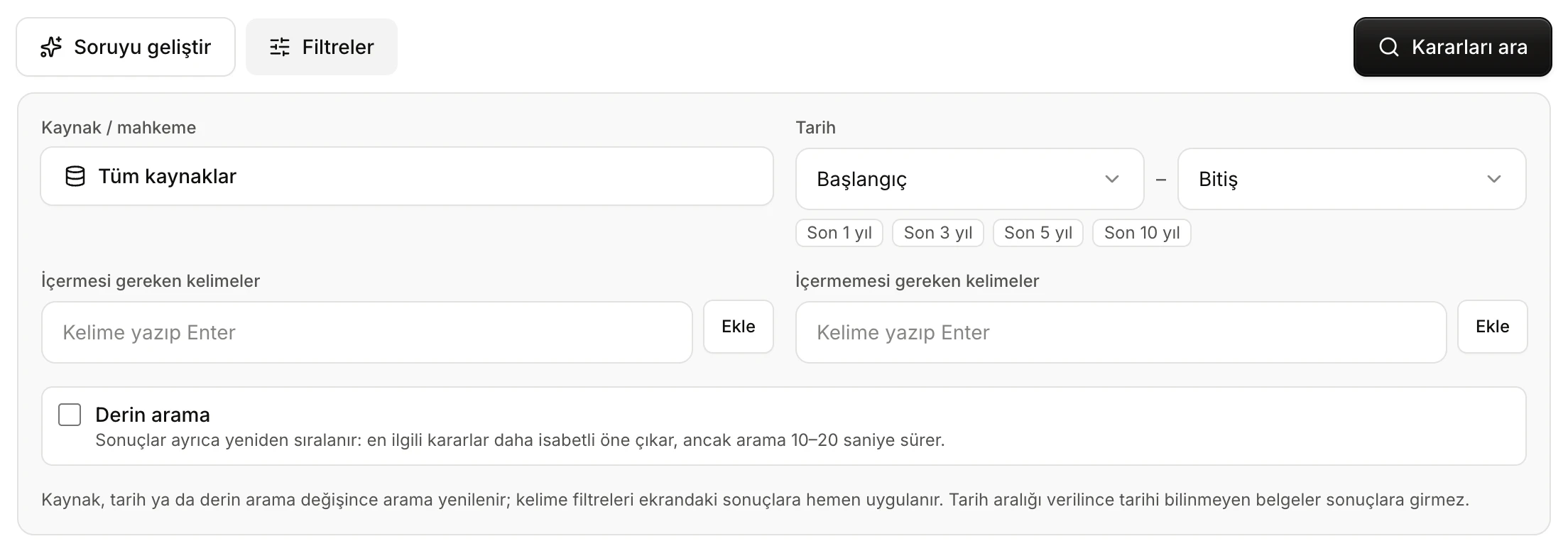
- Kaynak / mahkeme (Source / court): which courts and legislation sources to search.
- Tarih (Date): start and end year, or the Son 1/3/5/10 yıl (last 1/3/5/10 years) shortcuts.
- İçermesi gereken kelimeler (Words that must appear).
- İçermemesi gereken kelimeler (Words that must not appear): results containing them are dropped.
- Derin arama (Deep search): results are re-ranked; more accurate, but takes 10–20 seconds.
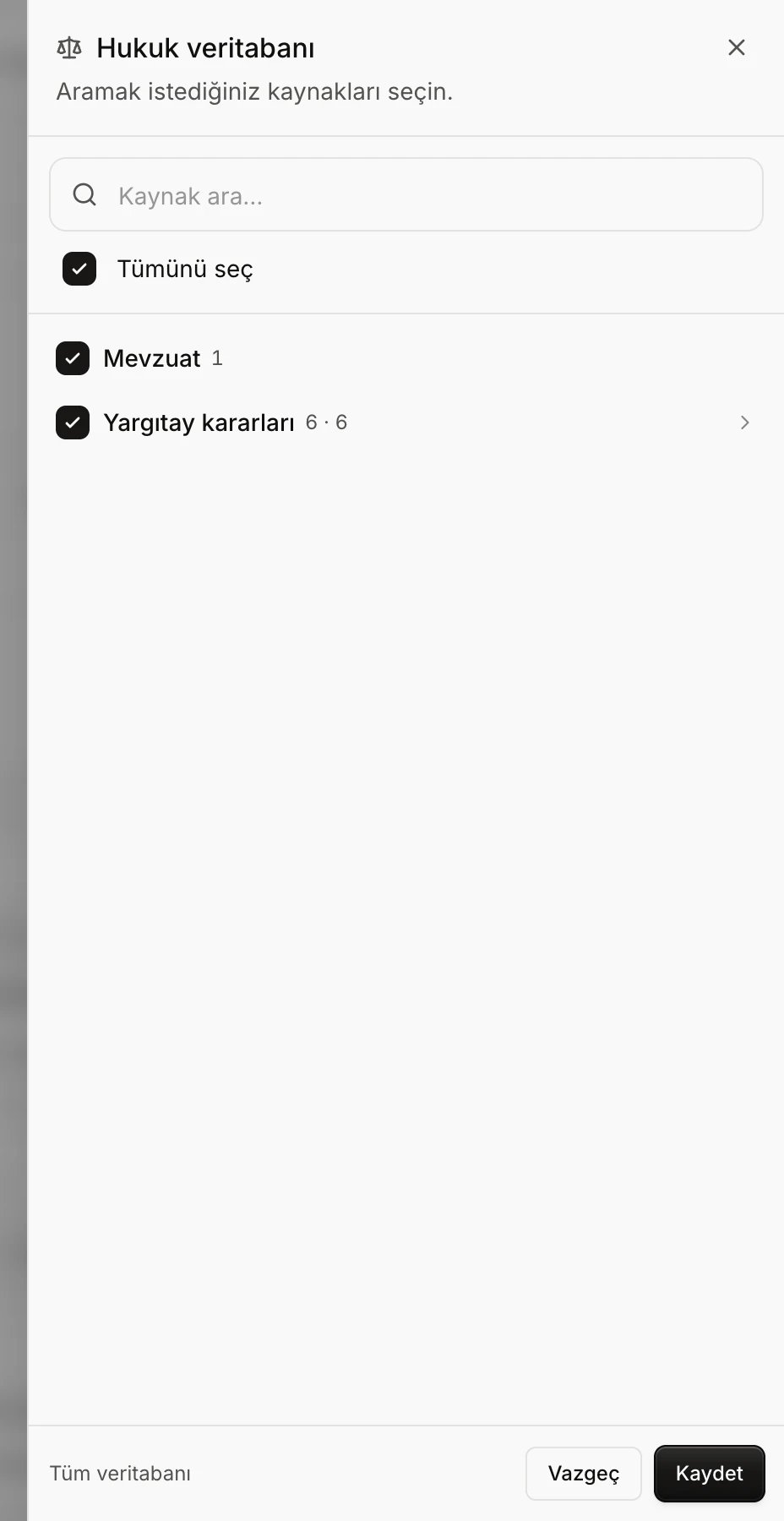
- Kaynak / mahkeme (Source / court): the button opens the Hukuk veritabanı (Legal database) window. Tick sources by group (e.g. Mevzuat, legislation; Yargıtay kararları, Court of Cassation decisions; Danıştay kararları, Council of State decisions), find one with Kaynak ara (Search sources), select all with Tümünü seç (Select all) and click Kaydet (Save). The button summarises your choice (Tüm kaynaklar, all sources; the names of one or two sources; or "3 kaynak seçili", 3 sources selected). Your source choice is remembered for later sessions.
- Tarih (Date): choose the Başlangıç (start) and Bitiş (end) years, or click Son 1 yıl, Son 3 yıl, Son 5 yıl or Son 10 yıl. The range applies to the decision date (for legislation, the adoption or Official Gazette date). With a date range, documents whose date is unknown are left out.
- İçermesi gereken kelimeler / İçermemesi gereken kelimeler (Words that must / must not appear): type a word and press Enter or click Ekle (Add); separate several words with commas. Words are looked for in the citation, the court name and the excerpt shown. Added words appear as chips; × removes them.
- Derin arama (Deep search): when ticked, results are re-ranked so the most relevant decisions come first more accurately, but the search takes 10–20 seconds.
When the sources, dates or deep search change (and results are on screen), the search runs again by itself. Word filters apply to the results on screen at once; how many results they dropped is shown next to the result count.
Reading the results
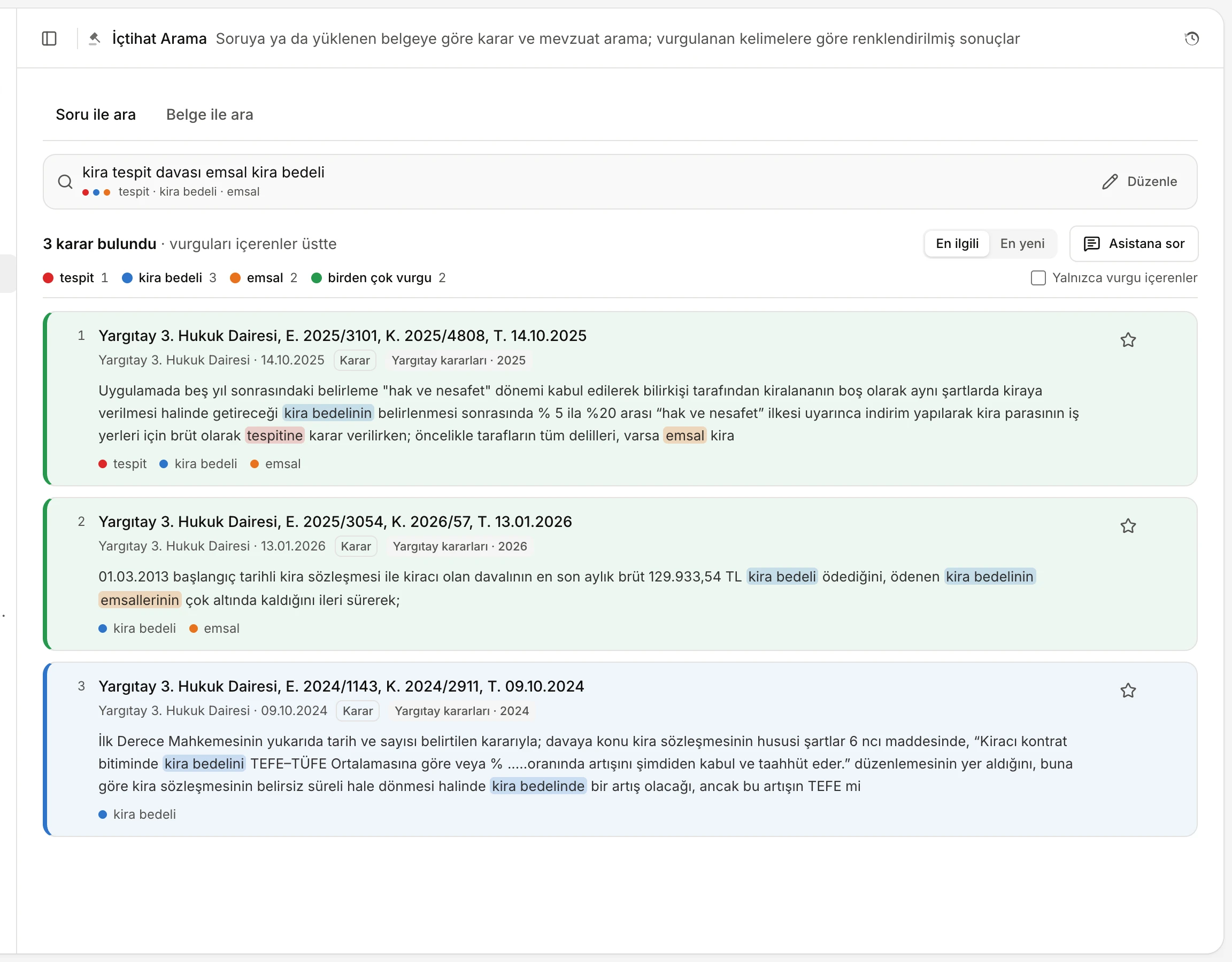
- After the search the question shrinks to this line; Düzenle (Edit) opens it again.
- How many decisions were found and how they are sorted.
- En ilgili (Most relevant) / En yeni (Newest).
- Asistana sor (Ask the assistant): a cited answer to the question is prepared in the side panel.
- Colour legend: how many results contain each emphasis, and birden çok vurgu (more than one emphasis).
- Star: adds the decision to Favorites.
When the search is done, the question box shrinks to a one-line summary; click Düzenle (Edit) to change the question. While it is open you can go back to the results with Sonuçlara odaklan (Focus on results).
Above the list:
- … karar bulundu (… decisions found): the number of results shown. A question brings at most 50 results; when that limit is reached it says "ilk 50 sonuç" (first 50 results).
- Colour legend: each emphasis colour and how many results contain it; with more than one emphasis, the number of birden çok vurgu (more than one emphasis, green) results.
- Yalnızca vurgu içerenler (Only those with emphasis): hides results that contain none of your emphasis words.
- If you change the emphasis after searching, colours and order update at once; the Aramayı yeni vurgularla yenile (Search again with the new emphasis) link beside the "Vurgular değişti" (Emphasis changed) note searches the database again.
Sorting
- En ilgili (Most relevant): decisions containing more of your emphasis words first, then the database's relevance order.
- En yeni (Newest): the most recent decision first; undated ones last.
Your sort choice is remembered for later sessions.
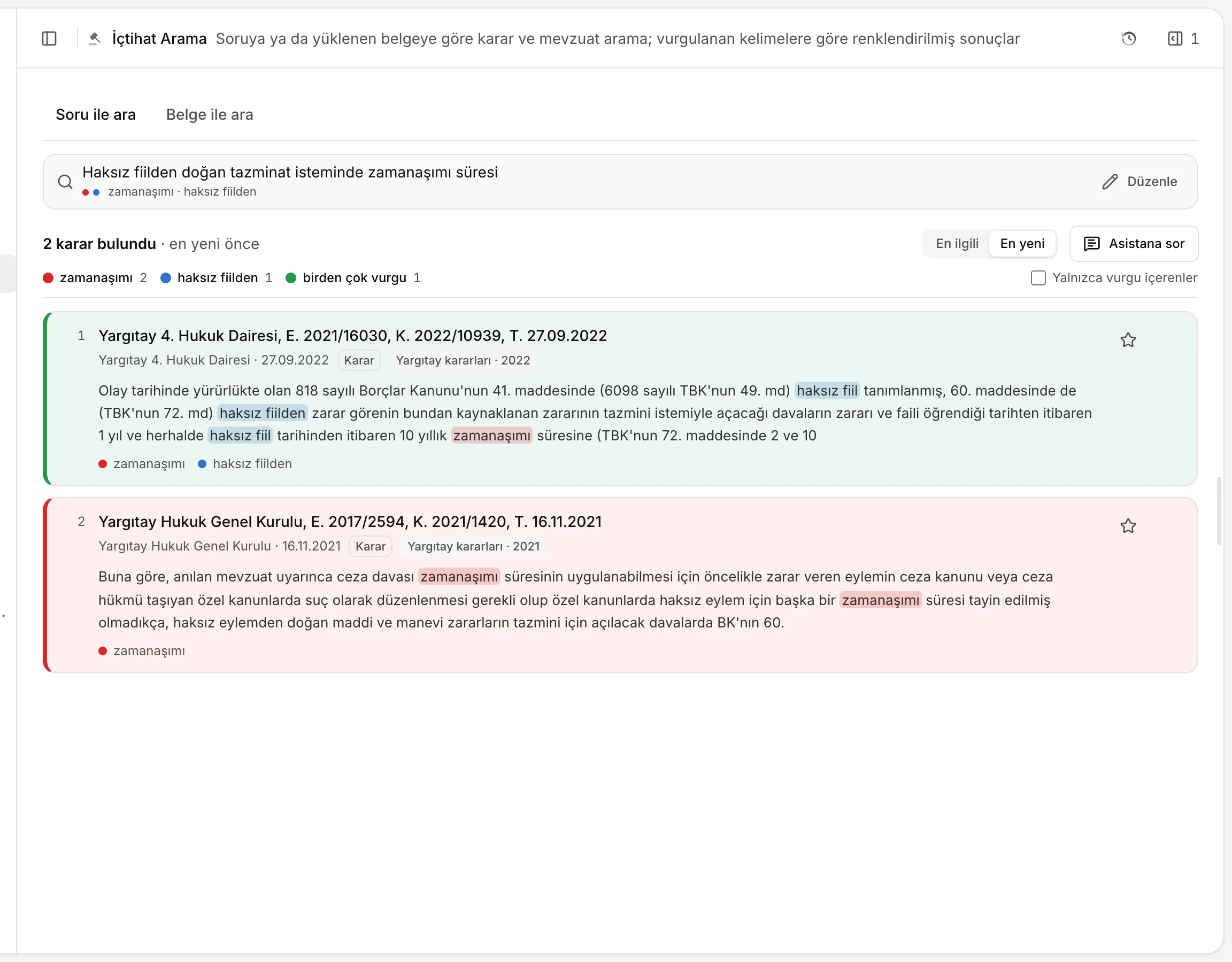
- En yeni (Newest) selected: the most recent decision first.
- The sort criterion is shown next to the count ("en yeni önce", newest first).
- Hides results without any emphasis.
A result card
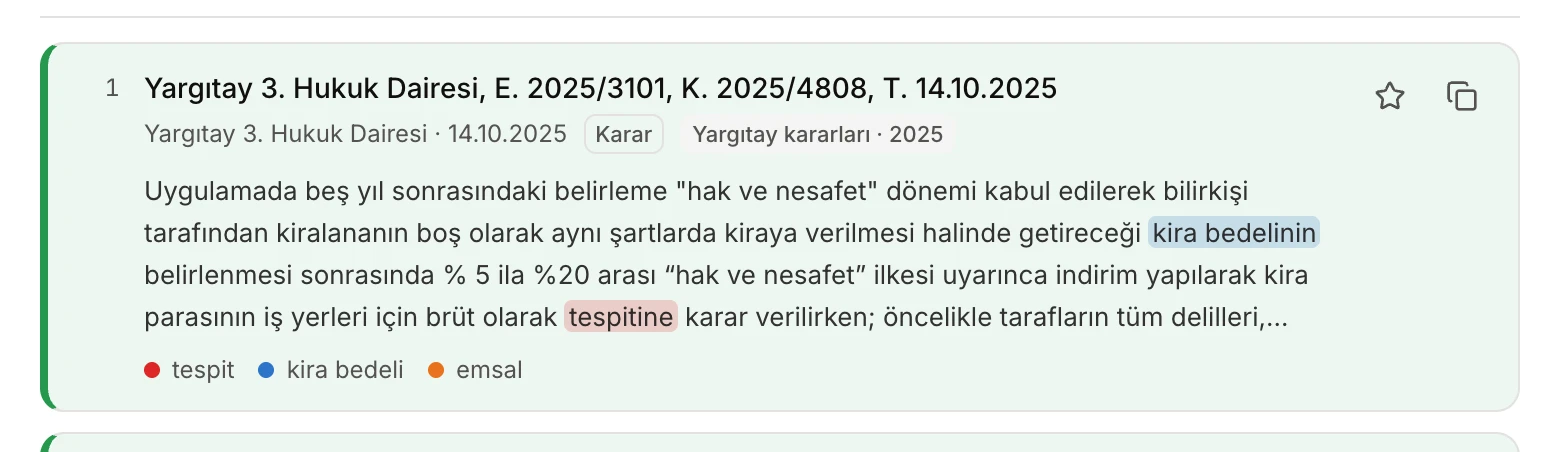
- The citation: click it to open the decision in the side panel.
- Court · date, document type (Karar, decision) and the source label.
- The part of the decision relevant to your search; emphasis words are marked in their colour.
- The emphasis words this decision contains.
- Add to Favorites.
- Künyeyi kopyala (Copy the citation); appears when you hover over the card.
Each card shows a rank number, the decision's citation (court, docket and decision numbers, date), the court and date, the document type, the source name and an excerpt relevant to your search. The card's left edge and background take the colour of the emphasis it contains; a card with two or more emphasis words is green, and a card with none is uncoloured.
Opening a decision
Click the citation or an empty part of the card: the decision opens as a tab in the side panel on the right, and the card shows "panelde açık" (open in the panel). The reader in the side panel lets you search within the decision, move between its sections, copy its citation, download a PDF and print; see The document reader.
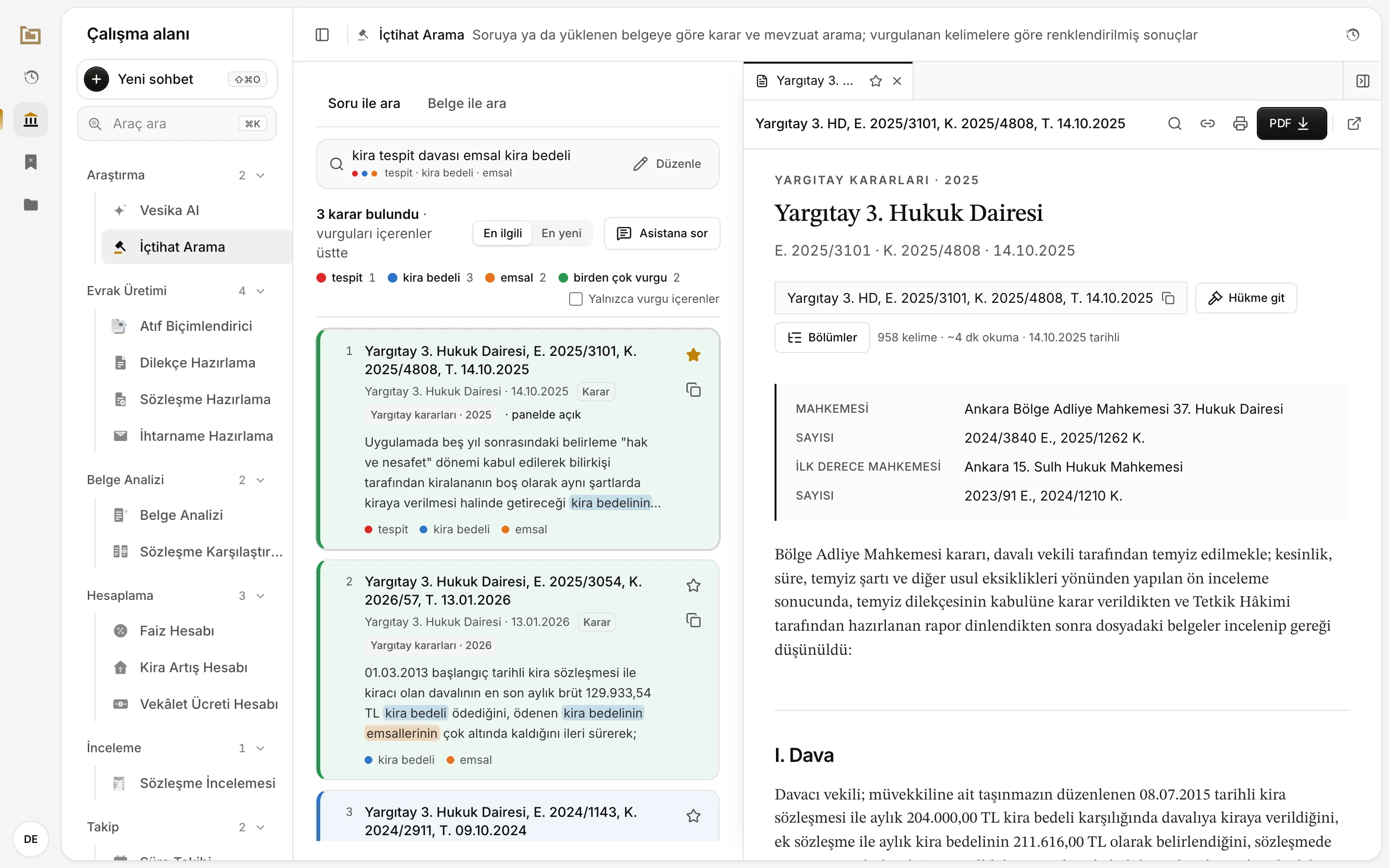
- The decision opens in the side panel; the result list stays on the left.
- The card of the decision you opened says "panelde açık".
- Filled star: the decision is in Favorites.
Starring and copying the citation
- Click the star on the right of a card (Favorilere ekle, add to Favorites) to add the decision to Favorites; a "Favorilere eklendi" (Added to Favorites) message appears. Starred decisions are listed under the platform's Favoriler (Favorites); clicking one there opens the decision in the side panel. Click the star again to remove it. See History and favorites.
- The Künyeyi kopyala (Copy the citation) icon copies the decision's citation to the clipboard. On a computer, the icon appears when you hover over the card.
Ask the assistant
Asistana sor (Ask the assistant), above the result list, prepares a short, cited answer to your question from the standpoint of Turkish law and case law, in the side panel. The assistant searches the database itself and cites, with bracketed numbers, only the decisions it found; click a number to open that decision in the reader. If you chose sources in the filters, the assistant searches those sources.
- While the answer is being written you can stop it with Durdur (Stop); once it is done, Yeniden sor (Ask again) asks for a new one.
- A finished answer is kept; reopening the same tab does not prepare it again.
- Asistana sor is only on the Soru ile ara tab and uses AI.
The assistant's answer is a research draft. Open the cited decisions and read them yourself; the final assessment is yours.
Search by document
If you have a petition, contract, decision or formal notice, use the Belge ile ara (Search by document) tab. The document is summarised, 1–3 search questions are drawn from the summary, and all of them are searched.
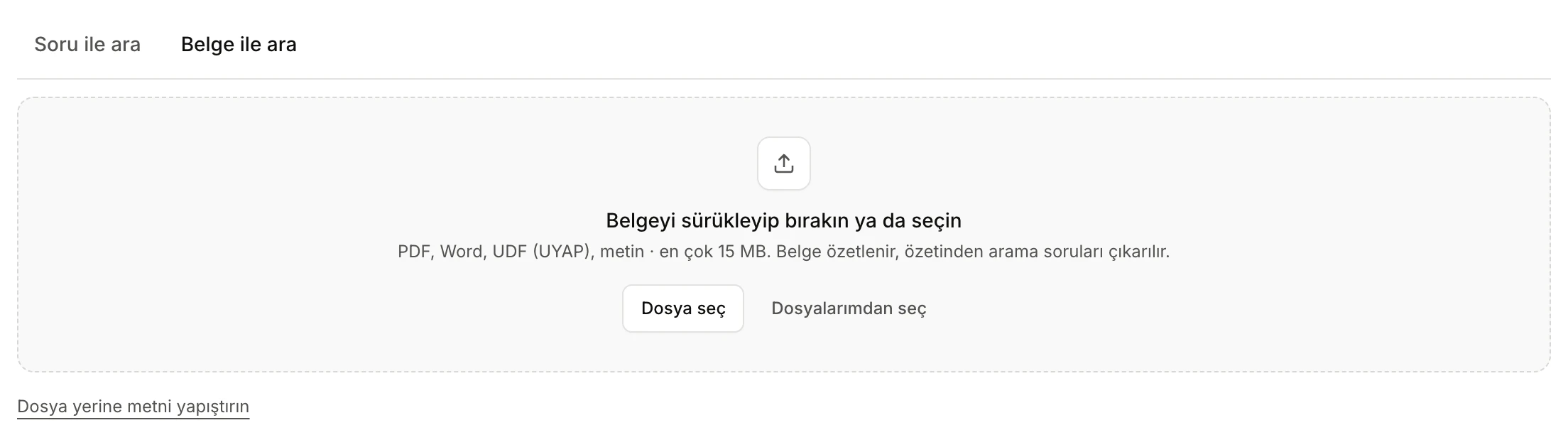
- The Belge ile ara (Search by document) tab.
- Drop the document here, or pick it with Dosya seç (Choose file) or Dosyalarımdan seç (Choose from my files).
- To paste the text instead of a file.
- Switch to the Belge ile ara tab.
- Drop the document on the upload area, or pick it with Dosya seç / Dosyalarımdan seç. Accepted formats: PDF, Word (.docx, .doc), UDF (UYAP), .rtf, .txt, HTML and e-mail (.eml); the file can be at most 15 MB. To use text instead, click Dosya yerine metni yapıştırın (Paste the text instead of a file), paste it into Belge metni (Document text) and click Belgeyi incele (Examine the document); at least 40 characters are needed.
- Vesika shows the steps Belge okunuyor (Reading the document), Özet ve arama soruları hazırlanıyor (Preparing the summary and search questions) and İlgili kararlar aranıyor (Searching related decisions).
- The results are then listed.
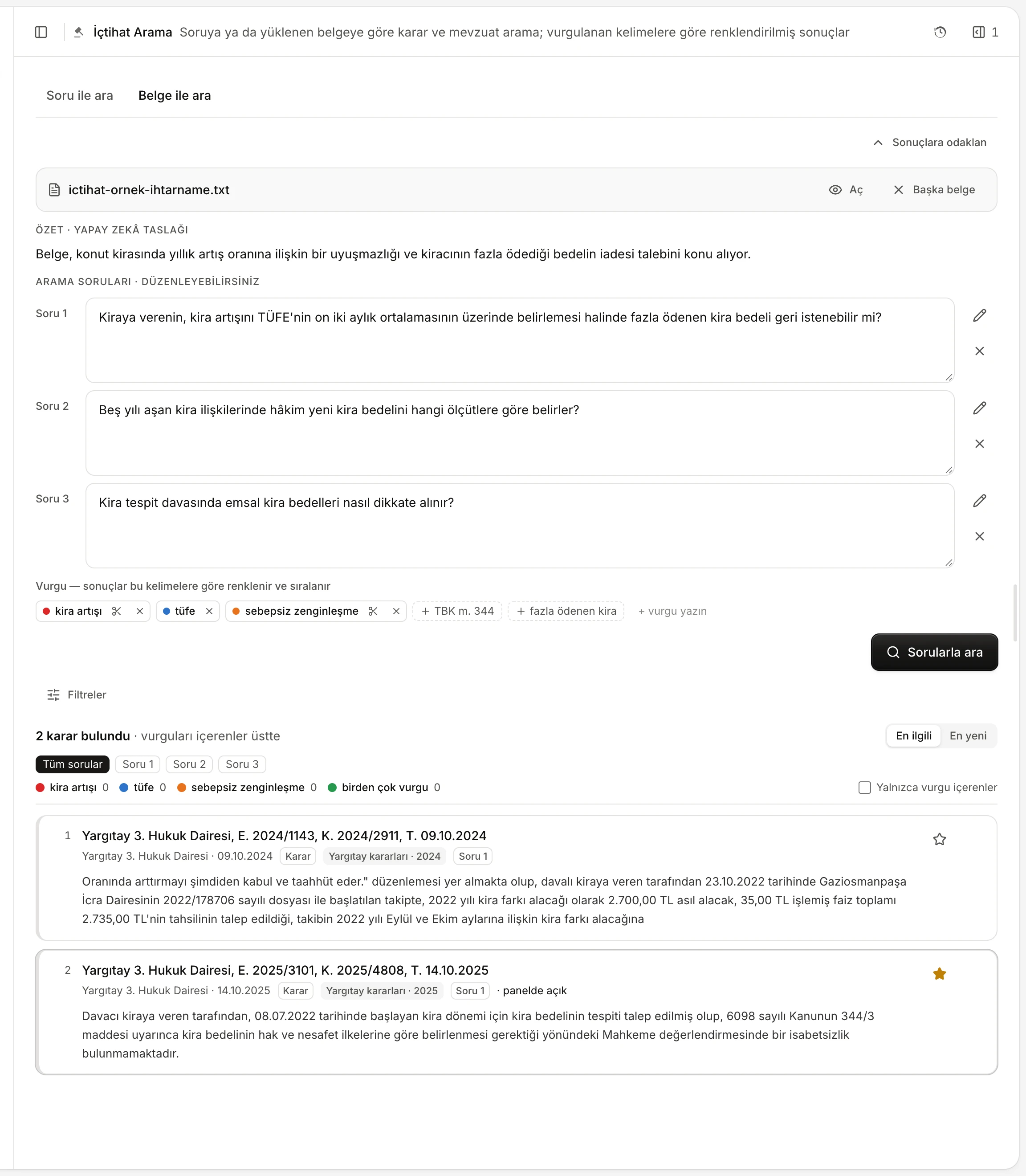
- The uploaded document: Aç (Open) opens it in the side panel, Başka belge (Another document) starts over.
- Özet · yapay zekâ taslağı (Summary · AI draft).
- Questions drawn from the document; edit them, move one to Soru ile ara with the pencil, or remove it with ×.
- Starting emphasis words, and suggestions to add with +.
- Sorularla ara (Search with the questions) searches again after your changes.
- Filter the results by question: Tüm sorular (All questions), Soru 1…
On the prepared screen:
- Özet · yapay zekâ taslağı (Summary · AI draft): a short summary of the dispute in the document.
- Arama soruları · düzenleyebilirsiniz (Search questions · you can edit them): the 1–3 questions drawn from the document (Soru 1, Soru 2…). Edit them in their boxes, or remove one with ×. The pencil moves that question to the Soru ile ara tab, where you can search it separately.
- Vurgu — sonuçlar bu kelimelere göre renklenir ve sıralanır (Emphasis: results are coloured and ranked by these words): the first key term of each question (at most three) is selected to start with; other suggested words can be added with +.
- Sorularla ara (Search with the questions) searches again after you change the questions or emphasis.
- Filtreler (Filters) are available on this tab too.
Above the result list, Tüm sorular (All questions), Soru 1, Soru 2… show only the decisions a given question found; each card says which question found it with a Soru n label. Each question brings at most 25 results.
Click the uploaded document's name or Aç (Open) to open it in the side panel; Başka belge (Another document) starts over with a new one. After the search, Özet ve sorular (Summary and questions) in the summary line takes you back to this screen.
The summary and questions are prepared with AI. For very long documents the first 60,000 characters of the text are used. If not enough text can be read from a scanned document, try a clearer copy or paste the text.
Search history
Every search is saved to your history: question searches as "“…” araması" (search), document searches as "“file name” belgesine göre karar araması" (decision search based on the document). Click the clock icon in the tool's header (İçtihat Arama geçmişi, İçtihat Arama history) to open the History panel with only this tool's items; Tümü (All) switches to your whole history. Click a search to run it again with its question, emphasis and filters. Starred decisions also appear in this list, with a star.
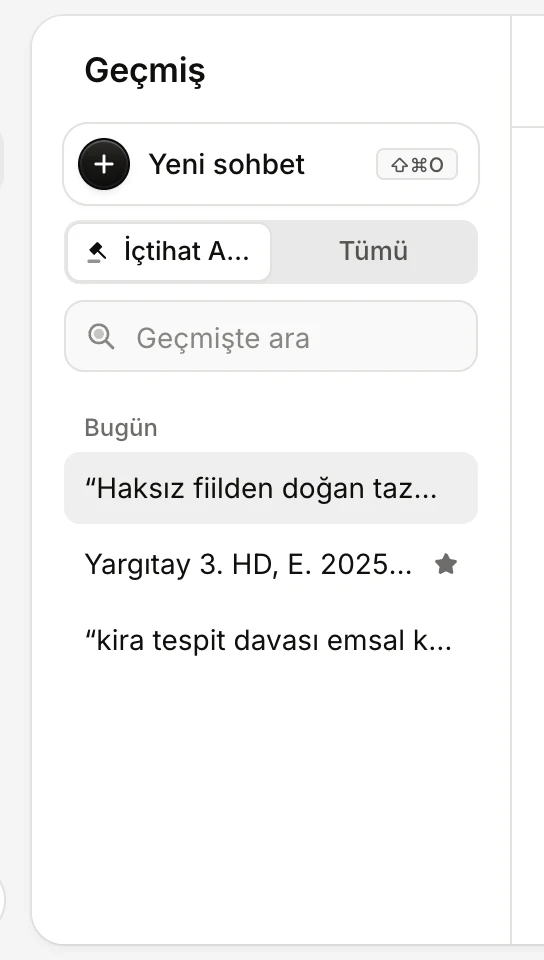
- Only this tool's items, or Tümü (All).
Limits and things to check
- A question brings at most 50 results; a document search at most 25 per question. If you do not find what you need, describe the facts with other words, try Soruyu geliştir (Improve the question) or widen the source selection.
- You can pick at most 6 emphasis words; an emphasis phrase has at most four words.
- Soruyu geliştir, Asistana sor and Belge ile ara use AI. If your AI allowance is used up, these are unavailable ("Yapay zekâ sınırına ulaşıldı", AI limit reached); searching decisions keeps working. See Plans and limits.
- Word filters only look at the citation, the court name and the excerpt shown, not the decision's full text.
- Results and AI suggestions support your research; open decisions and read their full text, and check citations.