Asking a question
Vesika AI is the assistant that answers your questions on Turkish law from the decisions and legislation in the legal database, and from documents you attach. This page covers how you ask: the composer, source selection, thinking depth, and what happens on screen while the answer is written.
Workspace → Araştırma (Research) → Vesika AI. You can always open a new conversation with Yeni sohbet (New chat) or ⇧ ⌘ O (Ctrl Shift O on Windows).
Step by step
- Open Vesika AI in the workspace, or click Yeni sohbet. The start screen opens.
- Type your question in the composer. Shift Enter starts a new line.
- If needed, choose the sources to search with the Hukuk veritabanı (legal database) button under the composer, and the thinking depth from the menu next to it.
- Press Enter or click the arrow button on the right (Gönder, Send).
- Follow progress on the activity line above the answer while it is written. Click Durdur (Stop) if you want to stop it.
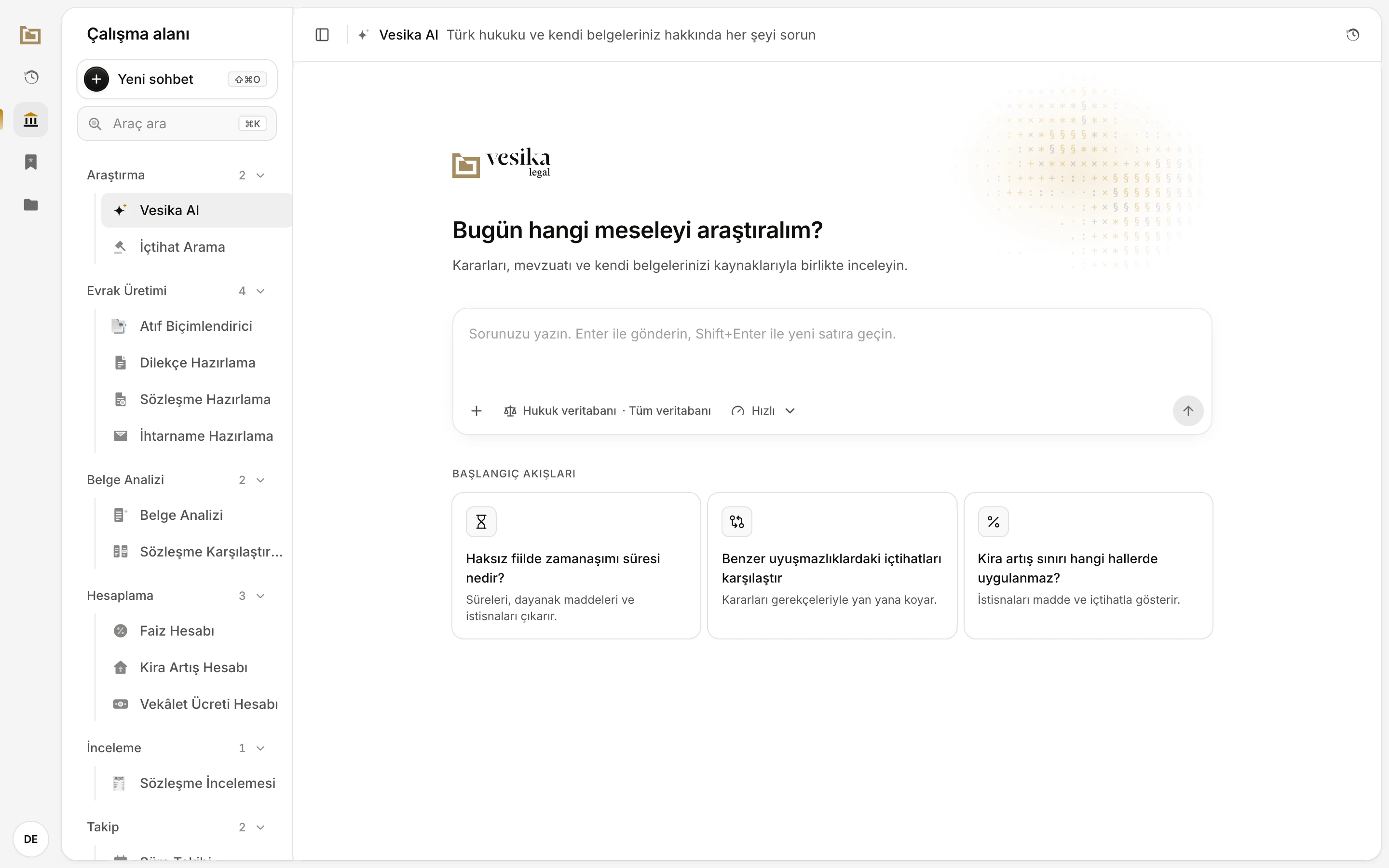
- The start screen: a new conversation opens with this heading.
- Type your question here. Enter sends, Shift Enter adds a new line.
- The + menu: attach a document, Dosyalarımdan seç (Choose from my files) and Kaynakları seç (Choose sources).
- The legal database sections to search. Tüm veritabanı (Whole database) means all are selected.
- Thinking depth. The default is Hızlı (Fast).
- Gönder (Send). Disabled while the composer is empty.
- Başlangıç akışları (Starter prompts): clicking a card sends its question straight away.
The start screen
A new conversation opens with the heading Bugün hangi meseleyi araştıralım? ("Which matter shall we research today?"). Under the composer, Başlangıç akışları (Starter prompts) offers three cards:
- Haksız fiilde zamanaşımı süresi nedir? (What is the limitation period in tort?)
- Benzer uyuşmazlıklardaki içtihatları karşılaştır (Compare case law in similar disputes)
- Kira artış sınırı hangi hallerde uygulanmaz? (When does the rent increase cap not apply?)
The short text on a card is a summary. Clicking the card sends a more detailed question; the first card, for example, asks for the limitation periods for tort damages claims, the relevant articles and the exceptions. The question sent appears in the conversation as your message.
If you have started conversations before, a Son sohbetler (Recent conversations) list appears under the cards as well. It is shown while the conversation list in the left panel is not open. See Managing conversations.
The composer
- Enter sends the question, Shift Enter starts a new line.
- The composer must contain text to send. You cannot send an empty message with only a file; write what you want done with it.
- Ask in Turkish and the answer comes in Turkish; ask in English and it comes in English.
- Once the first question is sent, the composer moves to the bottom of the screen and the conversation's name appears above it. The name is generated from your first question; you can change it later.
The + menu
The + button to the left of the composer offers three options:
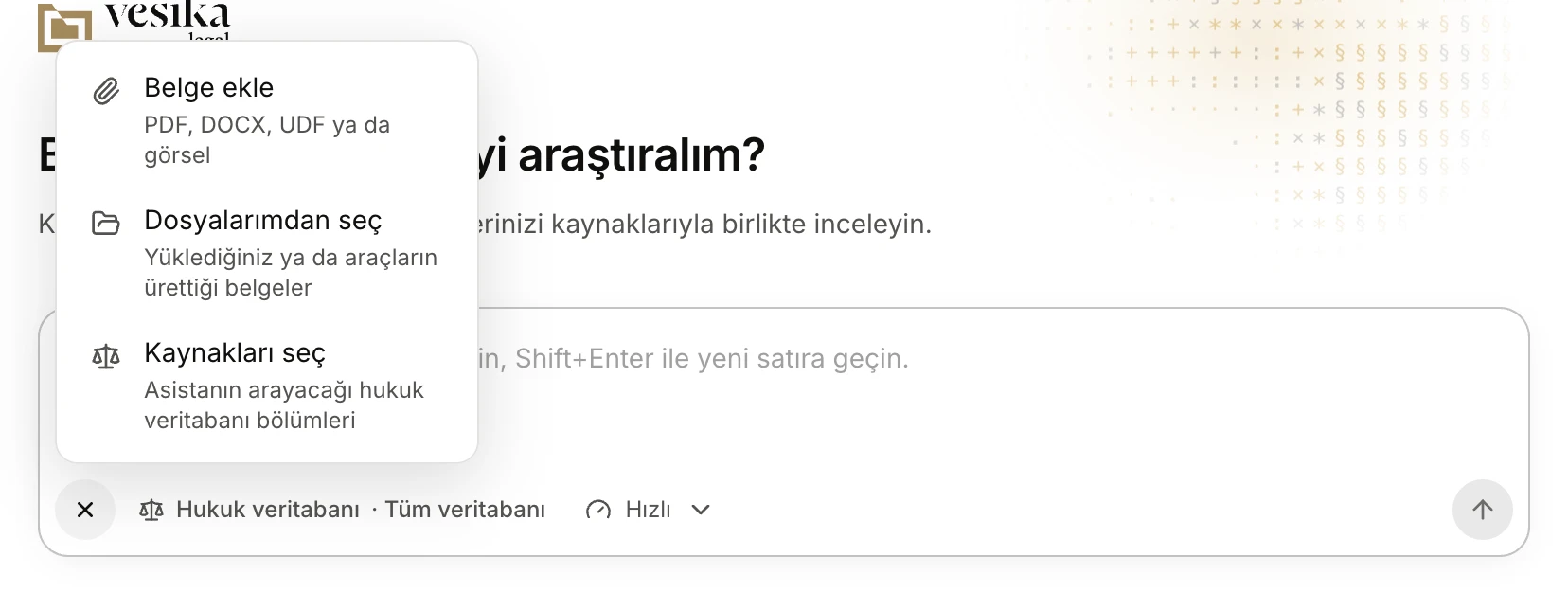
- Belge ekle (Attach document): choose a PDF, DOCX, UDF or image from your computer.
- Dosyalarımdan seç (Choose from my files): documents you uploaded earlier or that tools produced.
- Kaynakları seç (Choose sources): opens the legal database panel.
All the ways to attach a file are described in Attaching files.
Choosing sources
By default Vesika AI searches the whole legal database. The button under the composer summarises your selection:
| Button reads | Meaning |
|---|---|
| Hukuk veritabanı · Tüm veritabanı | All sections are selected. |
| Hukuk veritabanı · 3 kaynak | Only the sections you chose are searched (the number is an example). |
| Hukuk veritabanı · Kapalı (Off) | No section is selected; the legal database is not searched. |
Clicking the button, or Kaynakları seç in the + menu, opens the Hukuk veritabanı panel on the right.
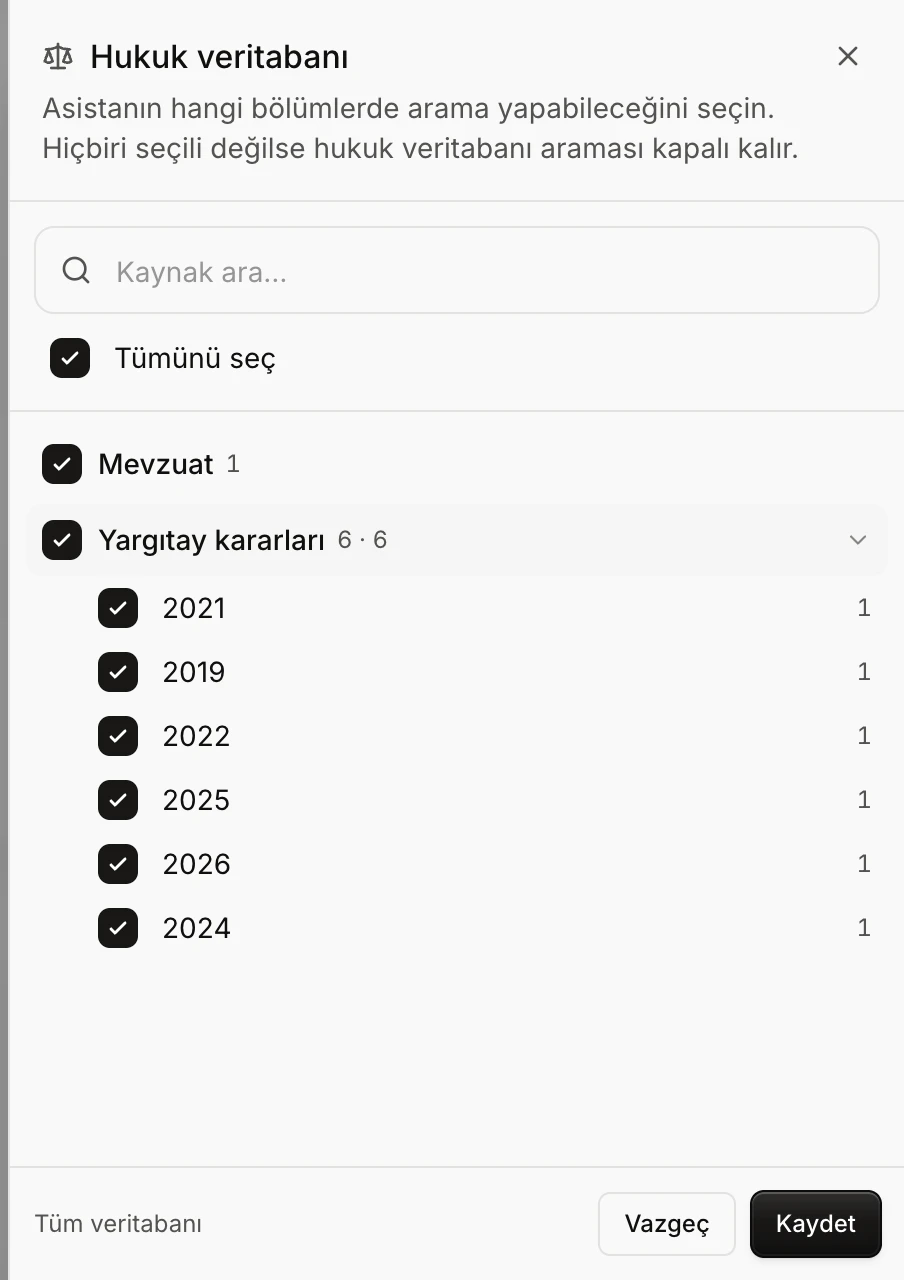
- Kaynak ara… (Search sources): filters the sections by name.
- Tümünü seç (Select all): selects every section or clears the selection.
- A section and how many documents it holds. For sections split into parts, the number of parts comes first; the arrow opens the parts.
- The section's parts, here years. You can tick them one by one.
- Summary of the selection.
- Kaydet (Save) applies the selection; Vazgeç (Cancel) discards the change.
- A group's box looks mixed while only part of the group is selected. Clicking it selects the whole group; clicking again clears it.
- Document counts are approximate: "35,4B" means about 35,400 documents ("B" for bin, thousand), "1,2M" about 1.2 million.
- The bottom of the panel shows the state: Tüm veritabanı, a count such as 12 / 40 kaynak, or Kaynak seçilmedi. Arama kapalı. (No source selected. Search is off.)
- Your selection is saved to your account and applies to later conversations too. To turn everything back on, tick Tümünü seç and click Kaydet.
- If you clear every selection, the assistant does not use the legal database for that question, says it cannot reach the database, and answers from its own knowledge only. Such an answer has no numbered sources from the database.
While a conversation is open you can see the same selection in the side panel's Özellikler (Properties) section and open it with Değiştir (Change) (The side panel).
Thinking depth
The menu next to the sources button sets how long the assistant thinks and researches before it answers. Your choice is saved to your account and used for later questions.
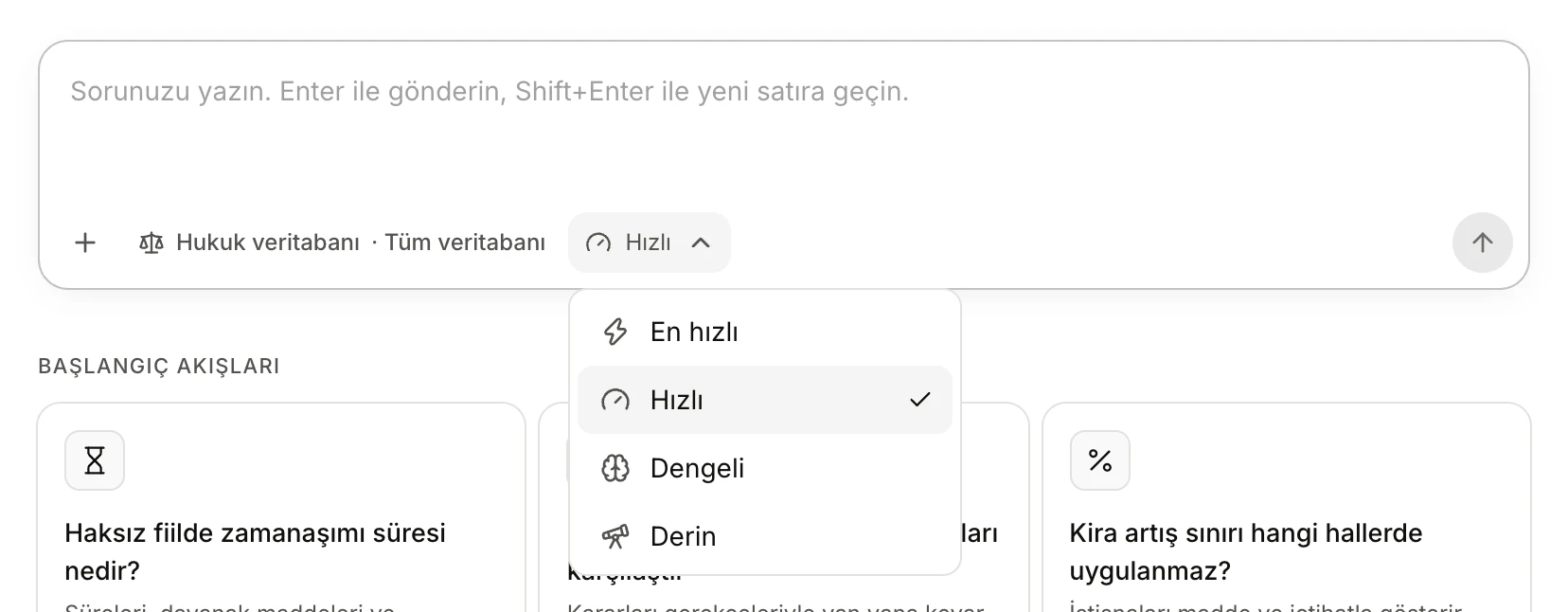
- The selected depth. Click to open the menu.
- Four depths, fastest to deepest.
- Derin (Deep): the most thorough research. If your administrator set a monthly limit, what is left appears here.
The deeper the level, the longer the assistant thinks and the more sources it may consult; the answer may also take longer. Each depth has a research budget. When the assistant goes over it, it is asked to stop searching and write from what it has; the activity line then shows Yeterli kaynak toplandı, yanıt yazılıyor (Enough sources gathered, writing the answer). An answer that reaches the hard ceiling shows Araştırma sınırına ulaşıldı, bulunan kaynaklarla yanıt yazılıyor (Research limit reached, writing the answer from the sources found).
| Depth | Asked to stop searching after | Hard ceiling |
|---|---|---|
| En hızlı (Fastest) | 4 searches or 1 minute | 10 tool steps |
| Hızlı (Fast, default) | 10 searches or 1 minute 40 seconds | 20 tool steps |
| Dengeli (Balanced) | 16 searches or 2.5 minutes | 30 tool steps |
| Derin (Deep) | 32 searches or 6 minutes | 60 tool steps |
These are upper limits, not promised times. Most questions are answered well before them.
The monthly allowance for deep research
Your administrator can set a monthly limit for Derin. If there is one, the menu shows what is left next to Derin, for example bu ay 7/10 (this month 7/10). When it is used up it reads bu ay doldu (used up this month), Derin cannot be selected and your choice falls back to Hızlı. Each question sent with Derin uses one. Months are counted in Istanbul time and the allowance renews at the start of each month. If you belong to a company, the allowance is shared by its members.
If you try to send with Derin after the allowance is used up, the question is not sent, stays in the composer, and a notice tells you the date it renews. Choose a faster depth and send it again.
While the answer is written
After you send a question:
- For a moment the answer area reads Kaynakları değerlendiriyor (Evaluating sources).
- Once the assistant starts researching, the activity line takes its place. It shows the current step ("Asistan hukuk veritabanında arıyor…", searching the legal database; "Asistan bir kararı okuyor…", reading a decision) and a short count ("· 1 arama · 4 karar", 1 search, 4 decisions).
- When text starts to arrive, the line reads Yanıtı yazıyor… (Writing the answer) and the answer appears at reading pace. Statutory references such as "TBK m. 72" turn into links as they are written. Numbered citations such as [1] become clickable when the answer is finished.
- When the answer ends, the activity line turns into a summary, and the Kaynaklar (Sources) list and the answer buttons appear below it. See Reading an answer.
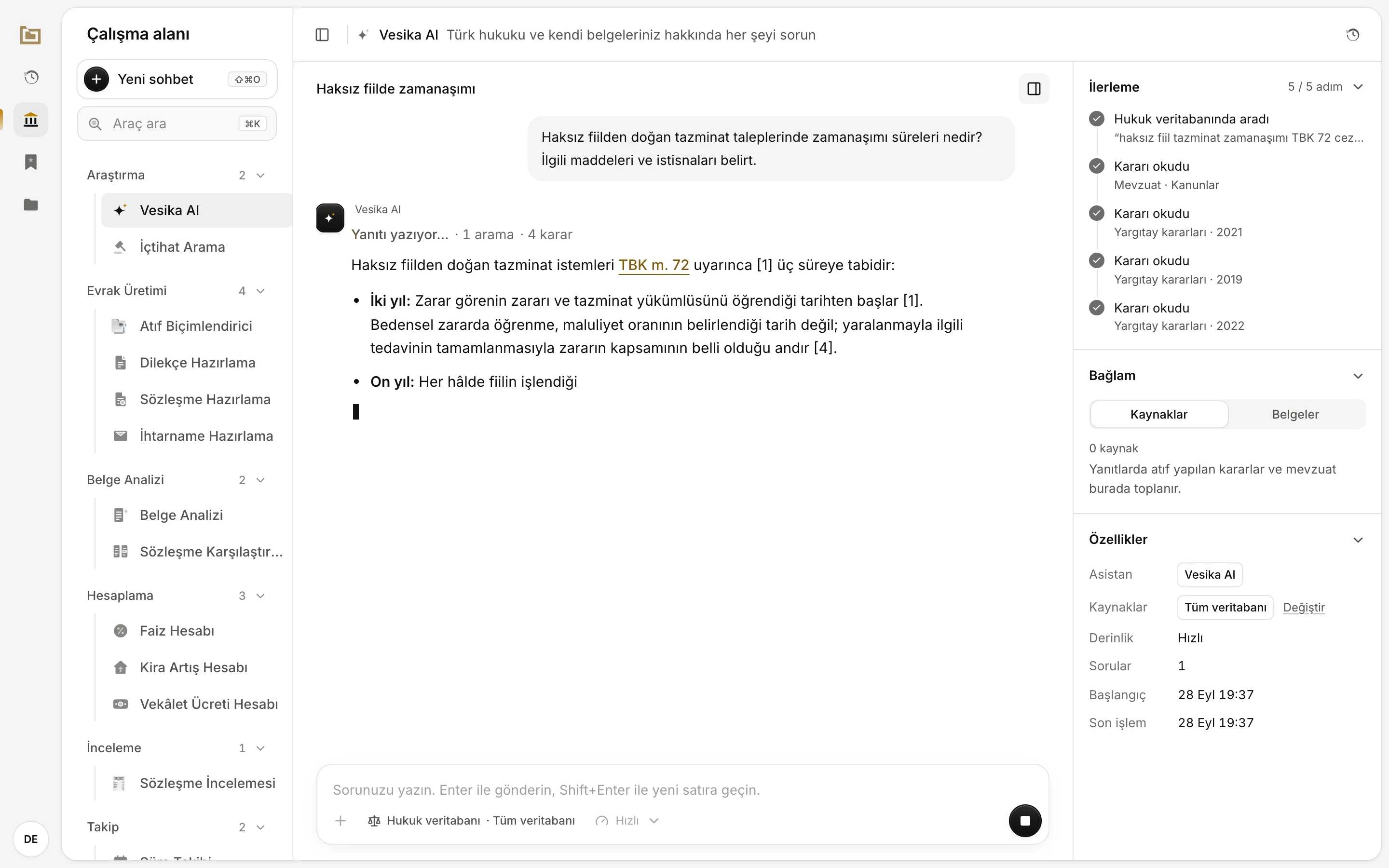
- The question you sent.
- The activity line: the current step and the searches and decisions so far.
- The answer appears as it is written. Statutory articles become links right away.
- Durdur (Stop): stops writing.
- İlerleme (Progress) in the side panel lists each step the assistant took.
Stopping
While the answer is written, the Gönder button becomes Durdur. Pressing it stops the assistant; whatever was written so far stays in the conversation.
Moving elsewhere while it writes
You can open a new conversation or switch to another one while an answer is being written. That does not stop the answer: it keeps being written in the background, and a spinning mark appears next to that conversation in the list. When you come back you follow the answer from where it is. Reloading the page does not interrupt it either.
New messages while it writes
While an answer is being written you cannot send another message to the same conversation, and you cannot steer the answer with a new instruction. Wait for it to finish, or press Durdur and ask again.
Follow-up questions
When the answer has finished you can keep writing in the same conversation. The assistant knows what came before; a short follow-up such as "Does this period also apply to non-pecuniary damages?" is enough.
Under the answer, just above the composer, the assistant may suggest follow-up questions as buttons. Clicking a suggestion sends it immediately.
If you leave a conversation open for a while and come back, you may see a short summary line under the answer reminding you where the conversation left off.
When the assistant asks you something
If it needs information to answer correctly, the assistant may pause its answer and ask you. A card titled Asistan bir karar bekliyor (The assistant is waiting for a decision) appears.
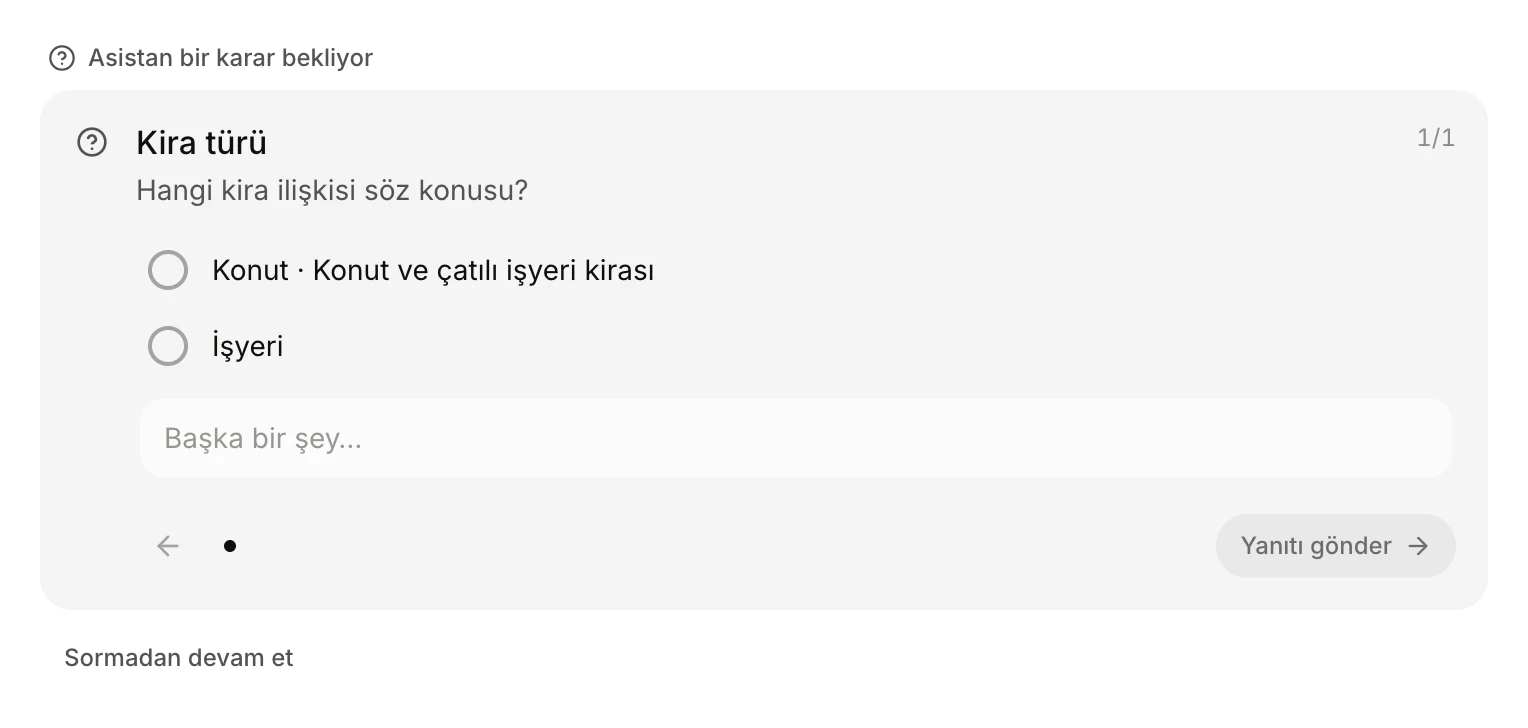
- The question and its options. Tick the one that fits or write your own answer, then click Yanıtı gönder (Send answer).
- Sormadan devam et (Continue without asking): asks the assistant to carry on without an answer.
- Some questions allow one choice, some several.
- If there is a Başka bir şey… (Something else…) field next to the options, you can write an answer that is not in the list.
- Sormadan devam et skips all the card's questions together; the assistant drops the question and carries on with what it has.
Limits and things to check
- The assistant's answers can be wrong or incomplete. Open every citation and check what the source says yourself (Reading an answer).
- With the legal database turned off, answers are not based on the database; do this only on purpose.
- If the assistant produces nothing within 2.5 minutes, or makes no progress for 6 minutes, the request is stopped, your question is put back in the composer and you are asked to send it again.
- If there is a connection or AI provider problem, a notice appears under the answer. What was written is kept; if nothing was written, the question goes back to the composer.
- If your account's or company's AI usage budget is used up, the notice Asistanın kullanım bütçesi doldu. Yöneticinizle görüşün. (The assistant's usage budget is used up. Contact your administrator.) appears. For limits see Plans and limits.