Installing and signing in
The Vesika iPhone app brings Vesika AI, İçtihat Arama (case-law search), the document reader and Favorites to your phone. There is no separate account for the app: you sign in with the e-mail address and password you use on vesika.ai, and your conversations and favorites are the same on both.
App Store → Vesika (App Store page)
Requirements
- An iPhone with iOS 26 or later. The app is not designed for iPad and runs in portrait only.
- A Vesika account created by your administrator. You cannot sign up in the app.
- An internet connection. The app does not keep conversations or documents on the phone; everything is read from vesika.ai.
- The app's interface is in Turkish only.
Step by step
- Open the App Store on your iPhone, search for Vesika (or open the App Store page) and tap Get.
- Open the app. The sign-in screen appears.
- Type your vesika.ai e-mail address in E-posta (E-mail) and your password in Şifre (Password).
- Tap Giriş yap (Sign in).
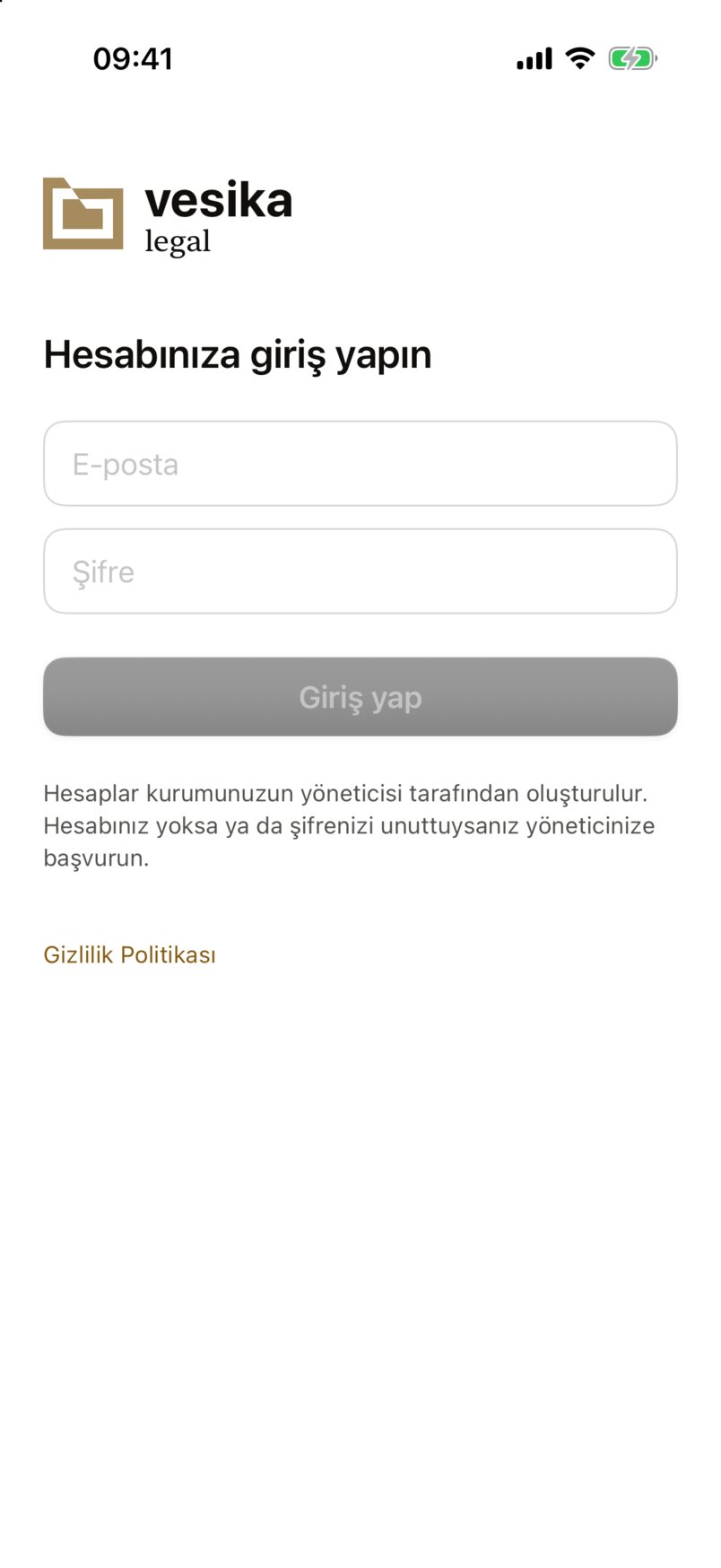
- E-posta (E-mail): the address you use on vesika.ai.
- Şifre (Password): your vesika.ai password. If it is saved on your iPhone, you can fill it in from above the keyboard.
- Giriş yap (Sign in): enabled once both fields are filled in.
- If you have no account or forgot your password, contact your administrator.
- Gizlilik Politikası (Privacy Policy): the app's privacy policy and KVKK information notice.
After you sign in, the app opens on the Vesika AI tab.
Password AutoFill
The app is associated with vesika.ai: if the iPhone Passwords app (or iCloud Keychain) holds a password for vesika.ai, it is suggested above the keyboard when you tap the fields. After your first sign-in, iOS may offer to save the password: tap Kaydet (Save) to use it next time.
If you cannot sign in
A red message appears above Giriş yap when something goes wrong. Check the e-mail address and password. If the app cannot reach the server, it says "Sunucuya ulaşılamadı. İnternet bağlantınızı kontrol edip yeniden deneyin." (The server could not be reached. Check your internet connection and try again.). There is no password reset in the app: ask your administrator for a new password.
How long you stay signed in
Your session lasts 30 days from the moment you sign in; using the app does not extend it. When less than a day is left, a Oturumunuz sona eriyor (Your session is ending) warning with a Yeniden giriş yap (Sign in again) button appears above the tabs. Use that button to sign out and back in so you are not interrupted.
The AI consent
When you send your first question to Vesika AI (or first start an İçtihat Arama action that uses AI), the Yapay zekâ ile veri paylaşımı (Data sharing with AI) screen opens. The consent is asked once per account on this iPhone.
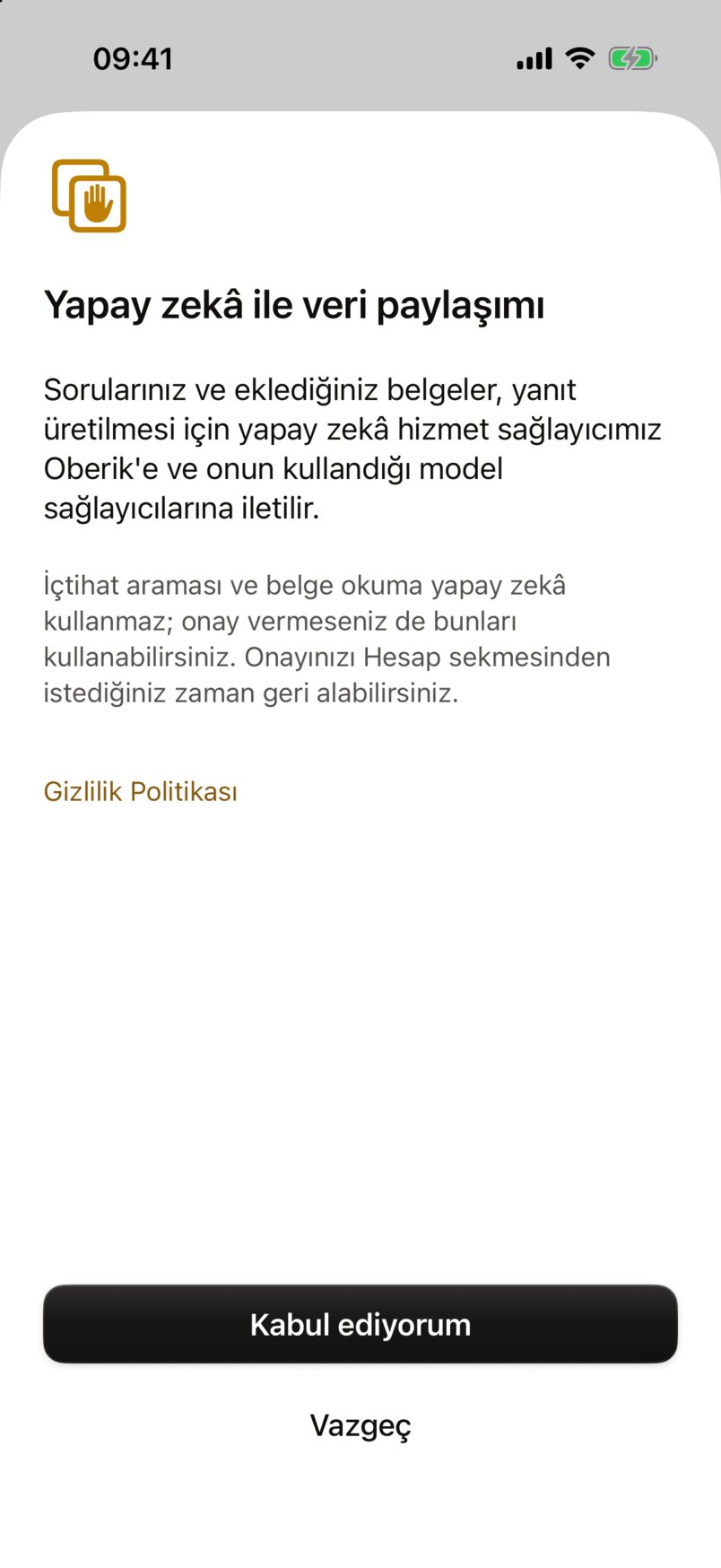
- The consent screen opens once, before the first action that uses AI.
- What is shared: your questions and the documents you attach are sent to the AI service provider (Oberik) and the model providers it uses, to produce the answer.
- Case-law search and reading documents do not use AI; they work without the consent.
- Gizlilik Politikası (Privacy Policy): the details open inside the app.
- Kabul ediyorum (I accept): the consent is given and the waiting action (for example your question) starts at once.
- Vazgeç (Cancel): nothing is sent; your question stays in the field.
Without the consent you cannot send questions in Vesika AI, and in İçtihat Arama Soruyu geliştir (Improve the question), Belge ile ara (Search by document) and Asistana sor (Ask the assistant) do not work. Searching decisions, filters, the document reader, Favorites and Account work without it.
You can withdraw or give the consent again at any time in the Yapay zekâ (AI) section of the Hesap (Account) tab: The account tab.
The tabs
The tab bar at the bottom of the screen has four tabs:
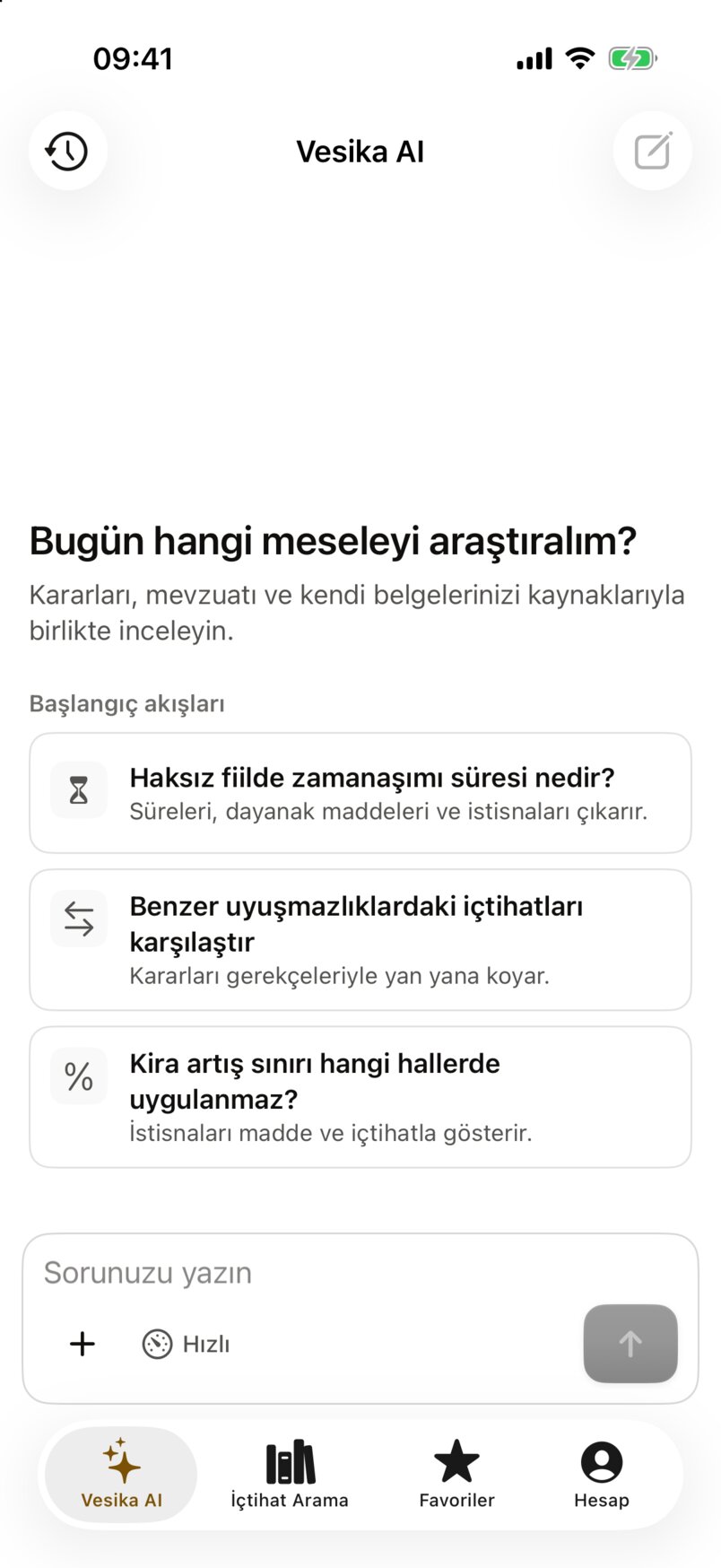
- Vesika AI: asking questions, answers and conversations. Vesika AI on iPhone
- İçtihat Arama (Case-law search): searching decisions. The tab is hidden if İçtihat Arama is not enabled for your account. Case-law search on iPhone
- Favoriler (Favorites): the answers, decisions and searches you starred. Favorites
- Hesap (Account): profile, plan, AI consent, notifications, appearance, sign-out. The account tab
Decisions and legislation open in the document reader on top of whichever tab you opened them from.
If your account's plan does not include a feature, its tab shows a lock with Bu özellik kullanılamıyor (This feature is not available) and "Bu özellik hesabınızın planında yok; yöneticinize başvurun." (This feature is not in your account's plan; contact your administrator.). You cannot buy or upgrade a plan in the app; your administrator changes it.
Notification permission
The app can notify you when a long answer is ready after you have left the app. Permission is asked when you send your first question at the Derin (Deep) level: the app first asks "Yanıtınız hazır olduğunda bildirim gönderelim mi?" (Shall we notify you when your answer is ready?); if you tap Evet (Yes), the iOS permission dialog follows. If you tap Şimdi değil (Not now), the question is not asked again on this iPhone.
You can allow notifications later under Hesap → Bildirimler (Notifications), or turn them off in the iPhone Settings. The notification contains none of the answer: it only says "Vesika AI · Yanıtınız hazır" (Your answer is ready). Details: Long answers and notifications.
vesika.ai links open in the app
With the app installed, some vesika.ai links you tap on the iPhone open straight in the app instead of the browser:
- Decision and legislation links (starting with
vesika.ai/belge/…): open in the document reader, at the article or version the link names. For example a decision link a colleague e-mailed you. - Vesika AI conversation links (
vesika.ai/app#/t/assistant/s/…): open that conversation in the Vesika AI tab; if the link points at one answer, the app goes to that answer.
Other vesika.ai addresses open in Safari. Links to other sites that you open inside the app open in an in-app browser window; you are not signed in to Vesika there, so a vesika.ai page may ask you to sign in.
What is not in the app
These are only on the web, at vesika.ai/app:
- Modules (drafting, calculation and tracking tools); Kurum Şablonları (Firm templates)
- Administration: users, companies, Oranlar (Rates), Veri Kaynakları (Data sources)
- Dosyalar (Files) — documents you attach in the app are saved to Files on the web, but the app has no file list
- The history list (the app shows only what you starred, in the Favorites tab)
- Changing your password: Hesap → Şifremi değiştir (Change my password) opens the vesika.ai settings in an in-app browser.
Limits and things to check
- There is no sign-up or password reset in the app; ask your administrator for both.
- The AI consent is asked on each iPhone separately and kept on the phone; it stays after you sign out and is removed if you delete your account.
- The app does not work offline: conversations, decisions and favorites are read from vesika.ai each time.
- Each launch starts on the Vesika AI start screen and an empty İçtihat Arama search; your earlier conversations are under Sohbetler (Conversations).