Formal notice drafting
İhtarname Hazırlama (Formal notice drafting) prepares a draft of a formal notice (ihtarname) to be served through a notary: unpaid rent or debts, breach of contract, termination, notice of defects and the like. You describe the facts and attach documents such as the contract and invoices; the draft follows the notice template in your firm's Firm templates, or the standard notice layout if there is none. The result is a draft you need to review before sending it to the notary.
Workspace → Evrak Üretimi (Document drafting) → İhtarname Hazırlama
Step by step
- In the workspace, open İhtarname Hazırlama under Evrak Üretimi.
- In the Biçim (Format) list at the top, choose your firm's notice template or Vesika standart biçimi (Vesika standard format).
- Enter the sender, the addressee, the subject, the period given and the demand.
- In the Olayı anlatın (Describe the facts) box, write the relationship between the parties, what the addressee failed to do and the amounts.
- Add documents such as the contract, invoices and earlier correspondence in the Belgeler (Documents) area.
- Click Taslağı oluştur (Create draft), review the draft and complete the [DOLDURULACAK] (to be filled in) places.
- Download it as PDF, Word or UDF.
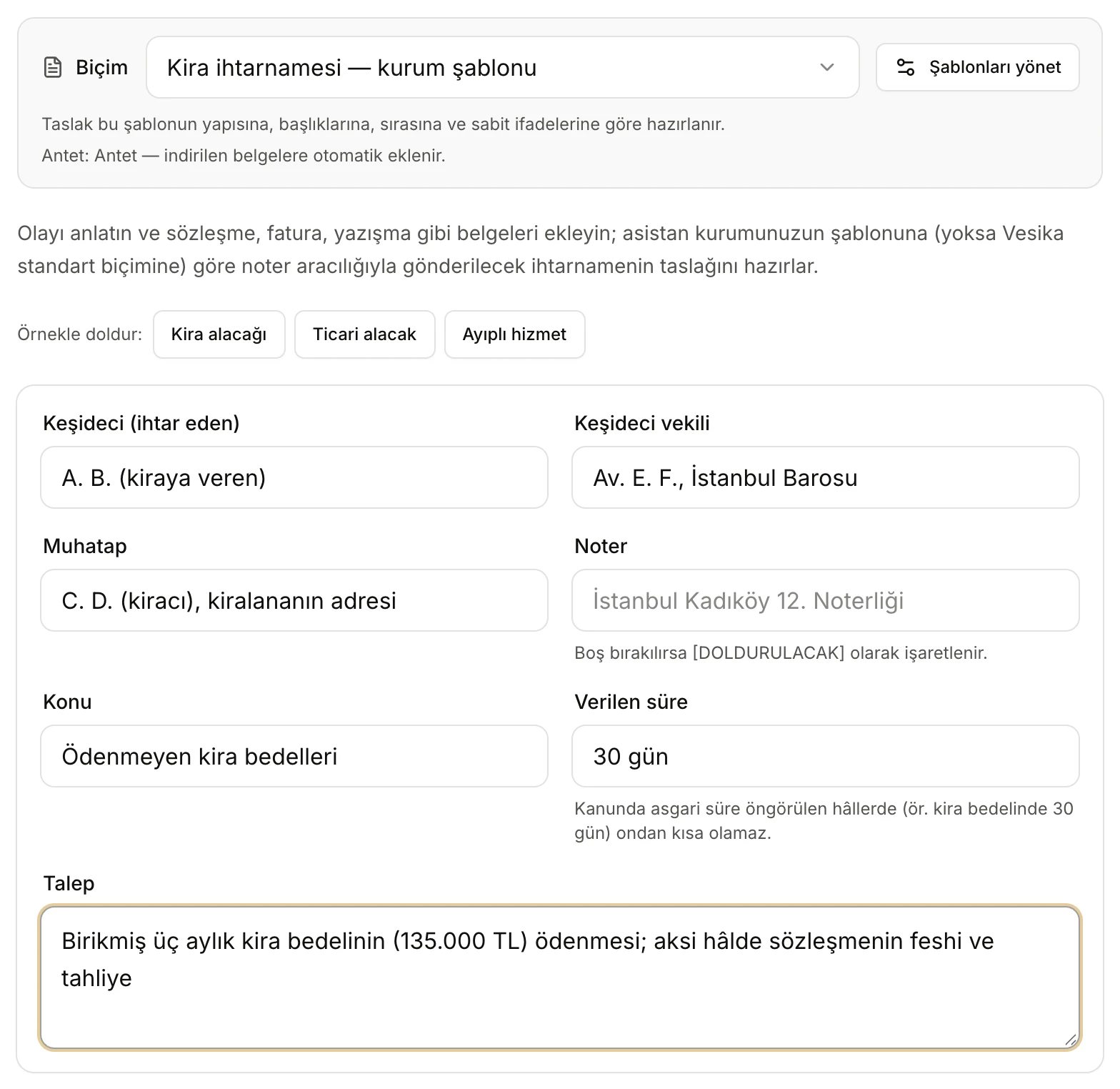
- Biçim (Format): your firm's notice template or Vesika standart biçimi.
- If a letterhead is set, it is added to the downloaded notice automatically.
- Örnekle doldur (Fill with an example): Kira alacağı (Unpaid rent), Ticari alacak (Commercial debt), Ayıplı hizmet (Defective service).
- The notice's details; none is required.
- If Noter (Notary) is left blank, it is marked [DOLDURULACAK] in the draft.
- Verilen süre (Period given): cannot be shorter than a statutory minimum where there is one.
Format and letterhead
The Biçim field at the top shows which layout the draft will follow. The notice templates your firm uploaded to Firm templates are listed as "… — kurum şablonu" (… — firm template); the most recently updated one is selected. If you choose Vesika standart biçimi, or there is no notice template, the draft follows the standard layout below. The letterhead status is shown under the field; Şablonları yönet (Manage templates) opens Firm templates. Choosing the format works as in Petition drafting.
Fields
| Field | What to enter |
|---|---|
| Keşideci (ihtar eden) (Sender) | The person serving the notice: name or trade name, ID or tax number, address. |
| Keşideci vekili (Sender's counsel) | The lawyer's name and bar, if any. Without counsel the counsel line is left out and the notice is signed by the sender. |
| Muhatap (Addressee) | The person or company the notice is served on, and the address for service. |
| Noter (Notary) | The notary office that will serve the notice. If blank, the heading becomes "[DOLDURULACAK] NOTERLİĞİ'NE". |
| Konu (Subject) | Type it or choose from the suggestions: Ödenmeyen kira bedelleri (unpaid rent), Kira sözleşmesinin sona ermesi ve tahliye (end of lease and eviction), Alacağın ödenmesi (temerrüt) (payment of a debt, default), Sözleşmeye aykırılığın giderilmesi (remedying a breach), Sözleşmenin feshi (termination), Ayıplı mal / hizmet bildirimi (notice of defective goods or services), İşçilik alacaklarının ödenmesi (payment of employee receivables), Haksız rekabetin durdurulması (stopping unfair competition). The draft's name is also built from it. |
| Verilen süre (Period given) | The time allowed to the addressee, e.g. "30 gün" (30 days). In the draft it is written in bold in the conclusion, running from service. |
| Talep (Demand) | What the addressee is asked to do and what happens if they do not. |
About Verilen süre: where the law sets a minimum period, the draft does not write a shorter one. For example, for unpaid rent on residential and roofed business premises at least thirty days are given. If you leave the period out, it remains [DOLDURULACAK: süre] in the draft. You should check that the period suits your case.
Describe the facts and documents
In Olayı anlatın, write the relationship between the parties (contract, date), what the addressee failed to do or breached, the amounts, any earlier notices and what you want. The tool does not ask you questions; every unknown detail is marked [DOLDURULACAK] in the draft. Only what you write and what is in the documents is used.
In Belgeler, add the contract, invoices, account statements, earlier notices and correspondence. Dates, amounts and clause details in them are used in the explanations and the documents are listed in the EKLER (Annexes) section. PDF, Word, UDF, RTF and text files can be added; scanned documents are read too; the limit is 15 MB per file. Adding documents works as described in Petition drafting.
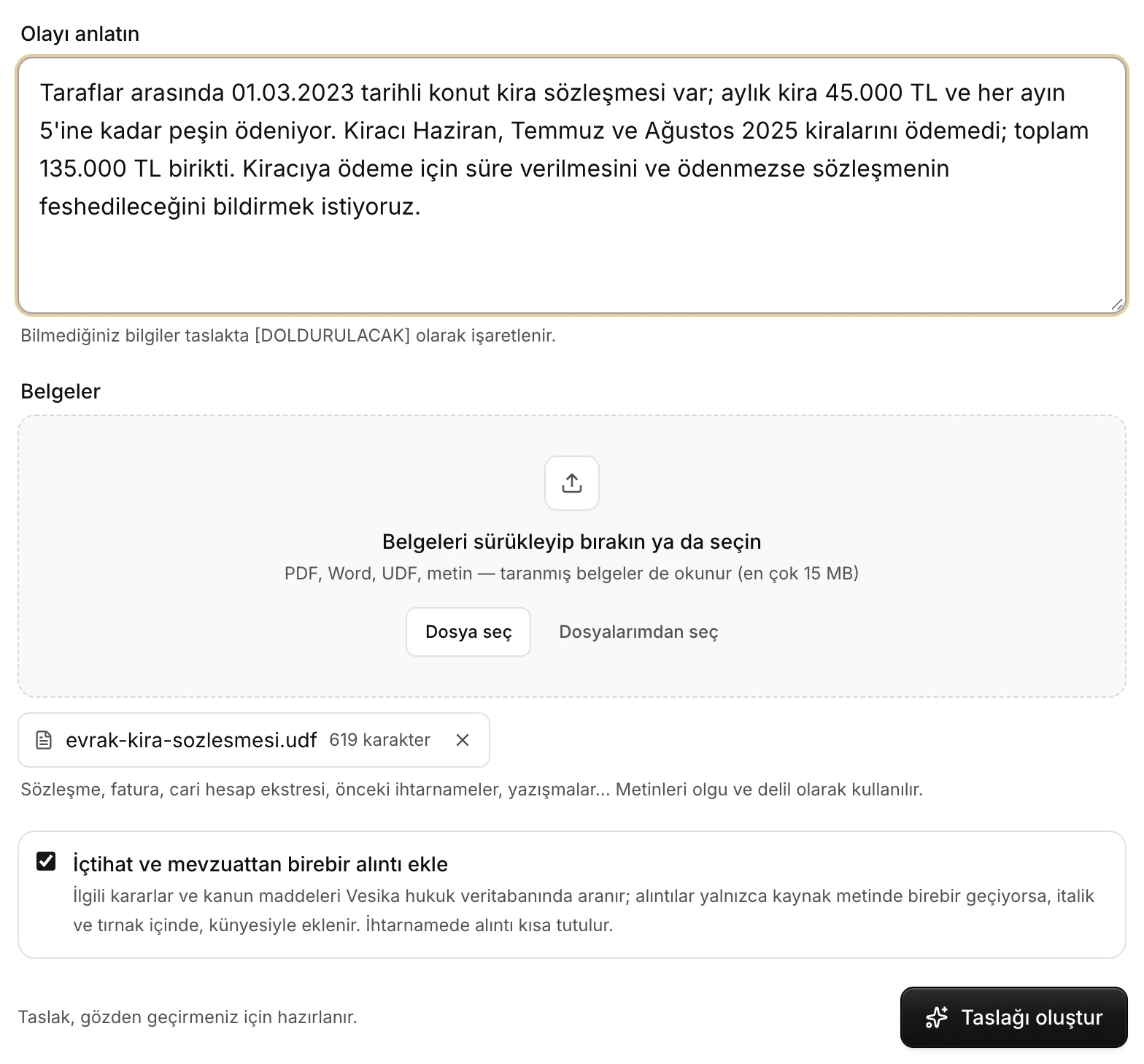
- Olayı anlatın: the relationship, the breach, the amounts, what you want.
- Belgeler: drag and drop, or Dosya seç (Choose file) / Dosyalarımdan seç (Choose from my files).
- An attached document and the number of characters or pages read. Click its name to open it in the side panel.
- İçtihat ve mevzuattan birebir alıntı ekle (Add verbatim case-law and legislation quotations): on by default for notices; quotations are kept short.
- Taslağı oluştur (Create draft).
Verbatim case-law and legislation quotations
With the option on, the tool searches Vesika's legal database for relevant decisions and statutory articles, retrieves their text and uses as quotations only passages that appear word for word in the source. A notice is kept short and focused: one or two short quotations at most, if any. Quotations appear in italics and quotation marks with their citation; no decision other than the sources found is cited. If you turn the option off, the draft is prepared without quotations. How it works in detail: Petition drafting → Verbatim case-law and legislation quotations.
Creating the draft
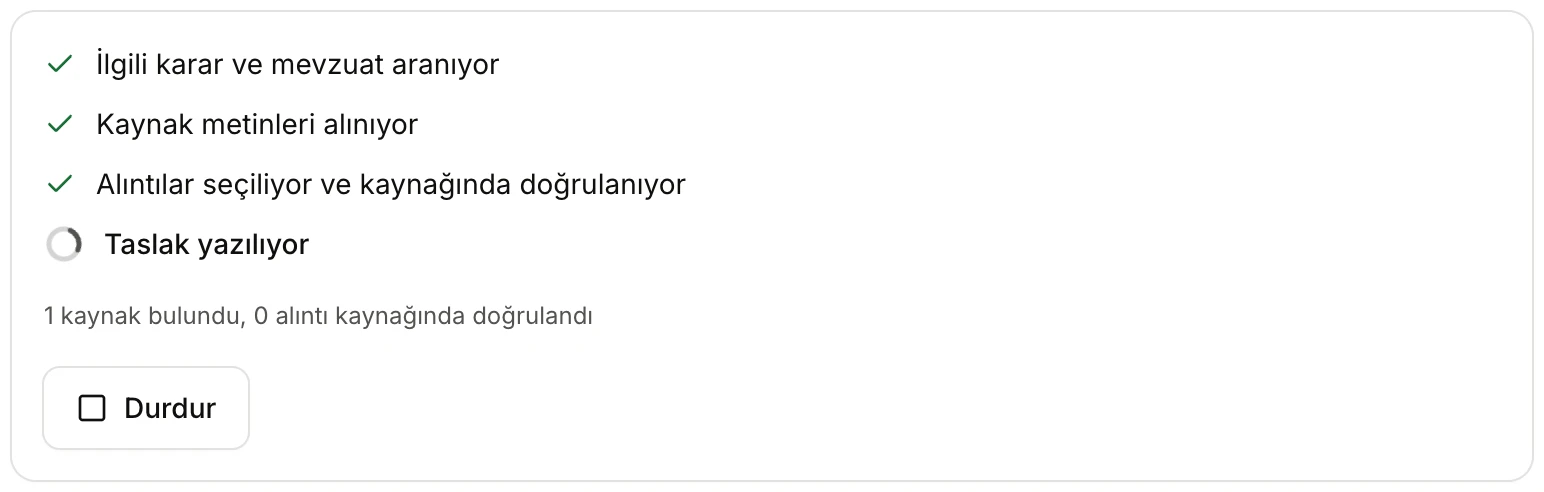
- Steps: searching decisions and legislation, source texts, verifying quotations, writing the draft.
- How many sources were found and how many quotations were verified.
- Durdur (Stop): cancels; you return to the form.
With the quotation option off, only the Taslak yazılıyor (Writing the draft) step appears. When the draft is ready it opens by itself; if something goes wrong, the button becomes Tekrar dene (Try again).
The draft screen
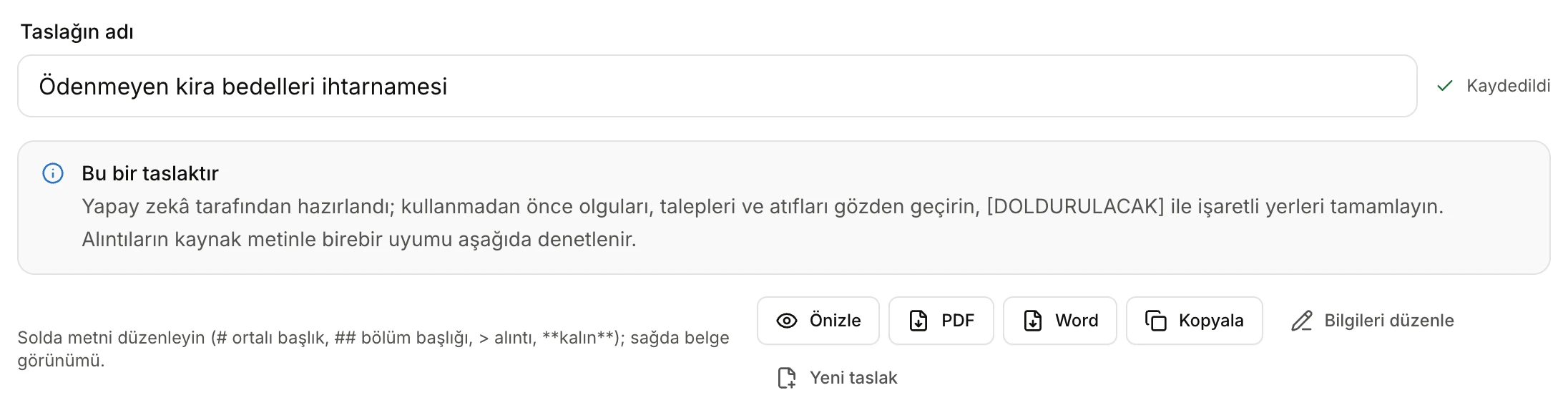
- Taslağın adı (Draft name): becomes the downloaded file's name.
- Changes are saved automatically.
- A reminder to review before use.
- Önizle (Preview): opens the PDF with letterhead in the side panel.
- Downloads as PDF and Word (and UDF when available).
- Kopyala (Copy): copies the text to the clipboard.
- Bilgileri düzenle (Edit details): back to the form.
- Yeni taslak (New draft): starts with an empty form.
You edit the text on the left and watch the document's appearance on the right. Headings are marked with #, section headings with ##, quotations with >; [DOLDURULACAK] places are highlighted. The Denetim (Checks) section below shows missing details, whether quotations match their source word for word, decision numbers not found in Vesika's sources, and the sources and documents used. The whole screen is described in Petition drafting → The draft screen and Checks; it works the same for notices.
Structure of the draft
In Vesika standart biçimi a formal notice is written in this order:
- The notary heading ("… NOTERLİĞİ'NE", to the … notary) and the İHTARNAME (formal notice) title.
- The KEŞİDECİ (sender), VEKİLİ (counsel, if any), MUHATAP (addressee) and KONU (subject) lines. The subject is one sentence ending "… hakkındadır." (… concerning …).
- AÇIKLAMALAR (Explanations): in numbered paragraphs, the legal relationship between the parties (contract, date, relevant clause), the addressee's debt or breach (amounts in figures and words), earlier notices and the legal basis.
- SONUÇ (Conclusion): what the addressee must do within the period given, running from service; where payment is demanded, the place of payment or bank account; the legal remedies that will follow otherwise and the rights reserved. For notices based on unpaid rent, it states plainly that the lease will be terminated if payment is not made within the period.
- The address to the notary ("Sayın Noter;") and the request for service, filing and return of the copies.
- Date, the sender's or counsel's signature block and the EKLER (Annexes) list.
The language is firm and serious, with no insults, threats or exaggeration; it only states the legal consequences. For notices between merchants, the rules on how such notices must be served are taken into account. If you chose a firm template, the draft follows your template's layout instead.
Downloading and saved drafts
- Önizle opens the draft, with its letterhead, as a PDF in the side panel; PDF and Word download it; the UDF button appears when UDF conversion is available. Documents are A4, Times New Roman 12 pt, with letterhead and page numbers.
- Every draft is saved the moment it is created. The Son taslaklar (Recent drafts) list under the form shows the last six notice drafts; drafts are also in the History panel and in Files.
- If you change the fields with Bilgileri düzenle and create again, a new draft is prepared; the old one stays saved. When you return to the form from a saved draft, you need to add the documents again.
Limits and things to check
- The draft is written by AI. Check the parties, amounts, period, demand and legal basis before sending it to the notary.
- The tool does not send the notice to the notary; you deliver the downloaded document.
- The draft tries to respect rules on periods and form (for example the minimum period for unpaid rent, or how notices between merchants must be served), but you must judge whether they are met.
- Documents can be at most 15 MB per file; only the first part of very long documents is used.
- If you have reached your AI usage limit, no draft can be created: Plans and limits.