Contract review
Sözleşme İncelemesi (Contract review) uses AI to flag the risky or one-sided clauses of a contract, clause by clause. For each finding it gives the clause's name, a risk level, what the risk is and a suggested revision. Use it when you first go through a contract before signing or negotiating; treat the result as a starting point, not as a substitute for your own review.
Workspace → İnceleme (Review) → Sözleşme İncelemesi
Step by step
- In the workspace, open Sözleşme İncelemesi under the İnceleme heading.
- Drag the contract file onto the upload area or click Dosya seç (Choose file). If you have no file, paste the text into Sözleşme metni (Contract text).
- Check the text that was read in Sözleşme metni; correct it if needed.
- Leave Derin inceleme (Deep review) on, or turn it off for a faster review.
- Click Maddeleri incele (Review the clauses) and wait until the review is finished.
- Read the findings; adapt the revision suggestions you want to use to your contract.
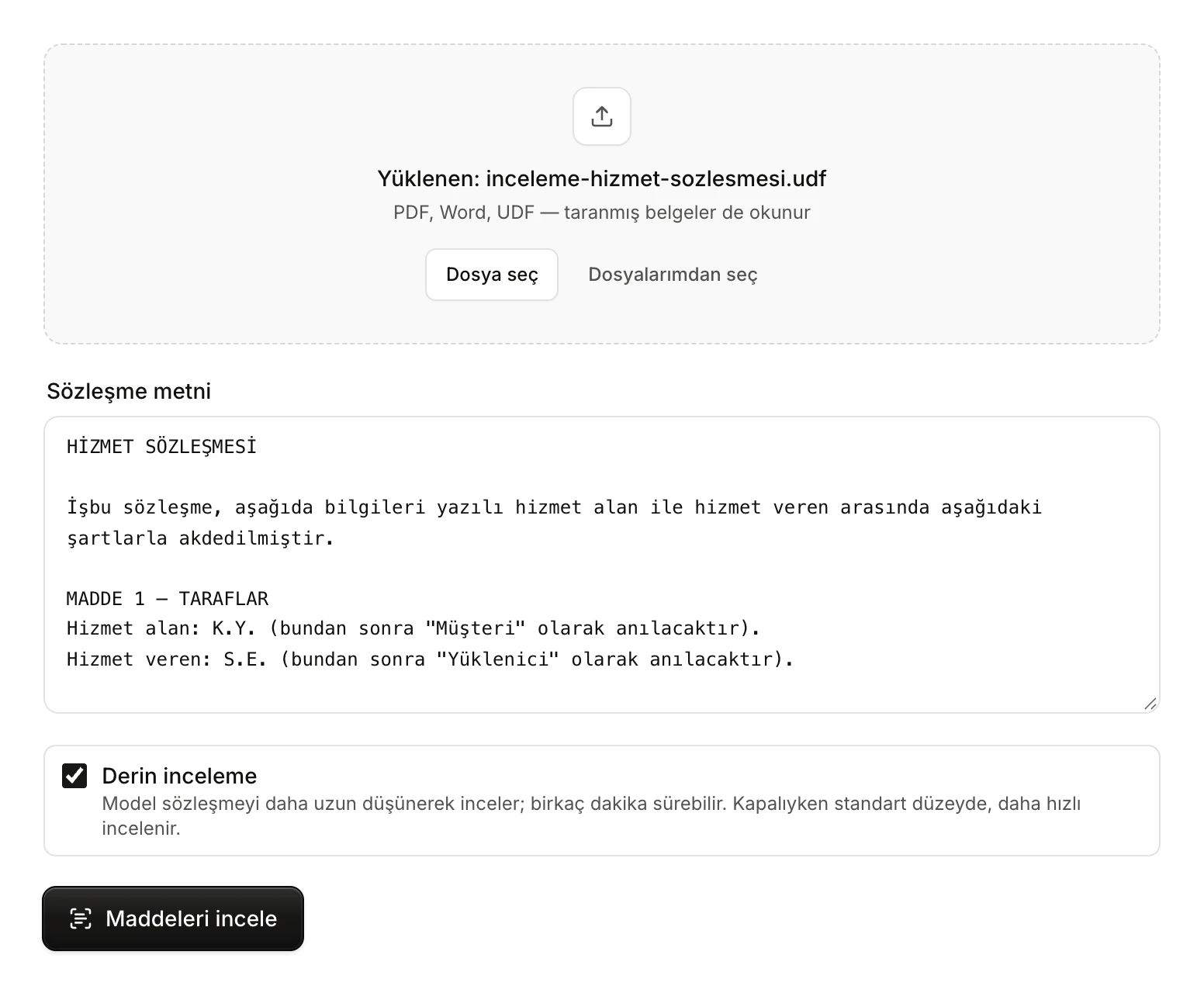
- The upload area: drop the file here or click Dosya seç. The name of the uploaded file is shown here.
- Dosyalarımdan seç (Choose from my files): pick one of your files in Vesika.
- Sözleşme metni: the text to be reviewed. Text read from a file lands here; you can edit it or paste text directly.
- Derin inceleme: the contract is reviewed with longer reasoning; it can take a few minutes.
- Maddeleri incele: starts the review.
Giving the contract
Uploading a file
You can drop a PDF, Word (.docx, .doc), UDF, plain text (.txt) or .rtf file on the upload area; scanned documents are read too. A file can be up to about 15 MB, and you upload one file at a time. With Dosyalarımdan seç you can also pick a file you uploaded to Vesika before.
Once the file is read, a notice in the corner of the screen says how many characters were read, and the text appears in Sözleşme metni. The uploaded file is also kept in your Files. If you upload another file, the text in the field is replaced with the new file's text.
Pasting the text
Instead of uploading the contract as a file, you can paste its text into Sözleşme metni. You can also edit text read from a file here: the review works on whatever this field contains. Correct the text here if a scanned document was misread, or if you want to review only certain clauses.
The Maddeleri incele button becomes active once the field holds at least 50 characters.
Deep review
Derin inceleme is on by default. When it is on, the model reviews the contract with longer reasoning; this can take a few minutes. If you turn it off, the review is done at the standard level, faster.
If your administrator set a monthly limit on deep reviews, your remaining allowance for the month is shown next to the option (such as "bu ay 3/10", 3 of 10 this month). When the allowance is used up, the option is switched off, "bu ay doldu" (used up this month) appears beside it together with the date it renews, and the review runs at the standard level. If the limit is shared with your company, the description says "Şirketinizin derin inceleme hakkı doldu" (Your company's deep review allowance is used up). See Plans and limits for details.
While the review runs
When you click Maddeleri incele, the button changes to İnceleniyor… (Reviewing…) and cannot be clicked again until the review is finished. How long it takes depends on the length of the contract and on the Derin inceleme option.
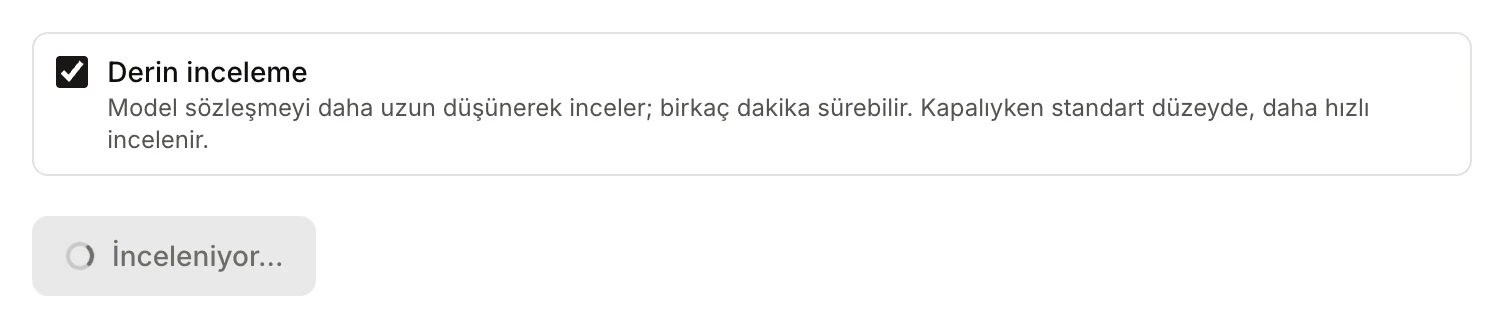
- İnceleniyor…: the review is running.
Reading the results
When the review is finished, the results appear below the button, in this order:
- Risk counts: how many findings are at the yüksek (high), orta (medium) and düşük (low) level (such as "2 yüksek", "1 orta", "0 düşük").
- Overall assessment: a two-to-four-sentence overall assessment of the contract from the client's point of view.
- Findings: a card for each risky clause, ordered from high to low risk. Each card has:
- the clause's number and heading (such as "Madde 7 — Fesih", Clause 7 — Termination),
- a risk level label: yüksek risk, orta risk or düşük risk,
- what the risk is, with a short quotation from the clause,
- the suggested revision text, starting with Öneri: (Suggestion).
- The Bulguları indir (Download findings) button and a note reminding you that the review is a draft prepared by AI.
The tool gives no numeric risk score; it only uses the high, medium and low levels.
The findings are prepared by AI and can be wrong, incomplete, or not cover the whole contract. Check that the text a finding quotes really is in that clause of the contract, read the clauses that were not flagged yourself, and review every suggestion before you use it. The review does not search the legal database; if you need case law or legislation behind a point, research it separately with Case-law search.
From whose point of view?
The review is written in the client's favour, but the tool has no field where you choose which party you represent. Check from the overall assessment and the findings which party's point of view the review takes.
Everything in Sözleşme metni is sent for review. If you add a line such as "Müvekkil: Müşteri" (Client: the Customer) at the top of the text, that information becomes part of the reviewed text; still check that the result is written from that party's point of view.
Using the revision suggestions
- The suggestions have no copy button of their own. Select the suggestion you want with the mouse, copy it and paste it into your contract.
- Bulguları indir downloads the overall assessment and all findings (clause, risk level, explanation, suggestion) as a file named "sozlesme-incelemesi.json". This file is structured data (JSON); it opens in a text editor but is not a Word document.
- Rather than using suggestions as they are, fit them to the rest of the contract, the balance between the parties and your negotiating position. To compare your revised text with the first version, use Contract comparison.
Recent reviews
Every finished review is saved. When you open the tool again, and no result is on screen, the Son incelemeler (Recent reviews) list appears at the bottom of the page. It holds your last five reviews: each row shows the file name (for pasted text, the first 60 characters of the text), how many high-risk findings there were and the date of the review. Click a row to open that review's results again.

- A saved review: file name, number of high-risk findings and date. Click it to reopen the results.
When you open a past review, only its results are shown; the contract text used in that review does not come back into Sözleşme metni. To review the same contract again, upload the file again.
Limits and things to check
- The review uses AI and counts against your AI spend limit. If you reached your limit, a "Yapay zekâ kullanılamıyor" (AI unavailable) warning appears and Maddeleri incele cannot be used.
- The text must be at least 50 characters. Expect long contracts to take longer.
- Scanned documents may be misread; check the text in Sözleşme metni before the review.
- The results are a draft. No finding is a definitive opinion that a clause is valid, invalid or lawful.
- If something goes wrong, an error notice appears below the button; you can try again without losing your text.