Files
Dosyalar (Files) is the single list of the documents you uploaded to Vesika and the ones the tools produced for you. From here you can open a file in the side panel, download it in each of its formats, go back to the screen that produced it, or delete it.
Section rail → Dosyalar (the folder icon).
What is in the list?
- Yüklenen (Uploaded) files: for example documents you attached to a question in Vesika AI.
- Üretilen (Generated) files: for example documents Vesika AI drafted, or drafts from tools such as Dilekçe Hazırlama (Petition drafting), İhtarname Hazırlama (Formal notice drafting) and Sözleşme Hazırlama (Contract drafting).
Files are listed newest first under Bugün (Today), Dün (Yesterday), Son 7 gün (Last 7 days), Son 30 gün (Last 30 days) and Daha eski (Older). The icon on a row's left shows the tool the file came from.
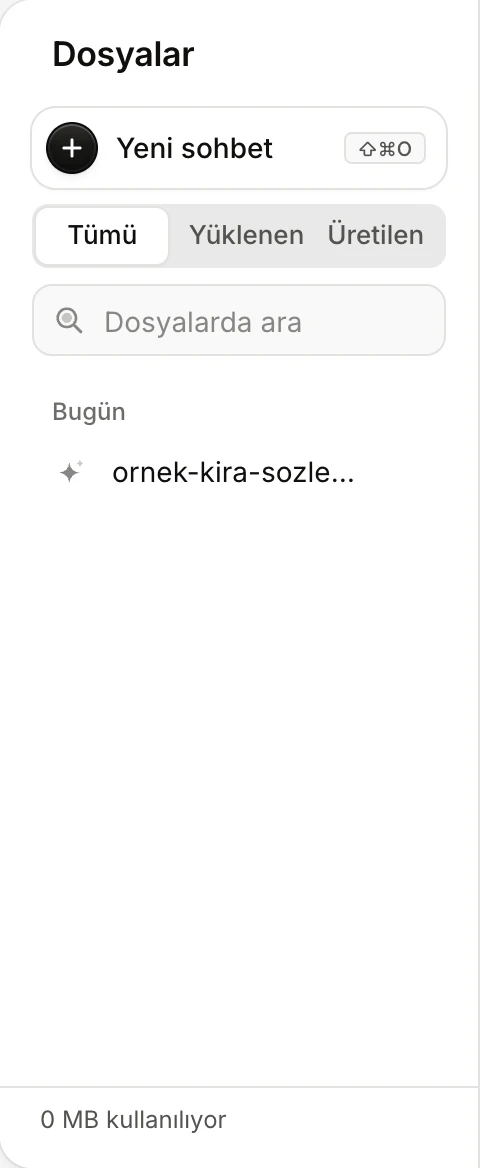
- Tümü (All), Yüklenen (Uploaded) or Üretilen (Generated).
- Dosyalarda ara (Search files): matches the file name and the tool's name.
- Your files; click one to open it in the side panel. This one was attached to a question in Vesika AI.
- The storage you use.
Opening a file
Click the row; the file opens in a new tab in the side panel and the screen you are on stays where it is. Details: The side panel.
A row's menu
Move the mouse over the row and click the … button on its right.
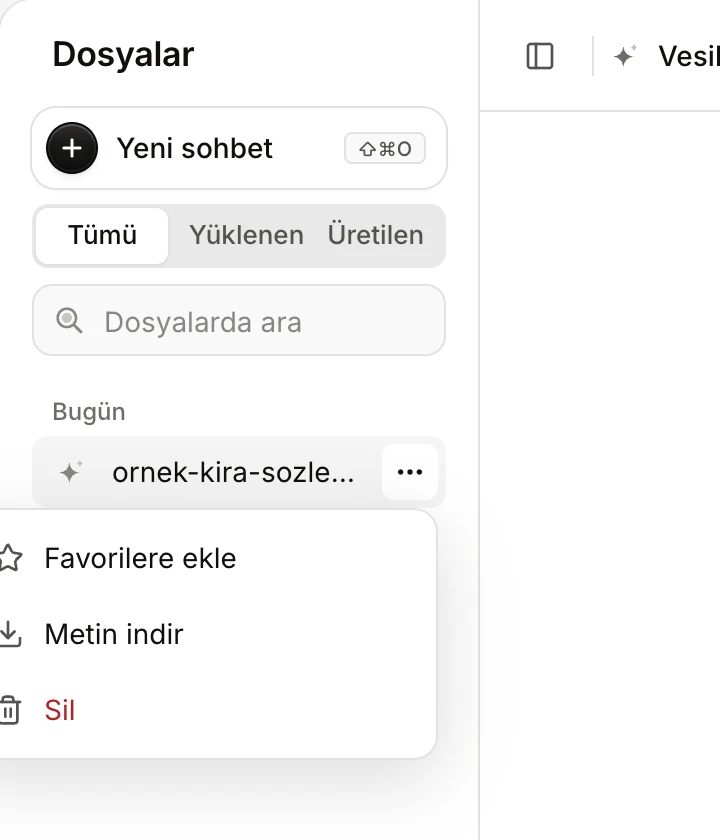
- Favorilere ekle (Add to favorites): the file is listed in Favoriler.
- One download line per format of the file; here only Metin indir (Download text).
- Sil (Delete): asks for confirmation.
- Favorilere ekle / Favorilerden çıkar (Add to / Remove from favorites): adds the file to the Favoriler section or removes it.
- … indir (Download …): each format the file can be downloaded in is its own line: Word indir, PDF indir, UDF indir, PNG indir, JPG indir or Metin indir (text). Drafts produced by the tools can usually be downloaded as Word, PDF and UDF; a file you uploaded comes in its own format.
- Kaynağa git (Go to source): only on generated files; opens the screen that produced the file (the conversation, or the tool with the draft open, for example).
- Sil (Delete): you are asked "Dosya silinsin mi?" (Delete the file?). Sil deletes the file from Dosyalar for good; Vazgeç (Cancel) keeps it. If it was a favorite, it leaves Favorites too.
Reusing files in the tools
When a tool asks for a file, you can pick one you uploaded or generated earlier with Dosyalarımdan seç (Choose from my files) instead of uploading from your computer. Picking the same file again does not create a new copy. Details: Attaching files.
Storage
The bottom of the panel shows how much space you use:
- With no limit: "… MB kullanılıyor" (… MB used).
- If your administrator set a limit: "… MB / … MB" and a bar. The bar turns to the warning colour past 80% and red when the limit is reached.
- If your account belongs to a company and the limit is the company's, the line starts with Şirket: (Company:); the limit is shared by everyone in the company.
If you upload the same content more than once, it counts against your storage once.
When the limit is reached, new files cannot be kept and this notice appears once: "Hesabınızın dosya depolama sınırı (… MB) doldu. Dosyalar'dan eski dosyaları silebilir ya da yöneticinizden sınırı artırmasını isteyebilirsiniz." (Your account's file storage limit is full. You can delete old files in Dosyalar or ask your administrator to raise the limit.) With a company limit the message starts with "Şirketinizin …" (Your company's …). To make room, delete files you no longer need or ask your administrator to raise the limit: Plans and limits.
Limits and things to note
- A deleted file cannot be recovered.
- Files belong to your account; others in your firm do not see your files.
- In a phone's browser the panel does not show the Dosyalar section; reach your files from a wider window.
- When the list is empty it reads "Araçlara yüklediğiniz ve onların ürettiği belgeler burada listelenir." (Documents you upload to the tools and the ones they produce are listed here.)