Deadline tracking
Süre Takibi (Deadline tracking) computes the last day of a procedural deadline, a peremptory period (hak düşürücü süre) or a limitation period (zamanaşımı), and lets you follow those deadlines in an agenda and a calendar. You choose the deadline type and enter the start date (usually the date of service, tebliğ); the tool shows the last day, every step of the computation and the rule behind it. The computation uses only the date you enter and the tool's holiday table; no AI is involved.
Workspace → Takip (Tracking) → Süre Takibi
Step by step
- In the workspace, open Süre Takibi under Takip. The tool opens on the Hesapla (Calculate) tab.
- Choose the deadline in Süre türü (Deadline type), for example İstinaf başvurusu — 2 hafta (appeal to the regional court, 2 weeks). Under the list you see the legal basis, the nature and the length of the period.
- Enter the day the period starts in the date field. The field's name depends on the deadline you chose: Kararın tebliği (service of the judgment) for an appeal, Dava dilekçesinin tebliği (service of the statement of claim) for a statement of defence, and so on.
- If needed, change the Adli tatil uzatması uygulanır (HMK 104 / İYUK 62) (apply the judicial recess extension) and Arife yarım gününü tam tatil say (count the eve of a holiday as a full holiday) boxes.
- Son gün (Last day) and the steps of the computation appear on the right at once. Read the steps and check the result yourself.
- To track the deadline, fill in Dosya no (file number), Müvekkil (client), Mahkeme / daire (court or office) and Notlar (notes) under Takvime ekle (Add to calendar); all are optional. Then click Takvime ekle.
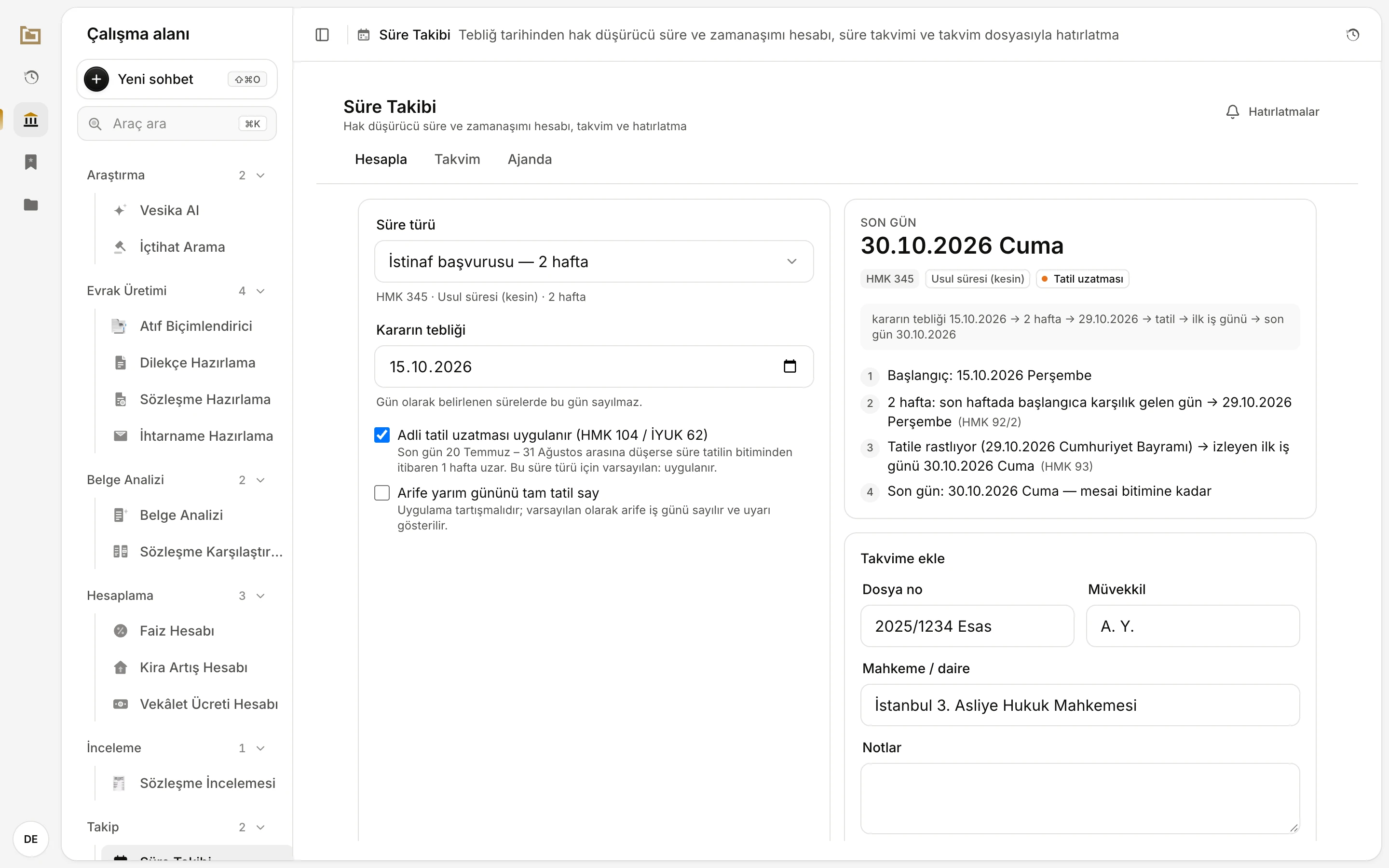
- Süre türü (Deadline type): the catalogue's deadlines in groups; Özel süre (Custom period) is at the bottom.
- The start date. Its label follows the chosen deadline (here Kararın tebliği, service of the judgment).
- The judicial recess and holiday-eve options. Changing the deadline type resets the judicial recess box to that type's default.
- Son gün (Last day), with the weekday. The tags below show the legal basis, the nature and any extension.
- The steps and the rule for each. Here 29 October is Republic Day, so the last day moves to 30 October.
- Takvime ekle (Add to calendar) saves the deadline with its case details.
The saved deadline opens straight away and appears in the Ajanda (Agenda) and Takvim (Calendar) tabs. It is also listed in the Geçmiş (History) panel with the deadline's name, last day and file number; the client's name and your notes are never written into the history title.
Deadline types
The Süre türü list holds frequently used procedural and substantive deadlines. For each type the tool knows its length, legal basis, nature (Usul süresi (kesin) procedural, Hak düşürücü süre peremptory, or Zamanaşımı limitation), the event it starts from, and whether the judicial recess extension applies by default. Some types show a short note, for example "Mahkeme ek süre verebilir (en çok 1 ay)." (the court may grant up to one more month) for the statement of defence. Such outer limits ("in any case 10 years after…") are shown as notes only; they are not computed.
Full list of deadline types
HMK – Dilekçeler
| Deadline type (as listed) | Period | Legal basis | Nature | Starts from (field label) | Judicial recess |
|---|---|---|---|---|---|
| Cevap dilekçesi | 2 hafta | HMK 127 | Usul süresi (kesin) | Dava dilekçesinin tebliği | Applies |
| Cevaba cevap dilekçesi (replik) | 2 hafta | HMK 136/1 | Usul süresi (kesin) | Cevap dilekçesinin tebliği | Applies |
| İkinci cevap dilekçesi (düplik) | 2 hafta | HMK 136/1 | Usul süresi (kesin) | Cevaba cevap dilekçesinin tebliği | Applies |
| Bilirkişi raporuna itiraz | 2 hafta | HMK 281/1 | Usul süresi (kesin) | Raporun tebliği | Applies |
| İşlemden kaldırılan dosyanın yenilenmesi | 3 ay | HMK 150/5 | Usul süresi (kesin) | İşlemden kaldırma tarihi | Applies |
HMK – Kanun yolları
| Deadline type (as listed) | Period | Legal basis | Nature | Starts from (field label) | Judicial recess |
|---|---|---|---|---|---|
| İstinaf başvurusu | 2 hafta | HMK 345 | Usul süresi (kesin) | Kararın tebliği | Applies |
| İstinaf dilekçesine cevap | 2 hafta | HMK 347/1 | Usul süresi (kesin) | İstinaf dilekçesinin tebliği | Applies |
| Temyiz başvurusu | 2 hafta | HMK 361/1 | Usul süresi (kesin) | Kararın tebliği | Applies |
| Temyiz dilekçesine cevap | 2 hafta | HMK 364/1 | Usul süresi (kesin) | Temyiz dilekçesinin tebliği | Applies |
| Yargılamanın iadesi | 3 ay | HMK 377/1 | Hak düşürücü süre | İade sebebinin öğrenilmesi | Does not apply |
HMK – Geçici hukuki korumalar
| Deadline type (as listed) | Period | Legal basis | Nature | Starts from (field label) | Judicial recess |
|---|---|---|---|---|---|
| İhtiyati tedbir kararına itiraz | 1 hafta | HMK 394/1 | Usul süresi (kesin) | Kararın tebliği / öğrenilmesi | Does not apply |
| Dava açılmadan önce verilen tedbirden sonra dava açma | 2 hafta | HMK 397/1 | Usul süresi (kesin) | Tedbir kararı tarihi | Does not apply |
İİK – İcra ve iflas
| Deadline type (as listed) | Period | Legal basis | Nature | Starts from (field label) | Judicial recess |
|---|---|---|---|---|---|
| Ödeme emrine itiraz (genel haciz yolu) | 7 gün | İİK 62/1 | Usul süresi (kesin) | Ödeme emrinin tebliği | Does not apply |
| Kambiyo senedine dayalı takipte borca / imzaya itiraz | 5 gün | İİK 168/5, 169, 170 | Usul süresi (kesin) | Ödeme emrinin tebliği | Does not apply |
| İcra mahkemesine şikâyet | 7 gün | İİK 16/1 | Usul süresi (kesin) | İşlemin öğrenilmesi / tebliği | Does not apply |
| Mal beyanında bulunma | 7 gün | İİK 74/1 | Usul süresi (kesin) | Ödeme emrinin tebliği | Does not apply |
| Sıra cetveline itiraz / şikâyet | 7 gün | İİK 142 | Usul süresi (kesin) | Sıra cetvelinin tebliği | Does not apply |
| İhalenin feshi | 7 gün | İİK 134 | Hak düşürücü süre | İhalenin / fesih sebebinin öğrenilmesi | Does not apply |
| İhtiyati hacizden sonra takip / dava | 7 gün | İİK 264/1 | Usul süresi (kesin) | Haczin uygulanması | Does not apply |
| İcra mahkemesi kararına istinaf | 10 gün | İİK 363/1 | Usul süresi (kesin) | Kararın tefhimi / tebliği | Does not apply |
| İtirazın kaldırılması talebi | 6 ay | İİK 68/1 | Hak düşürücü süre | İtirazın tebliği | Does not apply |
| İtirazın iptali davası | 1 yıl | İİK 67/1 | Hak düşürücü süre | İtirazın tebliği | Does not apply |
| İstirdat davası | 1 yıl | İİK 72/7 | Hak düşürücü süre | Paranın tamamen ödenmesi | Does not apply |
| Tasarrufun iptali davası | 5 yıl | İİK 284 | Hak düşürücü süre | Tasarruf tarihi | Does not apply |
İş hukuku
| Deadline type (as listed) | Period | Legal basis | Nature | Starts from (field label) | Judicial recess |
|---|---|---|---|---|---|
| İşe iade — arabulucuya başvuru | 1 ay | 4857 İş K. 20/1; 7036 s. K. 3 | Hak düşürücü süre | Fesih bildiriminin tebliği | Does not apply |
| İşe iade — anlaşamama tutanağından sonra dava | 2 hafta | 4857 İş K. 20/1 | Hak düşürücü süre | Son tutanak tarihi | Does not apply |
| Ücret, fazla çalışma ve benzeri alacaklar | 5 yıl | TBK 147; 4857 İş K. 32 | Zamanaşımı | Alacağın muaccel olması | Does not apply |
| Kıdem ve ihbar tazminatı | 5 yıl | 4857 İş K. ek m. 3 | Zamanaşımı | İş sözleşmesinin sona ermesi | Does not apply |
İdari yargı (İYUK)
| Deadline type (as listed) | Period | Legal basis | Nature | Starts from (field label) | Judicial recess |
|---|---|---|---|---|---|
| İptal / tam yargı davası (idare mahkemesi, Danıştay) | 60 gün | İYUK 7/1 | Hak düşürücü süre | Yazılı bildirim / ilan | Applies |
| Vergi mahkemesinde dava | 30 gün | İYUK 7/1 | Hak düşürücü süre | Tebliğ | Applies |
| İdari yargıda istinaf | 30 gün | İYUK 45/1 | Usul süresi (kesin) | Kararın tebliği | Applies |
| İdari yargıda temyiz | 30 gün | İYUK 46 | Usul süresi (kesin) | Kararın tebliği | Applies |
| İdareye başvuruda zımni ret | 30 gün | İYUK 10/2 | Usul süresi (kesin) | İdareye başvuru | Does not apply |
| Tam yargı — idari eylem için idareye başvuru | 1 yıl | İYUK 13/1 | Hak düşürücü süre | Eylemin öğrenilmesi | Does not apply |
TBK – Zamanaşımı
| Deadline type (as listed) | Period | Legal basis | Nature | Starts from (field label) | Judicial recess |
|---|---|---|---|---|---|
| Genel zamanaşımı | 10 yıl | TBK 146 | Zamanaşımı | Alacağın muaccel olması | Does not apply |
| Kira, faiz, ücret, vekâlet, eser vb. alacaklar | 5 yıl | TBK 147 | Zamanaşımı | Alacağın muaccel olması | Does not apply |
| Haksız fiil — zararın ve failin öğrenilmesinden | 2 yıl | TBK 72/1 | Zamanaşımı | Zarar ve failin öğrenilmesi | Does not apply |
| Haksız fiil — fiil tarihinden (üst sınır) | 10 yıl | TBK 72/1 | Zamanaşımı | Fiil tarihi | Does not apply |
| Sebepsiz zenginleşme — geri isteme hakkının öğrenilmesinden | 2 yıl | TBK 82 | Zamanaşımı | Hakkın öğrenilmesi | Does not apply |
| Satım — ayıptan doğan sorumluluk | 2 yıl | TBK 231/1 | Zamanaşımı | Teslim | Does not apply |
TTK – Kambiyo senetleri
| Deadline type (as listed) | Period | Legal basis | Nature | Starts from (field label) | Judicial recess |
|---|---|---|---|---|---|
| Poliçe kabul edene / bono düzenleyene karşı | 3 yıl | TTK 749/1, 778 | Zamanaşımı | Vade | Does not apply |
| Hamilin cirantalara ve düzenleyene karşı | 1 yıl | TTK 749/2 | Zamanaşımı | Protesto tarihi (gidersiz ise vade) | Does not apply |
| Cirantanın diğer cirantalara ve düzenleyene karşı | 6 ay | TTK 749/3 | Zamanaşımı | Ödeme ya da kendisine dava açılması | Does not apply |
| Çekte müracaat hakları | 6 ay | TTK 814/1 | Zamanaşımı | İbraz süresinin bitmesi | Does not apply |
Aile ve tüketici
| Deadline type (as listed) | Period | Legal basis | Nature | Starts from (field label) | Judicial recess |
|---|---|---|---|---|---|
| Zina nedeniyle boşanma davası | 6 ay | TMK 161/2 | Hak düşürücü süre | Boşanma sebebinin öğrenilmesi | Does not apply |
| Hayata kast, pek kötü veya onur kırıcı davranış nedeniyle boşanma | 6 ay | TMK 162/2 | Hak düşürücü süre | Boşanma sebebinin öğrenilmesi | Does not apply |
| Tüketici hakem heyeti kararına itiraz | 15 gün | 6502 TKHK 70/4 | Usul süresi (kesin) | Kararın tebliği | Does not apply |
| Ayıplı mal — tüketici | 2 yıl | 6502 TKHK 12/1 | Zamanaşımı | Teslim | Does not apply |
This list is general information. Amendments, special statutes and case law can change a deadline's length, its nature or whether the judicial recess affects it. Check the legal basis of every deadline you rely on.
Custom period
For a deadline that is not in the list, choose Özel süre (gün / hafta / ay / yıl) (custom period in days, weeks, months or years) in the Diğer (Other) group at the bottom. Three fields appear:
- Süre (Period): a whole number from 1 to 3650 and a unit (gün day, hafta week, ay month, yıl year).
- Niteliği (Nature): Belirtilmedi (not specified), Usul süresi (kesin), Hak düşürücü süre or Zamanaşımı.
- Ad (Name): a name for the deadline (up to 80 characters), e.g. "Kesin süre — delil avansı". If you leave it empty, the deadline is called "Özel süre" plus its length.
For a custom period the start field is called Başlangıç (tebliğ) tarihi (start/service date), and the judicial recess extension is ticked by default.
How the last day is computed
The tool finds the last day in this order and writes every step, numbered, in the result card:
- Counting. For periods in days, the start day is not counted (HMK 92/1): a 7-day period served on 20 July reaches 27 July. Periods in weeks, months and years end on the day of the last week, month or year that corresponds to the start day (HMK 92/2). If that day does not exist in the last month, the month's last day is taken (31 January + 1 month → the last day of February), and this is written as a separate step.
- Holidays. If the last day falls on a Saturday, a Sunday or an official holiday, the period moves to the next working day (HMK 93). Saturday counts as a holiday. Every skipped day is written with its reason, e.g. "29.10.2026 Cumhuriyet Bayramı".
- Judicial recess. If the last day falls between 20 July and 31 August and Adli tatil uzatması uygulanır is ticked, the period is extended by one week from the end of the recess, i.e. to 7 September (HMK 104). If 7 September is itself a holiday, the next working day is taken.
- Last day. The last step states the last day with the note "mesai bitimine kadar" (until the end of office hours).
The official holidays taken into account are New Year's Day, 23 April, 1 May, 19 May, 15 July, 30 August, 29 October, Ramazan Bayramı (3 days) and Kurban Bayramı (4 days). 28 October and the eves of the religious holidays are half days (see Holiday eves). The religious holiday dates come from a table kept according to the Diyanet calendar; it covers 2024–2030 and can be updated by the Vesika administrator. Administrative leave days announced by the government are not official holidays and are not taken into account.
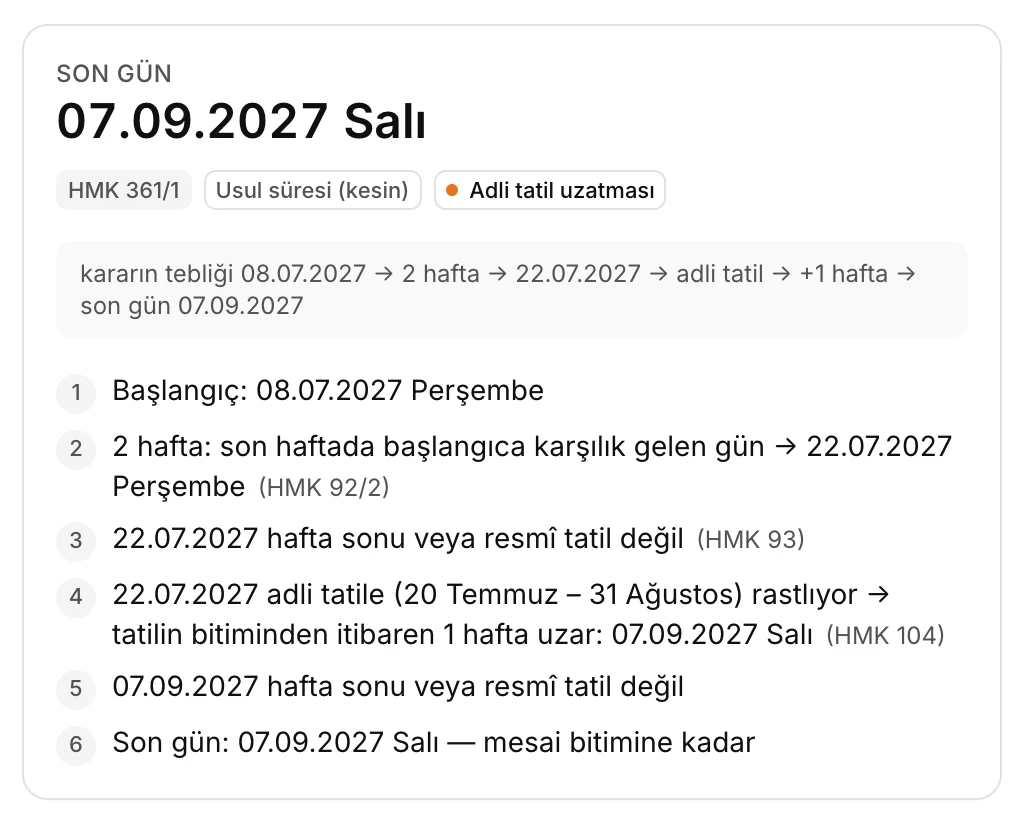
- The last day: 7 September 2027 after the judicial recess extension.
- The Adli tatil uzatması tag shows that an extension changed the result; a move past a holiday shows Tatil uzatması.
- A one-line summary of the computation.
- The steps: counting reaches 22 July, a working day, but inside the judicial recess, so the period runs to 7 September (HMK 104).
Judicial recess extension
Every deadline type has a default for this box, and the text under the box says which ("Bu süre türü için varsayılan: uygulanır." applies, or "uygulanmaz." does not apply). The default is applies for HMK pleading and appeal deadlines and for administrative court filing and appeal deadlines; it is does not apply for enforcement and bankruptcy deadlines, interim injunctions and limitation periods. Change the box to override the default for that computation.
If the last day of a deadline without the extension falls within the judicial recess, the tool does not move it, but shows a warning headed Dikkat — doğrulayın (Warning — verify):
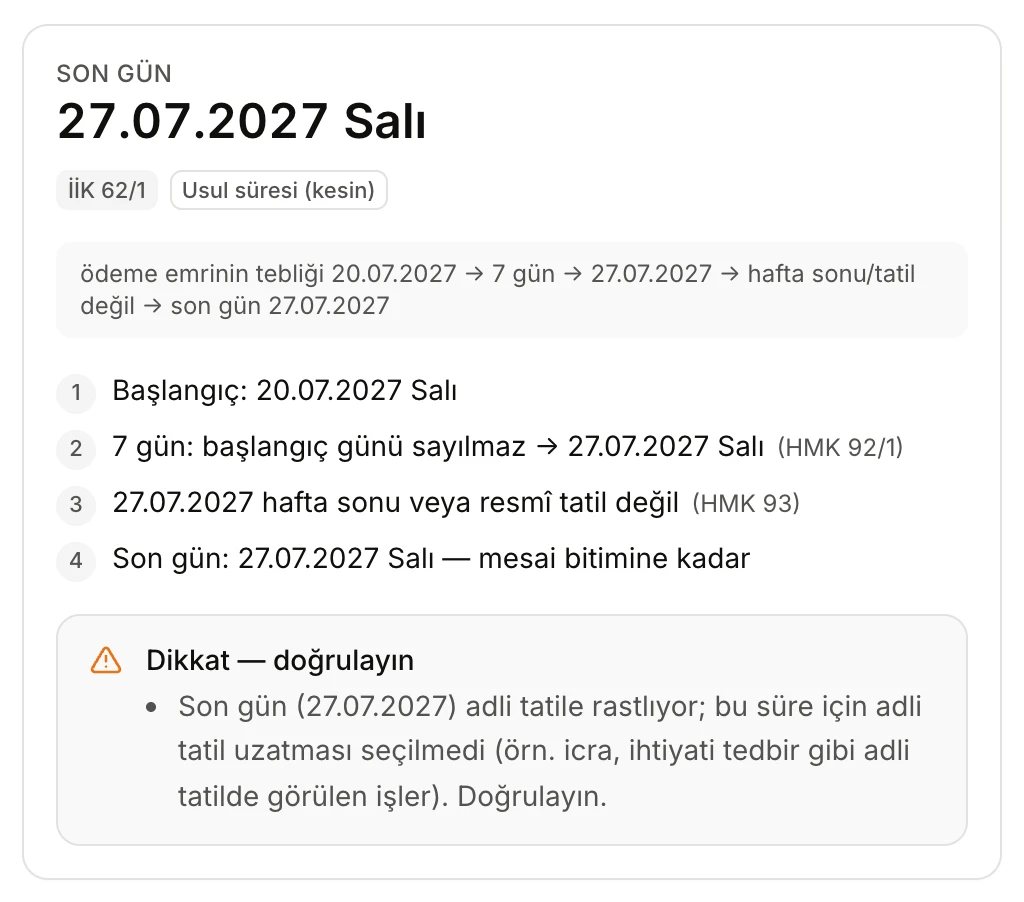
- The last day falls within the judicial recess; it is unchanged because the extension is not selected.
- Counting 7 days, without the start day (HMK 92/1).
- The warning: no judicial recess extension was selected for this deadline; verify whether the matter is dealt with during the recess.
Holiday eves
28 October and the eves of Ramazan and Kurban Bayramı are half-day holidays from 13:00. Because practice differs on this point, the tool counts an eve as a working day by default; if the last day falls on an eve it shows a warning advising you to act before noon on that day or to verify. To count the eve as a full holiday, tick Arife yarım gününü tam tatil say; the period then moves to the next working day.
Other warnings
If the start, the counted day or the last day falls in a year for which the table has no religious holiday dates, the tool considers only weekends and fixed-date holidays and says so in a warning. An invalid date shows "Geçerli bir tarih girin." (enter a valid date) under Hesaplanamadı (could not compute); a custom period outside 1–3650 shows "Süre 1 ile 3650 arasında bir tam sayı olmalı."
A saved deadline
The deadline's page opens when you click Takvime ekle, or when you click a deadline in the agenda or the calendar.
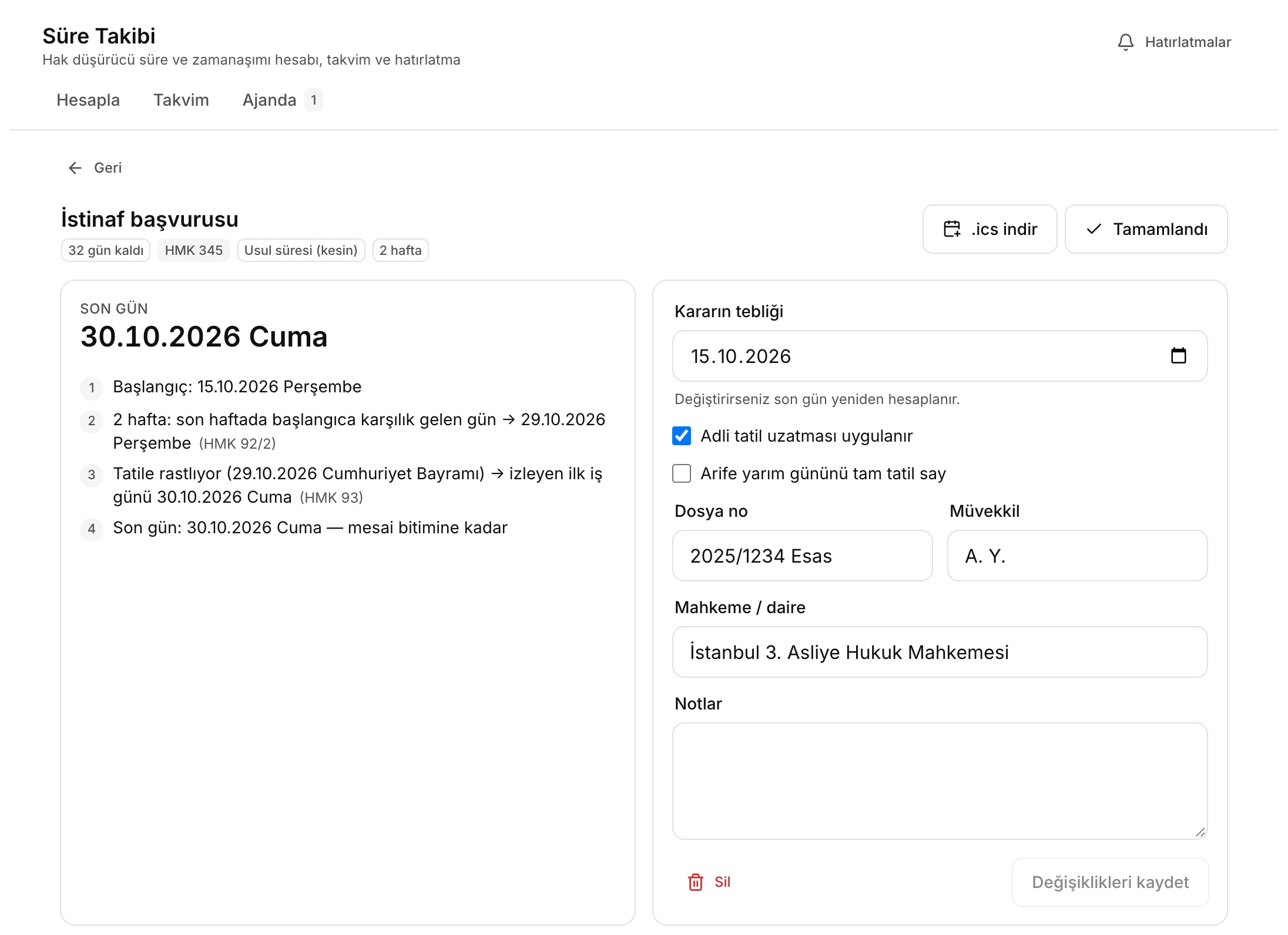
- The deadline's name and tags: days left, legal basis, nature and length.
- .ics indir (Download .ics) downloads this deadline as a calendar file; Tamamlandı (Done) closes it.
- The saved computation: last day and steps.
- Change the start date, the two options, the case details and the notes here.
- Sil (Delete) removes the deadline after asking you to confirm.
- Değişiklikleri kaydet (Save changes) is enabled only once you change something.
Editing
- When you change the start date or the Adli tatil uzatması uygulanır / Arife yarım gününü tam tatil say boxes, the last day is recomputed at once and the heading reads Son gün (yeni hesap — kaydedilmedi) (new computation, not saved). Click Değişiklikleri kaydet to save the new last day; a "Son gün yeniden hesaplandı" (last day recomputed) notice appears.
- You can change Dosya no (up to 60 characters), Müvekkil (120), Mahkeme / daire (160) and Notlar (2000).
- The deadline type cannot be changed later. If you chose the wrong type, delete the deadline and compute it again.
Marking done and deleting
- Tamamlandı moves the deadline to Tamamlanan (Completed); in the calendar it is shown struck through. The same button then reads Yeniden aç (Reopen).
- Sil asks "Bu süre silinsin mi?" (delete this deadline?); confirm with Sil or click Vazgeç (Cancel). A deleted deadline cannot be restored and also disappears from the History panel.
- Geri (Back) returns you to the Ajanda.
Agenda
The Ajanda (Agenda) tab lists all saved deadlines by last day. The number next to the tab name is the count of open deadlines that are overdue or due within 7 days (in red), or, if there are none, the count of open deadlines.
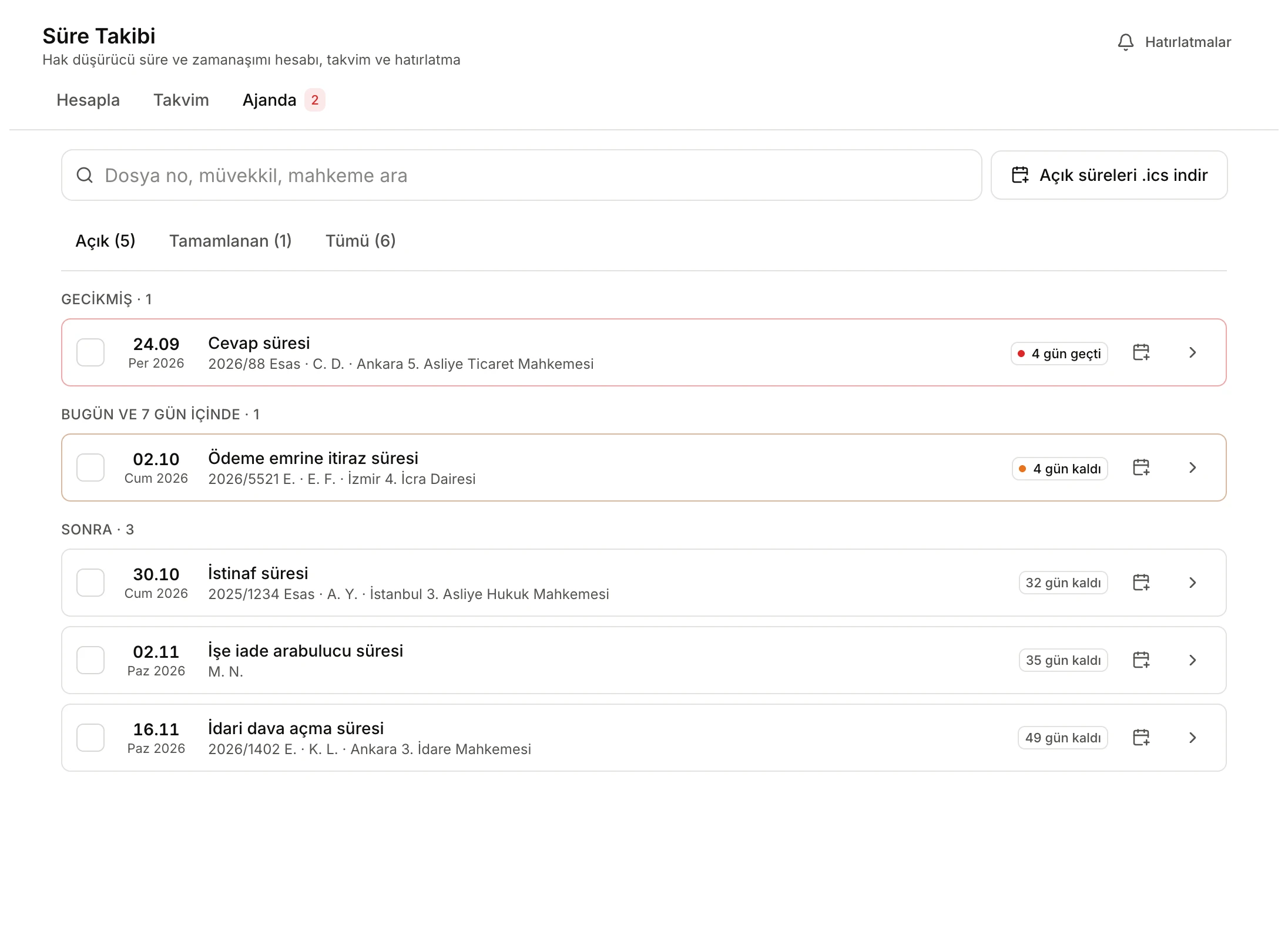
- Search: looks in the file number, client, court, notes, deadline name and legal basis.
- Açık süreleri .ics indir (Download open deadlines as .ics): the open deadlines in the list, in one calendar file.
- Açık (Open), Tamamlanan (Completed) and Tümü (All), with counts.
- Deadlines are grouped as Gecikmiş (Overdue), Bugün ve 7 gün içinde (Today and within 7 days), Sonra (Later) and Tamamlanan (Completed).
- The box marks the deadline as done without opening it.
- Days left: "4 gün geçti" (4 days ago), "Bugün son gün" (today), "Yarın son gün" (tomorrow), "32 gün kaldı" (32 days left).
- The calendar icon downloads only this deadline's .ics file. The rest of the row opens the deadline.
Open deadlines that are overdue or due within 7 days are also listed above the calculator on the Hesapla tab, under Yaklaşan süreler (Upcoming deadlines), so you see them first whenever you open the tool.
Calendar
The Takvim (Calendar) tab shows deadlines on a month calendar, on their last day. It opens on the current month.
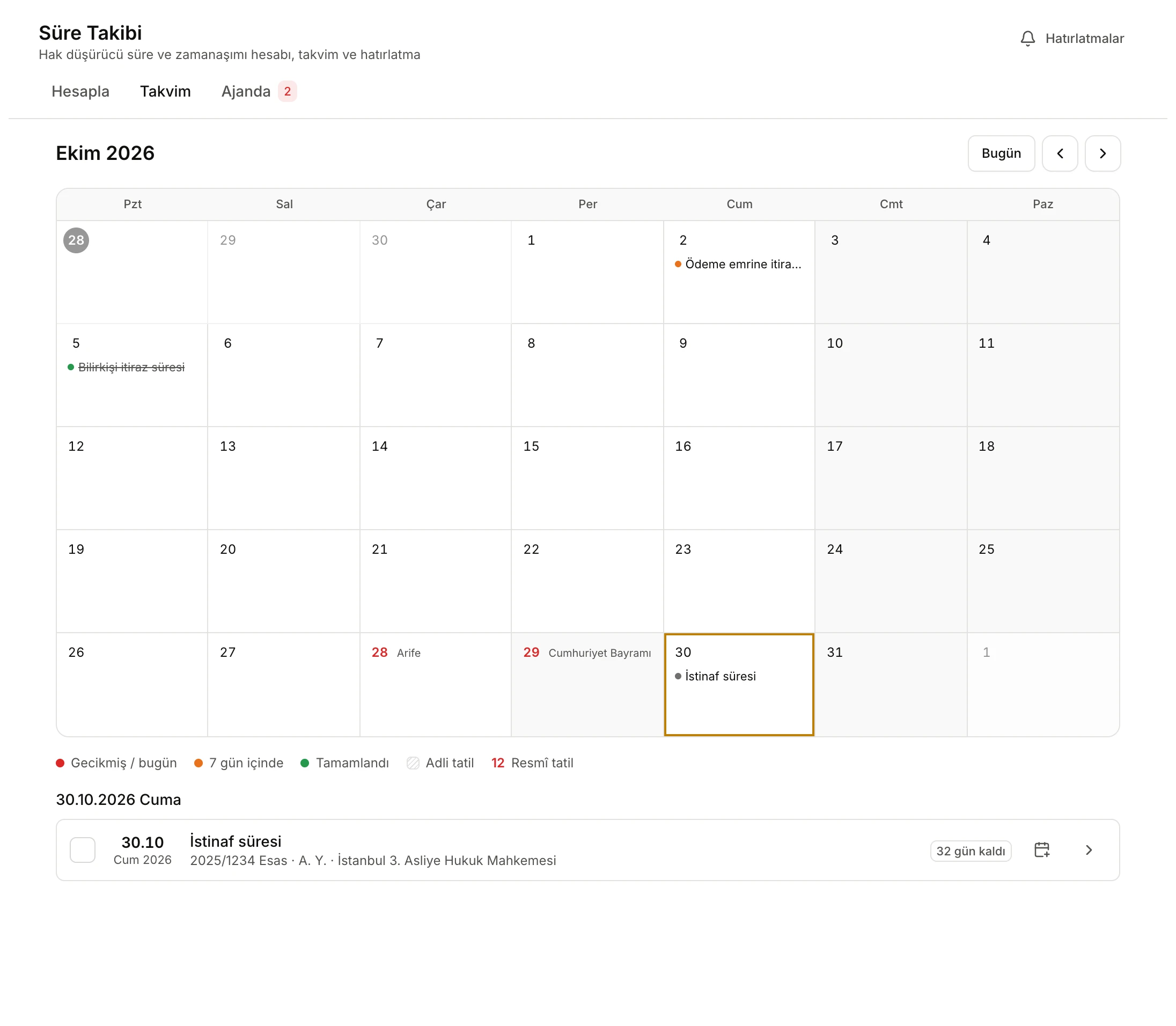
- Bugün (Today) returns to the current month; the arrows go to the previous and next month.
- Official holidays have a red day number and their name; eves are marked "Arife". Weekends and holidays have a grey background.
- Deadlines whose last day is that day, with a coloured dot (up to three; more show as "+N daha").
- The colours: overdue or today, within 7 days, done; judicial recess days are hatched, official holidays have red numbers.
- The selected day, its holiday if any, and the deadlines ending that day. Click one to open it.
Click a day to list the deadlines that end on it below the calendar. Hovering over a day also shows the holiday's name and whether it is in the judicial recess.
Reminders and the calendar file (.ics)
Vesika does not send notifications for deadlines. Your own calendar reminds you: you download the deadlines as a calendar file (.ics) and add it to Outlook, Google Calendar or Apple Calendar.
The Hatırlatmalar (Reminders) button at the top right sets which reminders go into the file:

- Reminder times: 7 gün önce (7 days before), 3 gün önce (3 days before), 1 gün önce (1 day before), Son gün sabahı (morning of the last day). The default is 7 and 1 days before.
- Müvekkil adını takvim dosyasına ekle (Add the client's name to the calendar file): when off, the file holds only the deadline's name and the file number.
- Each reminder fires at 09:00 on the chosen day, from your calendar. The settings are saved to your account and used for later downloads; they do not change files you have already downloaded.
- Calendars often sync to the cloud. Keep that in mind before adding client names to the file.
Downloading the file
- For one deadline: click .ics indir on the deadline's page, or the calendar icon on its row in the agenda or calendar.
- For several: click Açık süreleri .ics indir in the Ajanda. The file contains the open deadlines currently shown in the list (those matching the search and the tab); completed deadlines are left out.
Each deadline in the file is an all-day event on its last day. The event's title is the deadline's name and the file number (e.g. "İstinaf süresi · 2025/1234 Esas"). Its description gives the deadline type, legal basis and nature, the start date, the last day, the file number, the court or office and, if the setting is on, the client. Notes are not written to the file.
Adding it to your calendar
- Outlook: in the calendar view choose Add calendar → Upload from file and pick the .ics file. In desktop Outlook, opening the file is enough.
- Google Calendar: on a computer open Settings → Import & export → Import, choose the file and the calendar to add it to. Importing is not possible from the Google Calendar app; use a computer.
- Apple Calendar: on a Mac, double-click the file or use File → Import; on an iPhone, tap the file and choose Add All.
Menu names can vary with your calendar app's version. Imported events are not synced with Vesika: if you change, complete or delete a deadline, update the event in your calendar yourself. If you import an updated file again, some calendars update the old event and others create a second one; check the result.
Limits and things to check
- Always check the result yourself. The tool computes only from the start date you enter and general rules; it does not know whether service was valid, how the service date is determined, any extra time a court granted, special statutory rules, or events that suspend or interrupt a period.
- The list of deadline types and the default judicial recess choices are general information; on disputed points (e.g. how the judicial recess affects peremptory filing periods) the tool only adds a note.
- Religious holiday dates are defined for 2024–2030; other years trigger a warning. Administrative leave days are not taken into account.
- Holiday eves count as working days by default.
- Absolute outer limits ("in any case … years") are not computed; they appear only in the note.
- Vesika sends no notifications; for reminders you must add the .ics file to your calendar. Events imported into your calendar are not updated by later changes in Vesika.
- Days left and the "Overdue" / "within 7 days" groups are based on today's date on your computer.