Contract comparison
Sözleşme Karşılaştırma (Contract comparison) puts two or three versions of a contract side by side: it splits the texts into clauses, matches each clause across the versions and shows, word by word, what was removed and what was added in every clause. Use it to compare a draft returned by the other side, or the text that comes to signature after negotiation, with your first draft.
Workspace → Belge Analizi (Document analysis) → Sözleşme Karşılaştırma
Step by step
- In the workspace, open Sözleşme Karşılaştırma under the Belge Analizi heading.
- Upload the first version into box A and the second into box B, or paste their text. To compare three versions, click Üçüncü sürüm ekle (Add a third version) and fill in box C.
- If you like, give each version a name (for example "First draft", "Other side's revision").
- Click Karşılaştır (Compare).
- On the results page, look at the summary figures, then go through the changed clauses one by one.
- If needed, get the comparison report with Önizle (Preview), PDF or Word.
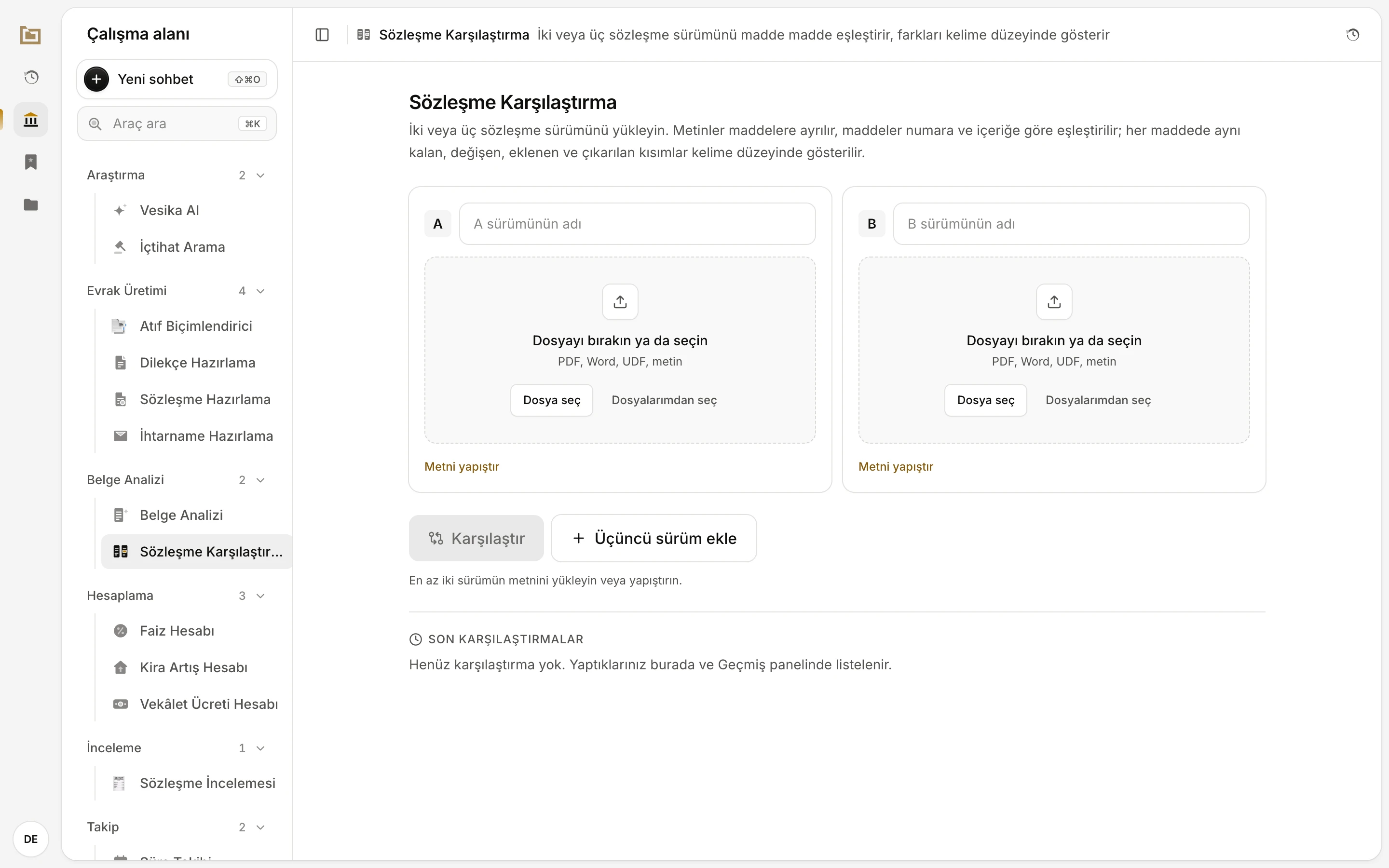
- Version A: the version the comparison is based on. Usually put the oldest text here.
- Version B: the text compared with A.
- Metni yapıştır (Paste text): to type or paste the text instead of uploading a file.
- Üçüncü sürüm ekle: opens a box C.
- Son karşılaştırmalar (Recent comparisons): the comparisons you made before are listed here.
Loading the versions
Each version goes into its own box. You can give a box its text in one of these ways:
- Dosya seç (Choose file): choose a file from your computer, or drag the file onto the box. PDF, Word (.docx, .doc), UDF, plain text (.txt) and .rtf files are accepted. A file can be up to about 15 MB.
- Dosyalarımdan seç (Choose from my files): pick a file you uploaded to or created in Vesika from your Files.
- Metni yapıştır (Paste text): the box becomes a text field; paste the contract text into it. Below it, the number of clauses or sections found is shown. To go back to uploading, click Dosya yükle (Upload file).
Once a file is read, the box shows the file name, how many characters it has and how many clauses or sections it was split into. The uploaded file is also kept in your Files; Aç (Open) opens it in the side panel and × removes it from the box. If no text can be extracted from the document (for example an unreadable scan), the box shows a warning; try a clearer copy or paste the text.
The name field at the top of the box is used as that version's name on the results page and in the report. If you leave it empty, the file name is used; for pasted text, a name such as "A sürümü" (version A) is used.
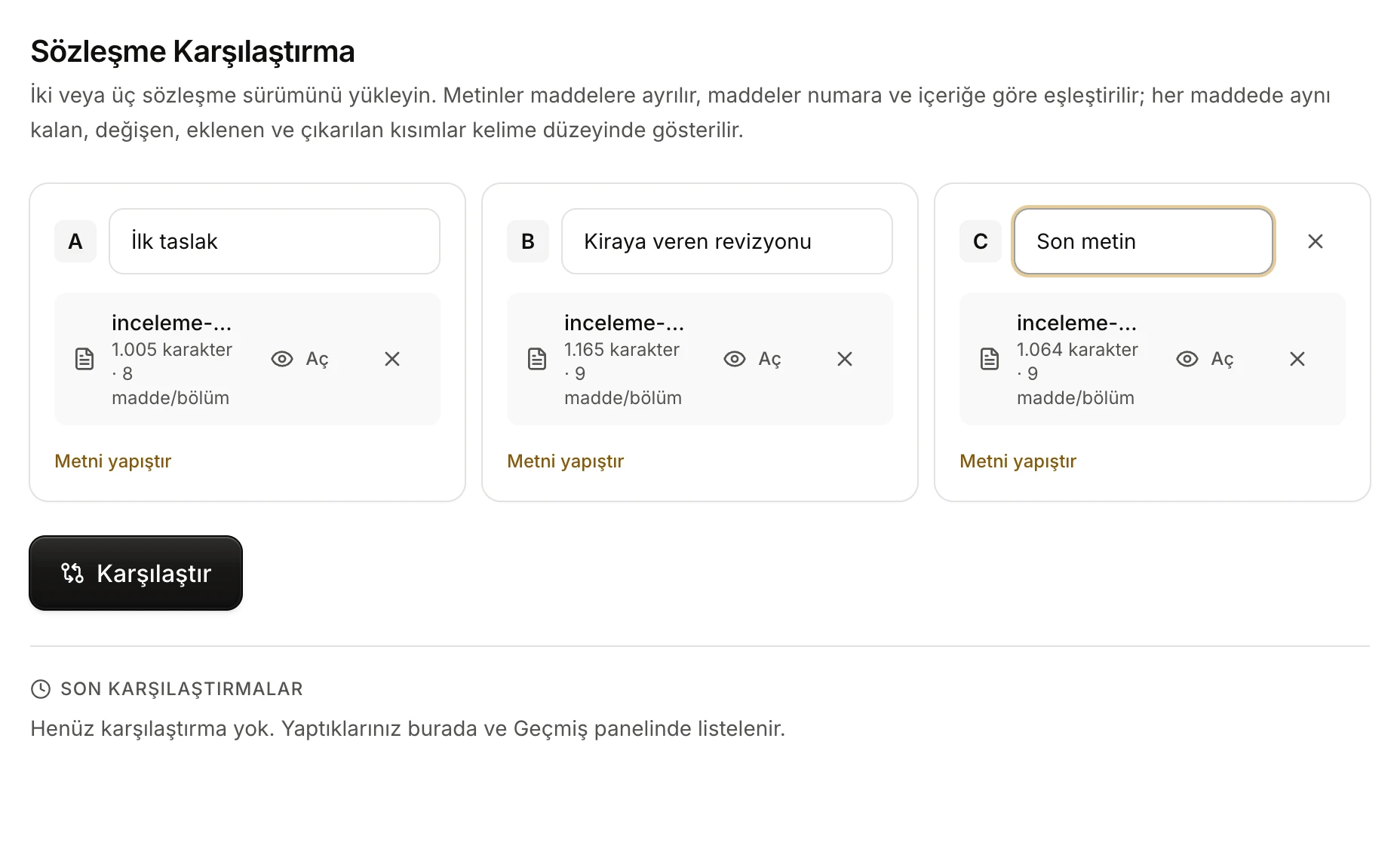
- The version's name. It appears on the results page and in the report.
- The file that was read: its character count and how many clauses or sections it was split into. Aç opens the file in the side panel.
- Removes the third version.
- Karşılaştır: becomes active once at least two versions have text.
The Karşılaştır button becomes active when at least two boxes hold at least 50 characters of text. If you put a very short text in a box, empty that box or complete the text.
How clauses are split and matched
Splitting into clauses
Each version is first split into clauses. The tool looks, in this order, for:
- Clause headings such as "MADDE 5 – KİRA BEDELİ", "Madde 5:" or "5. Madde". The clause title may be on the same line, on the line below, or on the line above the clause number.
- Numbered headings such as "5. KİRA BEDELİ", "5)" or "5-". A list inside a clause, such as "1) … 2) …", does not split the contract.
- Heading lines written entirely in capitals.
- If there is none of these, paragraphs.
The text before the first clause (the contract's title, the opening sentence about the parties) becomes a separate section called Giriş (Introduction).
Matching
The clauses of every version are matched with the clauses of version A. The tool first matches clauses whose text is identical (even if they were renumbered or moved), then clauses with the same number, then with the same heading, and last clauses whose wording largely overlaps. A change of clause number alone is not a change: a clause that was renumbered but whose text stayed the same shows as Aynı (Same). When the versions number a clause differently, each version's number is shown under the clause name (for example "A: Madde 3 · B: Madde 5").
When the numbers do not line up
If some clauses cannot be matched either by number or by heading (for example, clauses were reordered and rewritten), the tool tries to match the unmatched clauses by topic with AI. Meanwhile the Maddeler eşleştiriliyor (Matching clauses) screen is shown. If you do not want to wait, click Durdur, benzerliğe göre eşleştir (Stop, match by similarity); the clauses are then matched by text similarity only. If AI is not available (for example you reached your AI spend limit), matching is also done by text similarity.
When some rows were matched this way, a note at the top of the results page says how many. Check those rows: a wrongly matched clause can look like a change that is not really there.
In versions whose numbers and headings are consistent (as in the example on this page), matching rests entirely on the text and no AI is used.
Reading the results
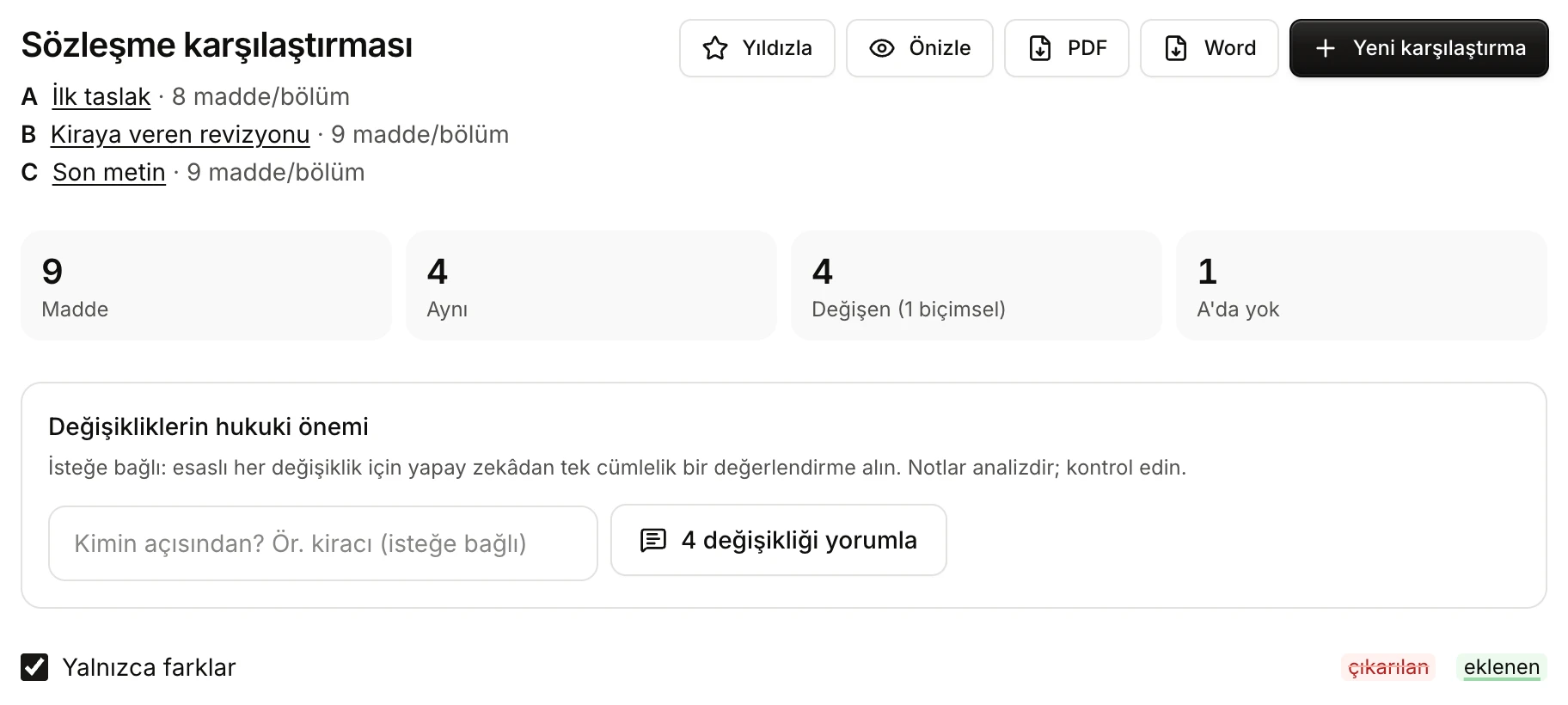
- The versions compared, their letters and how many clauses or sections they contain. Clicking the name of a version uploaded from a file opens the file in the side panel.
- Yıldızla (Star), Önizle, PDF, Word and Yeni karşılaştırma (New comparison).
- Summary: the total number of clauses, and how many stayed the same, changed, or are missing from a version.
- Değişikliklerin hukuki önemi (Legal significance of the changes): optional AI notes.
- Yalnızca farklar (Differences only): hides the clauses that stayed the same.
- What the colours mean: çıkarılan (removed) and eklenen (added) text.
Summary figures
- Madde (Clauses): the total number of rows in the comparison (including the Giriş section).
- Aynı (Same): clauses that are the same in every version.
- Değişen (Changed): clauses whose text changed. How many of these are formal only is given in brackets.
- Clauses missing from a version are counted separately according to their situation: Yalnızca B (Only in B), A'da yok (Not in A), C'de yok (Not in C) and so on. If there are none, the Eksik / yeni (Missing / new) box shows 0.
Clause cards
Each row is shown as a card. The label at the top right of the card gives the clause's status:
| Label | Meaning |
|---|---|
| Aynı (Same) | The clause is the same in every version. |
| Değişti (Changed) | There is a change that can affect the clause's meaning: a word, number or sentence was added, removed or replaced. |
| Yalnızca biçimsel (Formal only) | Only punctuation, capitalisation or spacing changed. |
| Yalnızca B, A'da yok, C'de yok … | The clause is missing from some versions: it was added or removed. |
In changed clauses, the text is shown with its differences against version A: removed parts are struck through on a red background, added parts are underlined on a green background. The comparison is word by word; numbers such as "40.000" or "%20" are treated as one piece. Two changes separated only by a single space or comma are shown as one change, so they are easier to read.
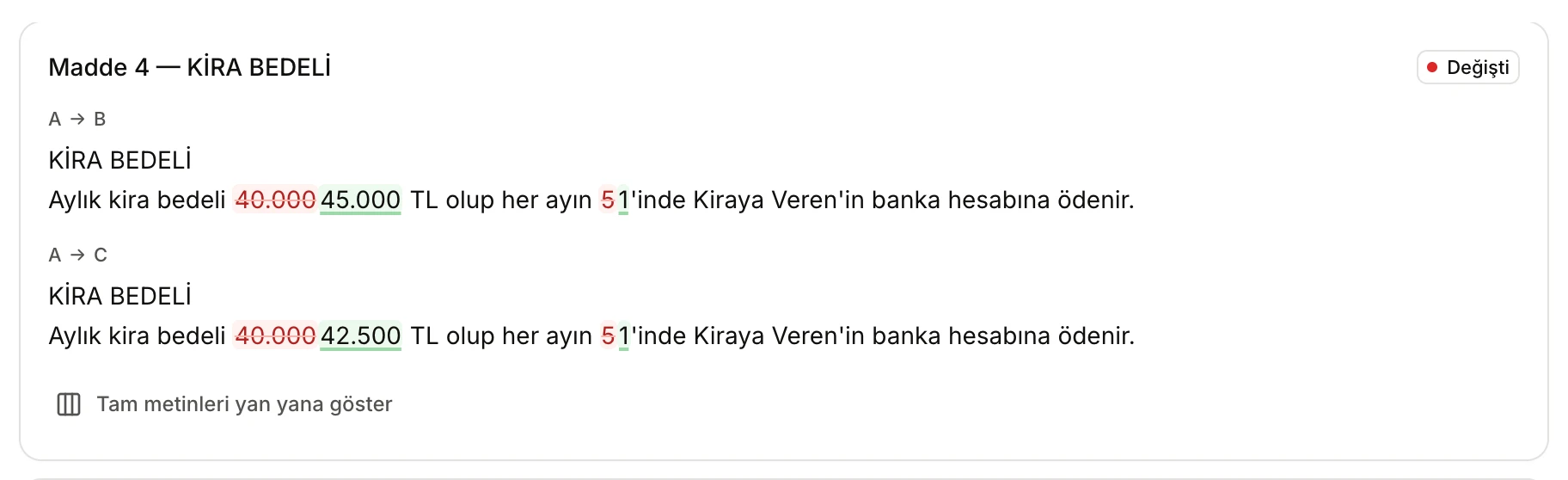
- Değişti: the clause has a substantive change.
- Which versions are compared: A to B.
- Removed text: "40.000" in A.
- Added text: "45.000" in B.
- With three versions, C is also compared with A.
- Tam metinleri yan yana göster (Show full texts side by side): opens the clause's full text in every version.
Comparing three versions
With three versions, each changed clause shows two differences: A → B and A → C. Both versions are compared with A; to see the difference between B and C, use Tam metinleri yan yana göster, or load B and C as A and B in a separate comparison.
Full texts side by side
If you click Tam metinleri yan yana göster in a changed clause, the clause's text in every version opens in columns, without difference marks. In the column of a version that lacks the clause, "Bu sürümde yok." (Not in this version.) is shown. To close it, click Tam metinleri gizle (Hide full texts).
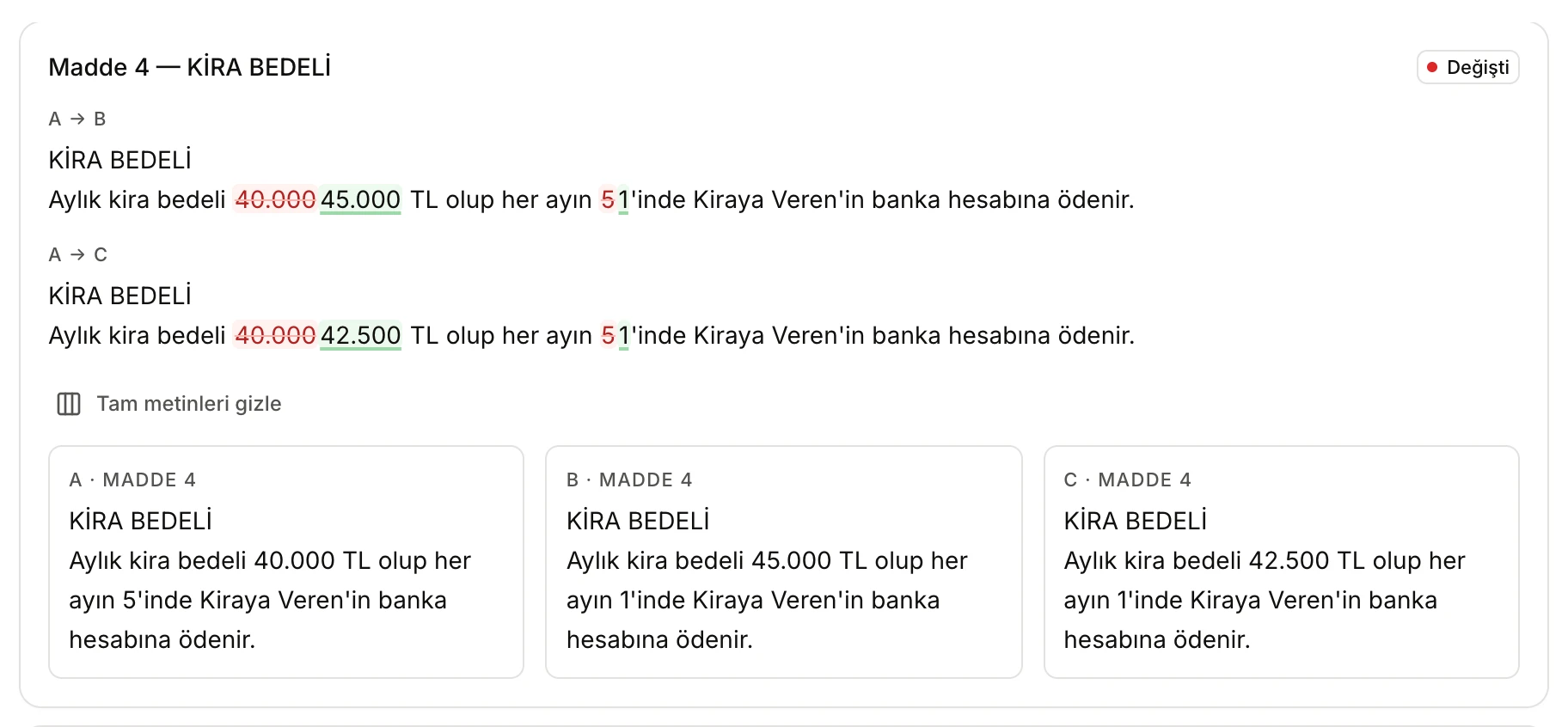
- The clause's full text in versions A, B and C.
- Tam metinleri gizle: closes the columns.
Removed sentences and formal changes
A removed sentence appears struck through only. If only punctuation changed, the card gets the Yalnızca biçimsel label; the change is still marked, but it is counted separately in the summary and left out of the AI notes.
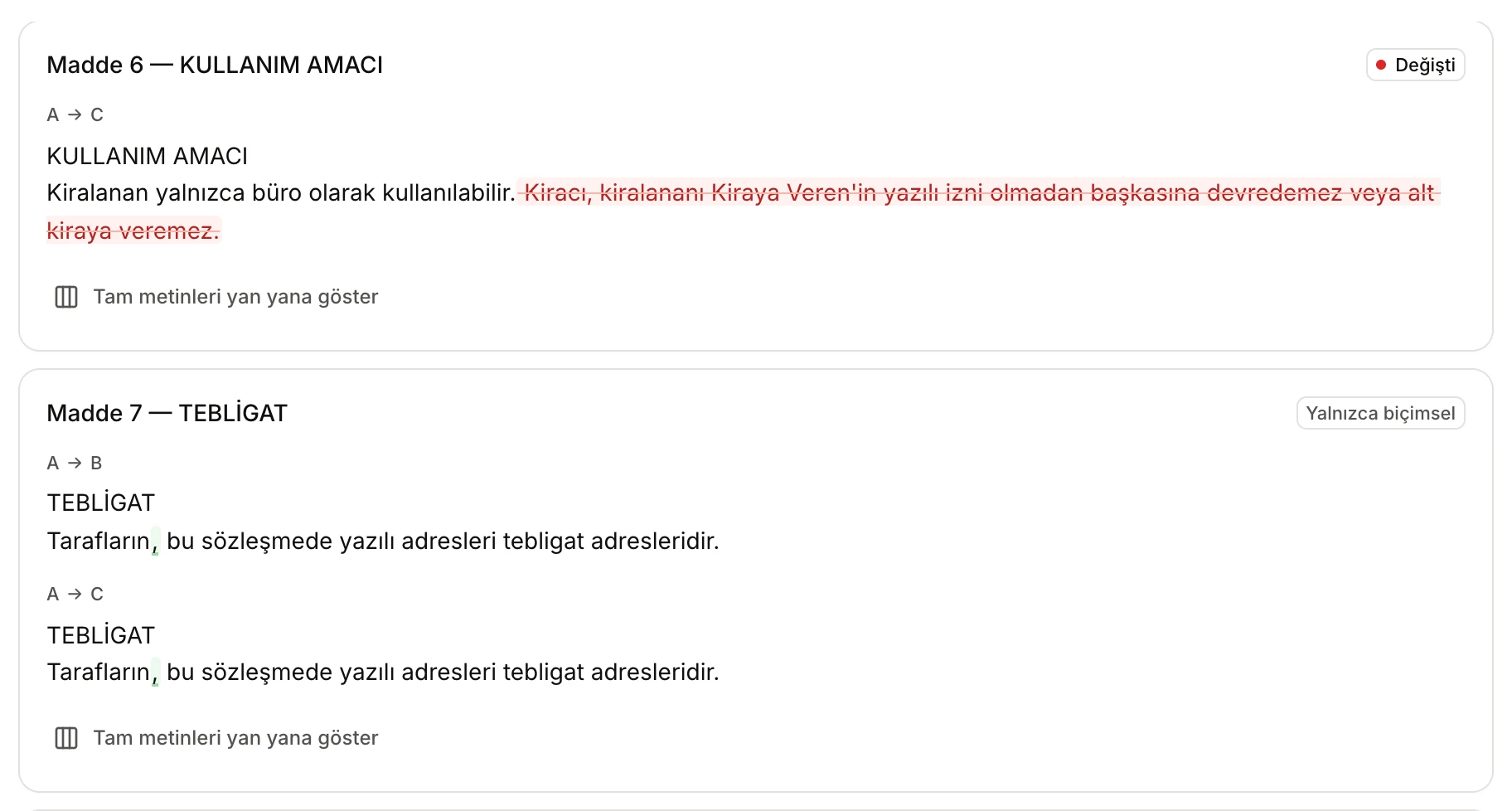
- The sentence removed in version C.
- Yalnızca biçimsel: only punctuation changed.
- The added comma.
Added and removed clauses
If a clause is missing from some versions, the card shows which versions contain it (for example "B sürümünde", in version B) and says below which version lacks it. If the clause exists in more than one version, the difference between them is shown too.
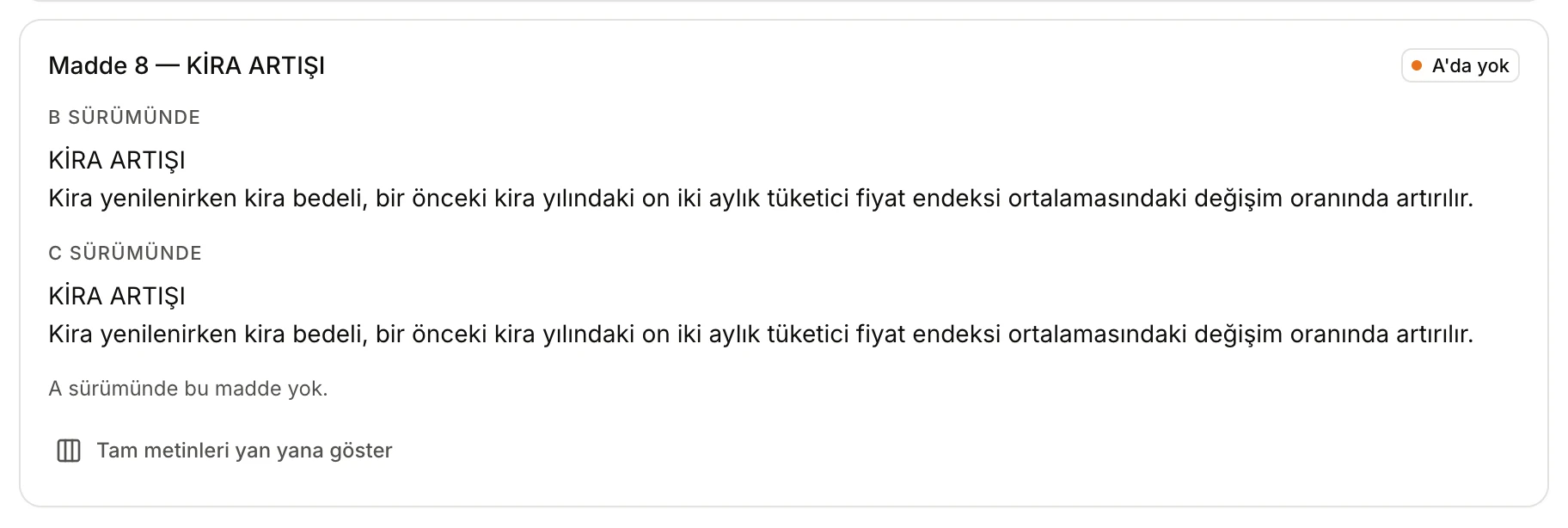
- A'da yok: the clause is in B and C but not in A, so it was added later.
- The clause's text in the versions that contain it.
- Which version lacks the clause.
Differences only
While Yalnızca farklar is ticked, clauses that stayed the same are not listed. If the versions differ, the option starts ticked. If you untick it, the unchanged clauses are listed too; open their text with Metni göster (Show text). If there are no differences at all, "Sürümler arasında fark yok" (No differences between the versions) is shown.
Legal significance of the changes (AI notes)
This section is optional. If you click … değişikliği yorumla (Comment on … changes), the AI is asked for a one-sentence assessment of every substantive change (formal changes excluded; added and removed clauses included). The number on the button is the number of changes to be commented on.
- If you type a party in Kimin açısından? (From whose point of view?), for example "kiracı" (tenant), the assessment is made from that party's point of view. Left empty, it is neutral and says in whose favour or to whose detriment the change is.
- The changes are assessed in groups of ten; progress is shown as "Değişiklikler değerlendiriliyor (1/2)" (Assessing the changes). If you click Durdur (Stop), the notes of the finished groups are kept.
- Each note appears on its clause's card under Yapay zekâ analizi (AI analysis), with a yüksek önem, orta önem or düşük önem (high, medium or low significance) label.
- Notes contain no decision citations or statutory article numbers; such numbers are removed from the note.
- The notes are saved with the comparison and added to the report. To ask again, click Notları yenile (Refresh notes).
The notes are the AI's analysis; they can be wrong or incomplete. Weigh each note against the clause's text. The word-level differences, on the other hand, are computed directly from the texts, without AI.
Getting the report
Use the buttons at the top of the results page to get the comparison report:
- Önizle (Preview): builds the report as a PDF and opens it in the side panel.
- PDF and Word: download the report as a PDF or Word (.docx) file.
The report contains the title "SÖZLEŞME KARŞILAŞTIRMA RAPORU" (Contract comparison report), the version names, the date and the summary figures. Then, for each changed, added or removed clause, it gives the clause's text in every version and a list of the changes (such as "“40.000” yerine “45.000”" — "45.000" instead of "40.000" —, "“…” eklendi" — added —, "“…” çıkarıldı" — removed; at most 12 changes are written per clause, the rest are summed up as "… ve N değişiklik daha", and N more changes). If AI notes were requested, they are included. If you get the report with Yalnızca farklar unticked, it ends with a list of the clauses that stayed the same. The report is kept in your Files.
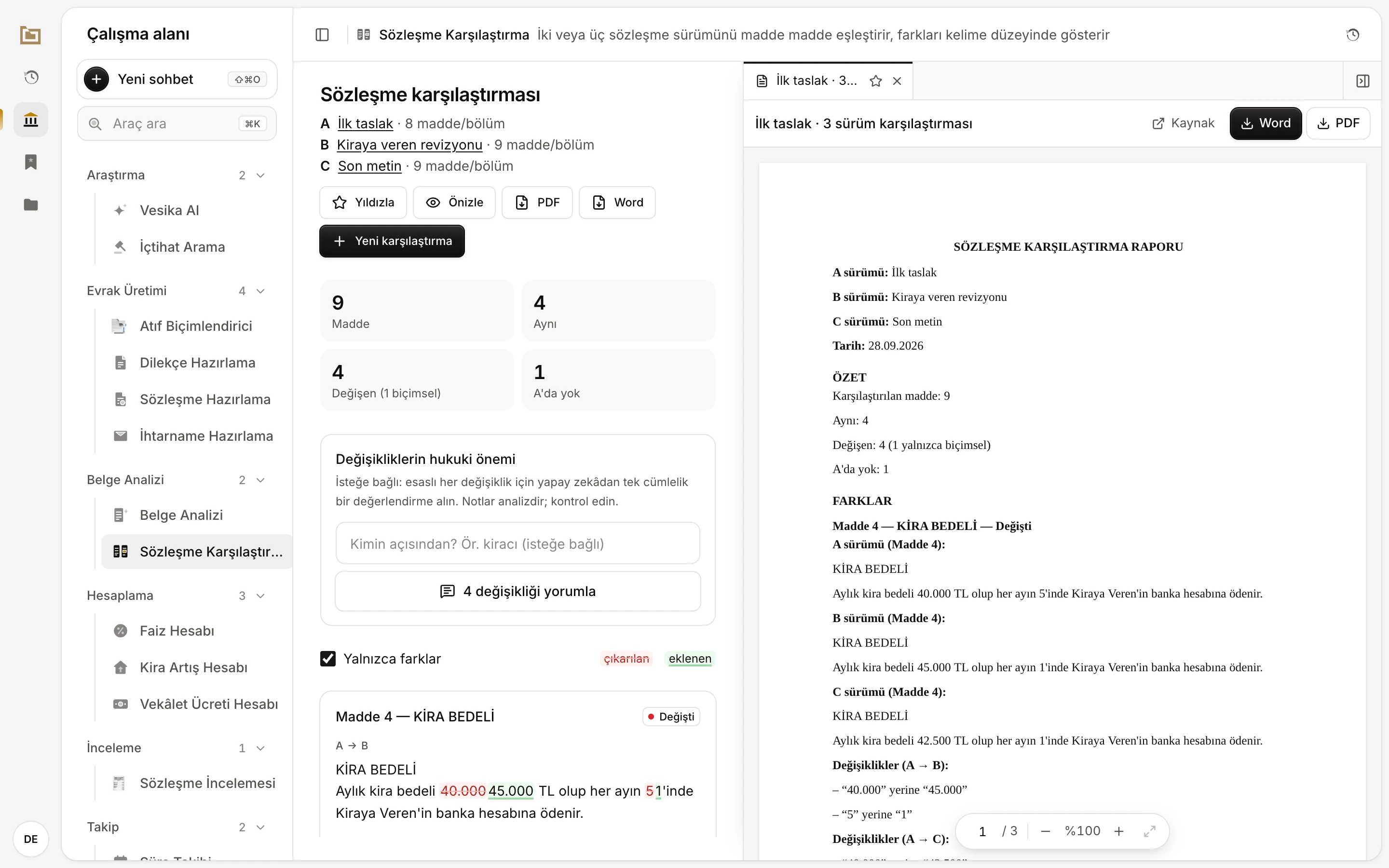
- Önizle: opens the report in the side panel.
- The report in the side panel. You can download it as Word or PDF here too.
Saving and history
Every comparison is saved automatically and listed in the History panel under a name that starts with version A's name, such as "İlk taslak · 3 sürüm karşılaştırması" (First draft · comparison of 3 versions). The Son karşılaştırmalar list at the bottom of the comparison page shows your latest comparisons; click one to reopen its results page. Yıldızla adds a comparison to your Favorites; it is then marked Yıldızlı (Starred) in the list.
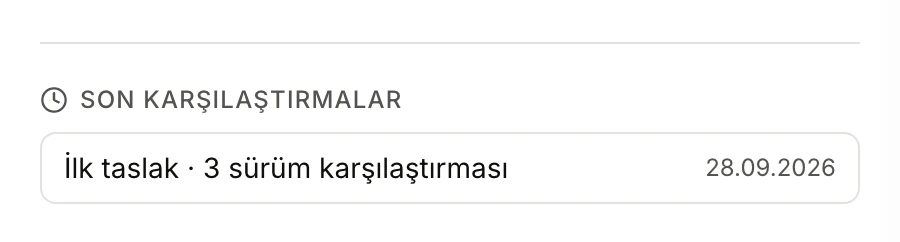
- A saved comparison and its date. Click it to open the results page.
A very large comparison may not be saved; the results page then shows a Kaydedilmedi (Not saved) warning. Download the report as PDF or Word before you leave the page.
To start a new comparison, click Yeni karşılaştırma.
Limits and things to check
- At most three versions can be compared. Every version is compared with A.
- Splitting into clauses relies on the contract's clause numbers and headings. A text without numbers or headings is split into paragraphs, and matching may be less accurate.
- In scanned documents, text extraction errors can look like differences. Check a doubtful difference with Tam metinleri yan yana göster or against the file itself.
- Pay attention to the note about rows matched by AI or by text similarity, and check those rows.
- The AI notes are an optional analysis only; if you reached your AI spend limit this section is unavailable, but the comparison itself keeps working.