Firm templates
Kurum Şablonları (Firm templates) is where you tell Vesika, once, what your firm's documents should look like. You upload a letterhead (an image placed at the top of every draft and a line at the bottom of each page) and templates per document type. Petition drafting, Formal notice drafting and Contract drafting follow these templates and add the letterhead to the documents you download.
Your profile picture at the bottom left → Kurum Şablonları. The Şablonları yönet (Manage templates) button at the top of the drafting tools opens the same page.
Step by step
- Click your profile picture at the bottom left and choose Kurum Şablonları from the menu.
- In the Antet (Letterhead) card, click Görsel seç (Choose image) and pick your firm's letterhead image.
- In the Alt bilgi (Footer) box, type the address, phone and e-mail line to print at the bottom of every page, then click Kaydet (Save).
- In the Şablonlar (Templates) card, choose the document type (Dilekçe (Petition), Sözleşme (Contract), İhtarname (Formal notice) or Diğer (Other)).
- Bring in the template's text with Dilekçe şablonu yükle (Upload petition template; the name follows the selected type), Dosyalarımdan seç (Choose from my files) or Metni yapıştır (Paste text).
- Check the Şablon adı (Template name) and Şablon metni (Template text), then click Kaydet.
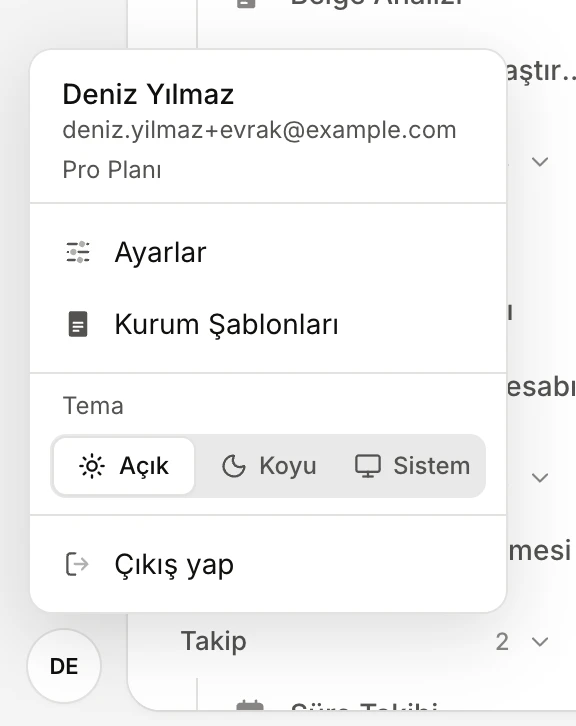
- Your profile picture: opens the menu.
- Kurum Şablonları: the page where the letterhead and templates are managed.
Whose templates?
The sentence at the top of the page tells you who the templates belong to:
- If your account belongs to a company, the templates and letterhead are the company's: everyone in the company sees, uses and can edit the same letterhead and templates. The page says "Şirketteki herkes aynı şablonları kullanır." (Everyone in the company uses the same templates.) A change by one member applies to everyone's drafts.
- If your account does not belong to a company, the templates and letterhead are yours alone ("Hesabınızın şablonları ve anteti", your account's templates and letterhead).
Editing is not limited to administrators: every member of the company can add, change and delete the letterhead and templates. It is a good idea to agree within the firm who looks after them.
Letterhead
The letterhead has two parts:
- Image: placed at the very top of the draft's first page. It must be PNG or JPEG and at most 10 MB. Choose a landscape image: in the document it spans the width of the text, but is scaled down to at most 4 cm in height.
- Alt bilgi (Footer): the line or lines printed small and centred at the bottom of every page (address, phone, e-mail). You can write more than one line.
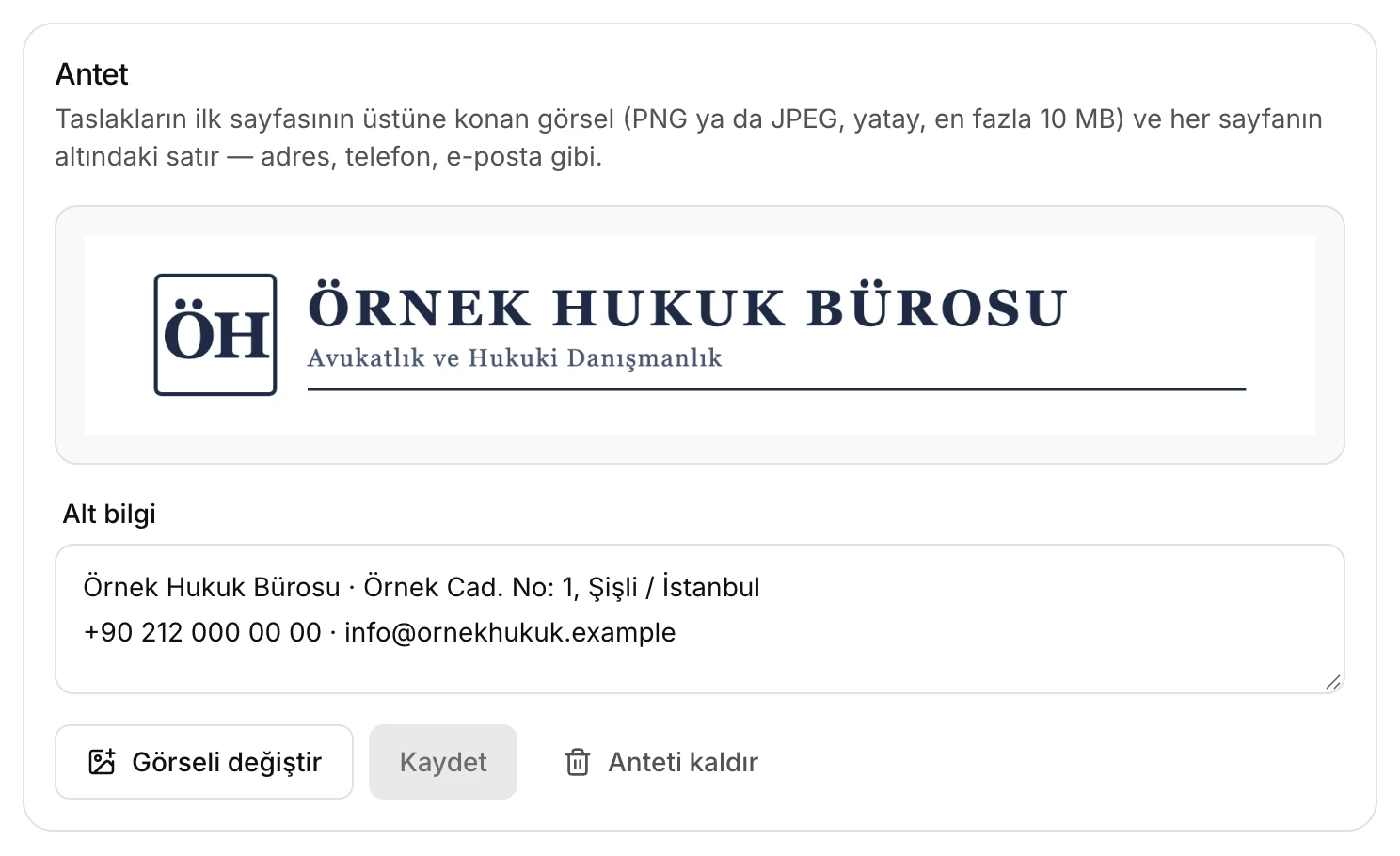
- Preview of the saved letterhead image. Without one it reads "Antet görseli yok" (No letterhead image).
- Alt bilgi (Footer): the lines printed at the bottom of every page.
- Görsel seç / Görseli değiştir (Choose image / Change image): pick a PNG or JPEG from your computer.
- Kaydet (Save): enabled only once you choose a new image or change the footer.
- Anteti kaldır (Remove letterhead): deletes the image and the footer; drafts are downloaded without a letterhead from then on.
Each account or company has one letterhead; saving again replaces it. If you only change the footer and save, the current image is kept.
How the letterhead is added
You do not need to select it. Every draft you download from the drafting tools as PDF, Word or UDF, or open with Önizle (Preview), gets:
- the image at the top of the first page,
- the footer at the bottom of every page,
- the page number at the bottom right.
The tools also show the letterhead under the format field: "Antet: Antet — indirilen belgelere otomatik eklenir." (Letterhead: Antet — added to downloaded documents automatically.) Without one they say "Kurum anteti tanımlı değil; belgeler antetsiz indirilir." (No firm letterhead is set; documents are downloaded without one.) Drafts carry no Vesika mark or watermark.
Templates
A template is a sample text showing how your firm writes a type of document: the headings, the order of the sections, the layout of the party lines, the opening and closing formulas, the signature block. The drafting tools follow this structure when writing a new draft, and write the case-specific details (parties, facts, amounts, dates, requests) from what you tell them each time.
Adding a template
First choose the document type from the tabs at the top of the card. Then bring in the template's text in one of three ways:
- … şablonu yükle (Upload … template): choose a file from your computer. Word (.docx, .doc), PDF, UDF, RTF and plain text (.txt) are accepted; the file can be up to 5 MB. Vesika reads the file's text.
- Dosyalarımdan seç (Choose from my files): pick a file you have already uploaded to Vesika from Files.
- Metni yapıştır (Paste text): opens an empty editor; copy and paste the template's text.
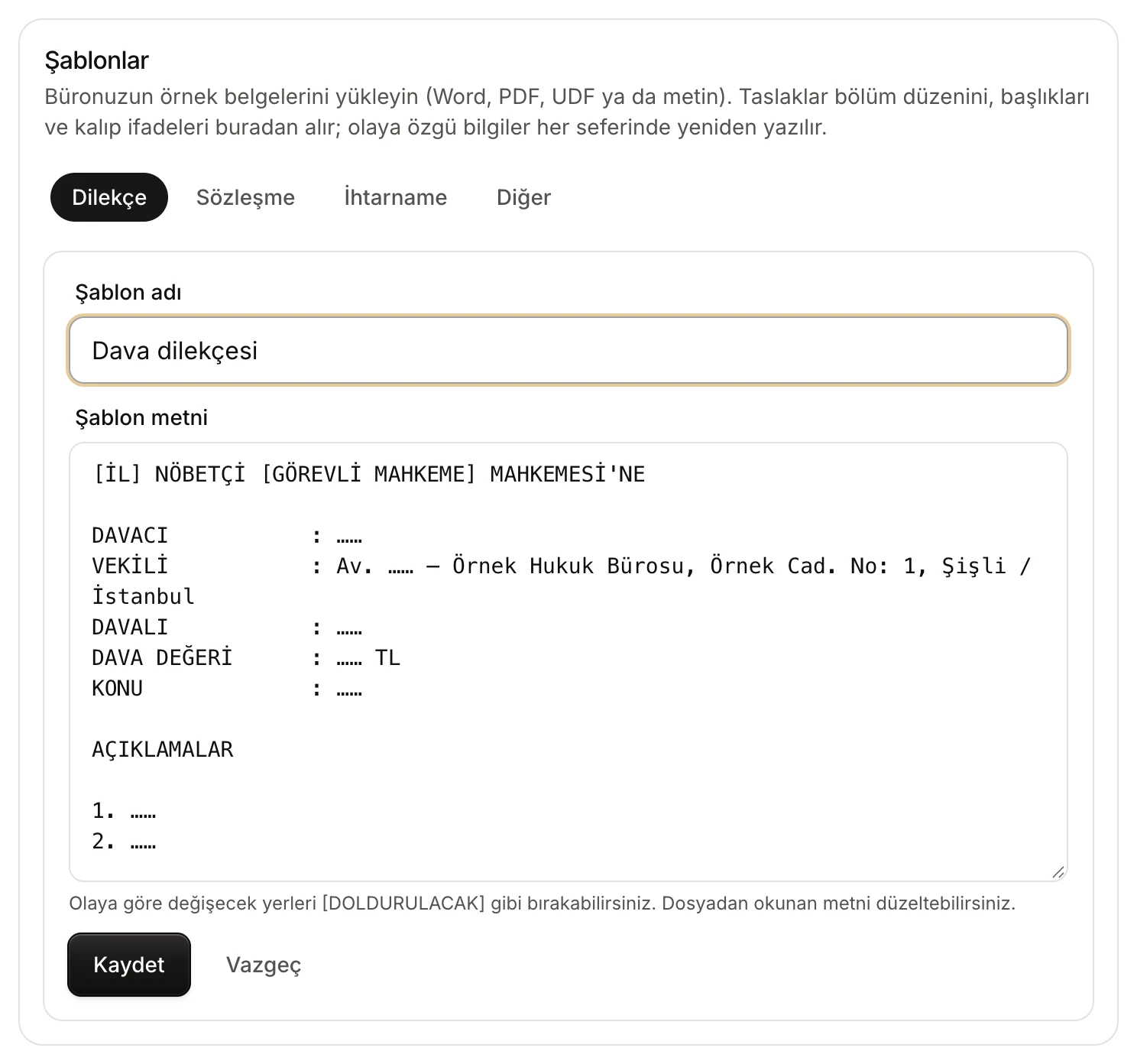
- Document type tabs: the template is saved under the selected type.
- Şablon adı (Template name): the name shown in the tools' Biçim (Format) list.
- Şablon metni (Template text): the text read from the file. Fix reading errors here; leave the case-specific places blank.
- Kaydet (Save) stores the template; Vazgeç (Cancel) discards the changes.
The text read from the file opens in the editor and Şablon adı is filled with the file's name. Before saving:
- Change the name to one you will recognise in the list (for example "Dava dilekçesi", statement of claim). Names can be up to 120 characters.
- Review the text. Scanned or complex files may be read with errors; correct them.
- Leave the places that change from case to case as blanks such as "……" or "___", or as [DOLDURULACAK] (to be filled in). Real people, companies, amounts and dates in a template are not used in drafts, but for confidentiality it is better not to put them in the template at all.
A template with empty text cannot be saved.
The template list
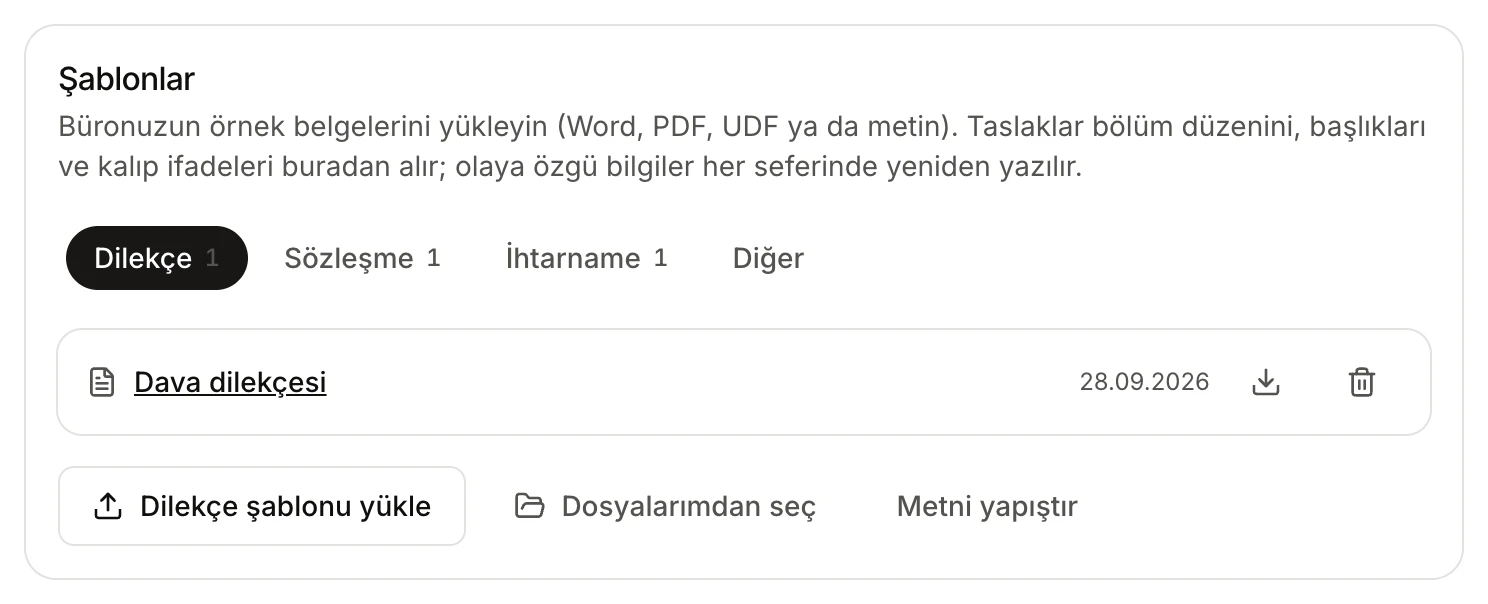
- A tab with templates shows how many it has.
- A saved template: click its name to edit it; the date of the last change is shown beside it.
- Downloads the original file you uploaded.
- Deletes the template.
- Add another template of the same type.
- Editing: click the template's name; the name and text open in the editor. Kaydet updates the same template.
- Downloading: templates uploaded from a file have a download button that returns the original file. Pasted texts do not have it.
- Deleting: the bin icon deletes the template at once, without asking for confirmation.
You can add several templates of one type (for example separate ones for a statement of claim and a statement of defence). The tools list all of them in the Biçim list; the most recently updated template is selected by default.
Document types
| Tab | Used by |
|---|---|
| Dilekçe (Petition) | Petition drafting |
| Sözleşme (Contract) | Contract drafting |
| İhtarname (Formal notice) | Formal notice drafting |
| Diğer (Other) | None of these three tools; it is for keeping your other sample documents. |
When a type has no template, the tab shows a note such as "Dilekçe şablonu yok — dilekçe taslakları Vesika’nın standart biçimiyle hazırlanır." (No petition template — petition drafts are prepared in Vesika's standard format.)
How the drafting tools use a template
In the Biçim (Format) field at the top of the drafting tools, the templates of that document type are listed as "… — kurum şablonu" (… — firm template), with Vesika standart biçimi (Vesika standard format) at the bottom. When you choose a template, the draft:
- keeps the template's structure, section headings and their order, and its fixed wording (opening and closing formulas, standard clauses, signature layout),
- fills the template's blanks with the facts of the case, and writes [DOLDURULACAK] where a fact is missing,
- adds no section the template does not have; if a required element is missing, it is written inside the most suitable section.
Only the template's text is used. The fonts, margins, tables or colours of the Word file you uploaded are not carried over: the downloaded document is always A4, Times New Roman 12 pt, with centred bold headings and justified paragraphs, and your letterhead at the top and bottom. For very long templates only roughly the first 30,000 characters are taken into account.
If you choose Vesika standart biçimi, or there is no template for the type, the draft follows the usual Turkish practice for that document (for example the order required by HMK art. 119 for a statement of claim).
Limits and things to check
- Letterhead image: PNG or JPEG, up to 10 MB. Template file: up to 5 MB. Template text: up to 200,000 characters.
- The letterhead and templates can only be changed on this page; the drafting tools read them but cannot change them.
- Changing a template does not change drafts already prepared; it only affects drafts prepared afterwards. If you change the letterhead, every document downloaded afterwards uses the new one.
- In company accounts every change affects all members.
- However good the template, the draft is written by AI; review every draft before using it.