Account and settings
Everything about your account opens from the account menu at the bottom left: who you are signed in as, your plan, Ayarlar (Settings), the theme and signing out. This page describes the account menu and the Ayarlar screen.
Your initials at the bottom of the section rail → Ayarlar (Settings). In a phone's browser: Ayarlar at the bottom of the panel.
The account menu
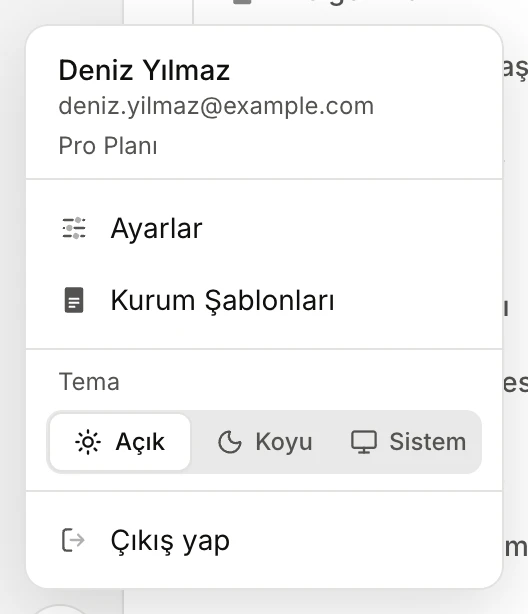
- Your name, email and plan.
- Ayarlar (Settings) and Kurum Şablonları (Firm templates).
- Tema (Theme): Açık (Light), Koyu (Dark) or Sistem (System).
- Çıkış yap (Sign out).
- Ayarlar (Settings): described below.
- Kurum Şablonları (Firm templates): your firm's petition, contract and formal-notice templates and its letterhead: Firm templates.
- Tema (Theme): changes the look at once.
- Çıkış yap (Sign out): closes your session in this browser: Signing in.
Settings
Ayarlar (Settings) has three cards.
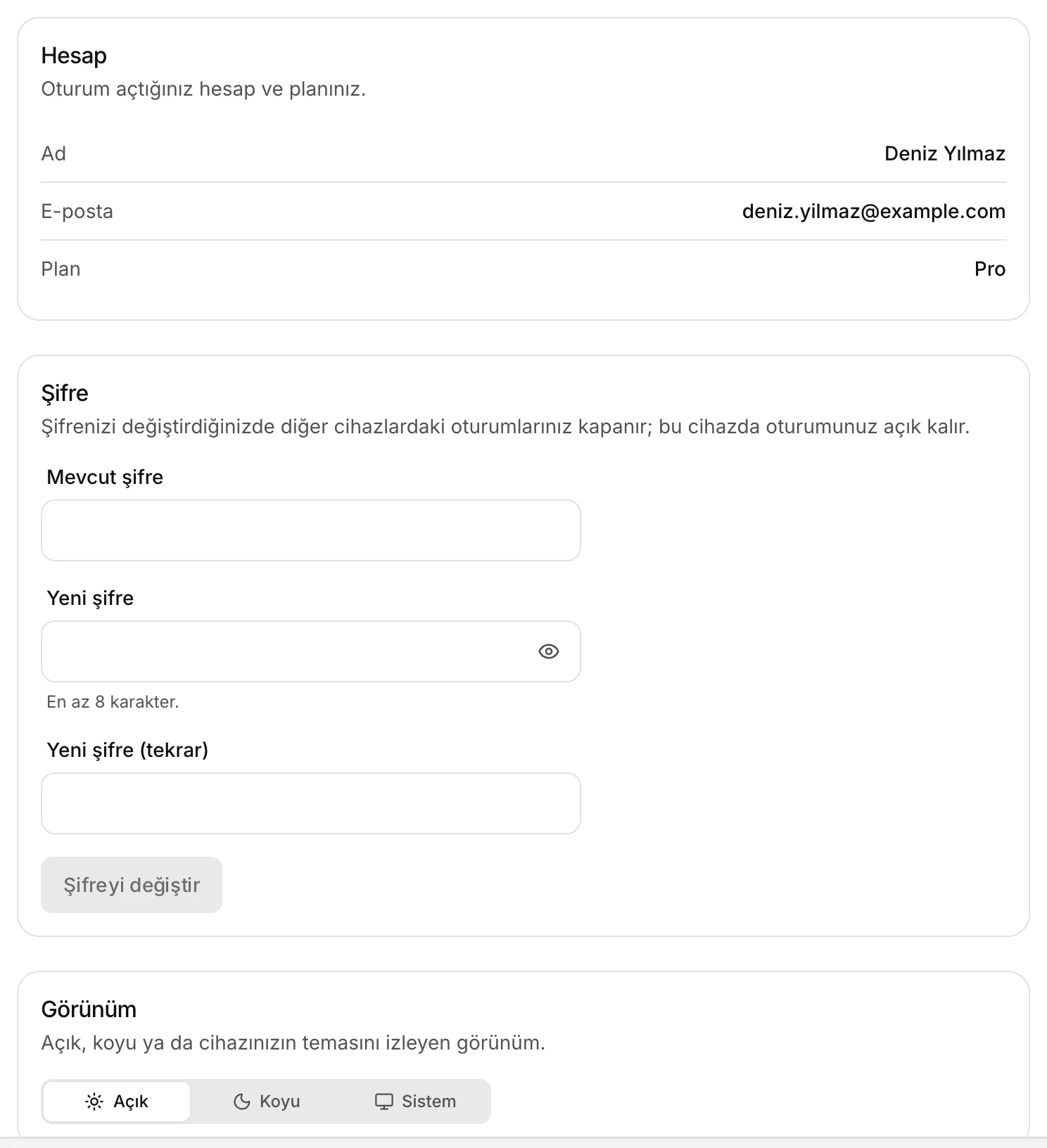
- Hesap (Account): the account you are signed in with and your plan.
- Şifre (Password): change your password.
- Görünüm (Appearance): light, dark or your device's theme.
Account
This card only shows information:
- Ad (Name) and E-posta (Email).
- Şirket (Company): the company's name, if your account belongs to one.
- Plan: your plan (on a company account, the company's plan). The plan may show under its short code here, for example Free: Plans and limits.
- Plan bitişi (Plan ends): if your plan has an end date.
Only your administrator can change your name, email address or plan.
Password
To change your password:
- Type your current password in Mevcut şifre (Current password).
- Type the new password in Yeni şifre (New password).
- Type it again in Yeni şifre (tekrar) (New password, again).
- Click Şifreyi değiştir (Change password). The button becomes active once all three fields are filled.
The eye icon in the Yeni şifre field (Şifreleri göster, Show passwords) reveals both new passwords; click it again to hide them.
Rules for the new password:
- At least 8 and at most 128 characters.
- It cannot start or end with a space.
- It cannot be the same as your current password.
Possible messages: Şifreler eşleşmiyor (The passwords do not match), Mevcut şifreniz yanlış (Your current password is wrong), Yeni şifre mevcut şifrenizle aynı olamaz (The new password cannot be the same as your current one), Şifre en az 8 karakter olmalı (The password must be at least 8 characters), Şifre en fazla 128 karakter olabilir (The password can be at most 128 characters), Şifre boşlukla başlayamaz veya bitemez (The password cannot start or end with a space).
When the password has changed, the button reads Değiştirildi (Changed) and a notice appears. The change signs you out on your other devices and browsers; the session on the device you are using stays open. If other sessions were closed, the notice says how many: "Şifreniz değişti; diğer N oturumunuz kapatıldı" (Your password changed; N other sessions were closed). On those devices, sign in again with the new password.
If you lost a device or think your account is still signed in somewhere else, change your password: that device's session is closed.
If you have forgotten your password you cannot change it here (the current password is needed); ask your administrator to reset it: Signing in.
Appearance
There are three options:
- Açık (Light): the light look.
- Koyu (Dark): the dark look.
- Sistem (System): follows your device's light or dark setting.
The same choice is in the account menu, on the sign-in page and in the Araç ara (Search tools) window (through actions such as Koyu temaya geç, Switch to dark theme). Your choice is kept in this browser; in another browser you choose again.
AI usage
Settings has no section showing how much AI you have used. If your administrator set a usage limit, you see a notice under the tool's header as you approach and reach it: Plans and limits.
Limits and things to note
- Your name, email, plan, company and limits are managed by your administrator.
- The theme belongs to the browser; the password and account details belong to your account.