Having documents drafted
You can ask Vesika AI for a document not only as text in the conversation but also as a downloadable file: a draft petition, formal notice, contract or report. The assistant writes the text, Vesika produces the file as Word, PDF or UDF (the format UYAP, the Turkish judiciary's e-filing system, accepts) and hands it over as a document card under the answer.
Workspace → Araştırma (Research) → Vesika AI → ask for a document in a conversation
Step by step
- Write the type of document, the parties (by role: tenant, landlord, employer…), the facts and the outcome you want. Attach any relevant documents (Attaching files).
- Say which format you want: "prepare it as Word", "give it as PDF and Word", "prepare it as UDF for UYAP". If you do not name a format, the document is prepared as Word and PDF.
- Send. The assistant researches first if needed, then writes the document. The activity line shows it being written.
- On the document card under the answer, click the draft's name to open the preview and read the text.
- Click one of the format buttons on the card to download the file.
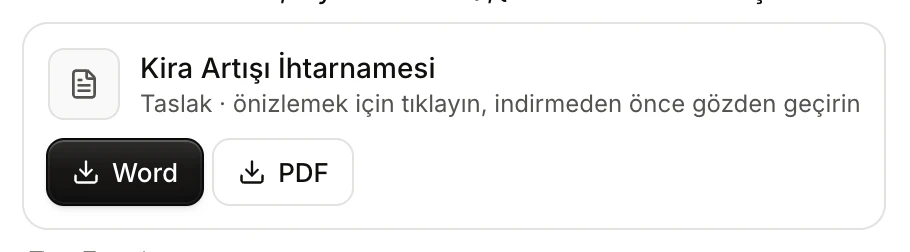
- The document's name. Click it to preview the draft in the side panel.
- Download buttons. The first format you asked for stands out in a dark colour; the others are one click away.
The document card
When the assistant prepares a document, it adds a card under the answer:
- Name: the document's title, also used as the file name. Personal names are not put in the document's name.
- Taslak · önizlemek için tıklayın, indirmeden önce gözden geçirin (Draft · click to preview, review before downloading): the card's second line. Clicking the name opens the draft in the side panel on the right.
- Format buttons: Word, PDF and, where available, UDF. The format you asked for comes first, in a dark colour; you can download the other formats from the same card. The downloaded file is named after the document and the format's extension (e.g. "Kira Artışı İhtarnamesi.docx").
Once the document is on the card, the assistant does not write the whole text into the conversation again; it briefly says what it prepared.
Preview
Clicking the card's name opens the draft in its own tab in the side panel on the right. The preview shows the document with its page layout; use the buttons in the top bar to download it as Word, PDF or UDF. For using the side panel, see The side panel.
Layout of the document
In the draft, the court's name and the document title are centred and bold, and section headings such as AÇIKLAMALAR (Explanations) or SONUÇ VE İSTEM (Conclusion and request) are bold. Verbatim quotations from decisions or legislation are printed in italics, in quotation marks. Information the assistant does not know (a date, an address, a file number) is left in the text as [DOLDURULACAK] (to be filled in); you fill these in after downloading.
Formats
| Format | When |
|---|---|
| Word (DOCX) | If you will keep editing the draft. |
| If you will share or print the text as it is. | |
| UDF | If you will upload the document to UYAP. The UDF button only appears if UDF production is available in Vesika. |
If a format cannot be produced, a red error line appears on the card; you can still download the other formats.
Converting a Word file to UDF
You can have a Word file in the conversation (one you attached or one the assistant sent) converted to UYAP format: write "Convert this Word file to UDF". The assistant adds a conversion card: the file's name with a .udf extension, … dosyasından UYAP biçimine çevrildi (converted to UYAP format from …) under it, and a UDF download button beside it. Clicking the name previews the UDF in the side panel.
Other files the assistant sends
If the assistant prepares a table or another file and sends it, a row with the file's name appears under the answer. Clicking the row opens the file in the side panel, where you can preview and download it. Images are shown directly in the answer. These files are also listed in the side panel under Bağlam (Context) → Belgeler (Documents) as Asistanın hazırladığı (Prepared by the assistant).
Where is it kept?
Drafts and files the assistant prepares are kept in your Dosyalar (Files) section as Üretilen (Generated), with this conversation as their source. A draft is kept as text and converted to Word, PDF or UDF whenever you ask. When you reopen the conversation later, the document card is still there; the file is produced again when you download it. Details: Files.
Getting the answer as a PDF
If you want to keep the assistant's answer itself as a file, rather than a document, use the PDF olarak indir (Download as PDF) button under the answer. That PDF contains the answer and its sources on Vesika letterhead (Reading an answer).
Limits and things to check
Every document the assistant prepares is a draft. Do not use, send or upload a document to UYAP without checking the facts, dates, time limits, the relief sought and every citation.
- You do not have to put real personal details into the draft; you can fill in the [DOLDURULACAK] fields after downloading.
- The document card appears on answers where the assistant decides to produce the document as a file. Say clearly that you want the document as a file, and in which format.
- For a particular type of document you may prefer the tools that guide you step by step: Petition drafting, Formal notice drafting, Contract drafting.