Attaching files
You can give Vesika AI a contract, a petition or a decision together with your question; the assistant then bases its answer on both the legal database and the document you attached. This page describes the ways to attach files, the supported file types and where attached files are kept.
Vesika AI → the + button to the left of the composer → Belge ekle (Attach document) or Dosyalarımdan seç (Choose from my files)
Step by step
- Click the + button to the left of the composer and choose Belge ekle. You can select more than one file.
- The selected files appear as labels above the composer.
- Write what you want done with the file, for example "Is the increase clause in this lease valid?".
- Press Enter. The files are sent with your question.
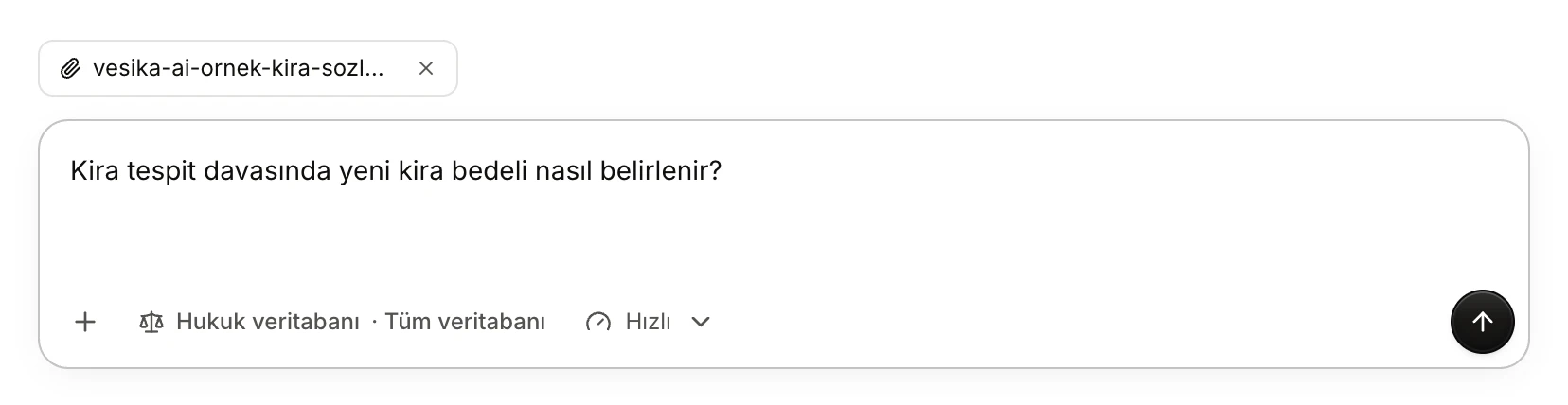
- The attached file. Not sent yet.
- ×: removes the file without sending it.
- The question sent with the file. You cannot send without a question.
Ways to attach a file
Belge ekle (Attach document)
+ → Belge ekle opens your computer's file picker. You can select several files, and add more later.
Drag and drop
Drag a file from your computer onto Vesika AI. The composer turns into a dashed frame reading Belgeyi buraya bırakın (Drop the document here). You can drop the file anywhere on the conversation area, not only on the composer.
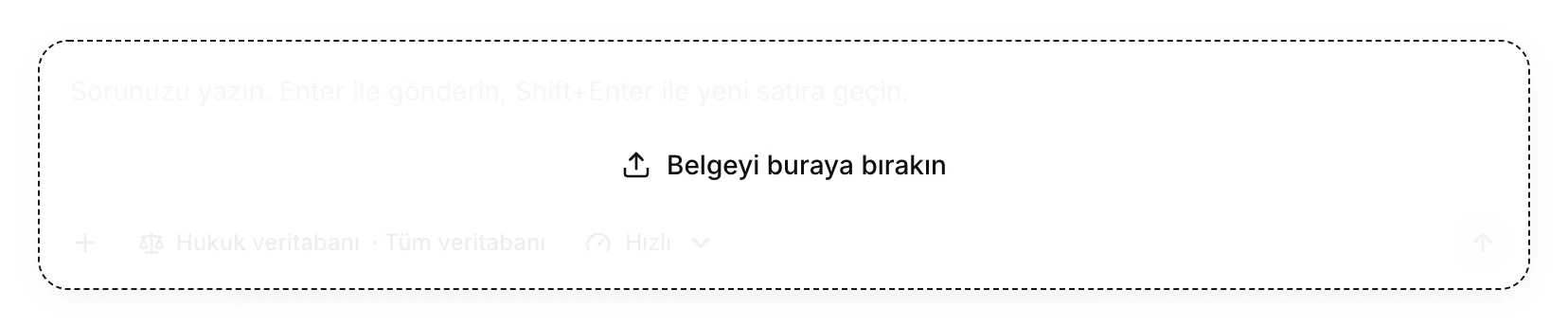
- When you drop the file, it is added above the composer.
Dosyalarımdan seç (Choose from my files)
+ → Dosyalarımdan seç lets you pick from documents you uploaded to Vesika before or that tools produced. This option is shown to signed-in users.
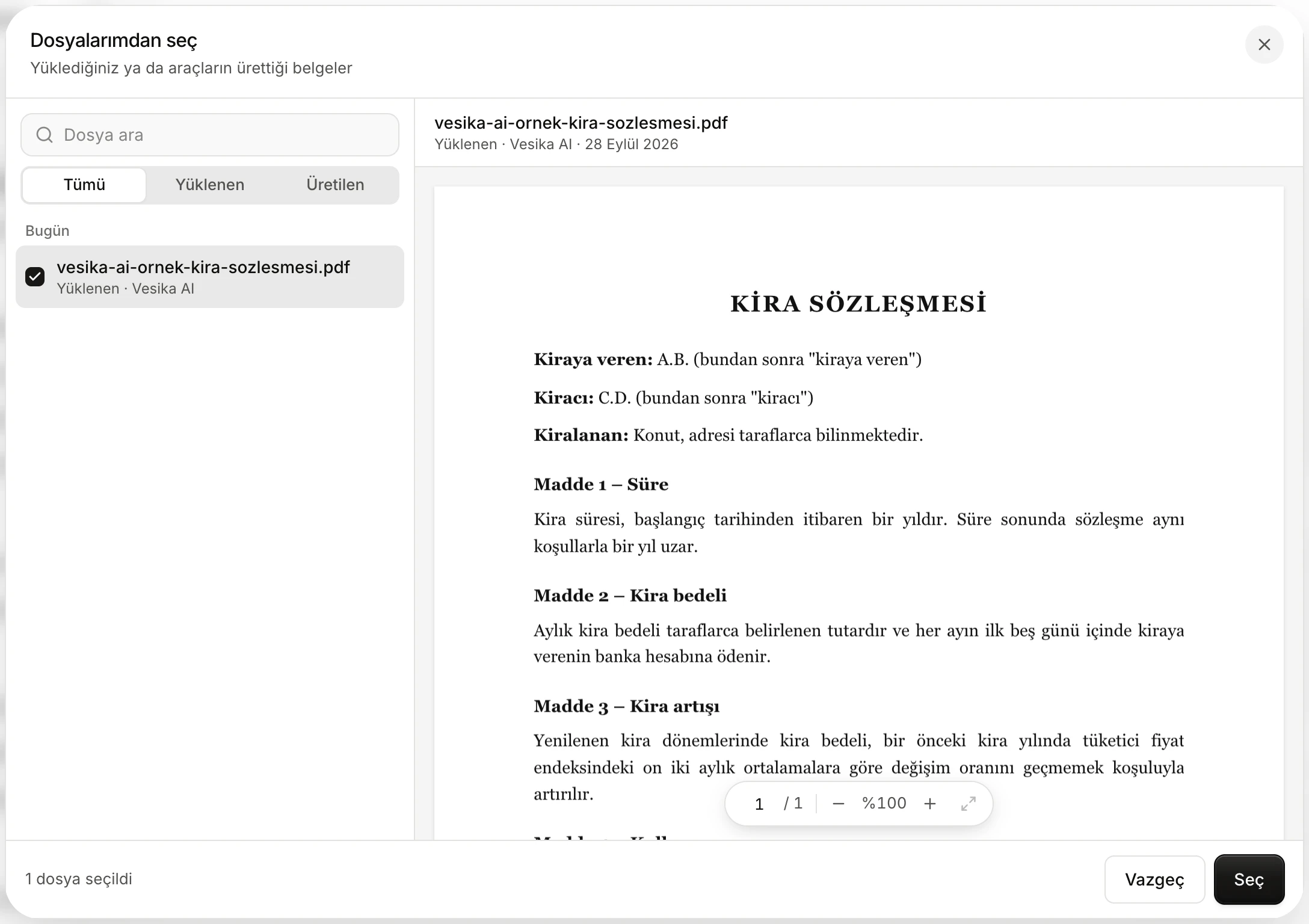
- Dosya ara (Search files): filters files by name.
- Tümü (All), Yüklenen (Uploaded) or Üretilen (Generated) files.
- Files are grouped by date. Click to select; its preview opens on the right.
Select one or more files and click Seç (Select). Double-clicking a file adds it straight away. With the keyboard, move through the list with ↑ ↓ and add with Enter. A draft produced by a tool is added as a Word file.
Pasting
Pasting a file from the clipboard into the composer is not supported. For a short text, paste the text straight into the composer.
Supported file types
The + menu suggests attaching a PDF, DOCX, UDF ya da görsel (PDF, DOCX, UDF or image).
| Type | How it is read |
|---|---|
| Sent as it is; the assistant reads it directly. | |
| Word (DOCX) | Sent as it is. |
| UDF (UYAP) | Converted to text in your browser before it is sent; the assistant reads the text. If the document has a UYAP verification code, it is sent with the text. In the conversation the file still appears with its .udf name. |
| Image (photo, scanned page) | Sent as it is. |
Files such as Excel, CSV, text or ZIP can also be attached; the assistant opens them in its own workspace. If the assistant cannot read a file, the notice Eklenen dosyalardan biri okunamadı. (One of the attached files could not be read.) appears. A file your browser cannot read is not sent at all; the notice appears above the composer.
Sent attachments
The files you sent appear as cards above your question. The card shows the file's name and Belge eki · Önizle (Attachment · Preview).

- The attached file. Click it to open it in the side panel.
- The question you sent with the file.
Clicking the card opens the file in its own tab in the side panel on the right. PDF, Word, UDF, image and text files are previewed; use the buttons in the top bar to download the file.
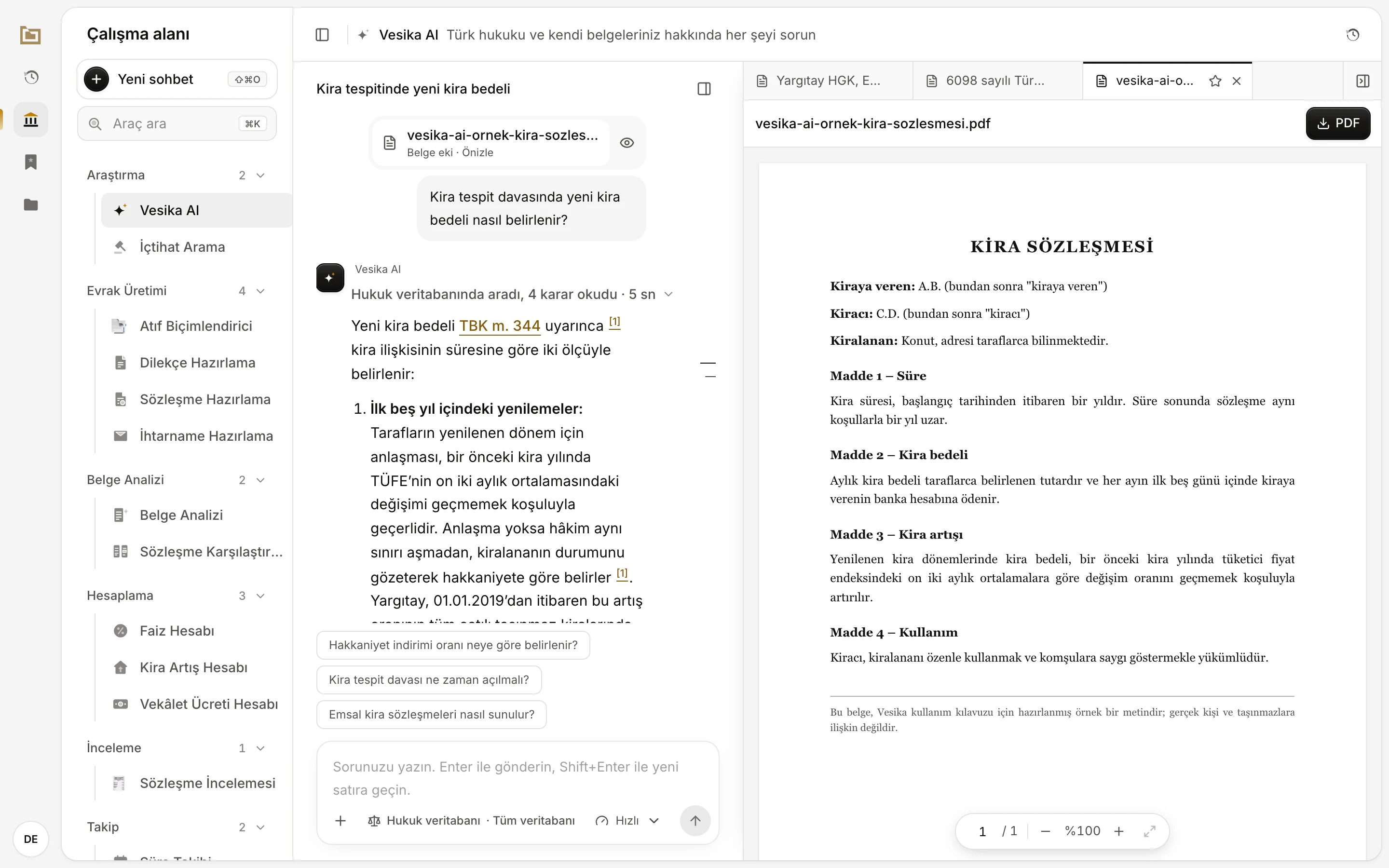
- The attachment that was clicked.
- The file's tab.
- Download buttons: one for each format the file is available in.
- The preview. For PDFs, page and zoom controls are at the bottom.
The Belgeler tab
The Belgeler (Documents) tab of the Bağlam (Context) section in the side panel shows all files in the conversation in one list: those you added (Eklediğiniz, Added by you), those the assistant sent (Asistanın hazırladığı, Prepared by the assistant), and those waiting in the composer that have not been sent yet (Gönderilmedi, Not sent).
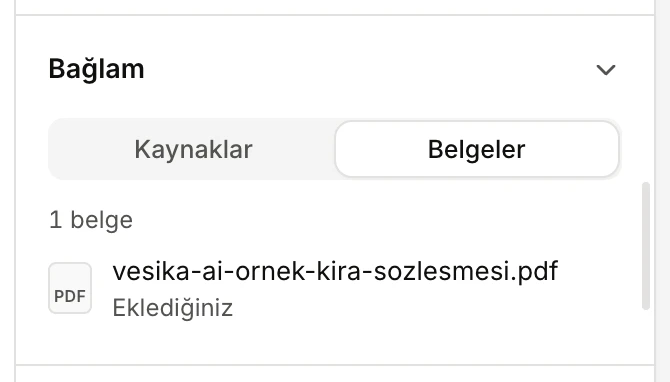
- Switch between Kaynaklar (Sources) and Belgeler.
- A file in the conversation and where it came from.
Copies kept in Dosyalar
Files you attach to a conversation and documents the assistant prepares are also kept in your Dosyalar (Files) section once the conversation is saved:
- Files you attached are listed as Yüklenen (Uploaded), those the assistant produced as Üretilen (Generated); each file shows this conversation as its source.
- Attaching a file with the same content a second time does not create a new copy.
- You can reuse these files in another conversation or another tool with Dosyalarımdan seç.
To manage, download and delete files, see Files.
Limits and things to check
- Always write a question or instruction with the file; a file alone cannot be sent.
- Each file kept in Dosyalar can be at most 25 MB. If your account's or company's file storage limit is full, new files are not saved to Dosyalar; you can delete old files or ask your administrator to raise the limit.
- The assistant may misread text in scanned documents and low-resolution images. Compare every statement the assistant takes from a document with the original.
- When you switch to another conversation, files waiting unsent in the composer are removed.
- While the assistant reads an attached document, you may see steps such as Asistan dosyanızı okuyor… (The assistant is reading your file) on the activity line.