Managing conversations
Every question in Vesika AI is part of a conversation. Conversations are saved and named automatically; you can pick up where you left off at any time, rename them, add important ones to your favourites, or delete them.
The Geçmiş (History) section on the left edge → Sohbetler (Conversations). Also the Son sohbetler (Recent conversations) list on Vesika AI's start screen.
Step by step: returning to a conversation
- Click Geçmiş among the sections on the left edge, or use the history button at the right of Vesika AI's top bar (Vesika AI geçmişi, Vesika AI history).
- Make sure Sohbetler is selected at the top of the panel.
- Find the conversation in the list, or type a word in Sohbetlerde ara (Search conversations).
- Click the conversation. It opens with all its messages, sources and attachments.
- Continue from the composer.
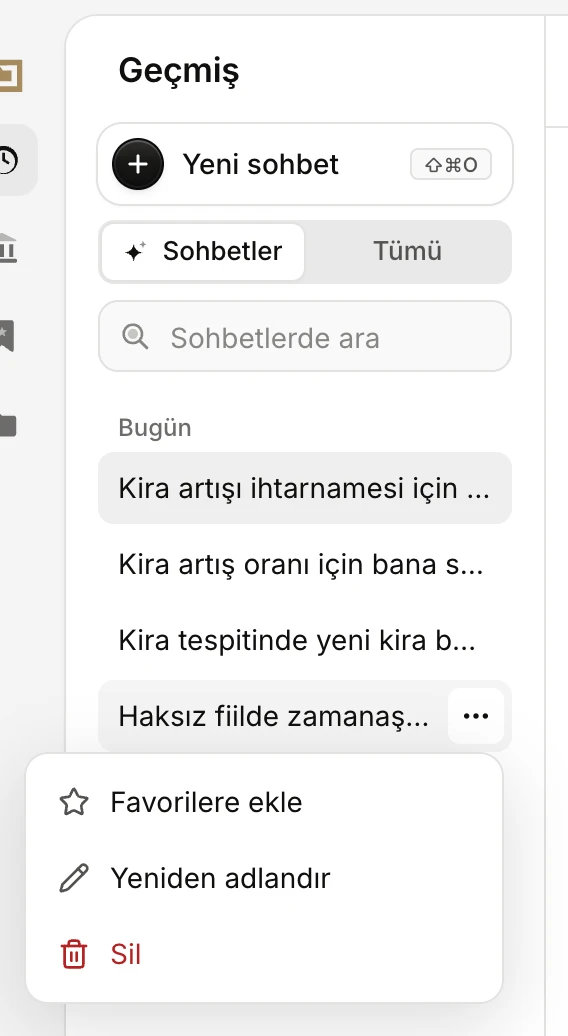
- Yeni sohbet (New chat) and its shortcut.
- Sohbetler shows only Vesika AI conversations; Tümü (All) shows your work in every tool.
- Sohbetlerde ara (Search conversations)
- A row's … menu: favourites, renaming and deleting.
Continuing a conversation
Each new question you write in an open conversation is added to it. The assistant knows what came before; you can ask short questions that build on the previous answer, such as "Can you explain the reasoning of this decision?". Clicking the follow-up suggestions under an answer also asks in the same conversation.
Each conversation has its own address. Reloading the page opens the same conversation; the browser's back and forward buttons move between conversations.
If you leave a conversation open for a long time and come back, a short summary line may appear under the answer reminding you where the conversation left off.
Son sohbetler (Recent conversations)
On Vesika AI's start screen, under Başlangıç akışları (Starter prompts), your five most recent conversations are listed. Each row shows the conversation's name and the time of its last activity.
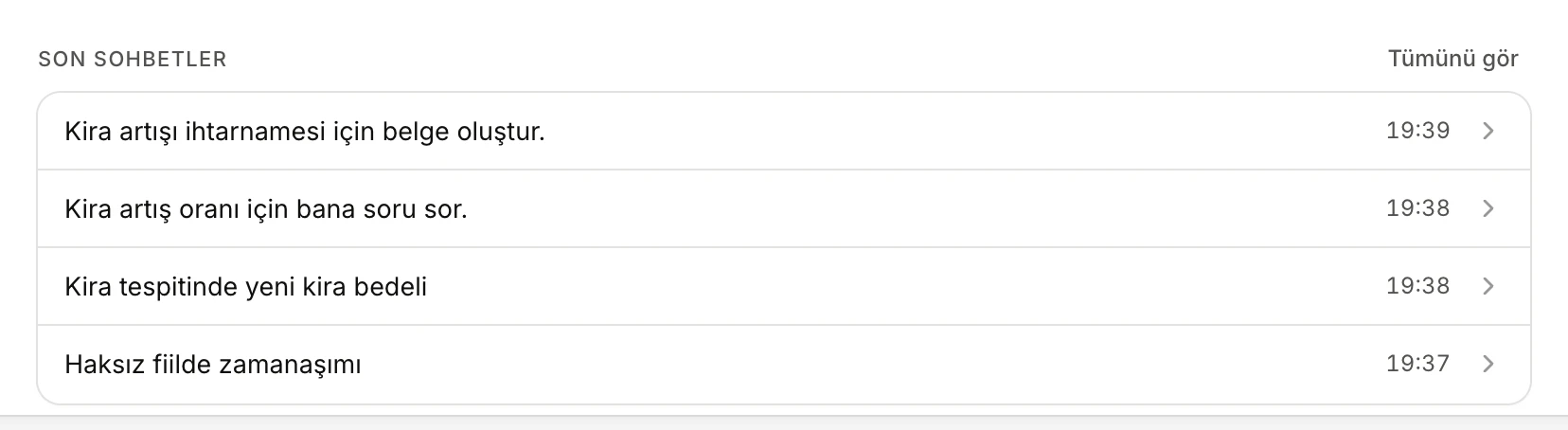
- Your recent conversations. Click one to open it.
- Tümünü gör (See all): opens all conversations in the History panel.
If the conversation list is already open in the left panel, Son sohbetler is not repeated on the start screen.
The History panel
The first section on the left edge is Geçmiş (History). While Vesika AI is open, the panel opens on Sohbetler; switch to Tümü (All) and what you did in other tools is listed too, each with its tool's icon.
- Rows are grouped under headings such as Bugün (Today), Dün (Yesterday) and Son 7 gün (Last 7 days), newest first.
- A spinning mark appears next to a conversation whose answer is still being written, and a star next to a conversation in your favourites.
- Sohbetlerde ara searches conversation names and the content of conversations. Click × or press Esc to clear the search.
- With no conversations yet it reads Henüz sohbet yok. İlk sorunuzu sorduğunuzda burada listelenir. (No conversations yet. They are listed here once you ask your first question.)
How History and Favorites work across all tools is described in History and favorites.
The conversation's name
A conversation is named automatically from your first question. Until the name is set, the list shows the start of your question; while the answer is written, it is replaced by a short name the assistant gives it. The name also appears in the conversation's top bar.
Renaming
- In the History panel, hover over the conversation and click the … button.
- Choose Yeniden adlandır (Rename).
- Type the new name and press Enter. Esc discards the change.
Adding to favourites
Choose Favorilere ekle (Add to favourites) in the … menu. The conversation is listed under Favoriler (Favorites) and a star appears next to it in History. To remove it, choose Favorilerden çıkar (Remove from favourites) in the same menu.
You can also star a single answer rather than the whole conversation: the star button under the answer (Reading an answer).
Deleting
- Choose Sil (Delete) in the … menu.
- Confirm the question Sohbet silinsin mi? (Delete the conversation?) with Sil, or click Vazgeç (Cancel).
A deleted conversation's messages and attachments are deleted permanently; this cannot be undone.
Starting a new chat
You can start a new conversation in these ways:
- The Yeni sohbet (New chat) button at the top of the panel. While the panel is folded, the same button appears on the left edge.
- ⇧ ⌘ O (Ctrl Shift O on Windows).
- The Yeni sohbet action in tool search (⌘ K / Ctrl K).
- On a phone, the pen icon in the conversation's top bar.
Starting a new conversation does not stop an answer being written in the previous one; it finishes in the background and is there when you return. Text and attachments typed into the composer but not sent are not carried over to the new conversation.
Limits and things to check
- Start a new conversation for each new matter. In a long conversation that mixes different matters, the assistant also takes the earlier matters into account.
- If the conversation list cannot be read, the panel shows Sohbetler şu anda okunamadı. (Conversations cannot be read right now.); reload the page and try again.
- For the full list of shortcuts, see Keyboard shortcuts.