The side panel
In Vesika AI two different panels can open on the right of the screen. The Sohbet ayrıntıları (Conversation details) panel shows the open conversation's progress, sources, documents and settings. The Yan panel (side panel) opens a decision, a law or a file you click, without leaving the conversation, in tabs much like browser tabs.
Workspace → Araştırma (Research) → Vesika AI → the right-hand side while a conversation is open
The conversation details panel
Once a conversation has at least one question, the panel button (Yan panel) appears to the right of the conversation's title. On a wide enough screen the panel stays docked to the right of the conversation; on narrow screens, or while a document is open in the side panel, clicking the button opens the panel as a sheet that slides in from the right.
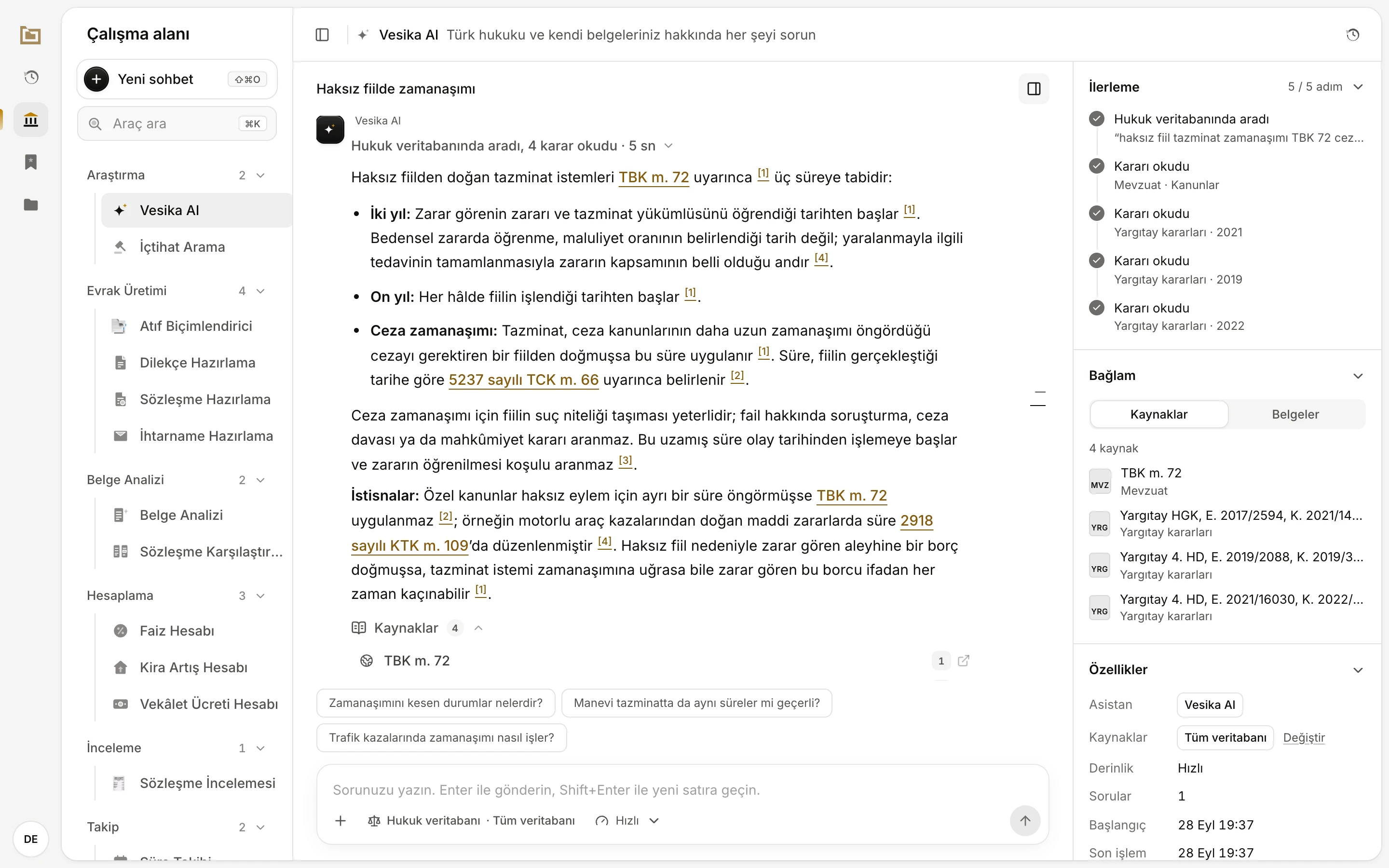
- Shows or hides the panel. Your choice is remembered in this browser.
- İlerleme (Progress): the steps the assistant took for the last answer.
- Bağlam (Context): the conversation's sources and documents.
- Özellikler (Properties): the conversation's settings and details.
- Değiştir (Change): opens the legal database selection.
Click a section's heading to collapse or expand it.
İlerleme (Progress)
İlerleme lists the assistant's work for this answer step by step: every search, every decision or law it read. Under each step are its details, for example the search query or the type and year of the source read. A count such as "5 / 5 adım" (5 / 5 steps) sits at the right of the heading.
- If the assistant made a plan while writing the answer, the section shows the plan's items; finished items are ticked.
- After the answer is finished, the last answer's steps remain.
- If the assistant has not taken a step yet it reads Asistan soruyu değerlendiriyor. (The assistant is evaluating the question.); if the last answer used no tools it reads Son yanıtta araç kullanılmadı. (No tools were used in the last answer.)
The activity line above the answer summarises the same work (Reading an answer).
Bağlam: Kaynaklar (Context: Sources)
The Kaynaklar tab of the Bağlam section gathers the decisions and legislation that all answers in the conversation rely on in one list. It starts with a count such as "4 kaynak" (4 sources).
- Besides the numbered sources of the answers, the list includes the other sources the assistant gave as a basis for its answers. The Kaynaklar list under an answer shows only the numbered ones.
- The small tile at the left of each row shows the source's type: for example MVZ legislation, YRG a Yargıtay (Court of Cassation) decision, WEB a web page.
- Under the row is the section the source belongs to (Mevzuat, legislation; Yargıtay kararları, Court of Cassation decisions).
- Clicking a row opens the source in the document side panel.
With no sources yet it reads Yanıtlarda atıf yapılan kararlar ve mevzuat burada toplanır. (Decisions and legislation cited in answers are gathered here.)
Bağlam: Belgeler (Context: Documents)
The Belgeler tab lists the files in the conversation:
| Under the row | Meaning |
|---|---|
| Eklediğiniz (Added by you) | A file you attached to this conversation. |
| Asistanın hazırladığı (Prepared by the assistant) | A file the assistant sent you. Click it to open its preview, where you can download it. |
| Gönderilmedi (Not sent) | A file you added to the composer but have not sent yet. |
See Attaching files and Having documents drafted.
Özellikler (Properties)
| Row | Shows |
|---|---|
| Asistan (Assistant) | The assistant answering the conversation: Vesika AI. |
| Kaynaklar (Sources) | The legal database selection: Tüm veritabanı (Whole database), Kapalı (Off) or the names of the selected sections. Değiştir opens the selection panel. |
| Derinlik (Depth) | The selected thinking depth (En hızlı, Hızlı, Dengeli, Derin: Fastest, Fast, Balanced, Deep). |
| Sorular (Questions) | How many questions you asked in this conversation. |
| Başlangıç (Started) | Date and time the conversation started. |
| Son işlem (Last activity) | Date and time of the last activity in the conversation. |
For sources and depth see Asking a question.
The side panel where documents open
When you click a numbered citation in an answer, a statute link, a row in the Kaynaklar list or a file, the document opens in its own tab in the Yan panel on the right of the screen. The conversation stays on the left; you keep seeing the answer while you read the document. Other tools use the same panel.
![A Yargıtay decision opened in the side panel on the right after clicking the [2] citation in the answer, with the passage relied on highlighted](/en/shots/vesika-ai/belge-okuyucu-panelde-karar.webp)
- The citation that was clicked.
- The tab strip. Each document opens in its own tab.
- The document's tools: search in text, link, print, PDF and open in a new tab.
- The passage the citation relies on is highlighted.
- Paneli gizle (Hide panel)
- While the document panel is open, the conversation details fold behind this button.
The document itself is described in The document reader.
- On wide screens the panel stays docked beside the page; on narrow screens it appears as a sheet over the page.
- If you click a link with ⌘ (Ctrl on Windows) or Shift held, or with the middle button, the document opens in a new browser tab instead of the panel.
- Open tabs are kept for your account in this browser; they are still there when you reload the page or come back later.
Tabs
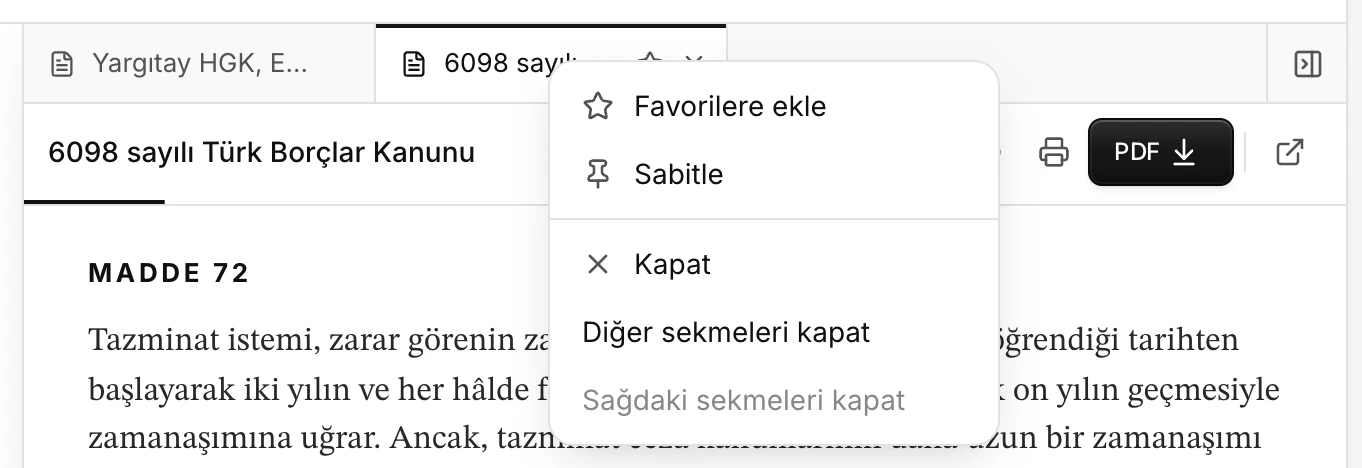
- Open tabs. The active tab has a dark line along its top edge.
- The right-click menu.
- Paneli gizle (Hide panel)
| What you want | How |
|---|---|
| Switch tabs | Click the tab. With a tab focused, ← →; Home End for the first and last tab. |
| Reorder | Drag and drop the tab, or use ⌥ ⇧ ← / → (Alt Shift on Windows). |
| Close | The tab's ×, the middle mouse button, Delete with the tab focused, or Kapat (Close) in the right-click menu. |
| Close several | Diğer sekmeleri kapat (Close other tabs) or Sağdaki sekmeleri kapat (Close tabs to the right) in the right-click menu. |
| Pin | Sabitle (Pin) in the right-click menu. A pinned tab moves to the front, shown only as its icon; it is not closed by ×, the middle button or Diğer sekmeleri kapat. Use Sabitlemeyi kaldır (Unpin) to undo. |
| Add to favourites | The star on the active tab, or Favorilere ekle (Add to favourites) in the right-click menu. The document is listed under Favoriler (Favorites). |
The right-click menu also opens with the keyboard's menu key. The panel keeps at most 24 tabs open; when you open more, the oldest unpinned tab closes.
Hiding, showing and resizing the panel
- Paneli gizle (the button at the right of the tab strip) closes the panel but keeps its tabs. On wide screens Esc also hides it (not while you are in a text field).
- While the panel is hidden, a handle stays at the right edge of the page. Drag it to the left, or press Enter with it focused; it tells you how many tabs the panel will open with.
- Drag the panel's left edge to change its width; double-click to return to the default width. The panel is at least 320 pixels and at most 60% of the workspace wide, and leaves at least 420 pixels to the page beside it. Pulling the edge more than 80 pixels past its narrowest closes the panel.
Limits and things to check
- The conversation details panel does not appear in an empty conversation; it appears after the first question.
- While the document panel is open, the conversation details panel cannot stay docked beside the conversation; the header button opens it as a separate sheet.
- Open tabs and panel preferences are stored in this browser. You will not see the same tabs on another computer or browser.
- The plan in İlerleme is shown only while an answer is being written; once it finishes, the steps taken replace it.