Reading an answer
A Vesika AI answer is more than text: it carries an activity line showing what the assistant did, citations that lead to their sources, a source list, and buttons to copy the answer, download it as a PDF or add it to your favourites. This page explains each part and how to verify an answer.
Workspace → Araştırma (Research) → Vesika AI → an answer in a conversation
The parts of an answer
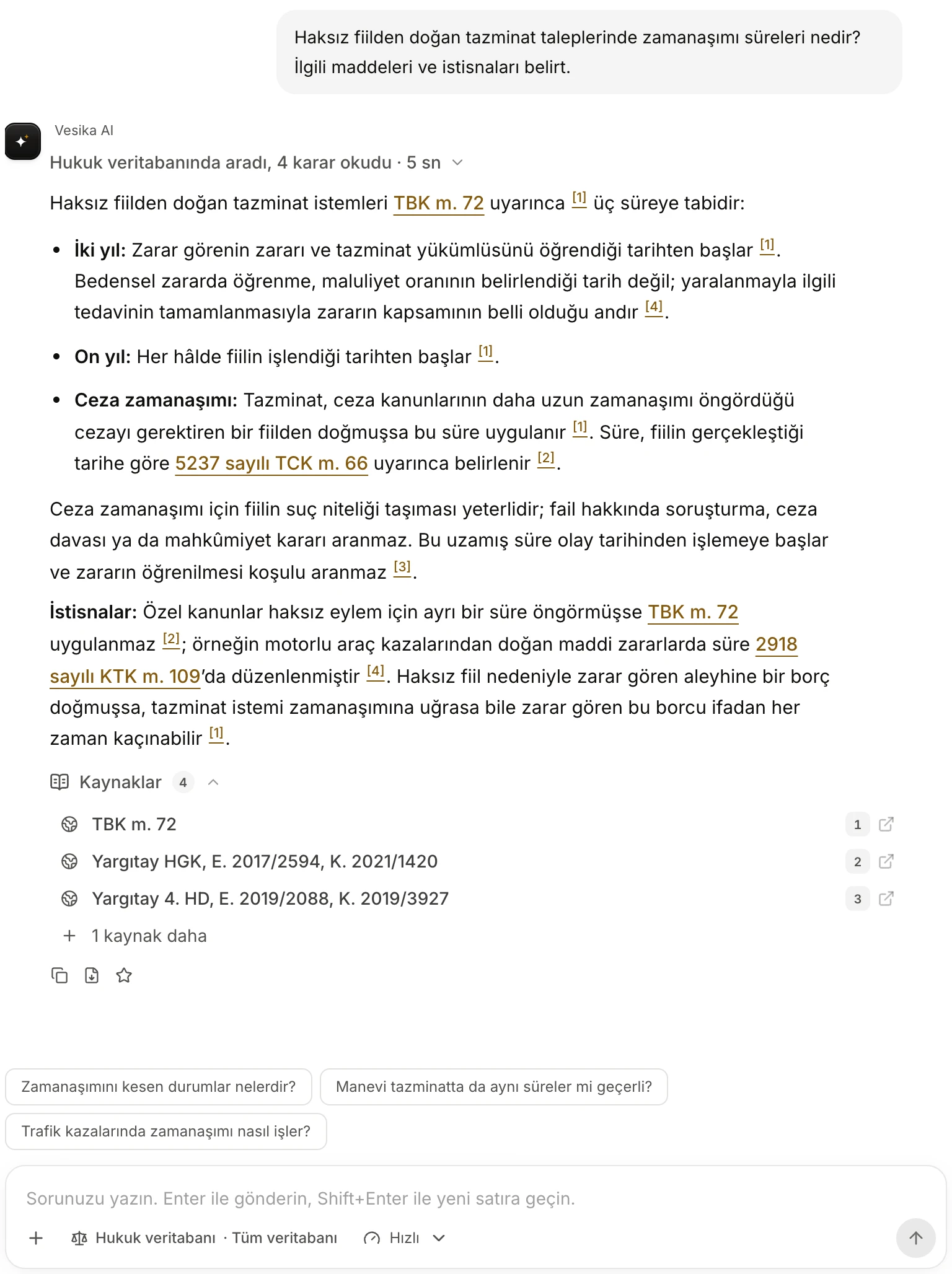
- Activity summary: what the assistant did and how long it took. Click it for details.
- Statute link: opens the law in the side panel at that article.
- Numbered citation: opens the source in the side panel at the passage relied on.
- Kaynaklar (Sources): the answer's numbered sources. The first three are shown.
- 1 kaynak daha (1 more source): opens the rest of the list.
- Answer buttons: copy, download as PDF, add to favourites.
- Follow-up questions the assistant suggests. Click one to send it.
An answer gives the conclusion first, then the reasoning. The assistant is asked to state the law, article or decision it relies on in full, and not to invent article numbers, docket or decision numbers, dates or quotations. When it is unsure of a citation it is expected to explain the rule and say that the citation needs to be verified. If the answer depends on facts you did not give, it says which facts it needs instead of assuming. Still, open and check every citation yourself.
The activity line
The line above the answer summarises the work the assistant did for this question. While the answer is written it shows the current step (Asking a question); when the answer ends it becomes a summary, for example Hukuk veritabanında aradı, 4 karar okudu · 5 sn (Searched the legal database, read 4 decisions · 5 s).
- The summary counts at most two kinds of work; if there were more, it ends with something like "2 iş daha" (2 more tasks).
- If the whole turn took longer than 5 seconds, the time is shown at the end in seconds.
- Click the summary to open one row per kind of work:
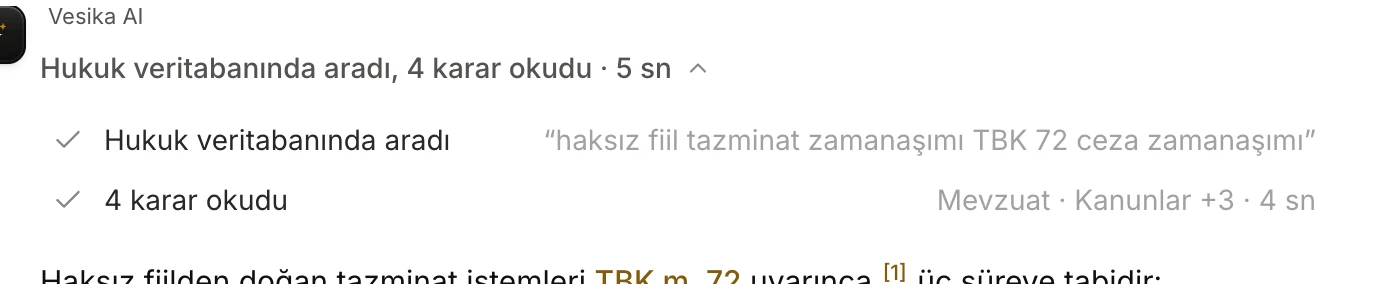
- The summary. Click to open or close it.
- One row per kind of work: on the right, the search query or the type of source read, and the time taken.
Some of the kinds of work you may see: Hukuk veritabanında aradı (Searched the legal database), Kararı okudu (Read the decision; "4 karar okudu" when there were several), Kaynakları denetledi (Checked the sources), İnternette aradı (Searched the web), Dosyanızı okudu (Read your file), Belgeyi yazdı (Wrote the document), Size soru sordu (Asked you a question). The individual steps are listed in the side panel's İlerleme (Progress) section (The side panel).
Statute links
Statutory articles written in the answer, such as "TBK m. 72", "TMK m. 24-25" or "6098 sayılı Kanun'un 344. maddesi", become underlined links. Clicking one opens the law in the side panel with that article highlighted. If a paragraph is given ("TCK m. 134/1") only that paragraph is highlighted; for a range ("TMK m. 24-25") the whole range is.
Laws are recognised by abbreviation or by number ("5846 sayılı Kanun", Law No. 5846). Old laws that are not in the legal database are not linked and stay plain text.
Numbered citations
Numbers such as [1] and [2] work like footnotes in legal writing: each number points to one source, and the same source keeps the same number throughout the answer. The numbers become clickable when the answer is complete.
- Clicking a number opens the source in the side panel. A decision opens at the passage that the citing sentence relies on, and the passage is highlighted (The document reader).
- A statute source opens at the article named in its title.
- Hovering over a number shows the source's name.
If you click a link with ⌘ (Ctrl on Windows) or Shift held, or with the middle mouse button, the document opens in a new browser tab instead of the side panel.
The Kaynaklar list
The Kaynaklar (Sources) list under the answer shows the answer's numbered citations in order. The number of sources appears next to the heading. The list starts open and shows the first three rows; if there are more, a button such as +2 kaynak daha (2 more sources) opens the rest. Click the heading to close the list.
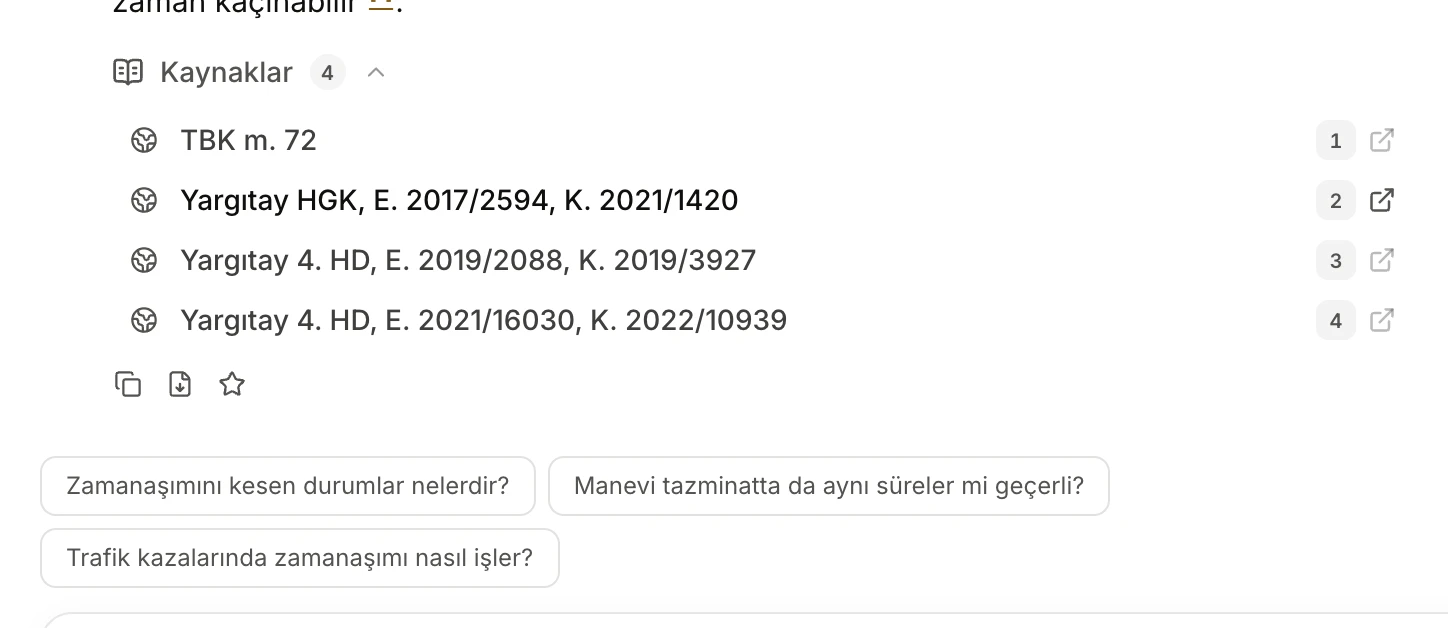
- All sources. Clicking a row opens the source in the side panel.
- Kopyala (Copy)
- PDF olarak indir (Download as PDF)
- Favorilere ekle (Add to favourites)
- Follow-up questions
This list contains only the sources the answer cites by number. All of the conversation's sources, including the other sources the assistant relied on, are gathered in the side panel under Bağlam (Context) → Kaynaklar.
Answer buttons
When an answer is complete, three buttons appear below it:
Kopyala (Copy)
Copies the answer to the clipboard with its formatting: pasted into Word, headings, lists and tables are kept. A numbered source list under the heading Kaynaklar is added at the end, and links are turned into vesika.ai addresses. Where only plain text is accepted it pastes as plain text. The button briefly shows Kopyalandı (Copied).
PDF olarak indir (Download as PDF)
Downloads the answer as a PDF on Vesika letterhead, with the same letterhead, watermark and footer as decisions from the document reader. The title comes from your question; after the answer, each source is listed with its address under Kaynaklar, and the link in the footer leads back to the conversation. The file name starts with "Vesika AI yanıtı - …" (Vesika AI answer). The PDF is made from the answer you see on screen and is not stored anywhere.
Favorilere ekle (Add to favourites)
Stars the answer. A starred answer is listed under Favoriler (Favorites) with your question as its name; clicking it opens the conversation at that answer. Clicking the star again (Favorilerden çıkar, Remove from favourites) removes it. See History and favorites.
Follow-up questions
When the answer is finished, a few follow-up questions suggested by the assistant may appear above the composer. They are written as if in your own words; clicking one sends it in the same conversation right away. The suggestions are renewed when you ask your own question or a new answer starts.
Verifying an answer
- Click the number or statute link next to each important statement in the answer.
- Read the highlighted passage in the side panel: does it really support the sentence in the answer?
- Check the decision's reference (chamber, docket and decision numbers, date) in the reader's header. Atfı kopyala (Copy citation) gives you the reference exactly as it is.
- For statutory articles, check whether the text is the one in force; for an amended article the reader shows earlier versions (The document reader).
- Be especially careful with a decision reference given without a number or link, since it may come from the assistant's own knowledge rather than the database; search for it with Case-law search.
Vesika AI's answers can contain wrong, incomplete or outdated information. Open and read the sources before you carry an answer into a petition, an opinion or advice to a client.
Limits and things to check
- Numbered citations and the Kaynaklar list are only created when the answer is complete. In an answer that was stopped or cut off, the numbers may stay unclickable.
- The copy, PDF and favourite buttons appear on completed answers. The favourite button also needs the conversation to have been saved.
- The text of documents opened in the side panel is taken verbatim from the source. The assistant's answer is a summary made from the sources; if you see a difference, trust the source.