The workspace
Everything in Vesika opens in the same layout: the rail of sections on the left, the panel of the chosen section beside it, the tool you picked in the middle and, when needed, the side panel on the right where sources open. This page describes these parts and how to use them.
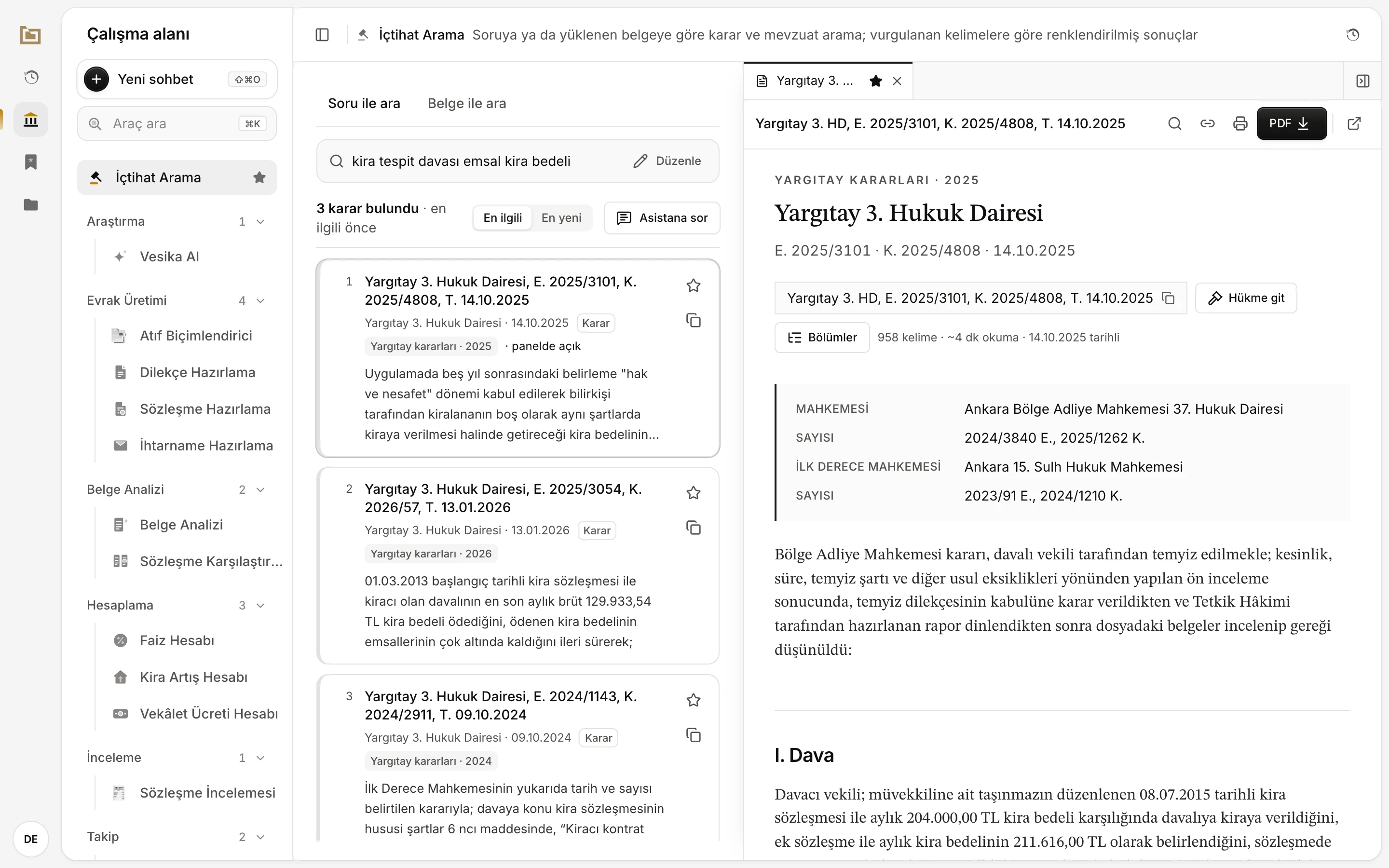
- Bölümler (Sections): Geçmiş, Çalışma alanı, Favoriler and Dosyalar; the account button at the bottom.
- The panel: the content of the chosen section. Here Çalışma alanı (Workspace), that is the tool list.
- The tool header: its name, description and history button.
- The open tool; here İçtihat Arama (Case-law search).
- The side panel: decisions, laws and files open in tabs.
Sections
The narrow strip on the far left is Bölümler (Sections). Click a section and its content opens in the panel next to it. Click the button of the section that is already open and the panel closes; click another section and the panel opens again.
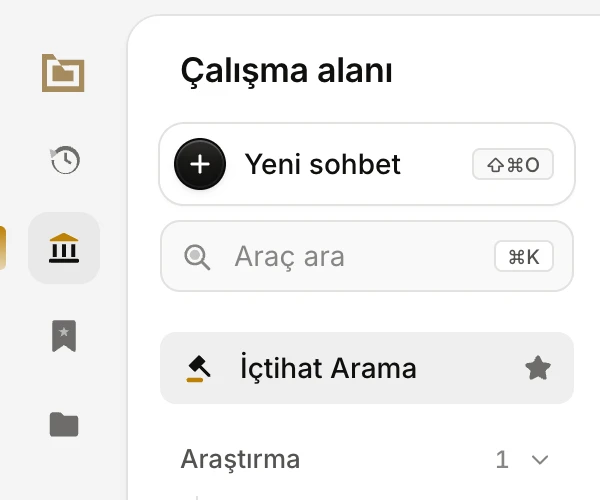
- The logo: back to the home screen.
- Geçmiş (History): what you did in every tool.
- Çalışma alanı (Workspace): the list of all tools.
- Favoriler (Favorites): the tools and items you starred.
- Dosyalar (Files): files you uploaded and files the tools produced.
- The panel's title shows the name of the open section.
| Section | What it shows | Details |
|---|---|---|
| Geçmiş (History) | Your conversations and your work in the tools, newest first. | History and favorites |
| Çalışma alanı (Workspace) | All tools, by category. | This page |
| Favoriler (Favorites) | The tools, conversations, answers and documents you starred. | History and favorites |
| Dosyalar (Files) | Files you uploaded and files the tools produced. | Files |
| Yönetim (Administration) | Administrators only: tools such as user and module management. | User management |
The open section's button is highlighted. The round button at the bottom of the rail (your initials) opens the account menu, described below.
When you open a tool, the panel switches to the section the tool belongs to: Geçmiş when Vesika AI opens, Çalışma alanı for the other tools.
The panel and the tool list
With Çalışma alanı chosen, the panel lists every tool.
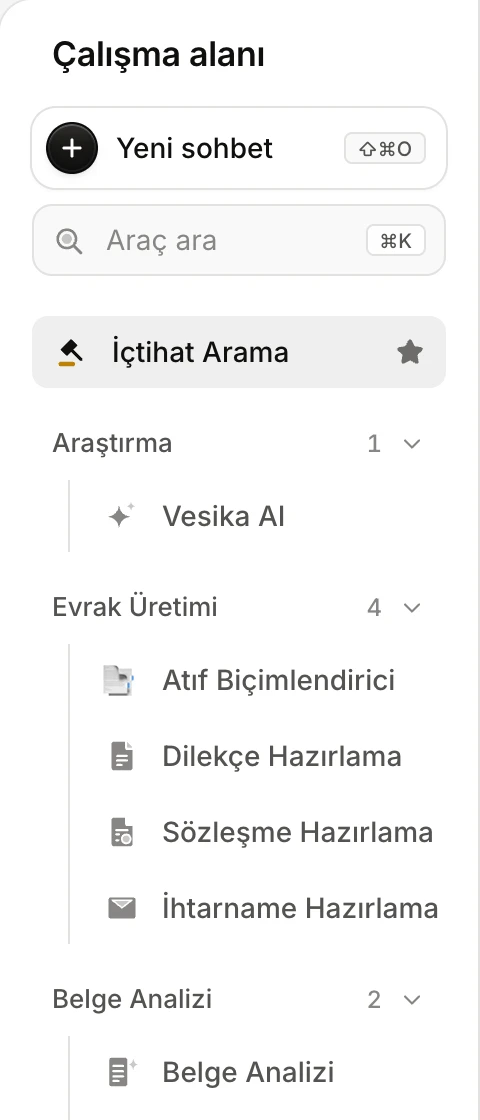
- The panel's title.
- Yeni sohbet (New chat): opens an empty conversation in Vesika AI (⇧⌘O).
- Araç ara (Search tools): searches tools, recent conversations and actions (⌘K).
- Your starred tools, at the top without a heading.
- A category: the number is how many tools it holds; click it to fold or unfold it.
New chat
Yeni sohbet (New chat) sits at the top of every section's panel and opens Vesika AI with an empty conversation. When the panel is closed, the same button (+) moves to the section rail. Shortcut: ⇧ ⌘ O (Windows: Ctrl Shift O). Details: Asking a question.
Categories
Tools are grouped by the categories in the app: Araştırma (Research), Evrak Üretimi (Document drafting), Belge Analizi (Document analysis), Hesaplama (Calculation), İnceleme (Review), Takip (Tracking), and the categories of modules your organisation added. Click a category's name to fold or unfold it; folded categories are remembered in this browser. If the open tool is in a folded category, that category shows unfolded.
A tool's name may carry these labels:
- On tools your plan does not cover, the short code of the plan needed, for example starter: Plans and limits.
- On tools in a trial stage, the stage's name, for example beta.
Starring a tool
When you move the mouse over a tool's row, a star appears on its right (Favorilere ekle, Add to favorites). Click it and the tool moves to the top of the list and into the Favoriler section. Clicking the star again (Favorilerden çıkar, Remove from favorites) sends it back to its category. Your favorites are saved to your account, so they also appear on another computer. On touch screens the star is always visible.
Search tools
The Araç ara (Search tools) box, or ⌘ K / Ctrl K, opens a search window. Type a tool's name or what it does; tools, your six latest conversations, and actions such as Yeni sohbet, Kenar çubuğunu aç/kapat (Toggle sidebar), changing the theme and Çıkış yap (Sign out) are filtered.
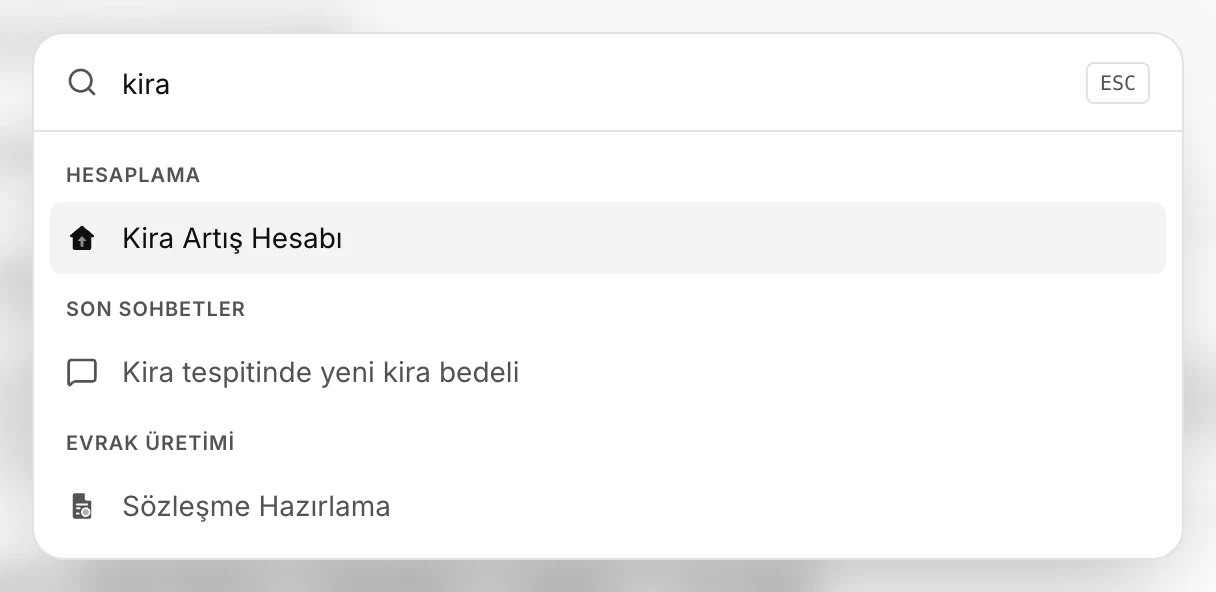
- The search box. Tools are also found by their description; pick with ↑ ↓ and open with Enter.
The tool header
Above the middle area is the open tool's header row.

- Sidebar: hides or shows the panel (⌘B).
- The open tool's name.
- The tool's short description; only on wide screens.
- Opens this tool's history in the panel.
- Shown while the side panel is hidden: brings it back, with the number of tabs.
When your account needs attention (you are near your AI usage limit, or your plan is about to end), a one-line notice appears right under the header: Plans and limits.
The side panel
When you click a source, a decision, a statutory article or a file, it opens as a tab in the Yan panel (side panel) to the right of the tool; the screen you are working on stays where it is.
- Tabs work like browser tabs: drag them to reorder, close them with ×. Right-click a tab for Sabitle (Pin), Kapat (Close) and Diğer sekmeleri kapat (Close other tabs).
- The star on a document's tab adds it to Favoriler.
- Drag the panel's left edge to change its width. The button at the right end of the tab strip (Paneli gizle, Hide panel) hides the panel; the button in the header brings it back. When you are not in a text field, Esc hides it too.
- Your open tabs are kept for your account in this browser; they stay when you reload the page.
- On wide screens the panel sits beside the tool; in narrower windows it opens as a sheet sliding in from the right.
Details: The side panel, The document reader.
The account menu
Click your initials at the bottom of the section rail to open the account menu.
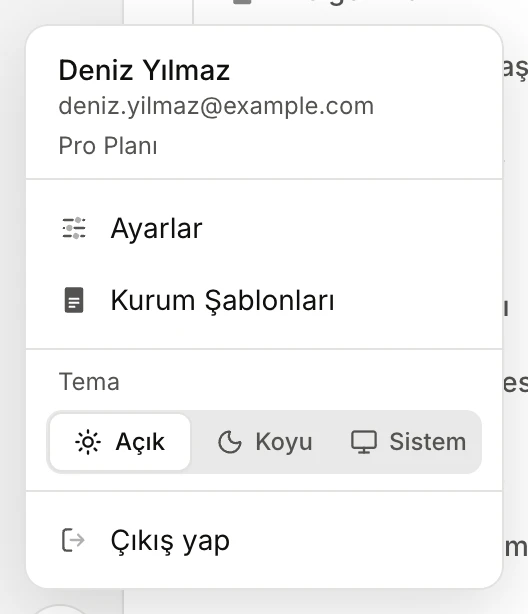
- Your name, email and plan.
- Ayarlar (Settings) and Kurum Şablonları (Firm templates).
- Tema (Theme): Açık (Light), Koyu (Dark) or Sistem (System).
- Çıkış yap (Sign out).
- Ayarlar (Settings): your account details, changing your password and the appearance: Account and settings.
- Kurum Şablonları (Firm templates): your firm's petition, contract and formal-notice templates and its letterhead: Firm templates.
- Tema (Theme): your choice is kept in this browser. Sistem follows your device's light or dark setting.
- Çıkış yap (Sign out): Signing in.
Your company's colour and logo
If your account belongs to a company and your administrator has set a colour and a logo for it, the workspace opens in the company's look: links, highlights and focus rings take the company's colour, and the company's logo replaces the Vesika logo at the top of the section rail (hovering it shows the company's name and Ana ekran, Home screen).
In a narrow window and a phone's browser
When the window is narrow (a phone's browser, for example), the section rail is hidden and the tool uses the full width. To open the panel, tap the sidebar button in the header; the panel slides in from the left as a sheet.
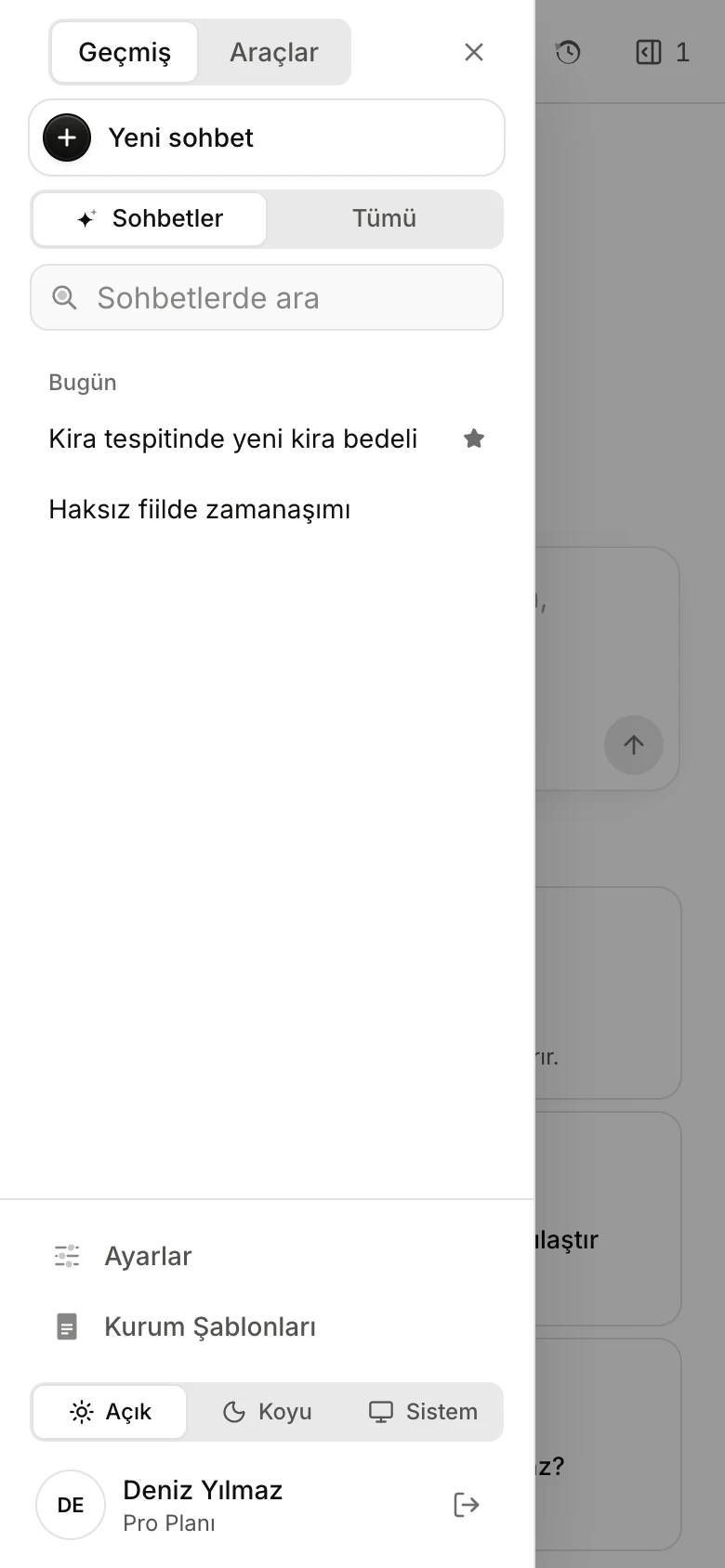
- Switch between Geçmiş (History) and Araçlar (Tools).
- The account menu's contents are at the bottom of the panel; this button signs you out.
In this view the Favoriler and Dosyalar sections are not in the panel. The side panel opens as a sheet covering the whole screen. For more comfortable use on a phone, see the iPhone app: iPhone app.
Limits and things to note
- Folded categories, whether the panel is open, the theme and the side panel's tabs belong to the browser; favorites and history belong to your account.
- Administration tools are listed only on administrator accounts.