User management
User management (Kullanıcı Yönetimi) is where you manage the accounts of everyone who uses Vesika. Here you open accounts and hand out passwords, give each person a plan, an expiry date and usage limits, and group teams such as a law firm or an in-house legal department into companies that share a plan and limits.
Workspace → Yönetim (Administration) → Kullanıcı Yönetimi (User management)
This tool is visible only to accounts with the administrator role. Other users have no Yönetim section in their sidebar. Vesika has no self sign-up: only administrators open accounts.
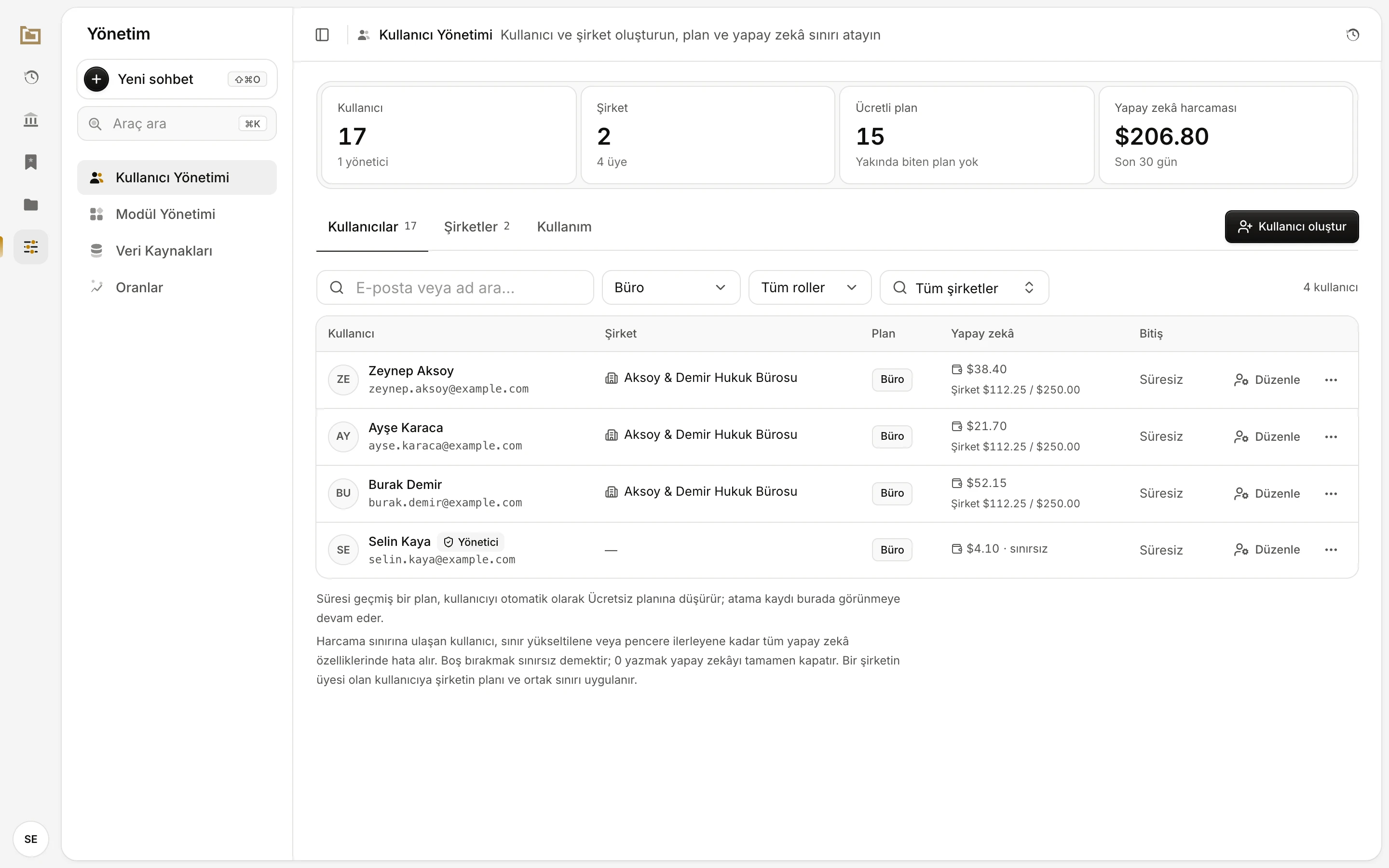
- Özet (Summary): total users and administrators, companies and members, people on a paid plan, and the AI spend of the current period.
- The Kullanıcılar (Users), Şirketler (Companies) and Kullanım (Usage) tabs.
- Kullanıcı oluştur (Create user): opens a new account.
- Search by name or email; filter by plan, role and company. Here only the Büro (Firm) plan is selected.
- The company the person belongs to. Members get the company's plan.
- The person's AI spend; for company members, the company's total and shared limit below it.
- Düzenle (Edit) and the ⋯ (more actions) menu.
The people, companies and amounts in the screenshots are examples.
Step by step: adding a user
- Click Kullanıcı oluştur (Create user).
- Type the E-posta (Email). Enter the person's name under Ad (isteğe bağlı) (Name, optional); left empty, the list shows "Adı belirtilmedi" (No name given).
- If the person belongs to a company, pick it from Şirket (Company). With a company chosen, the Plan field reads "Şirketten: …" (From the company); otherwise pick a Plan.
- Choose the Rol (Role): Kullanıcı (User) or Yönetici (Administrator).
- Click Oluştur (Create). Vesika generates a random 12-character password and shows it once in the Kullanıcı oluşturuldu (User created) window.
- Pass the details on (see "Handing the password over" below) and click Kaydettim, kapat (I've saved it, close).
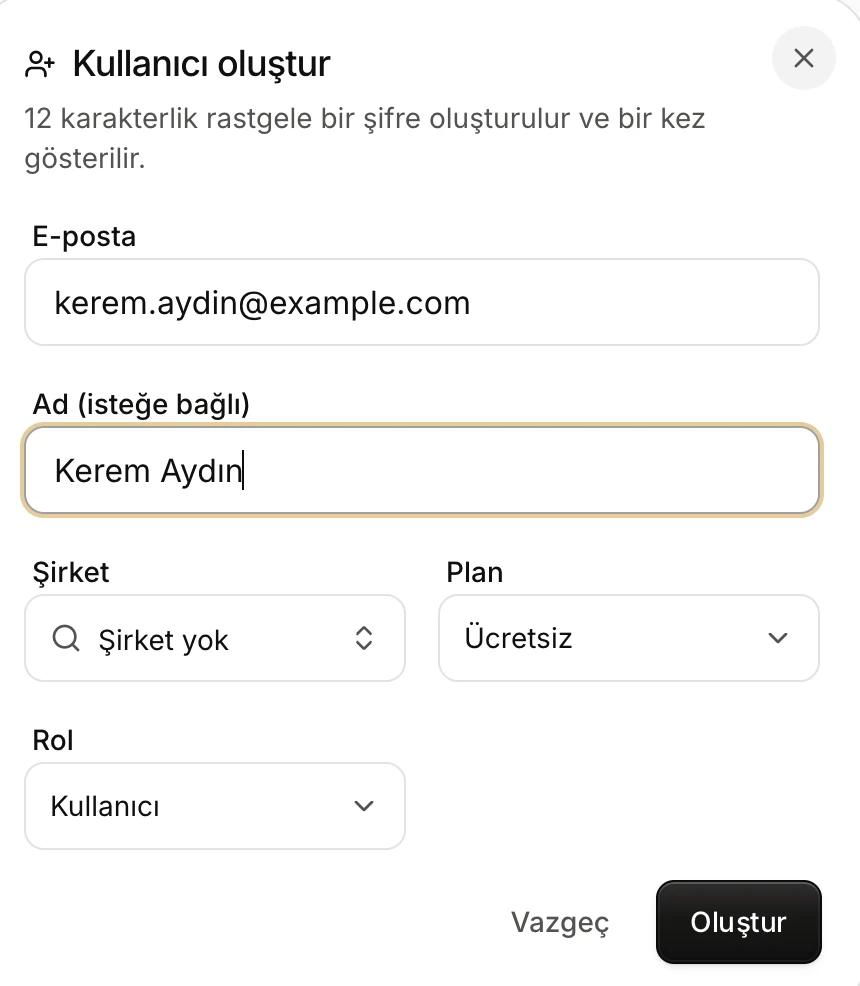
- E-posta: the address the person signs in with. Two accounts cannot share an address.
- Ad (isteğe bağlı) (Name, optional).
- Şirket (Company): if chosen, the plan comes from the company.
- Plan: the plan of a person without a company.
- Rol (Role): User or Administrator.
- Oluştur (Create): opens the account and shows the password.
Finding users
The list starts with the most recently opened account. Above it:
- E-posta veya ad ara… (Search email or name): type part of a name or address; the list narrows as you type.
- Tüm planlar (All plans): only people on one plan (Ücretsiz Free, Başlangıç Starter, Pro, Büro Firm). This filter looks at the person's own plan.
- Tüm roller (All roles): Kullanıcı (User) or Yönetici (Administrator).
- Tüm şirketler (All companies): only the members of one company (shown once at least one company exists).
The number on the right is how many users match. The summary boxes at the top ignore the filters and always count every account. The Ücretli plan (Paid plan) box also tells you when plans end within 14 days.
Each row shows:
| Column | What it shows |
|---|---|
| Kullanıcı (User) | Name and email; a Yönetici badge for administrators |
| Şirket (Company) | The company, or "—" |
| Plan | The plan in force. For a company member, the company's plan |
| Yapay zekâ (AI) | Spend in the current period and the limit (for example "$17.25 / $25.00" or "· sınırsız", unlimited). For a member, a "Şirket $… / $…" line below shows the company's total and shared limit |
| Bitiş (Expiry) | The plan's end date, or Süresiz (No expiry). An approaching date is yellow; a past one is red with "süresi doldu" (expired) |
Changing plan, expiry and limits
Click Düzenle (Edit) on a row; an edit area opens below it. Apply changes with Kaydet (Save), or leave with Vazgeç (Cancel).
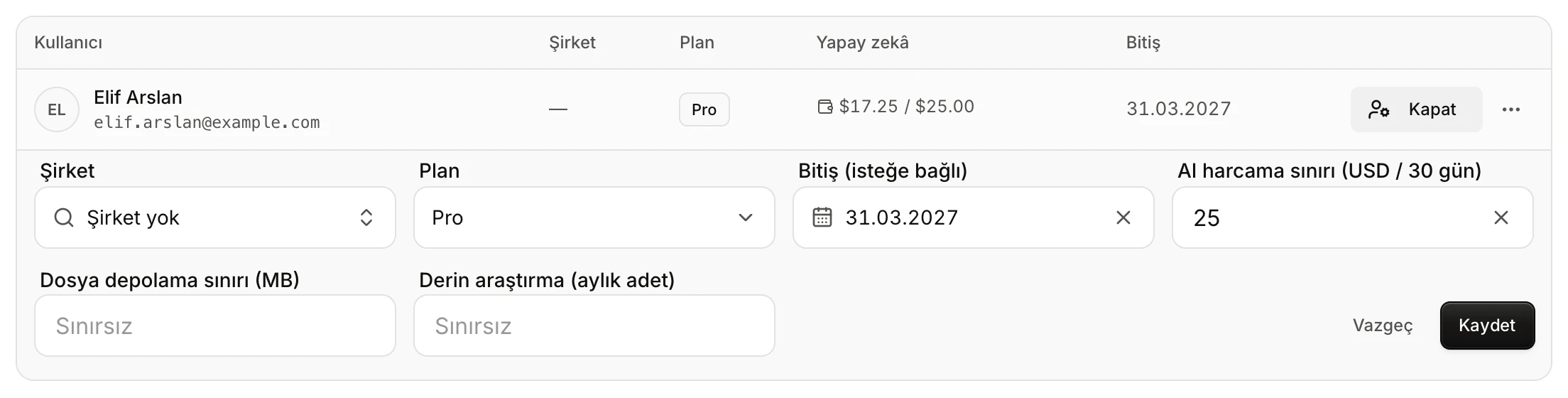
- Şirket (Company): puts the person in a company, or takes them out with Şirket yok (No company).
- Plan.
- Bitiş (isteğe bağlı) (Expiry, optional): empty means the plan does not end.
- AI harcama sınırı (AI spend limit): in US dollars, for the period in the label.
- Dosya depolama sınırı (MB) (File storage limit).
- Derin araştırma (aylık adet) (Deep research, per month).
- Vazgeç (Cancel) / Kaydet (Save).
Plan and expiry
The Plan decides which tools the person can use; see Plans and limits. If you pick a date under Bitiş (isteğe bağlı), the plan ends at the end of that day. An expired plan drops the person to Ücretsiz (Free) automatically; the plan and date you assigned stay visible in the list, so you can see who dropped and why. To remove the date, use Süresiz yap (Make it open-ended) in the field.
AI spend limit
AI harcama sınırı (USD / … gün) (AI spend limit, USD per … days) is the amount the person may spend on AI over the number of days in the label; the period is a rolling window.
- Empty means unlimited.
- 0 turns AI off completely for this person.
- A person who reaches the limit gets the message "Yapay zekâ harcama sınırınıza ulaştınız … Sınırı yükseltmek için yöneticinizle görüşün." (You have reached your AI spend limit … ask your administrator to raise it) in every AI feature, until the limit is raised or the window moves on.
The × at the right of the field (Sınırsız yap, Make unlimited) clears the limit.
Storage and deep research limits
- Dosya depolama sınırı (MB) (File storage limit): the total size of the files the person can keep in Files. When it is full they cannot upload more; a message asks them to delete old files or ask an administrator for more room.
- Derin araştırma (aylık adet) (Deep research, per month): how many Vesika AI answers at the deepest level the person can start in a calendar month (Istanbul time). When the allowance is used up, they see when it renews and can continue at a faster level.
Both are unlimited when empty. The spend limit may have decimals; the deep research limit must be a whole number.
Company members
When you edit someone who belongs to a company, the plan and limit fields are gone; a note says that the plan and AI limit come from the company.

- The member's own spend, and below it the company's total and shared limit.
- Şirket (Company): change the membership here.
- The plan and limit come from the company. The person's own settings return when they leave it.
The plan and limits a person had before joining are not deleted, only set aside while they are a member. Choose Şirket yok (No company) and save, and their old settings apply again.
More actions (⋯ menu)
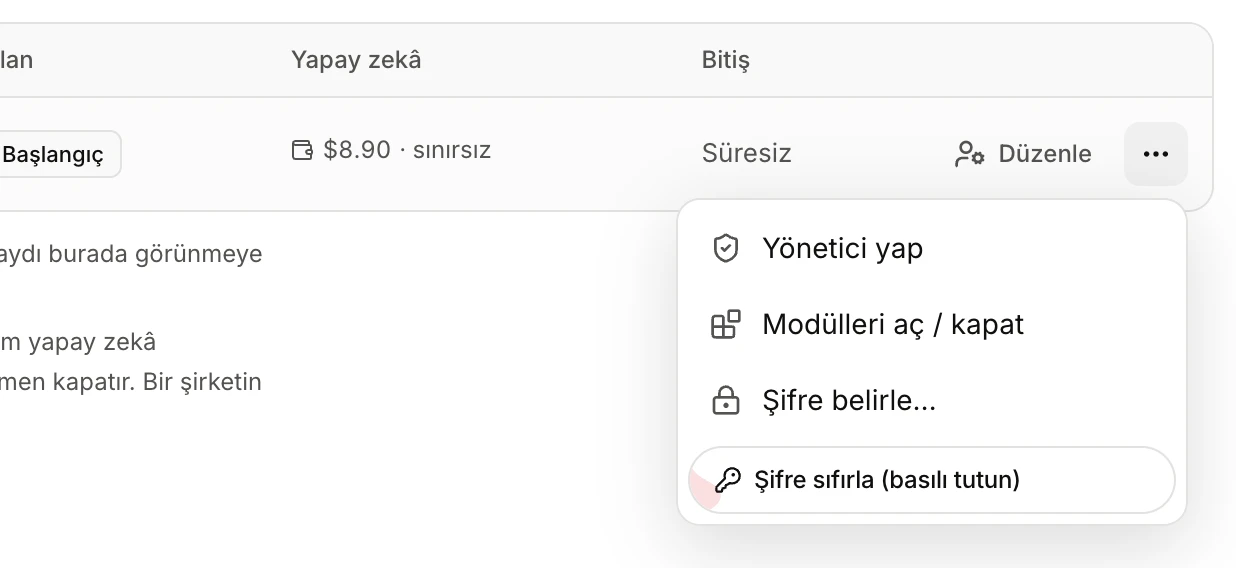
- Yönetici yap (Make administrator) / Yöneticiliği al (Remove administrator).
- Modülleri aç / kapat (Turn modules on / off).
- Şifre belirle… (Set password): you type the password.
- Şifre sıfırla (basılı tutun) (Reset password, hold): a new password is generated.
Making someone an administrator
Yönetici yap (Make administrator) gives the person the administration tools (User management, Module management, Data sources, Rates); Yöneticiliği al (Remove administrator) takes them away. You cannot remove your own administrator role, so the screen is never left without anyone to run it.
Turning modules off for one person
Modülleri aç / kapat (Turn modules on / off) lists the published modules. Switch one off and click Kaydet (Save): the module leaves that person's sidebar and they cannot use it. The module's own access setting (see Module management) still applies to everyone else. Administrators keep seeing every module even if it is switched off for them.
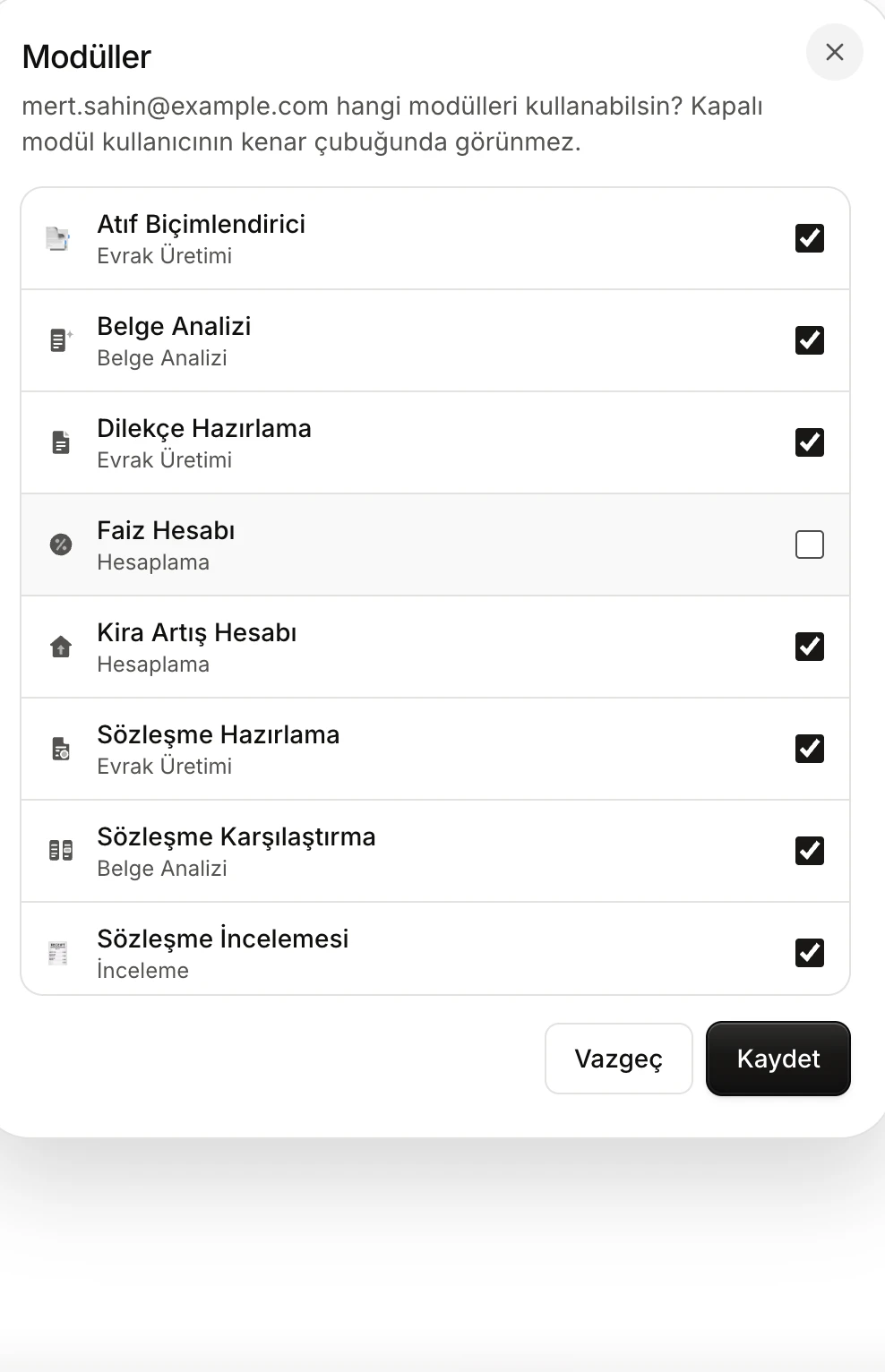
- Who the window is for, and what happens to a switched-off module.
- A switched-off module: it does not appear in this person's sidebar.
- Kaydet (Save).
Setting a password
Şifre belirle… (Set password) gives the person a password you choose. It must:
- be between 8 and 128 characters,
- not start or end with a space.
The eye icon (Şifreyi göster, Show password) lets you see what you typed. When you click Şifreyi kaydet (Save password), all of the person's open sessions are closed and the Şifre belirlendi (Password set) window opens.
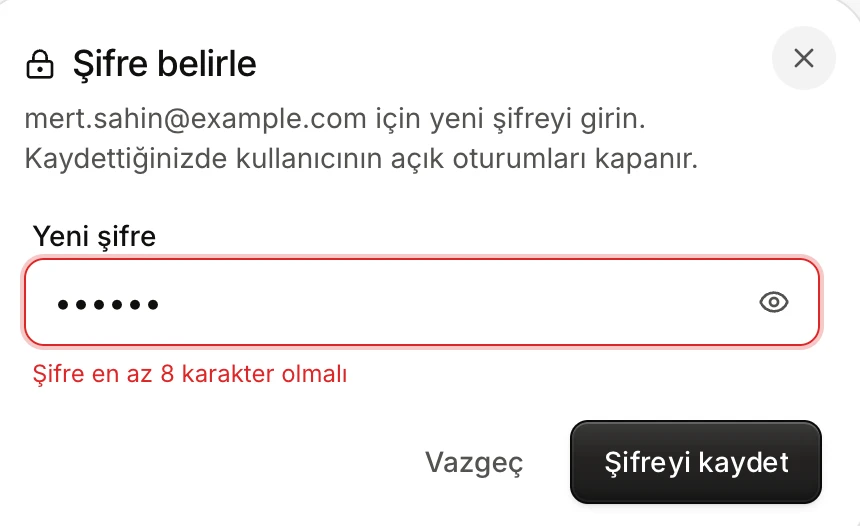
- Yeni şifre (New password). If it breaks a rule, the reason appears below.
- Şifreyi göster / Şifreyi gizle (Show / Hide password).
- Şifreyi kaydet (Save password): closes all of the person's sessions.
Resetting a password
Şifre sıfırla (basılı tutun) (Reset password, hold) generates a new random 12-character password. So that it cannot happen by accident, you hold the button for about a second. A reset:
- stops the old password working immediately,
- closes all of the person's open sessions; they must sign in again with the new password,
- shows the result once in the Yeni şifre (New password) window.
You cannot set or reset your own password here; these options do not appear on your own row. Change your own password in Ayarlar (Settings), as described in Account and settings.
Handing the password over
Creating an account, setting a password and resetting one all end in the same window. Its title is Kullanıcı oluşturuldu (User created), Şifre belirlendi (Password set) or Yeni şifre (New password).
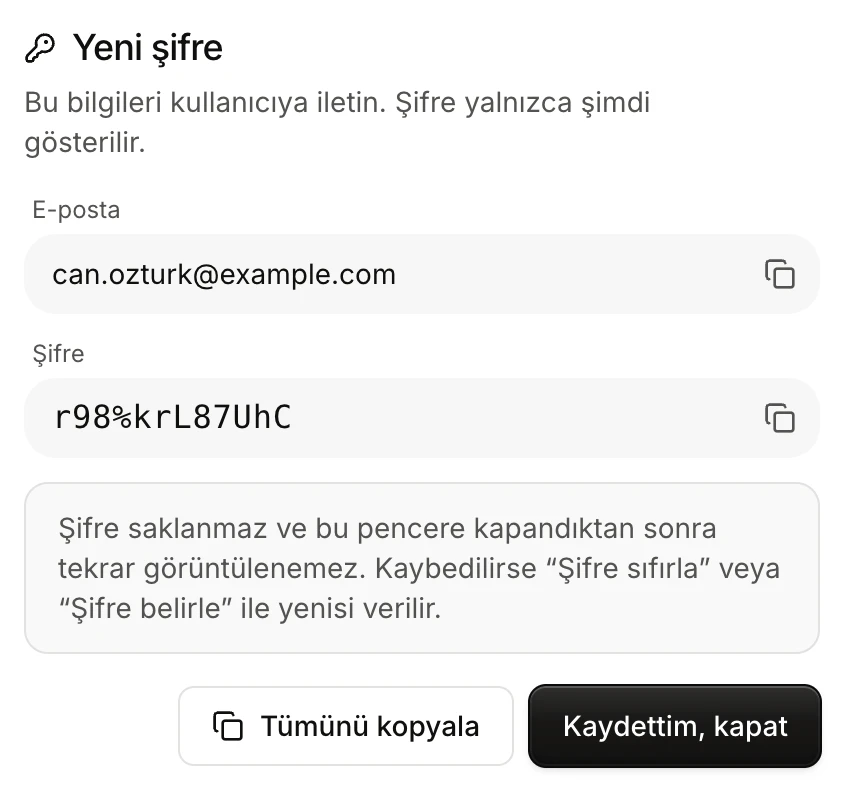
- E-posta (Email) and its copy button.
- Şifre (Password) and its copy button.
- The password is not stored; once the window closes it cannot be shown again.
- Tümünü kopyala (Copy all): copies the address, email and password together.
- Kaydettim, kapat (I've saved it, close).
- Vesika keeps only a one-way hash of the password; neither you nor another administrator can see it later.
- Clicking outside the window or pressing Esc does not close it; only Kaydettim, kapat does. Copy the details before closing.
- Tümünü kopyala (Copy all) copies Vesika's address, the email and the password as three lines; send them to the person over a secure channel.
- Generated passwords leave out look-alike characters (0 and O, 1, l and I), so they are not mistyped.
- If the password is lost, give a new one with Şifre sıfırla or Şifre belirle. Once signed in, the person can change it in Ayarlar (Settings).
Companies
A company is a group of people who share one plan and the same limits: a law firm, a company's legal department and so on. The Şirketler (Companies) tab lists companies with their member count, plan, shared spend and expiry.
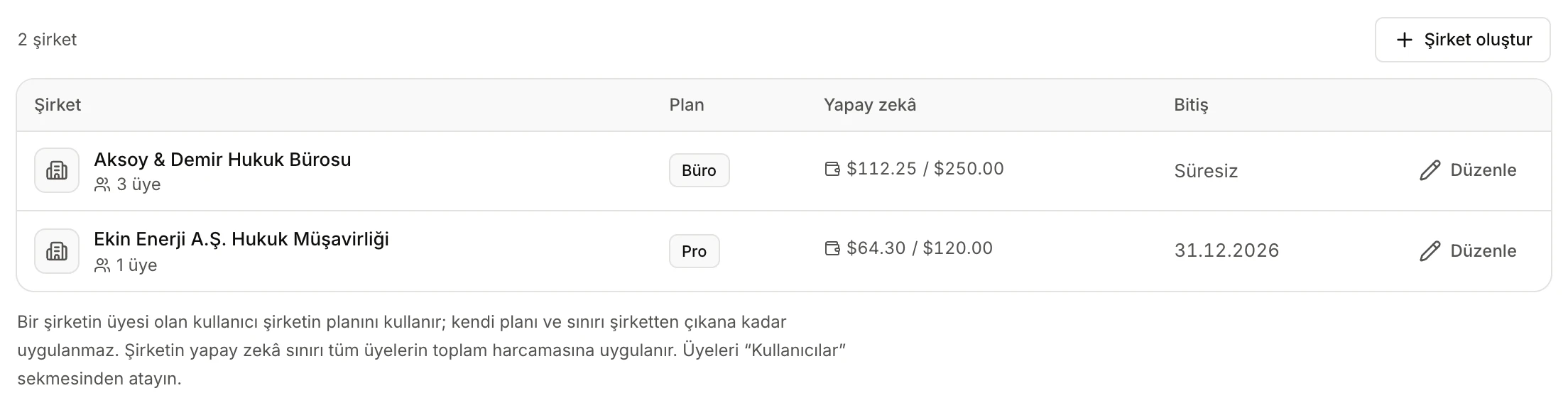
- Şirket oluştur (Create company).
- Member count. Hover to see the members' emails.
- The members' total spend and the shared limit.
- When the company's plan ends.
- Düzenle (Edit).
Creating and editing a company
Click Şirket oluştur (Create company), or Düzenle (Edit) on a company. The fields:
- Şirket adı (Company name): two companies cannot have the same name.
- Plan and Bitiş (isteğe bağlı) (Expiry, optional): every member uses this plan. When the date passes, members drop to Ücretsiz (Free).
- Ortak AI sınırı (USD / … gün) (Shared AI limit): applies to the members' combined spend. When the total reaches it, every member gets a message in AI features saying the company's limit has been reached.
- Ortak dosya depolama sınırı (MB) (Shared file storage limit) and Ortak derin araştırma (aylık adet) (Shared deep research, per month): also applied to the members' total.
- Kurum rengi (Brand colour): from the colour picker, or typed as a
#rrggbbcode. - Kurum logosu (Brand logo): Logo seç (Choose logo) for a PNG, JPEG or SVG of at most 256 KB. Kaldır (Remove) deletes it.
Leaving a limit empty means unlimited.
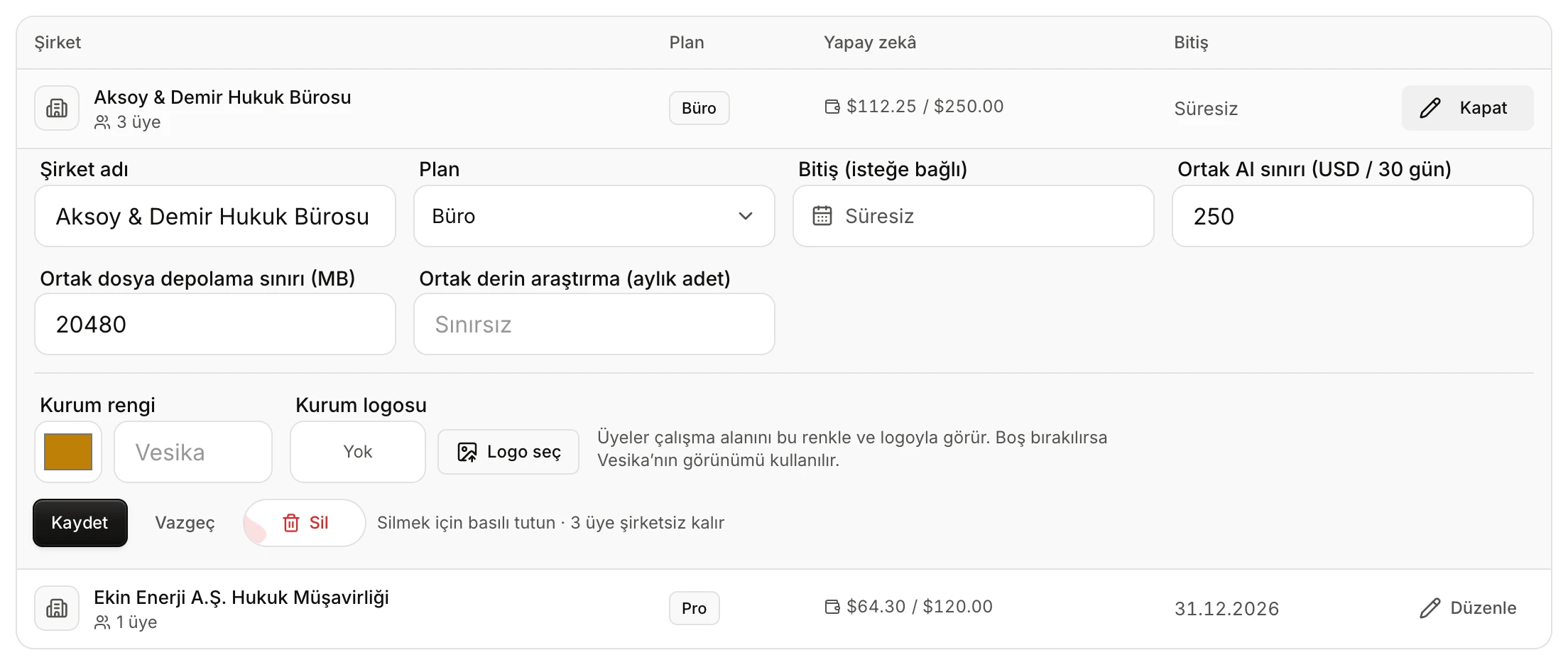
- Şirket adı (Company name).
- Plan and Bitiş (Expiry).
- The shared AI, storage and deep research limits.
- Kurum rengi (Brand colour) and Kurum logosu (Brand logo).
- Kaydet (Save), Vazgeç (Cancel) and Sil (Delete), which works by holding.
Adding and removing members
Members are assigned in the Kullanıcılar (Users) tab, not on the company: open the person's Düzenle (Edit) area, pick the company under Şirket and click Kaydet (Save). To take them out, choose Şirket yok (No company). You can also pick the company straight away when creating an account.
Deleting a company
Hold Sil (Delete). The company is deleted; its members keep their accounts, are left without a company, and their own earlier plan and limits apply again. The note next to the button tells you how many members will be left without a company.
What members see
- Members use the tools of the company's plan; their own plan is set aside while they are members.
- With a Kurum rengi (Brand colour), Vesika's accent colour in the members' workspace (links, focus rings, highlights) is replaced by it; shades that stay readable in the light and dark themes are derived from that one colour.
- With a Kurum logosu (Brand logo), the company's logo replaces the Vesika mark at the top of the sidebar.
- With neither, members see Vesika's own look.
- When a limit runs out, the message members see says the limit is shared by the whole company.
Usage
The Kullanım (Usage) tab shows each person's activity in the current period, highest spender first.
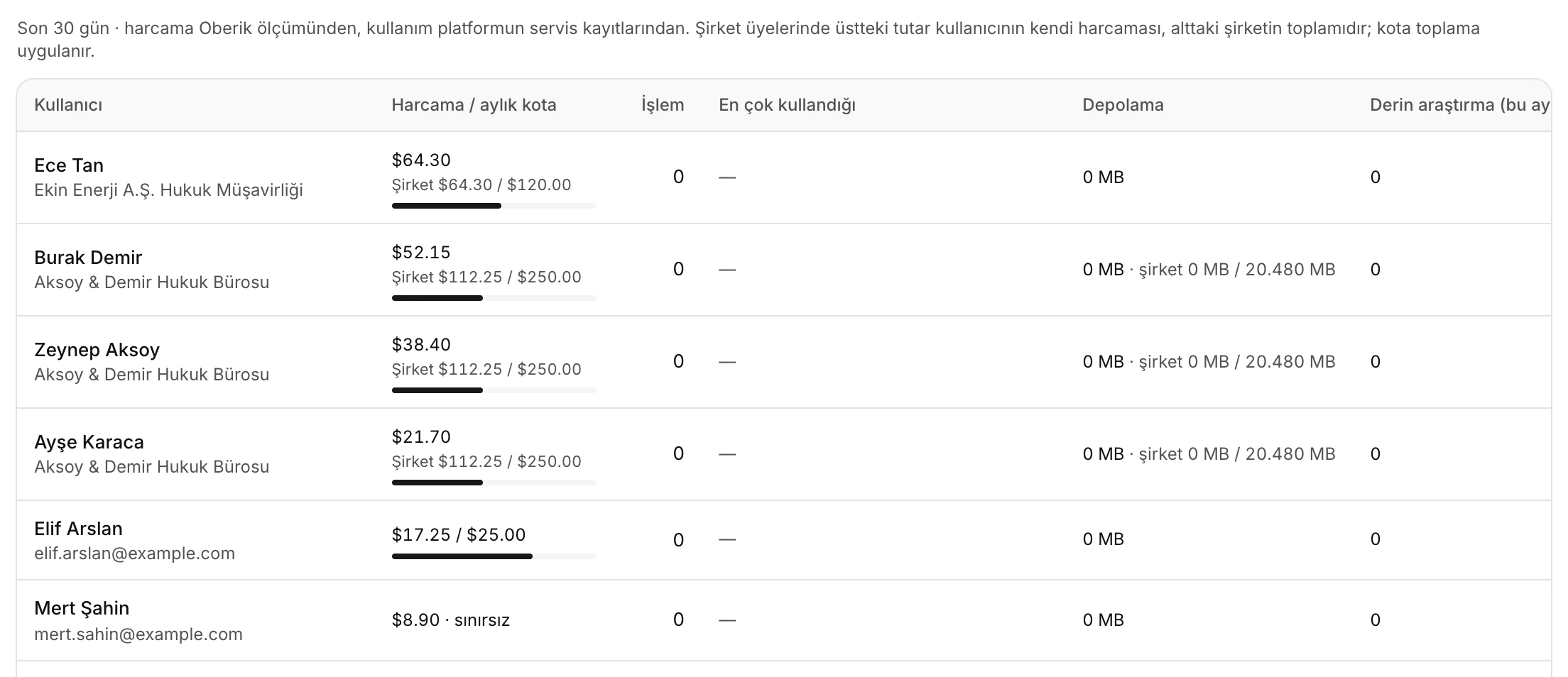
- The period the table covers, and how to read the amounts.
- Harcama / aylık kota (Spend / monthly quota): the bar turns yellow above 80% and red when full.
- For a company member: their own spend on top, the company's total below.
- En çok kullandığı (Most used): the top three tools or modules, with counts.
- Depolama (Storage) and Derin araştırma (bu ay) (Deep research, this month): usage and the limit, if any.
The columns:
- Harcama / aylık kota (Spend / monthly quota): the person's spend and limit. Above 80% of the limit the row is marked "%80 üstü" (over 80%); at the limit, "doldu" (full).
- İşlem (Actions): how many actions in the period; failures are listed below as "… hata" (errors).
- En çok kullandığı (Most used): the three tools or modules used most.
- Depolama (Storage): the size of the files they hold now.
- Derin araştırma (bu ay) (Deep research, this month): deepest-level answers started this calendar month.
- Son etkinlik (Last activity): the date and time of their last action.
Below it, Modül ve araçlara göre harcama (Spend by module and tool) splits the same period's spend by where it happened (the Assistant, each tool, each module), with spend, tokens, requests and number of users.
Limits and things to check
- Spend figures come from the AI provider's metering. When it cannot be read, amounts show as "?" (and "—" in the summary box) and a warning appears at the top. In that state, people with a limit cannot use AI features, because their spend cannot be verified; people without a limit are not affected.
- Limits are checked before a request starts. When you raise or remove a limit, the change applies to the person's next request.
- There is no option to delete an account. To stop someone's access, reset their password (their sessions close) and set their plan to Ücretsiz (Free), or set their AI limit to 0.
- A plan drops automatically on its end date. Watch upcoming dates in the Ücretli plan (Paid plan) summary box and the colours of the Bitiş (Expiry) column.