Signing in
To use Vesika you sign in with the account your administrator created for you. The sign-in page asks only for an email and a password; there is no self sign-up in the app.
vesika.ai/app. If you are not signed in, every address in the app shows this page first.
Step by step
- Open vesika.ai/app in your browser.
- Type your account's email address in E-posta (Email).
- Type your password in Şifre (Password).
- Click Giriş yap (Sign in), or press Enter.
Once you are signed in, the workspace opens. If you reached the sign-in page through a link to a particular tool, that tool opens.
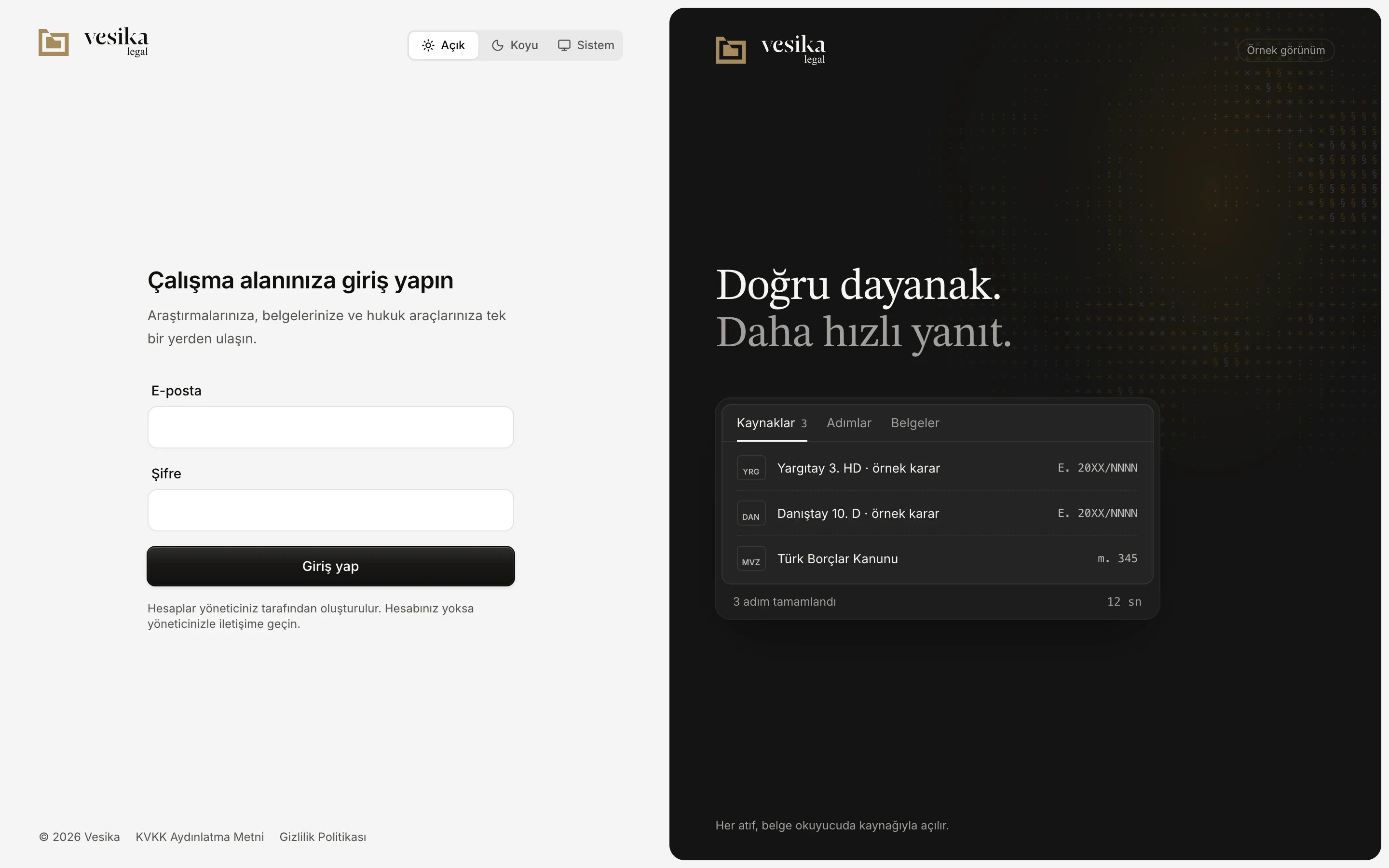
- E-posta (Email): the address your administrator created your account with.
- Şifre (Password).
- Giriş yap (Sign in).
- Accounts are created by your administrator; if you have none, contact them.
- Theme: Açık (Light), Koyu (Dark) or Sistem (System). Your choice is kept in this browser.
The heading reads Çalışma alanınıza giriş yapın (Sign in to your workspace). The dark area on the right is an Örnek görünüm (Sample view) of what the workspace looks like; its rows are not real decisions. It is not shown on narrow screens (phones). At the bottom of the page are links to KVKK Aydınlatma Metni (the personal data protection notice) and Gizlilik Politikası (Privacy policy).
When the page first opens it may briefly read "Oturumunuz kontrol ediliyor…" (Checking your session…): Vesika is checking whether this browser already has an open session. If it does, the sign-in page is skipped.
When you cannot sign in
If something goes wrong, a red message appears above the Giriş yap button:
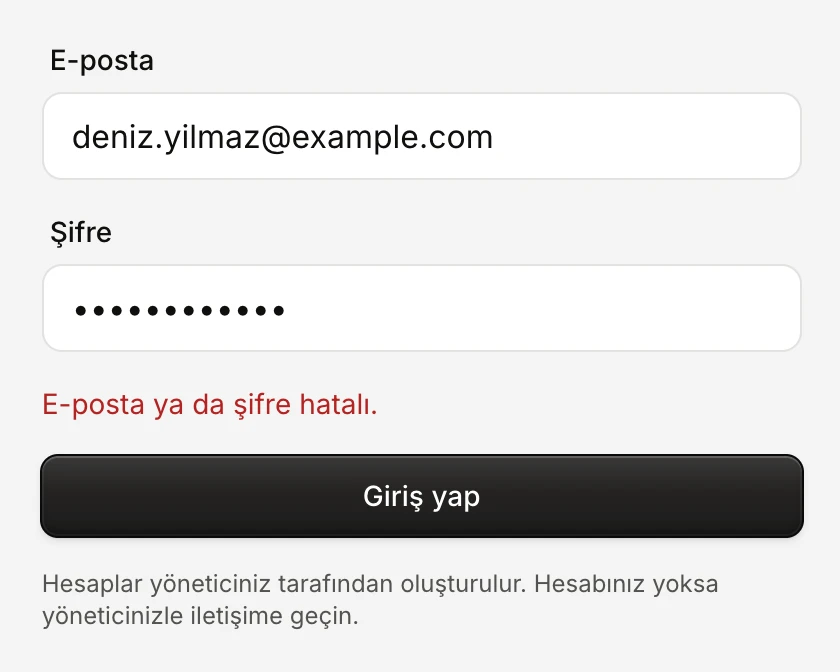
- The email or password does not match an account.
| Message | What to do |
|---|---|
| E-posta ya da şifre hatalı. (Wrong email or password.) | Check the email address and the password (capital letters, keyboard language). If it still fails, contact your administrator. |
| Çok fazla deneme yapıldı. Biraz bekleyip yeniden deneyin. (Too many attempts. Wait a little and try again.) | There were many failed attempts in a row. Wait a while and try again. |
| Giriş yapılamadı. Bağlantınızı denetleyip yeniden deneyin. (Could not sign in. Check your connection and try again.) | Check your internet connection and try again. |
If you have no account or forgot your password
Vesika has no self sign-up and no "forgot password" link. Accounts and passwords are managed by your firm's or organisation's administrator:
- No account? Ask your administrator to create one.
- Forgot your password? Ask your administrator to reset it. After you sign in with the password they give you, you can change it in Ayarlar (Settings): Account and settings.
How long does a session last?
In the browser you signed in with, your session stays open until you sign out; by default you are asked to sign in again after at most 30 days. Sessions belong to a browser: on another computer or browser you sign in separately.
When you change your password in Ayarlar, your sessions on other devices are closed; the one on the device you are using stays open.
Signing out
- Click your initials (the account button) at the bottom left.
- Click Çıkış yap (Sign out) at the bottom of the menu.
A "Çıkış yapıldı" (Signed out) notice appears at the bottom of the screen and you are back on the sign-in page. You can also sign out from the Araç ara (Search tools) window (⌘ K / Ctrl K) by typing Çıkış yap. In a phone's browser, the sign-out button is at the bottom of the menu, next to your name.
On a shared computer, sign out when you are done.
Old legal.vesika.ai links
Vesika moved from legal.vesika.ai to vesika.ai. A link starting with the old address (a decision link you saved, for example) takes you to the same page on vesika.ai. If you were signed in on the old address, your session comes along and you do not need to sign in again. If it does not, signing in once on vesika.ai is enough.
Limits and things to note
- Only your administrator can change your account, your email address and your plan.
- Signing in on the iPhone app: iPhone: installing and signing in.
Related pages
- Account and settings
- The workspace
- Troubleshooting
- User management (for administrators)