Keyboard shortcuts
Most of what you do often in Vesika's web app can be done from the keyboard. Use ⌘ (Command) on a Mac and Ctrl on Windows; the app accepts both and shows the one that fits your computer next to its buttons.
Shortcuts are printed next to buttons and in tooltips: ⇧⌘O on the Yeni sohbet (New chat) button, ⌘K in the Araç ara (Search tools) box, and ⌘B in the tooltip of the sidebar button in the header.
Everywhere
| Action | Mac | Windows |
|---|---|---|
| Open or close the Araç ara (Search tools) window | ⌘ K | Ctrl K |
| Start a Yeni sohbet (New chat): opens Vesika AI with an empty conversation | ⇧ ⌘ O | Ctrl Shift O |
| Hide or show the sidebar (the panel) | ⌘ B | Ctrl B |
| Hide the open side panel (when the cursor is not in a text field) | Esc | Esc |
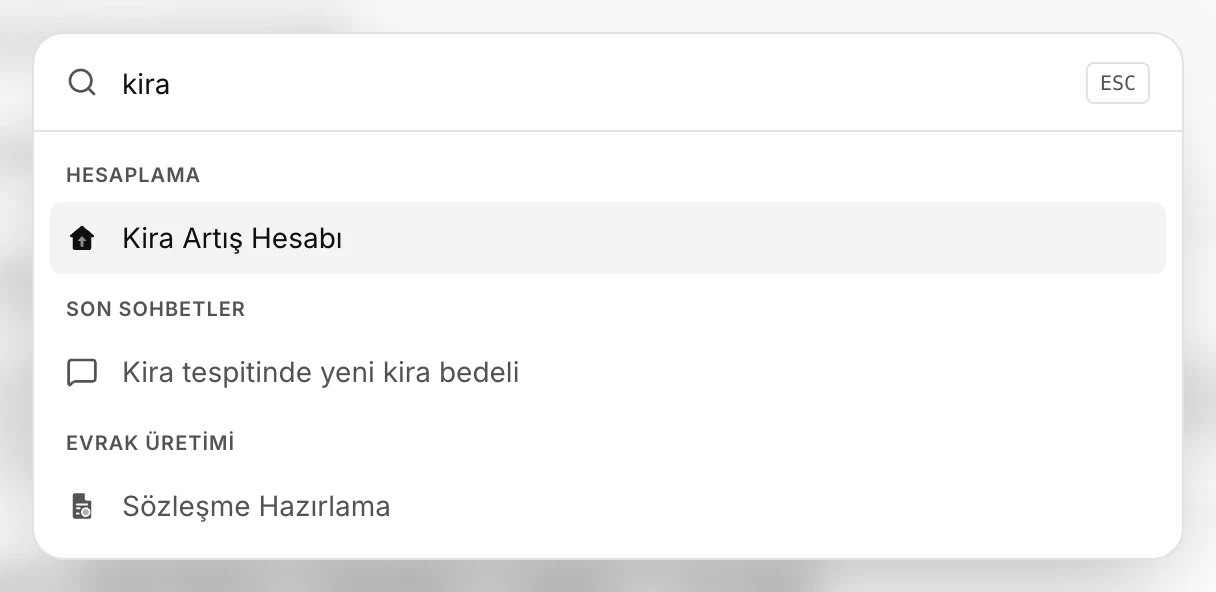
- As you type, tools, recent conversations and actions are filtered. Pick one with ↑ ↓, open it with Enter, close the window with Esc.
The Search tools window
| Action | Key |
|---|---|
| Move through the results | ↑ ↓ |
| Open the selected tool, conversation or action | Enter |
| Close the window | Esc |
Besides the tools, the window also finds your six latest conversations (under Son sohbetler, Recent conversations) and these actions: Yeni sohbet (New chat), Kenar çubuğunu aç/kapat (Toggle sidebar), changing the theme (Açık temaya geç / Switch to light theme, Koyu temaya geç / Switch to dark theme, Sistem temasını kullan / Use the system theme; only the ones that would change something) and Çıkış yap (Sign out).
Vesika AI
| Action | Key |
|---|---|
| Send your question | Enter |
| Add a new line to the question | Shift Enter |
History
| Action | Key |
|---|---|
| Save the new name of an item you are renaming | Enter |
| Cancel renaming | Esc |
| Clear the Geçmişte ara (Search history) box | Esc |
Side panel
With one of the side panel's tabs selected (click it or reach it with Tab):
| Action | Mac | Windows |
|---|---|---|
| Go to the previous or next tab | ← → | ← → |
| Go to the first or last tab | Home / End | Home / End |
| Move the tab left or right | ⌥ ⇧ ← / → | Alt Shift ← / → |
| Close the tab (not pinned tabs) | Delete | Delete |
With the resize handle on the panel's left edge selected:
| Action | Key |
|---|---|
| Widen or narrow the panel | ← / → (with Shift in bigger steps) |
| Make the panel as wide or as narrow as it goes | Home / End |
| Hide the panel | Enter |
Document reader
With a decision or a law open in the reader (when reading in the side panel, the cursor must be inside the document):
| Action | Mac | Windows |
|---|---|---|
| Search the text | ⌘ F | Ctrl F |
| Go to the next or previous match (in the search box) | Enter / ⇧ Enter | Enter / Shift Enter |
| Print the document | ⌘ P | Ctrl P |
| Close the search box or the list of sections | Esc | Esc |
Details: The document reader.
Inside the tools
| Tool | Action | Mac | Windows |
|---|---|---|---|
| İçtihat Arama (Case-law search) | Start the search from the question box | ⌘ Enter | Ctrl Enter |
| Dosyalarımdan seç (Choose from my files) window | Move through the files, choose one | ↑ ↓, Enter | ↑ ↓, Enter |
| Dosyalarımdan seç (when several files can be chosen) | Add the focused file to the selection or remove it | Space | Space |
| Tema (Theme) switch | Move between Açık (Light), Koyu (Dark) and Sistem (System) | ← → | ← → |
Limits and things to note
- The shortcuts on this page are for the web app.
- If your browser or operating system uses the same keys for something else, its shortcut may run first.
- While a window or menu is open, Tab and Shift Tab keep the focus inside it; Esc closes it.