Rates
Rates (Oranlar) shows the official figures Vesika's calculators use: the latest value of each dataset, when it last changed and where it comes from. Some are read automatically every day; the others, whose official source cannot be read by machine, are kept up to date here by an administrator.
Workspace → Yönetim (Administration) → Oranlar (Rates)
Only administrators see this tool. A change here affects every user's calculations.
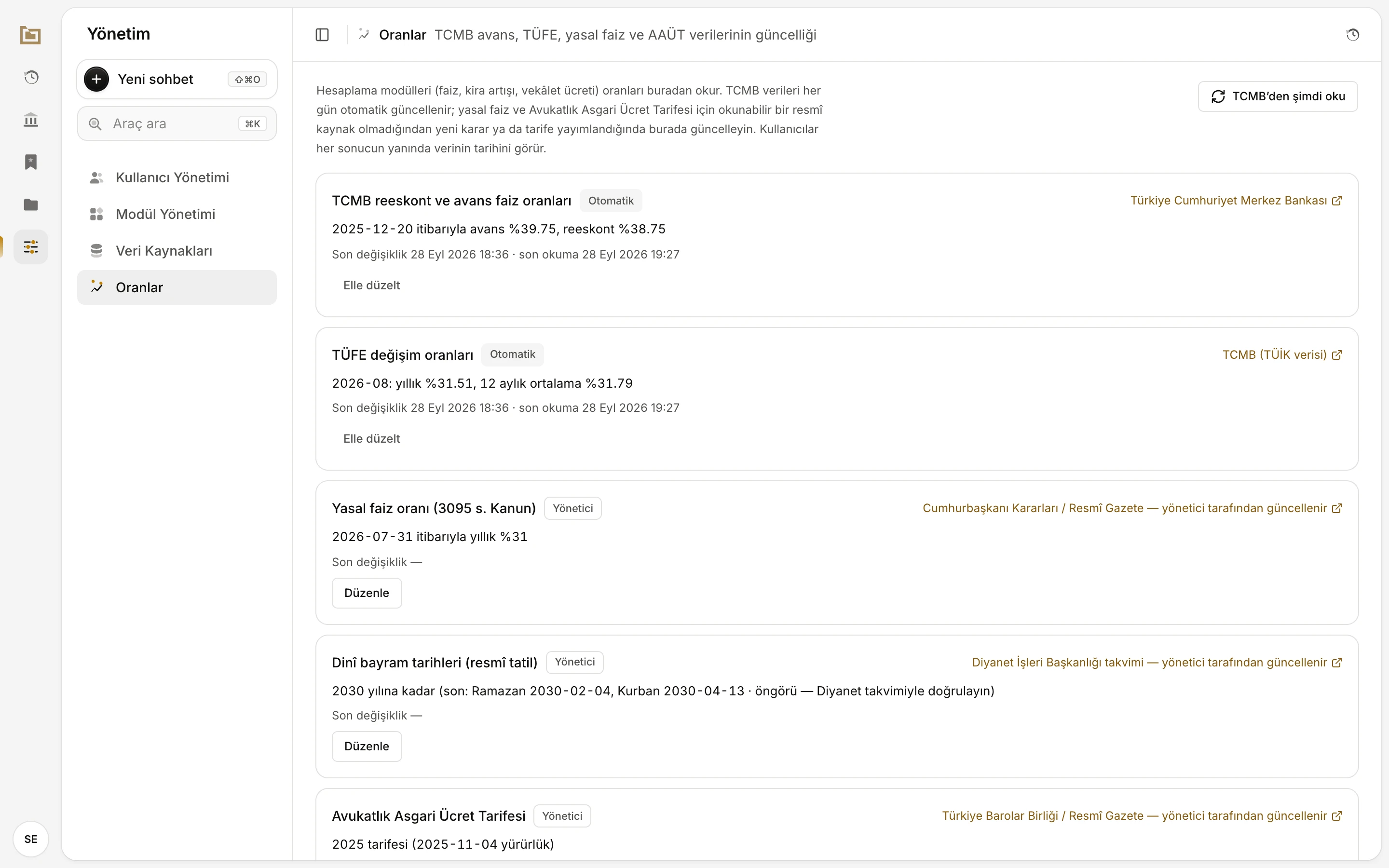
- Which tools read from here, and how each kind of data is updated.
- One dataset: title, latest value, dates and the edit button.
- Otomatik (Automatic) or Yönetici (Administrator): who updates the data.
- The official source; click to open the publisher's page.
- Son değişiklik (Last change) and, for automatic data, son okuma (last read).
- A dataset the administrator keeps, with its Düzenle (Edit) button.
Which data is there?
| Dataset | Updated by | Source | Used by |
|---|---|---|---|
| TCMB reeskont ve avans faiz oranları (CBRT rediscount and advance rates) | Automatic, daily | Central Bank of the Republic of Türkiye | Interest calculator |
| TÜFE değişim oranları (CPI change rates) | Automatic, daily | CBRT (TÜİK data) | Rent increase calculator |
| Yasal faiz oranı (3095 s. Kanun) (Statutory interest rate, Law no. 3095) | Administrator | Presidential Decisions / Official Gazette | Interest calculator |
| Dinî bayram tarihleri (resmî tatil) (Religious holiday dates, public holidays) | Administrator | Presidency of Religious Affairs calendar | Deadline tracking |
| Avukatlık Asgari Ücret Tarifesi (Attorneys' Minimum Fee Tariff, AAÜT) | Administrator | Union of Turkish Bar Associations / Official Gazette | Attorney's fee calculator |
The second line of each box sums up the newest entry in one sentence: for the CBRT, which advance and rediscount rates apply from which date; for CPI, the last month's annual and 12-month average change; for the AAÜT, which year's tariff is in force and since when. Users see the date of the data next to a calculator's result.
Checking the data is current
- Look at Son değişiklik (Last change) in each box: when the data last changed.
- For Otomatik (Automatic) data, son okuma (last read) is when Vesika last read the source. If the source gave the same figures, the last change date does not move; that is normal.
- If automatic data has not been read for more than three days, or the last read failed, the box shows Güncel değil (Not current) and the date line gives the reason after "son okuma başarısız: …" (last read failed).
- To avoid waiting, click TCMB’den şimdi oku (Read from CBRT now) at the top right. Vesika reads the CBRT data again at once and shows "TCMB verileri okundu" (CBRT data read).
- Administrator data (statutory interest, holiday dates, AAÜT) is never read automatically. When a new Presidential Decision or a new year's tariff is published, update it yourself as below.
Updating administrator data
- Click Düzenle (Edit) in the box. The data opens as editable text.
- The Biçim: (Format) line shows how to write it: the field names, the date format (
YYYY-MM-DD), whether figures are percentages or TL, and that entries run from oldest to newest. - Add the new entry at the end of the list, in the same shape as the existing ones; check the date and rate against the official text twice.
- Click Kaydet (Save). The notice "Kaydedildi — hesaplama modülleri bir sonraki açılışta bunu kullanır" (Saved — calculators use it the next time they open) appears and Son değişiklik updates. Vazgeç (Cancel) discards the change.
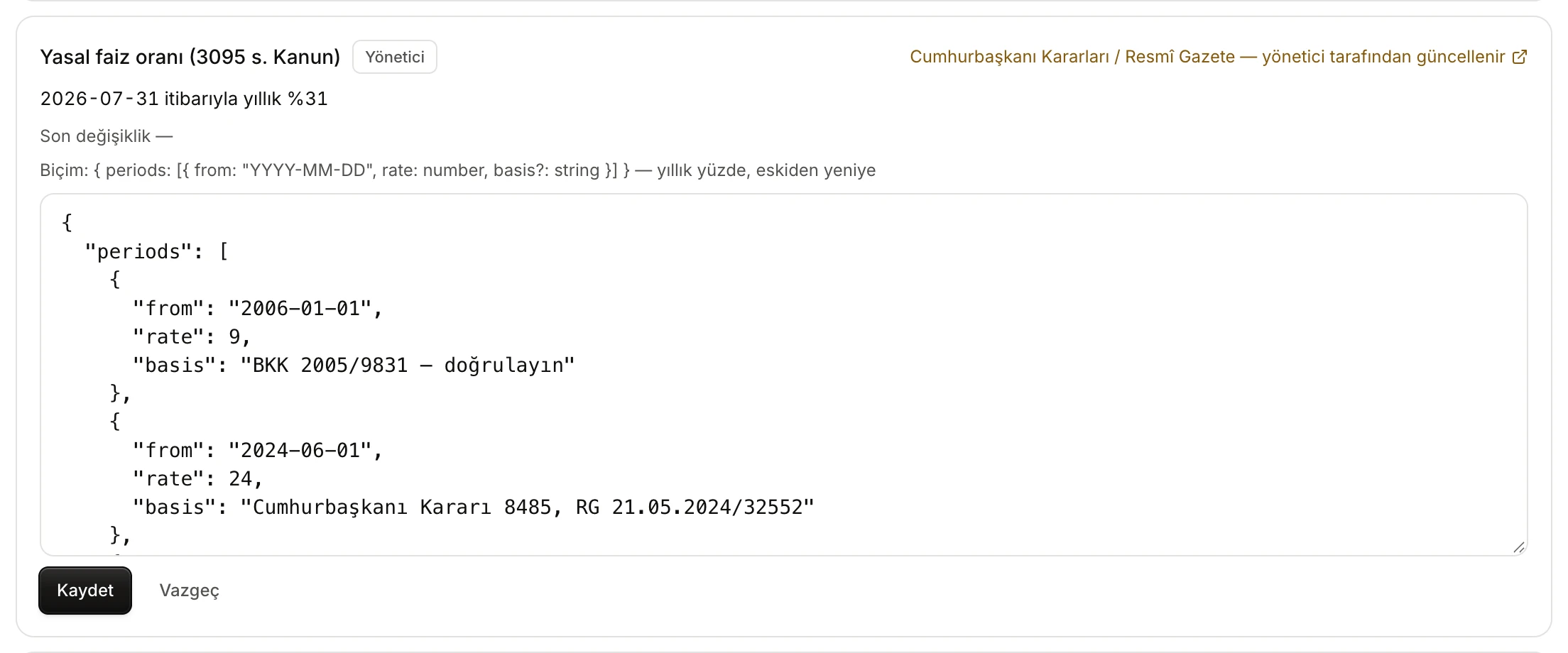
- Biçim (Format): fields, units and ordering.
- The data itself. Add the new entry at the end.
- Kaydet (Save) / Vazgeç (Cancel).
If the text has a syntax error, nothing is saved and "Geçersiz JSON: …" (Invalid JSON) below the field points to the problem. Keep quotes, commas and square brackets as in the existing entries.
Correcting automatic data by hand
In automatic boxes the button is called Elle düzelt (Correct by hand). If you notice an error in the source, you can correct the data the same way. The correction is not permanent: the next automatic read writes the CBRT's published figures back.
Limits and things to check
- Vesika does not notice by itself that a new decision or tariff has been published for statutory interest, holidays or the AAÜT. Following the Official Gazette and the Union of Turkish Bar Associations and updating this screen is the administrator's job.
- Holiday dates entered for future years are forecasts; if the box's note says so, check them against the Diyanet calendar.
- What you save is not checked against anything; it only has to be readable. A wrong rate affects every user's calculations.
- A calculator that is already open may keep working with the old data; the change applies when the tool is opened again.