Vesika AI on iPhone
The Vesika AI tab is the same assistant as Vesika AI on the web: you ask a legal question, the assistant searches the legal database and writes an answer that cites its sources. Conversations belong to your account: you can continue on vesika.ai a conversation started on the iPhone, and the other way round.
App → Vesika AI tab (the first tab)
Step by step
- Open the Vesika AI tab. Each launch starts on the empty start screen.
- Type your question in Sorunuzu yazın (Type your question) at the bottom, or tap one of the Başlangıç akışları (Starter prompts).
- If you like, attach a document or photo with + and pick the thinking level.
- Tap the send button (up arrow). The answer appears as it is written.
- When it is done, open the sources from Kaynaklar (Sources) or from the small citation numbers in the text, and check them.
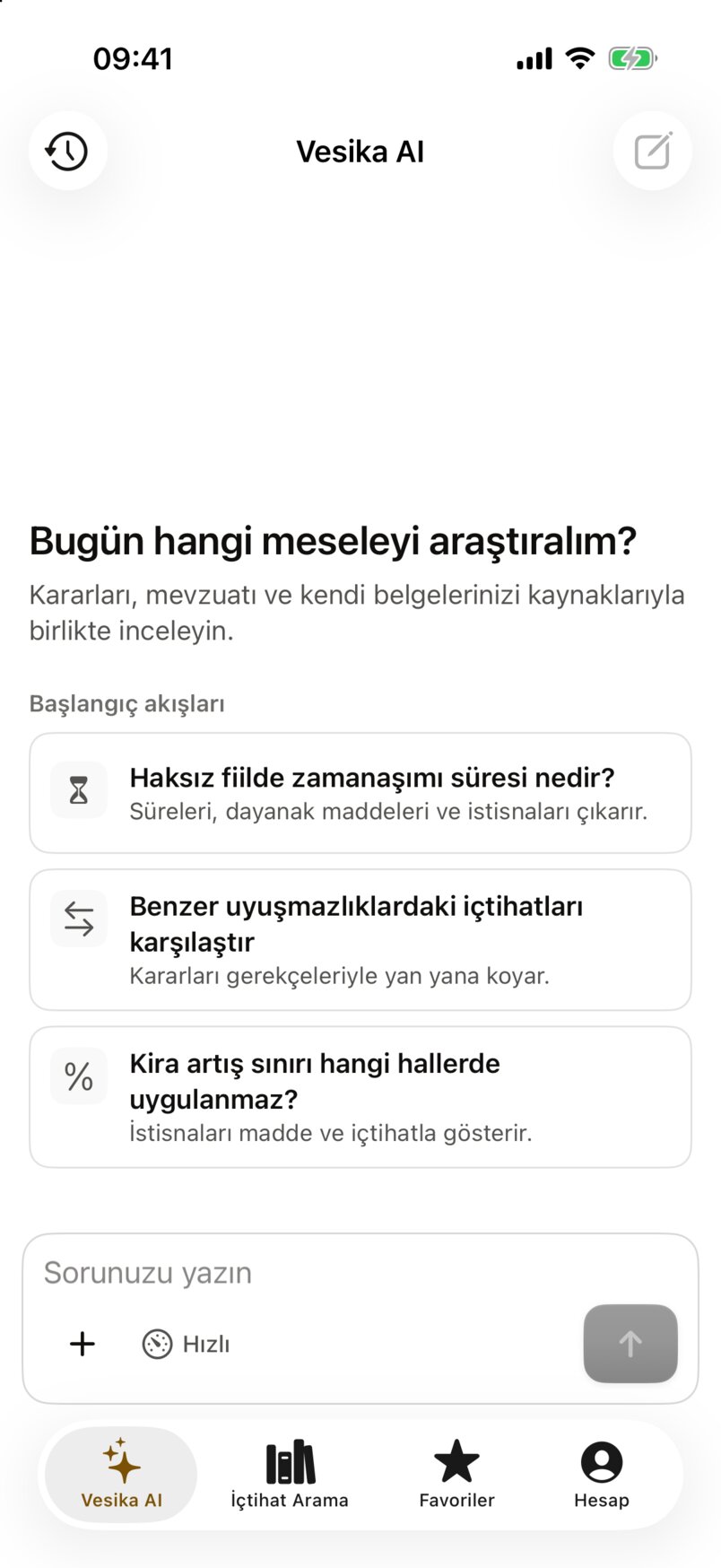
- Sohbetler (Conversations): your earlier conversations.
- Yeni sohbet (New chat): starts an empty conversation (enabled while a conversation is open).
- Başlangıç akışları (Starter prompts): the card you tap is sent at once as a more detailed question.
- The question field grows up to 8 lines as you type.
- + (Soruya ekle, Add to the question): documents, photos, scanning and source selection.
- Thinking level; the default is Hızlı (Fast).
- Send. While the answer is written, Durdur (Stop) replaces it.
Asking
You can type a question of any length. The three cards on the start screen are sample questions: the card shows a short title, and tapping it sends a fuller question (for example the Haksız fiilde zamanaşımı süresi nedir? card sends a complete question asking for the limitation periods, the relevant articles and the exceptions). Your question appears as a bubble on the right.
Earlier conversations are not listed on the start screen; they are under Sohbetler.
Thinking level
The button under the question field (e.g. Hızlı) picks the thinking level:
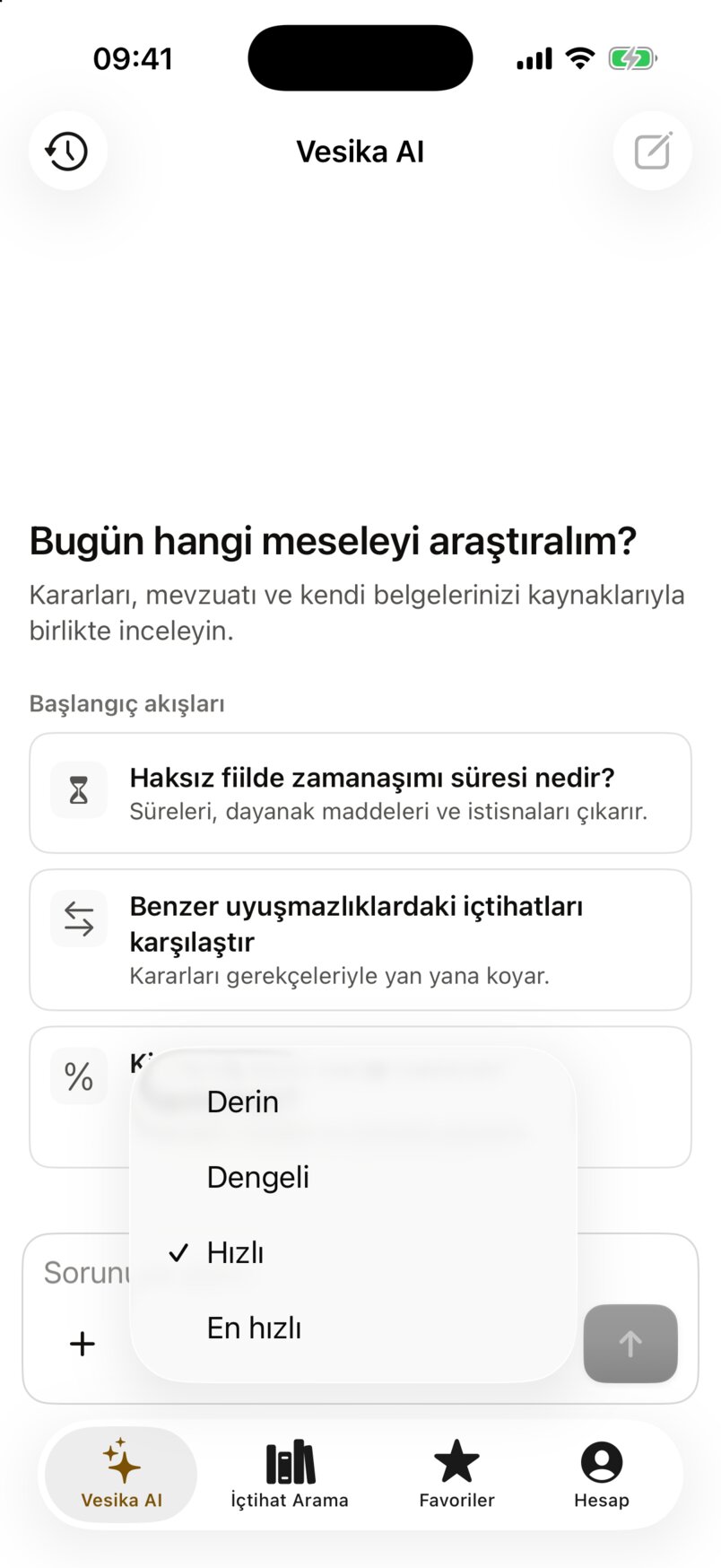
- Derin (Deep): the most thorough research; the answer can take a few minutes.
- Dengeli (Balanced).
- Hızlı (Fast): the default.
- En hızlı (Fastest).
Your choice is saved to your account and used for the next questions too. If your account has a monthly limit for Derin, the menu shows what is left, such as "Derin · bu ay 3/10" (this month 3/10); when it is used up it says "Derin · bu ay doldu" (used up this month) and cannot be picked. You also see the allowance under Hesap → Derin araştırma (Deep research). The level cannot be changed while an answer is being written.
Attaching documents, photos and sources
The + button opens these options:
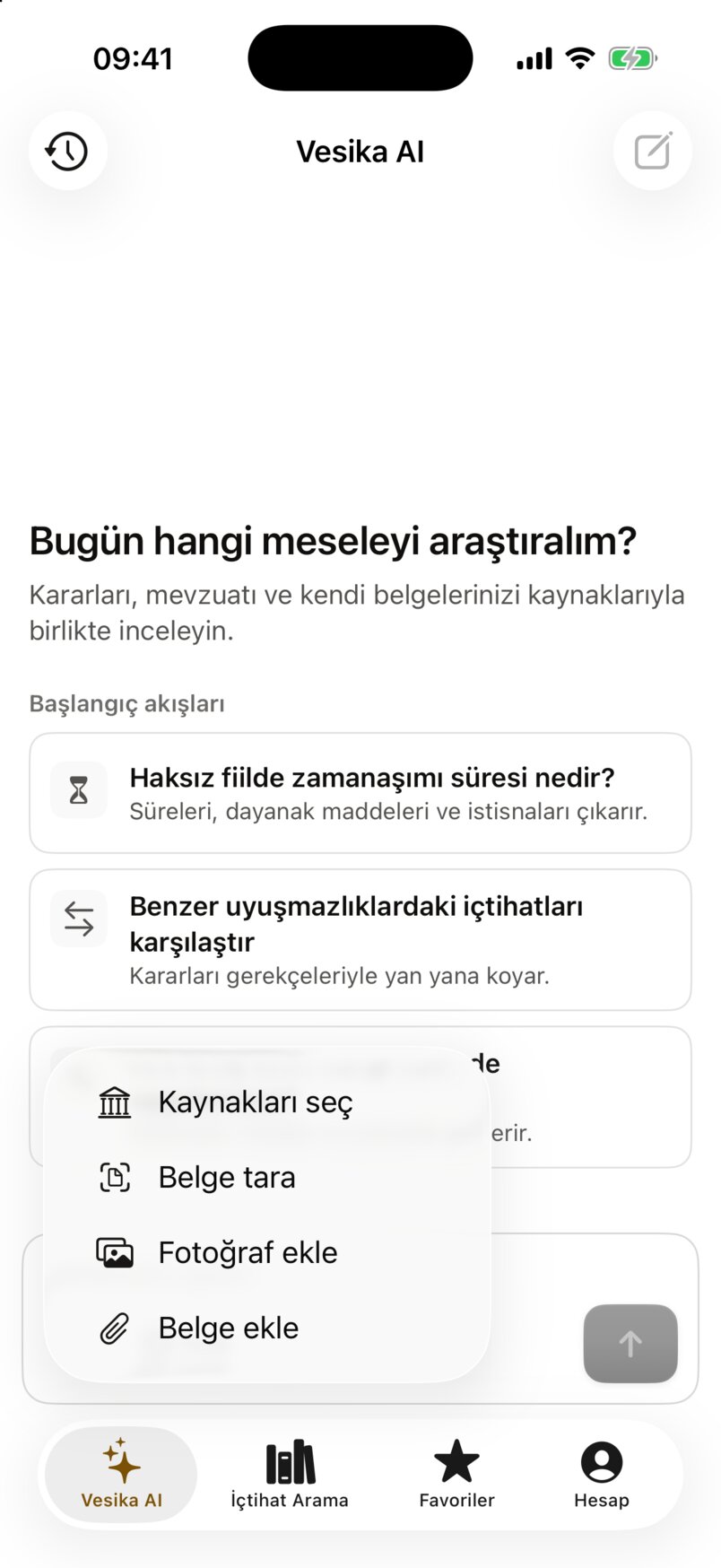
- Belge ekle (Add a document): pick one or more files from the Files app (PDF, DOCX, UDF, image, text).
- Fotoğraf ekle (Add a photo): pick images from Photos; each is added as a JPEG ("Fotoğraf 1.jpg" …).
- Belge tara (Scan a document): scan a paper document with the camera; all pages become one PDF (like "Tarama 26.09.2026 14.05.pdf").
- Kaynakları seç (Choose sources): the parts of the legal database the assistant searches.
Attached files appear above the question field as small cards with their name and size; remove one with ×.
- Size limit: 25 MB per file. A larger file's card turns red ("25 MB sınırını aşıyor", exceeds the 25 MB limit); when you send, that file is removed with the notice "Belge eklenemedi" (The document could not be added). If the question still has text or other files, you can go on with Belge olmadan gönder (Send without the document).
- UDF (UYAP) files are turned into text before sending; the assistant reads the document's text (with the UYAP verification code if there is one). Your question bubble still shows the file with its ".udf" name.
- Files that cannot be read raise "Belge okunamadı" (The document could not be read).
- Documents you attach are also saved to your Dosyalar (Files) on vesika.ai.
Kaynakları seç opens the Hukuk veritabanı (legal database) screen:
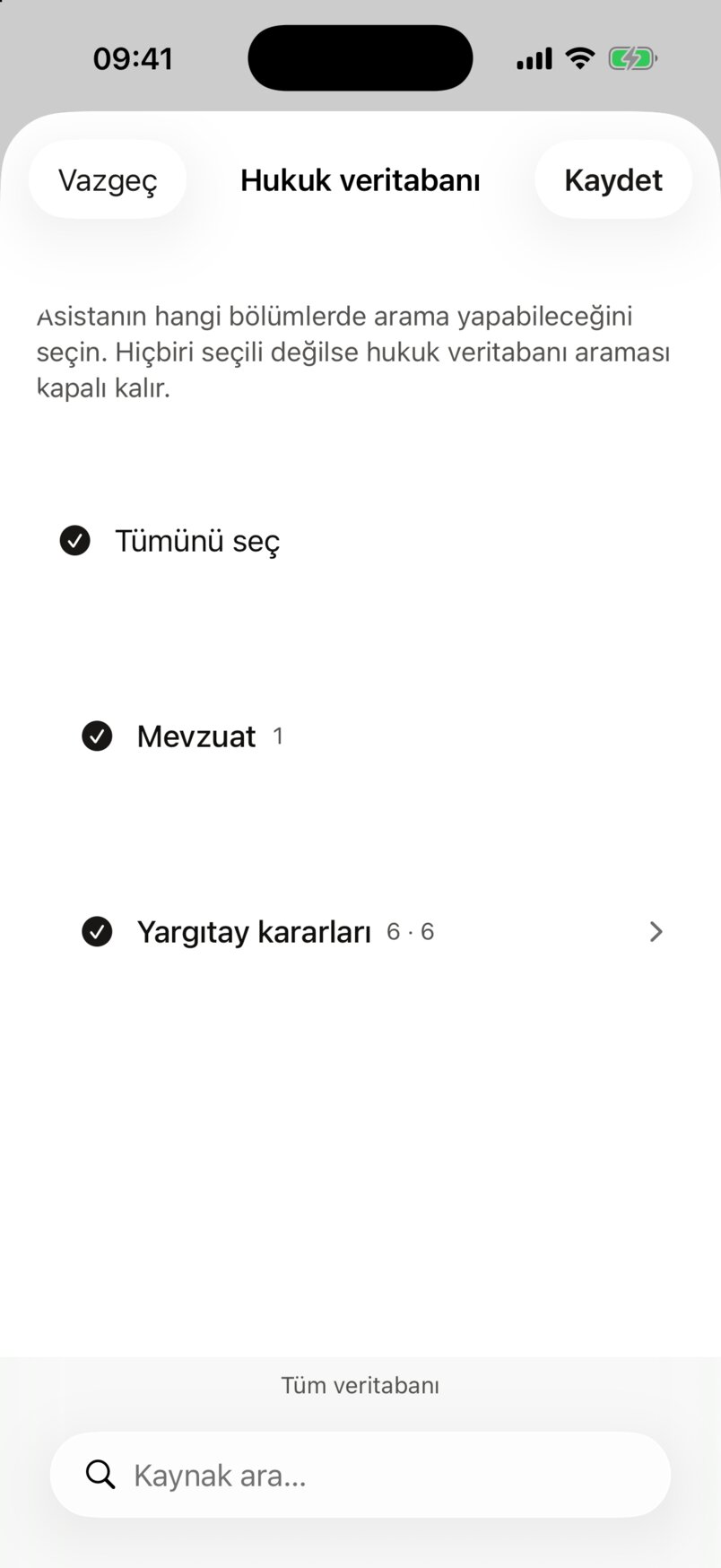
- Tümünü seç (Select all): selects or clears every part.
- Source groups: the check box selects a group; groups with an arrow open to select single parts.
- The summary: Tüm veritabanı (Whole database), how many sources are selected, or "Kaynak seçilmedi. Arama kapalı." (No source selected. Search is off.)
- Kaynak ara… (Search sources): filters the list.
- Kaydet (Save): saves the selection to your account; Vazgeç (Cancel) drops the change.
With no part selected, the assistant does not search the legal database. The selection is shared with Vesika AI on the web.
Reading the answer
The answer starts as soon as you send. First a line shows what the assistant is doing ("Yanıtı yazıyor…, 1 arama, 4 karar" — writing the answer, 1 search, 4 decisions), then the text flows in paragraph by paragraph. Mentions of statutory articles become links as they are written.
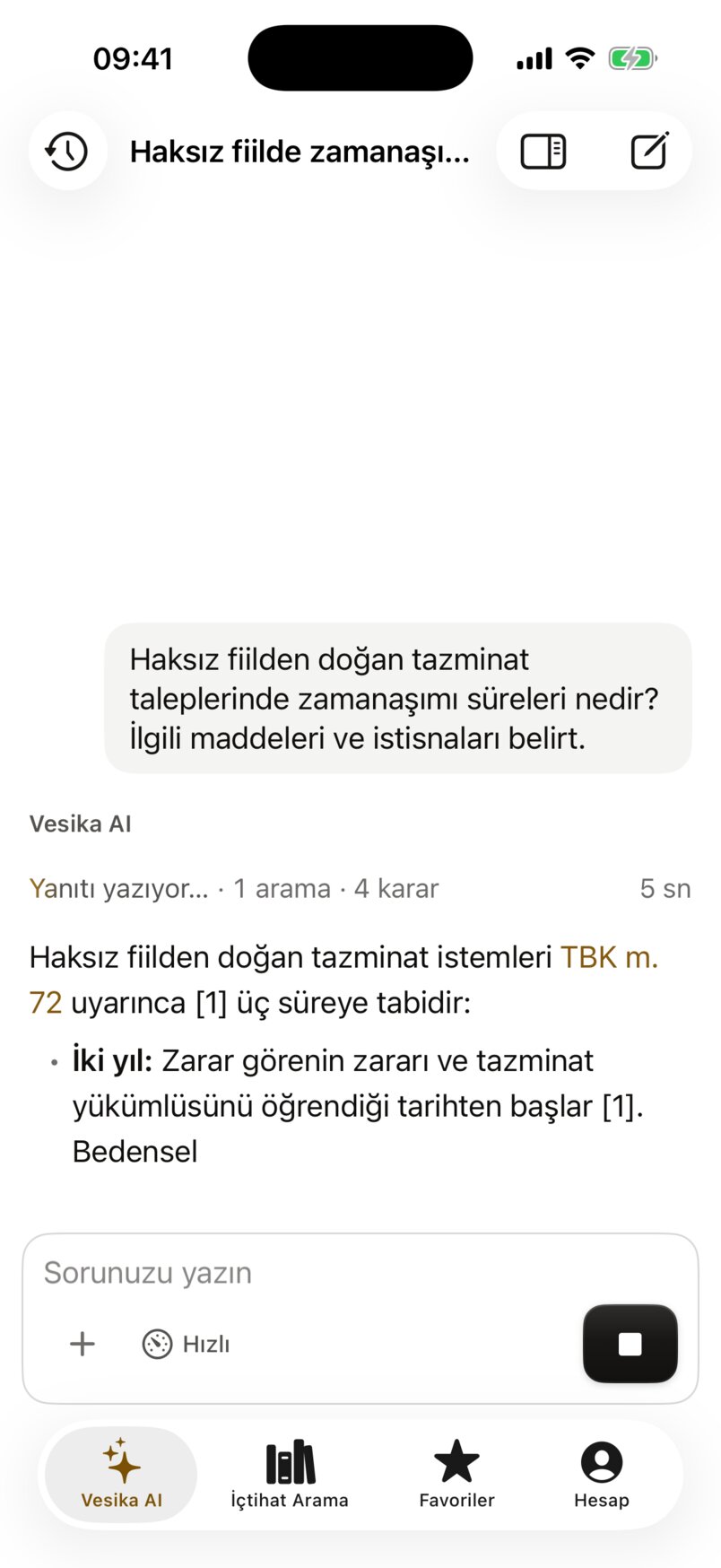
- The answer being written. Citation numbers become links when the answer is done.
- Durdur (Stop): stops the answer; what was written so far stays.
A finished answer looks like this:
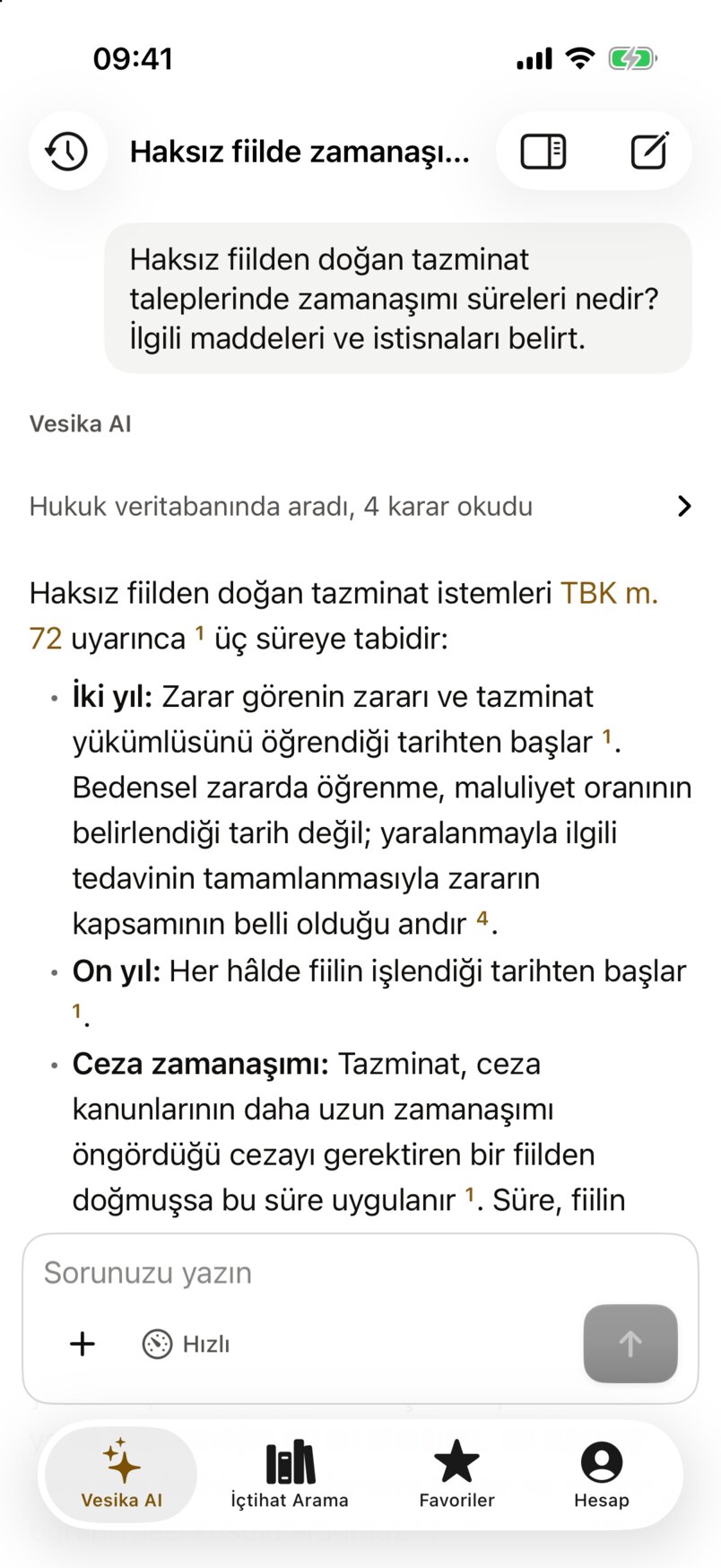
- The conversation's title.
- Your question.
- A summary of what the assistant did and how long it took ("searched the legal database, read 4 decisions"); tap it to see each step.
- A statutory article link: tap it to open the article in the document reader.
- A citation number: tap it to open that source in the document reader.
The answer text can be selected; long-press to copy part of it.
Sources and answer buttons
Under the answer are the numbered Kaynaklar (Sources) and the answer buttons:
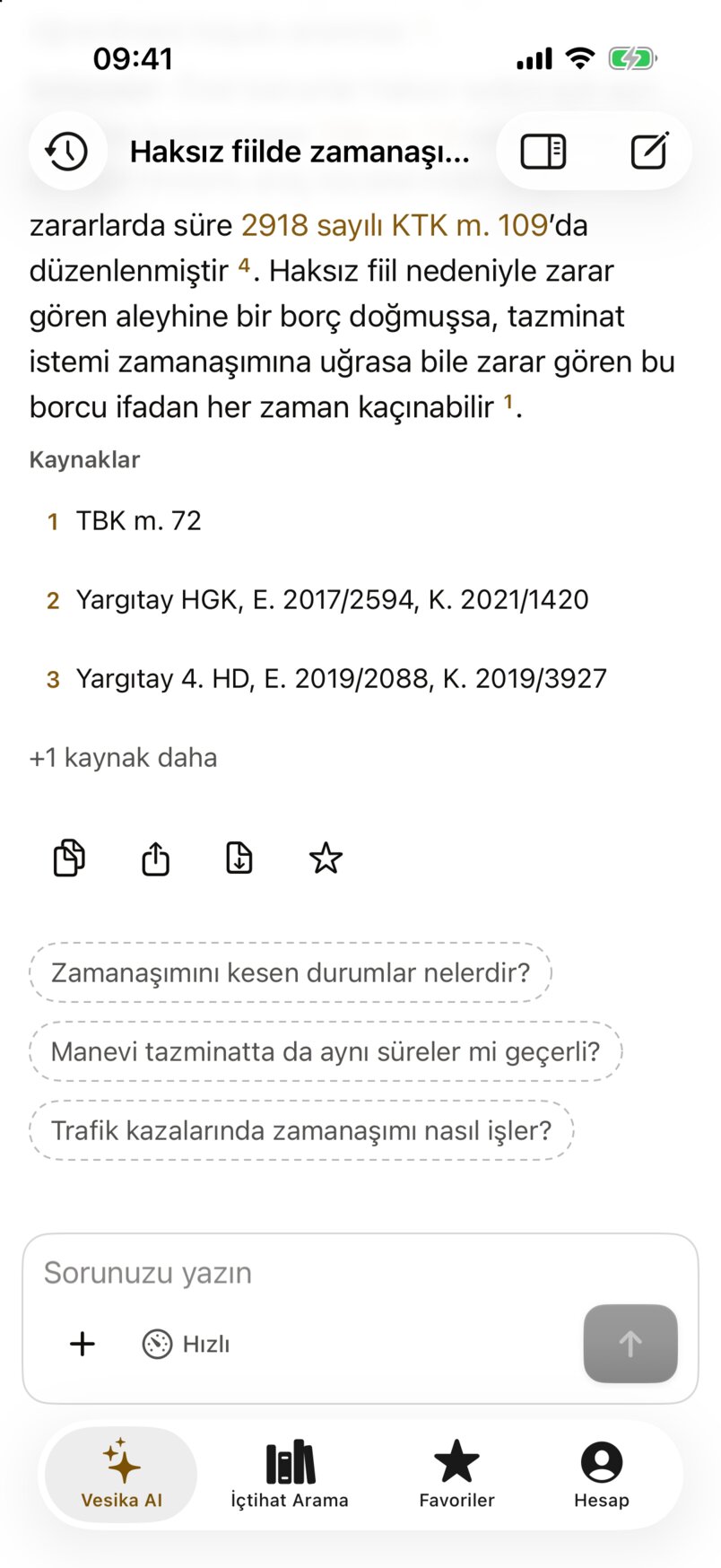
- Kaynaklar (Sources): the decisions and legislation the answer cites; the one you tap opens in the document reader with the cited passage highlighted.
- +1 kaynak daha (+1 more source): shows the sources after the first three.
- Kopyala (Copy): copies the answer and the source list as plain text.
- Paylaş (Share): sends the same text through the iOS share sheet.
- PDF olarak indir (Download as PDF): builds a PDF with the question, answer and sources and opens it in the share sheet.
- Favorilere ekle (Add to favorites): stars the answer; it appears in the Favorites tab and on the web.
- Suggested follow-up questions: the one you tap is sent as a new question.
- Sohbet ayrıntıları (Conversation details).
Always open the sources and citations in the reader and check that they support the answer; the answer is a research draft.
Follow-up questions
Continue in the same conversation by typing a new question in the field at the bottom; the assistant takes the earlier questions and answers into account. About a minute and a half after an answer, while the app is open, a short recap of the conversation may appear above the suggestions.
When the assistant asks you
Sometimes the assistant needs a choice before going on: the Asistan bir karar bekliyor (The assistant is waiting for a decision) card appears. Pick one option (or several), or type in Başka bir şey… (Something else…), and tap Yanıtı gönder (Send the answer). Sormadan devam et (Continue without asking) tells the assistant to drop the questions and go on.
Drafted documents
When you ask for a petition or a contract draft, the answer contains a document card ("Taslak · önizlemek için tıklayın, indirmeden önce gözden geçirin" — draft, tap to preview, review before downloading). Tap the card to preview; the Word, PDF and UDF buttons each offer Önizle (Preview), Paylaş (Share) and Dosyalara kaydet (Save to Files). Always review drafts before using them. Details: Having documents drafted.
Conversation details
The sidebar icon at the top right opens Sohbet ayrıntıları (Conversation details):
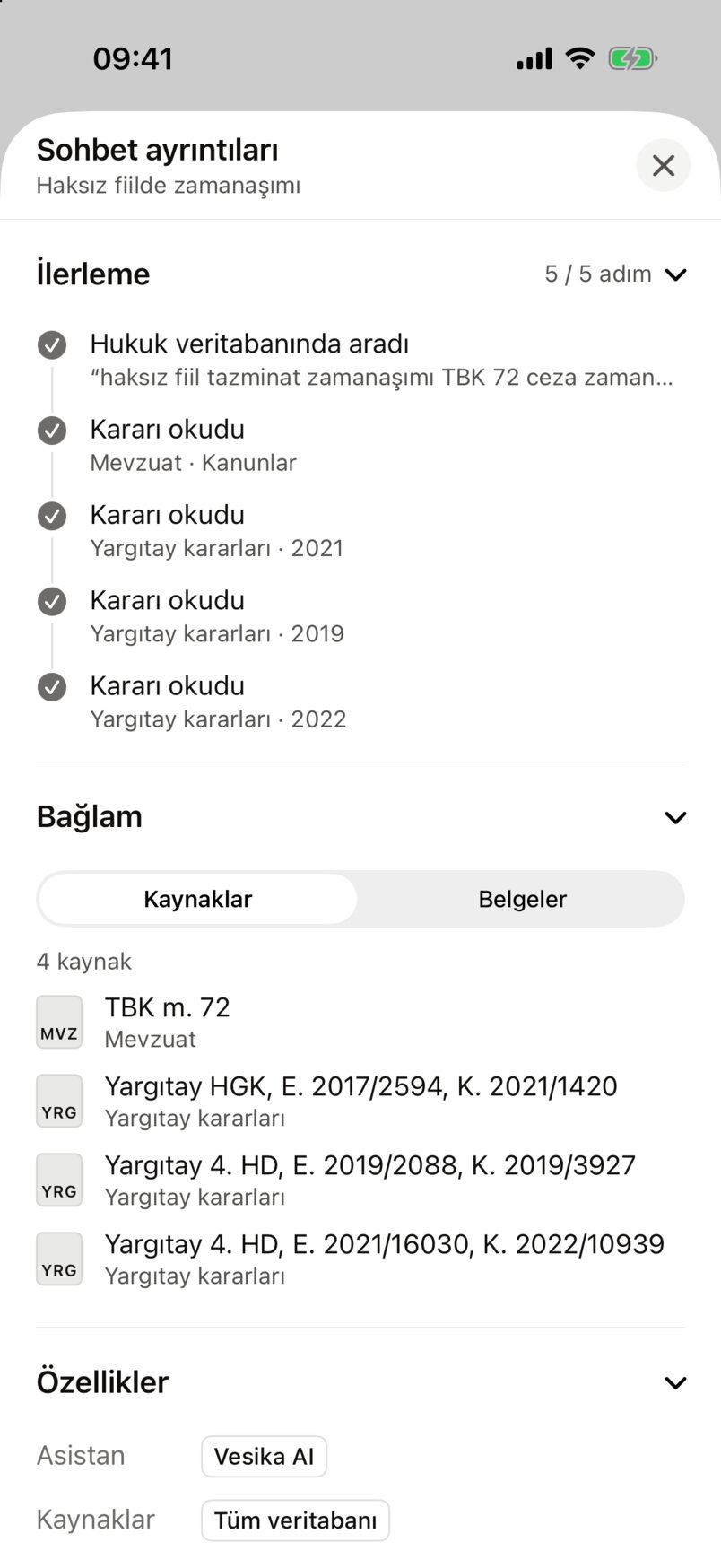
- İlerleme (Progress): the steps the assistant took in the last answer (searches, decisions read).
- Bağlam (Context): the Kaynaklar (Sources) or Belgeler (Documents) view.
- Every citation in the conversation; tap one to open it in the reader. Belgeler lists the files you attached and those the assistant prepared.
- Özellikler (Properties): the assistant, the selected sources and Derinlik (Depth, the thinking level).
- Close.
Conversations
The clock icon at the top left opens Sohbetler (Conversations). They are grouped under Bugün (Today), Dün (Yesterday), Son 7 gün (Last 7 days), Son 30 gün (Last 30 days) and Daha eski (Older), newest first; the list loads 30 at a time as you scroll.
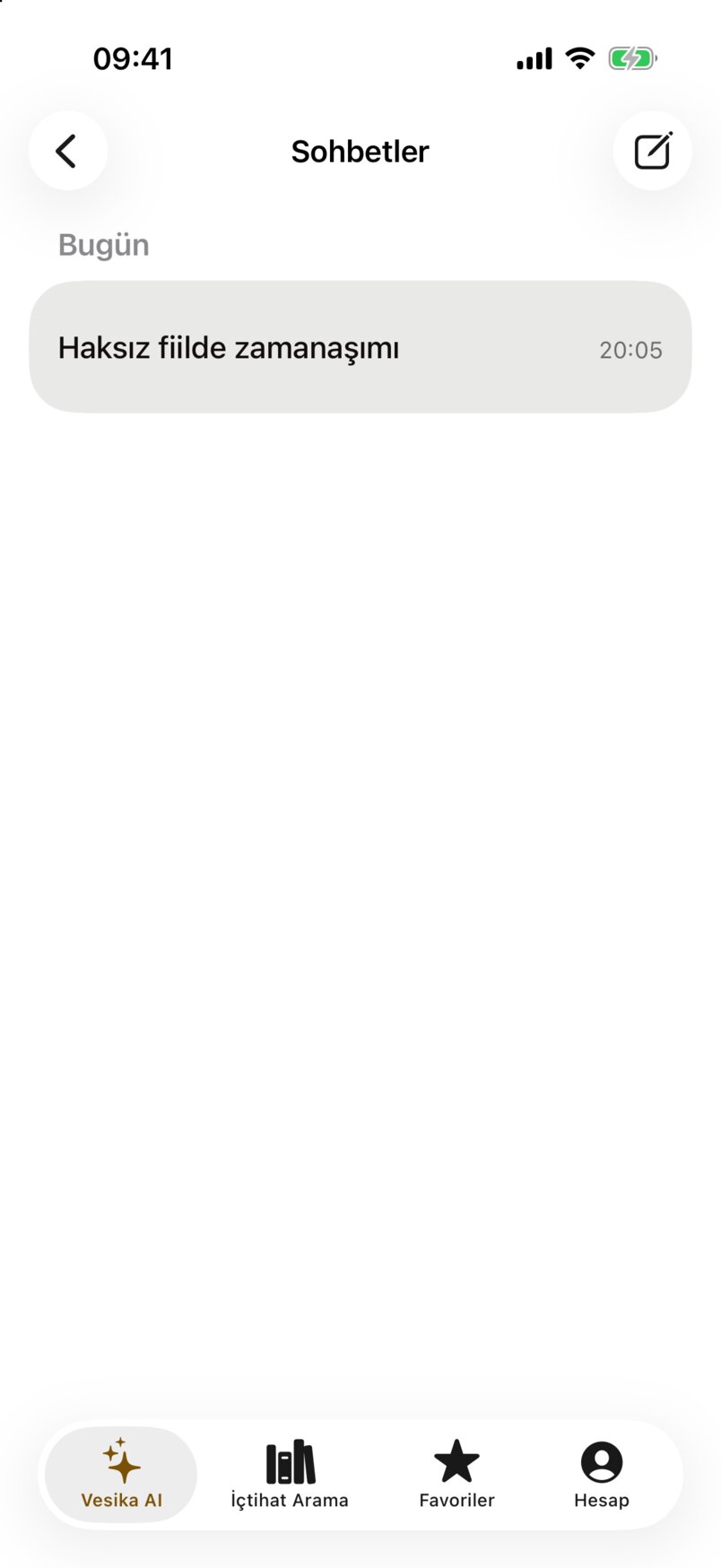
- Date headings.
- A conversation: its title and time. Tap it to open the conversation.
- Search: type in Sohbetlerde ara (Search conversations) at the top.
- Rename: swipe the row left or long-press it → Yeniden adlandır (Rename), type the new name and tap Kaydet (Save).
- Delete: swipe the row left or long-press it → Sil (Delete). Confirm "Sohbet silinsin mi?" (Delete the conversation?) with Sil; the messages and attachments are deleted permanently.
- A conversation whose answer is still being written shows "Yanıt yazılıyor" (Answer being written).
Conversations started on the web are in this list too.
Long answers and notifications
You can leave the app while an answer is written. The app keeps receiving it in the background for as long as iOS allows; for Derin questions it asks iOS for more background time (a "Vesika AI yanıtı yazıyor" progress indicator may show at the top of the screen).
If the answer finishes while you are outside the app and notifications are allowed, you get the notification Vesika AI · Yanıtınız hazır (Your answer is ready). If the assistant is waiting for your input, it says "Asistan sizden bir yanıt bekliyor" (The assistant is waiting for your reply). The notification contains neither the answer nor your question. Tapping it opens the conversation.
Notification permission is asked with "Yanıtınız hazır olduğunda bildirim gönderelim mi?" the first time you send a Derin question; you can turn it on later under Hesap → Bildirimler (Notifications): The account tab.
Coming back to the app
- Back from the background: the conversation is as you left it; an answer still being written continues where it was.
- After closing and reopening the app (or if iOS closed it): the app opens on the empty start screen. An unfinished answer completes on the server; open the conversation from Sohbetler.
- Tapping Yeni sohbet or opening another conversation while an answer is written does not stop it; the answer completes on the server.
Limits and things to check
- The AI consent is asked before the first question; without it you cannot send questions.
- 25 MB per file. You cannot pick files from your vesika.ai Dosyalar in the app; attach them from the iPhone.
- If your account's monthly AI quota is used up, a notice appears above the conversation and questions cannot be sent until your administrator raises the quota or the period renews.
- Answers can be wrong or incomplete. Open the cited decisions and articles in the reader and verify them; review drafts before using them.
- If the connection drops, "Asistanla bağlantı kurulamadı. İnternet bağlantınızı kontrol edip tekrar deneyin." (Could not connect to the assistant…) appears; your question goes back into the field and you can send it again.