Case-law search on iPhone
In the İçtihat Arama (Case-law search) tab you describe a case or a legal question in your own words and find decisions in the legal database. The key words you pick are coloured and weighted in the search; you can open a decision in the reader, star it, or ask the assistant about the results. Searching decisions does not use AI.
App → İçtihat Arama tab. The tab appears if İçtihat Arama is enabled for your account.
Step by step
- Open the İçtihat Arama tab. Keep Soru ile ara (Search by question) selected at the top.
- Type the facts or your question in Sorunuz ya da olay (Your question or the facts).
- In the Vurgu (Emphasis) box, tap the key words.
- If you like, add a source, date or word filter under Filtreler (Filters).
- Tap Kararları ara (Search decisions), or the Ara (Search) key on the keyboard.
- Tap a decision to open it in the reader.
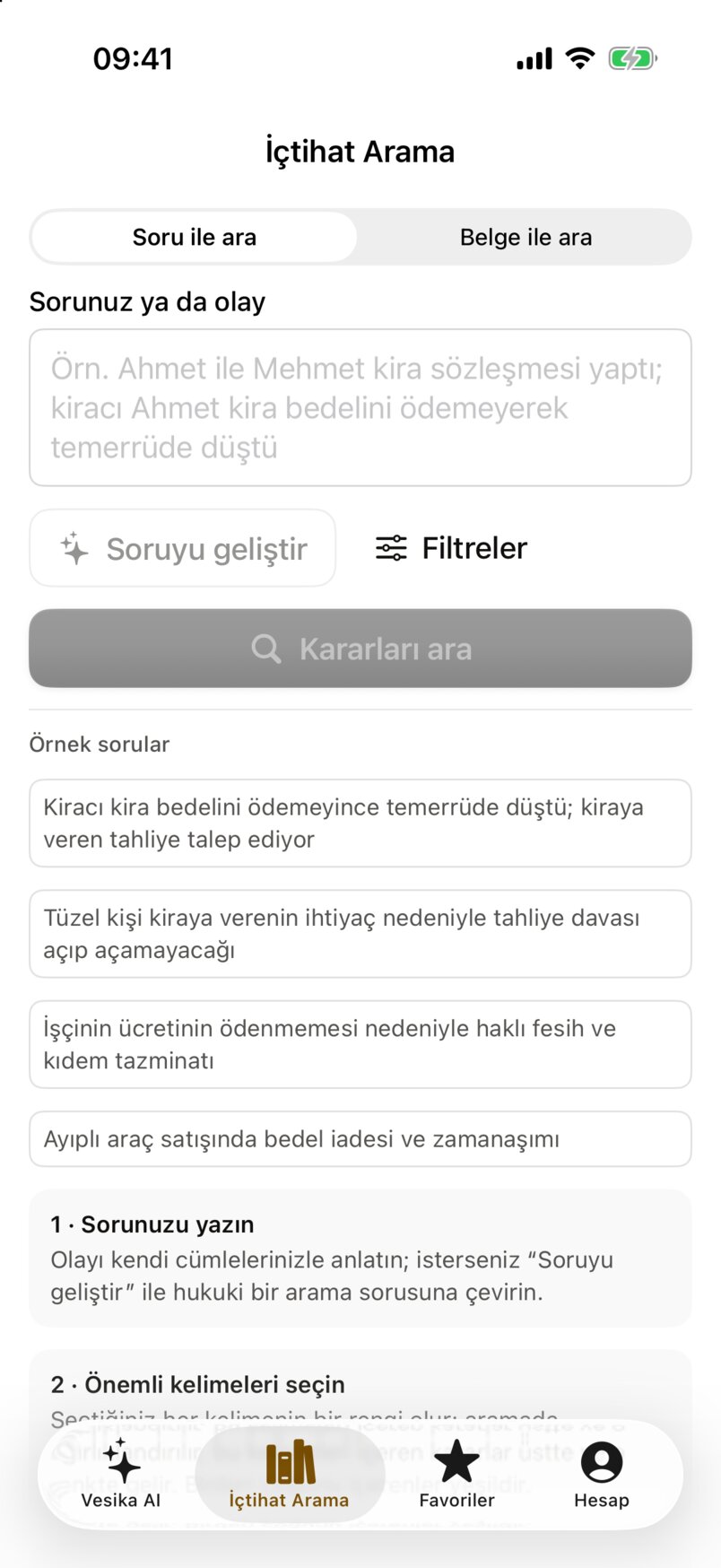
- Soru ile ara (Search by question) or Belge ile ara (Search by document).
- Sorunuz ya da olay: describe the case in your own words.
- Soruyu geliştir (Improve the question): turns what you wrote into a legal search question with AI.
- Filtreler (Filters): sources, dates, words and deep search.
- Kararları ara (Search decisions): enabled once the question has at least 2 characters.
- Örnek sorular (Sample questions): the one you tap is written into the field (it does not search).
Emphasis words
Once you type a question, the Vurgu (Emphasis) box appears below it with each word of your question as a tappable token.
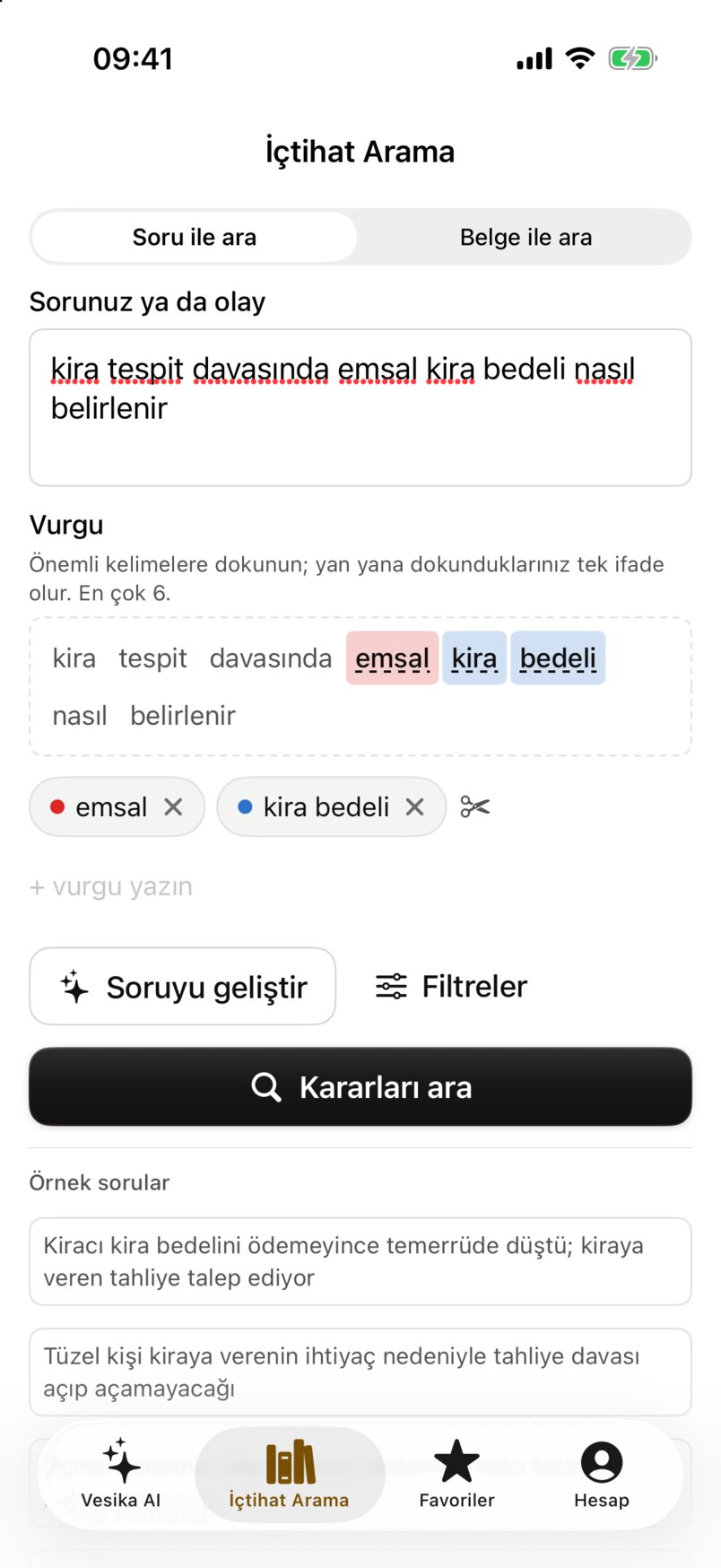
- Your question.
- Words: the word you tap becomes an emphasis term with its own colour; tapping a marked word again removes it.
- Emphasis chips: the colour, and × to remove. For a phrase of several words, the scissors icon splits it into words.
- + vurgu yazın (+ type an emphasis): adds a word or phrase that is not in your question.
- Kararları ara (Search decisions).
- Words you tap next to each other form one phrase (up to 4 words by tapping). You can pick at most 6 terms; trying a seventh shows "En fazla 6 vurgu seçebilirsiniz" (You can pick at most 6 emphases).
- The colours are red, blue, orange, purple, pink and cyan, in that order. Decisions containing more than one term are green.
- Matching ignores Turkish endings: the term "kira bedeli" also finds a decision that says "kira bedelinin".
- The terms are weighted in the search. If you change them after searching, colours and order update at once; Aramayı yeni vurgularla yenile (Refresh the search with the new emphasis) runs the search again.
Results
When the search starts, the question folds into a one-line bar and the results are listed below:
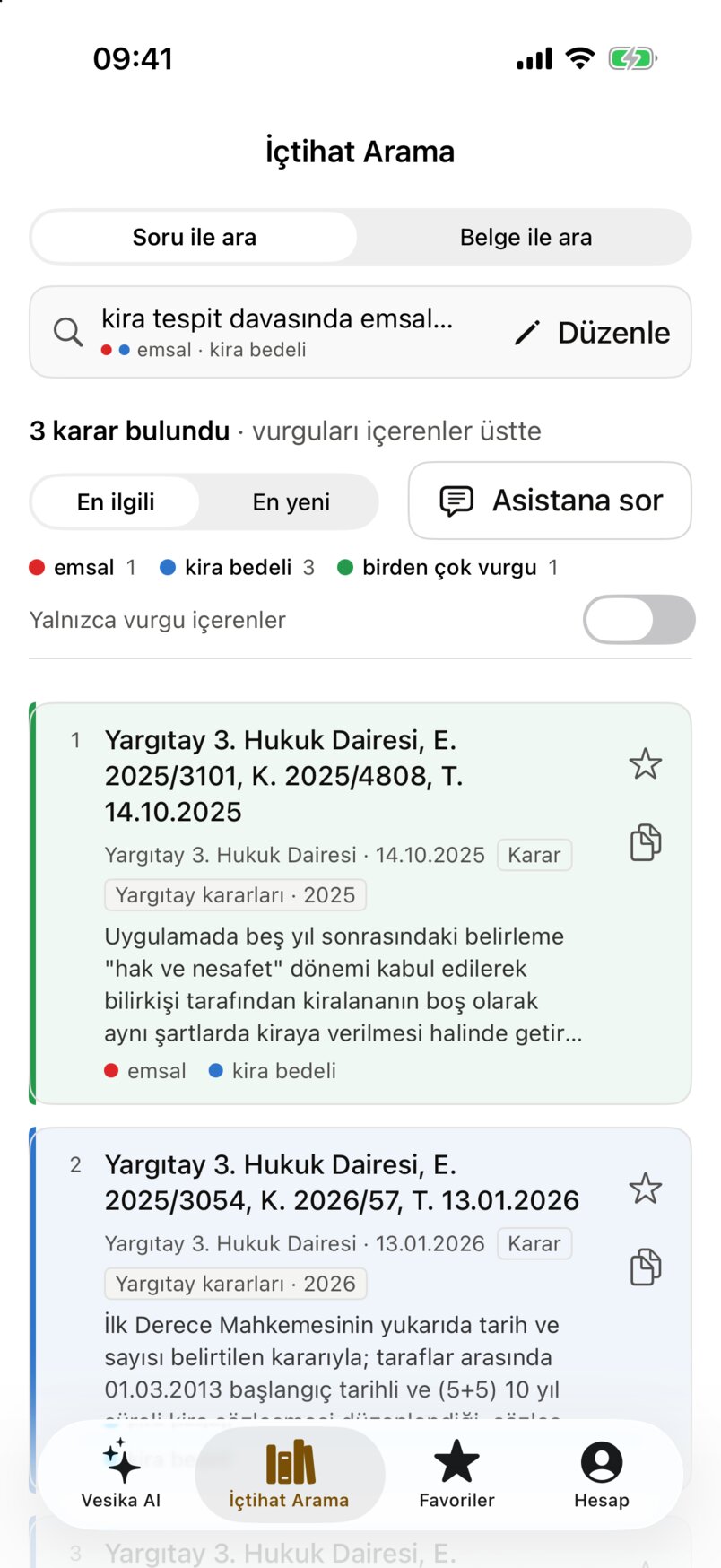
- The question searched and its emphasis terms.
- Düzenle (Edit): reopens the question, emphasis and filters.
- How many decisions were found ("3 karar bulundu") and how they are sorted.
- En ilgili (Most relevant) or En yeni (Newest). Your choice is remembered.
- Asistana sor (Ask the assistant): a cited answer based on the results.
- How many decisions contain each term; green, those containing more than one.
- Yalnızca vurgu içerenler (Only those with emphasis): hides decisions without any term.
- A decision card: citation, court and date, source and an excerpt, with the terms coloured. Tap to open it in the reader.
- Star: adds the decision to Favorites.
- Künyeyi kopyala (Copy the citation): copies the decision's citation.
- A question search returns at most 50 decisions; there is no paging. When the limit is hit, the count line says "ilk 50 sonuç" (first 50 results).
- En ilgili puts decisions containing the terms first; En yeni shows the newest first (undated ones last).
- Long-press a card for Kararı aç (Open the decision), Künyeyi kopyala and Favorilere ekle (Add to favorites). Cards you opened say "· açıldı" (opened).
- Starring shows "Favorilere eklendi" (Added to favorites); copying the citation shows "Künye kopyalandı" (Citation copied).
- With no results it says "Sonuç bulunamadı" (No results): describe the case in other words, try Soruyu geliştir, or widen the source selection.
Filters
Filtreler (with the question open, through Düzenle) opens this screen:
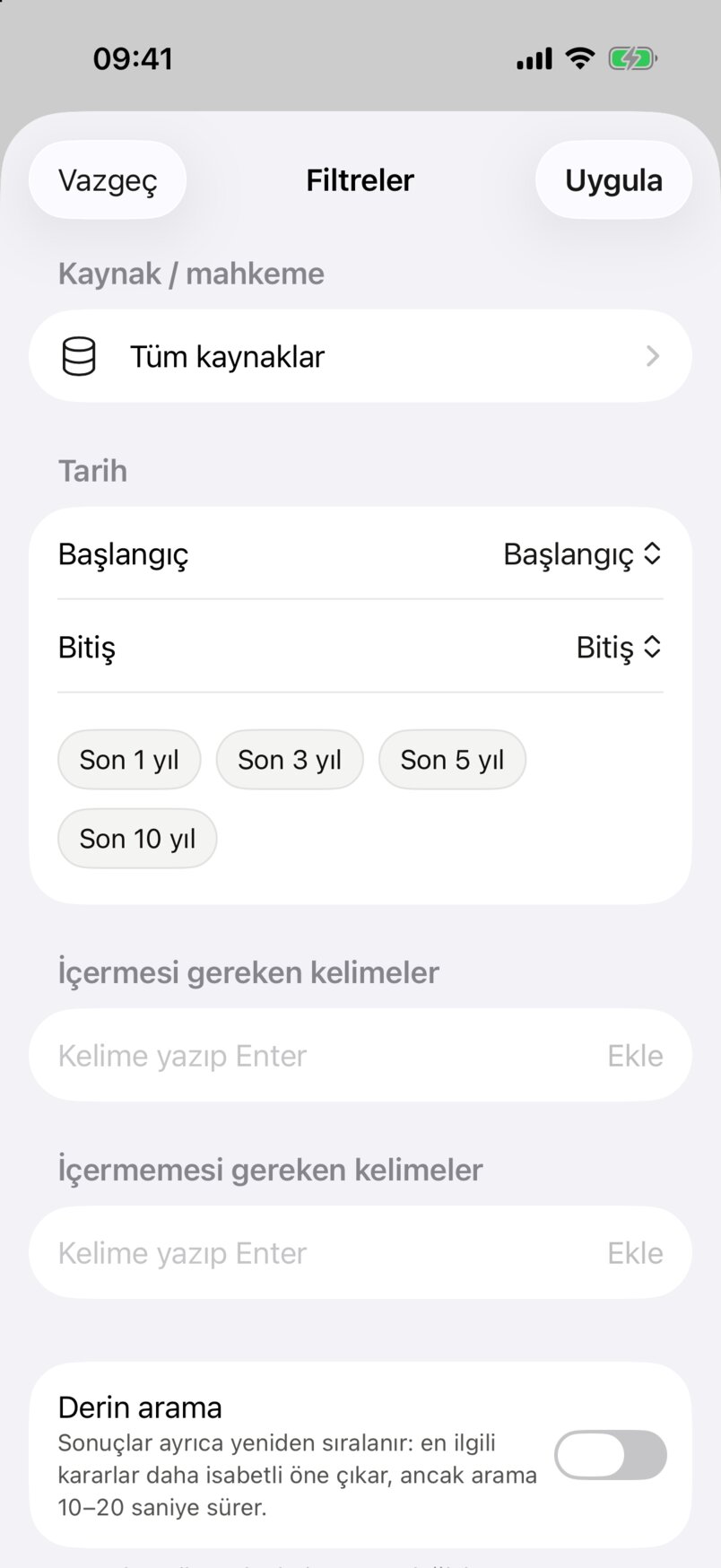
- Kaynak / mahkeme (Source / court): which parts of the database to search; Tüm kaynaklar (All sources) by default.
- Tarih (Date): a Başlangıç (From) and Bitiş (To) year, or the Son 1 / 3 / 5 / 10 yıl (Last 1 / 3 / 5 / 10 years) shortcuts.
- İçermesi gereken (Must contain) and İçermemesi gereken kelimeler (Must not contain): type a word and tap Ekle (Add).
- Derin arama (Deep search): results are re-ranked as well; the search takes 10–20 seconds.
- Uygula (Apply); Vazgeç (Cancel) drops the changes.
- Changing sources, dates or deep search runs the search again; word filters apply to the listed results at once.
- With a date range, decisions without a known date are left out.
- Filtreleri temizle (Clear filters) resets dates, words and deep search; the source selection stays. Your source selection is saved to your account.
- The number on the Filtreler button shows how many filters are active.
Asistana sor
Asistana sor (Ask the assistant), above the results, asks Vesika AI the question you searched, limited to the selected sources. The answer is written on a separate page and cites decisions; tap a citation or source to open the document reader.
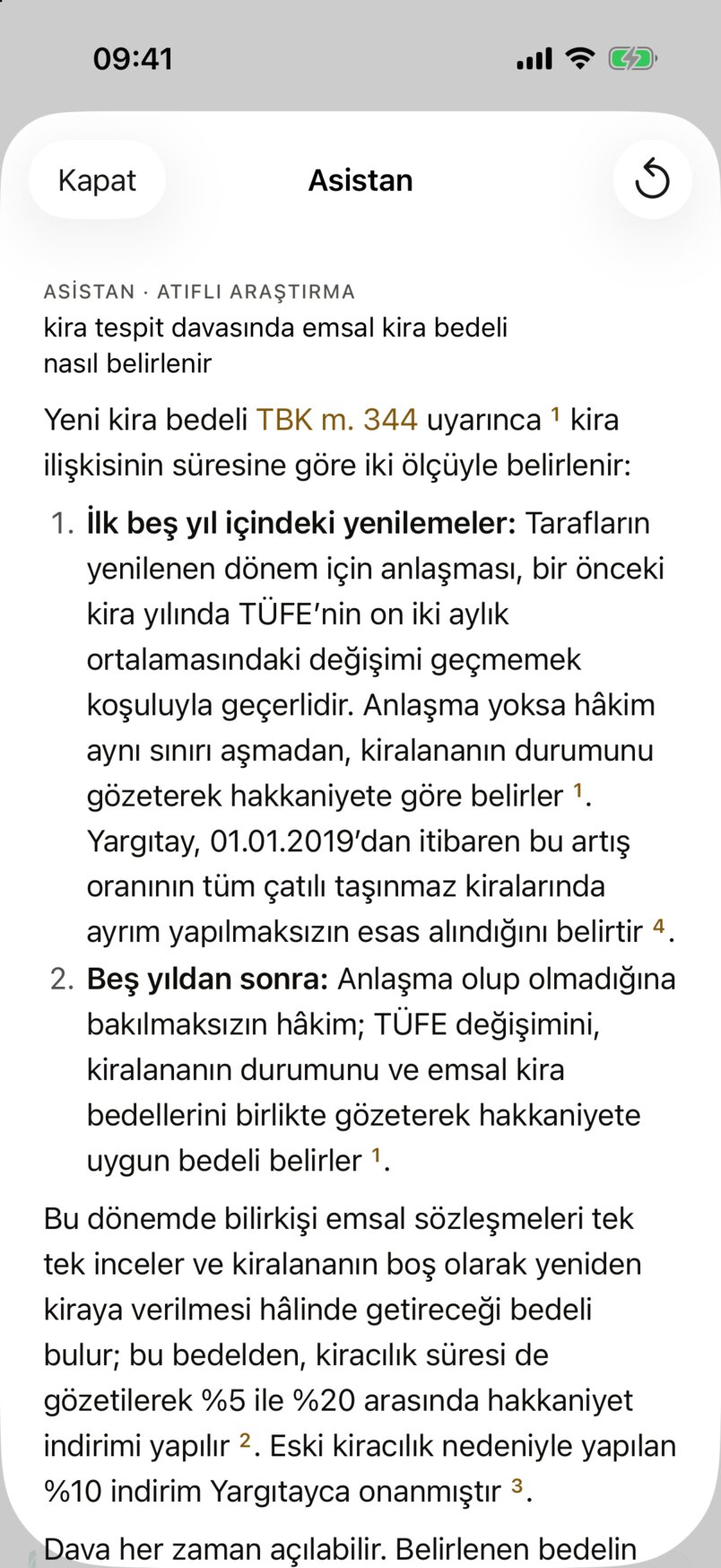
- The question asked.
- A statutory article link: opens in the reader.
- A citation number: opens that decision in the reader.
- Yeniden sor (Ask again): writes the answer again (while it is written, Durdur (Stop) is here).
- Kapat (Close): stops an answer still being written.
The answer ends with the numbered Kaynaklar (Sources) and the note "Bu yanıt bir araştırma taslağıdır; atıflar veritabanında bulunan kararlara bağlıdır. Nihai değerlendirme size aittir." (This answer is a research draft; its citations are limited to decisions found in the database. The final assessment is yours.). A finished answer is kept: asking the same question with the same filters again opens the saved answer at once. Asistana sor exists only in Soru ile ara and requires the AI consent.
Soruyu geliştir
Soruyu geliştir (Improve the question; for a question of at least 5 characters) turns what you wrote into a legal search question of one or two sentences; it removes personal names and data and adds no new facts. A Önerilen soru (Suggested question) card appears below the question:
- You can edit the suggestion in the card; a short explanation and suggested emphasis words are shown too (add them with "+" next to the emphasis chips).
- Kullan ve ara (Use and search) replaces your question and searches. Yalnızca kullan (Use only) only replaces it. Vazgeç (Cancel) closes the card.
The suggestion is an AI draft; read it before searching.
Belge ile ara
Belge ile ara (Search by document) derives search questions from a petition, contract or decision and searches with them.
- Select Belge ile ara at the top.
- Pick the document with Dosya seç (Choose a file, from Files) or Fotoğraf (Photo). PDF, Word, UDF (UYAP) and text files are accepted, up to 15 MB. Instead of a file you can paste the text with Dosya yerine metni yapıştırın (Paste the text instead of a file; at least 40 characters, then Belgeyi incele, Analyse the document).
- The app shows the steps: Belge okunuyor (Reading the document), Özet ve arama soruları hazırlanıyor (Preparing the summary and search questions), İlgili kararlar aranıyor (Searching related decisions).
- Then a short summary (ÖZET · YAPAY ZEKÂ TASLAĞI, summary · AI draft) and up to 3 search questions (ARAMA SORULARI · DÜZENLEYEBİLİRSİNİZ, search questions · you can edit them) appear. Edit or remove questions and search again with Sorularla ara (Search with the questions).
- In the results, the Soru 1, Soru 2 … chips filter decisions by the question that found them.
The summary is written without personal names, T.C. identity numbers or addresses. If no text can be read from a scanned document, "Belgeden yeterli metin çıkarılamadı" (Not enough text could be extracted) appears; try a clearer copy or paste the text. The uploaded document is also saved to your Dosyalar (Files) on vesika.ai; Aç (Open) shows it again. Belge ile ara requires the AI consent.
Limits and things to check
- A question search returns at most 50 decisions; a document search 25 per question.
- The app has no search history list; your searches are saved to your account and appear in Geçmiş (History) on the web. Searches cannot be starred in the app; searches you star on the web appear in Favorites.
- Each launch starts with an empty search screen; the previous search is not run again.
- Soruyu geliştir, Belge ile ara and Asistana sor use AI: they need the consent and are unavailable when your AI quota is used up. Searching, filters, stars and the reader keep working.
- Excerpts and highlights are only hints; read the whole decision in the reader.