The account tab
The Hesap (Account) tab shows who is signed in, your plan, your AI consent and notification permission; there you change the appearance, sign out or delete your account.
App → Hesap tab (the last tab)
Profile, plan and AI
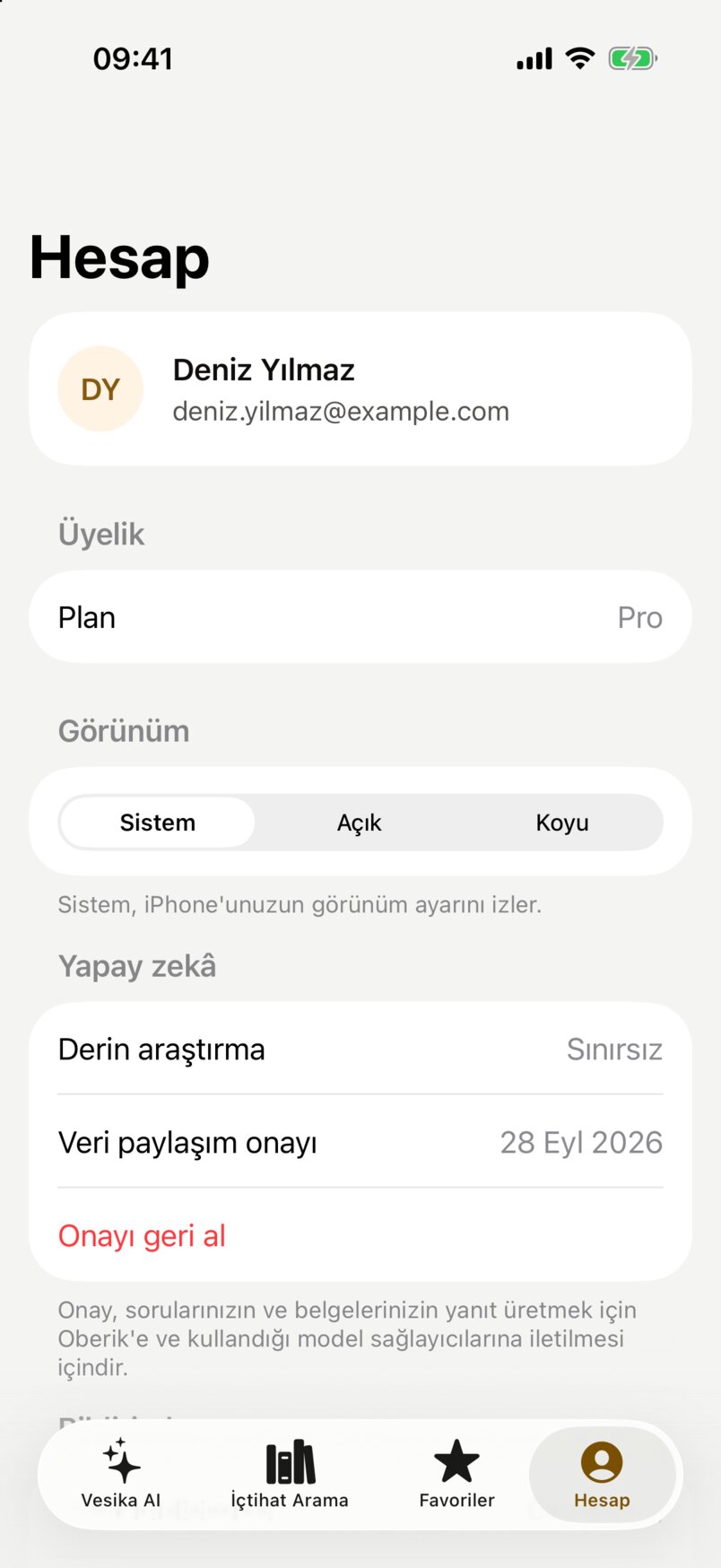
- Your name and e-mail address. If your company has a logo, it replaces your initials.
- Üyelik (Membership): your plan; for company accounts, your company and the plan's end date if there is one.
- Görünüm (Appearance): Sistem (System), Açık (Light) or Koyu (Dark).
- Derin araştırma (Deep research): your Derin allowance left this month and when it renews, or Sınırsız (Unlimited).
- Veri paylaşım onayı (Data sharing consent): the date you gave it, and Onayı geri al (Withdraw consent).
Membership
Shows your plan and (if any) your company. You cannot buy or change a plan in the app; your administrator sets it.
Appearance
- Sistem (System, the default): follows your iPhone's light/dark setting.
- Açık (Light) or Koyu (Dark): always light or always dark, whatever the iPhone setting.
The choice applies at once, is saved on this iPhone and stays after you sign out. It is not synced with the theme on vesika.ai.
AI
- Yapay zekâ kullanımı (AI usage): if your account has a monthly AI quota, how much is used, as a percentage and a bar; when it is used up, your administrator's message appears here too.
- Derin araştırma (Deep research): such as "3/10 kaldı · 1 Eki yenilenir" (3/10 left · renews 1 Oct); Sınırsız (Unlimited) if there is no limit.
AI consent
The Veri paylaşım onayı row shows the date you gave the AI consent.
- Onayı geri al (Withdraw consent): if you confirm "Onay geri alınsın mı?" (Withdraw the consent?), AI features (sending questions to Vesika AI, Soruyu geliştir, Belge ile ara, Asistana sor) stay off until you consent again. Searching decisions and reading documents still work.
- Without consent the row says Verilmedi (Not given); Onay ver (Give consent) opens the consent screen.
The consent is kept on this iPhone; another iPhone asks for it separately.
Notifications, password, help and sign-out
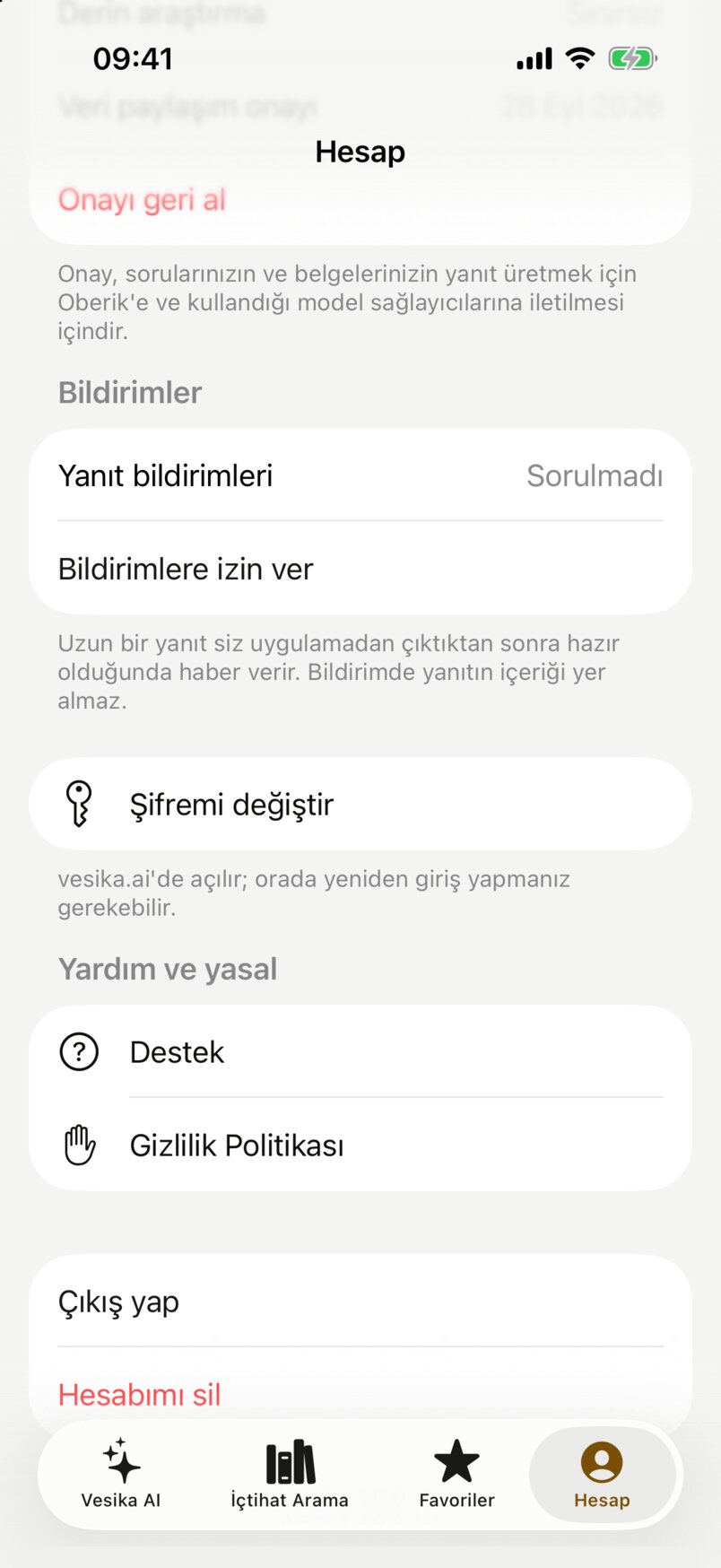
- Yanıt bildirimleri (Answer notifications): the permission state and its button.
- Şifremi değiştir (Change my password): opens the vesika.ai settings inside the app.
- Destek (Support) and Gizlilik Politikası (Privacy Policy).
- Çıkış yap (Sign out).
- Hesabımı sil (Delete my account).
Notifications
The Yanıt bildirimleri row shows one of three states:
- Sorulmadı (Not asked): permission has not been requested. Bildirimlere izin ver (Allow notifications) opens the iOS permission dialog.
- Açık (On): when a long answer is ready while you are outside the app, you get "Vesika AI · Yanıtınız hazır" (Your answer is ready).
- Kapalı (Off): permission was not given. Ayarlar'da aç (Open in Settings) opens Vesika's notification page in the iPhone Settings.
The notification contains none of the answer. Details: Long answers and notifications.
Changing your password
You cannot change the password in the app itself: Şifremi değiştir opens the vesika.ai Ayarlar (Settings) page in an in-app browser, where you may need to sign in again. After a password change your session in the app may end; sign in again with the new password. Details: Account and settings.
Help and legal
- Destek (Support): frequently asked questions and the support address (vesika.ai/ios-support). When you write, give your iPhone model, iOS version and the app version shown at the bottom of this tab (such as "Vesika 1.0.0 (8)"); do not include your password or client information.
- Gizlilik Politikası (Privacy Policy): the app's privacy policy and KVKK information notice.
Signing out
Çıkış yap → "Çıkış yapılsın mı?" (Sign out?) → Çıkış yap. Your session is removed from this iPhone and the sign-in screen appears. Your appearance choice and AI consent stay on this iPhone.
Deleting your account
Hesabımı sil (Delete my account) permanently deletes your account and everything linked to it. This cannot be undone.
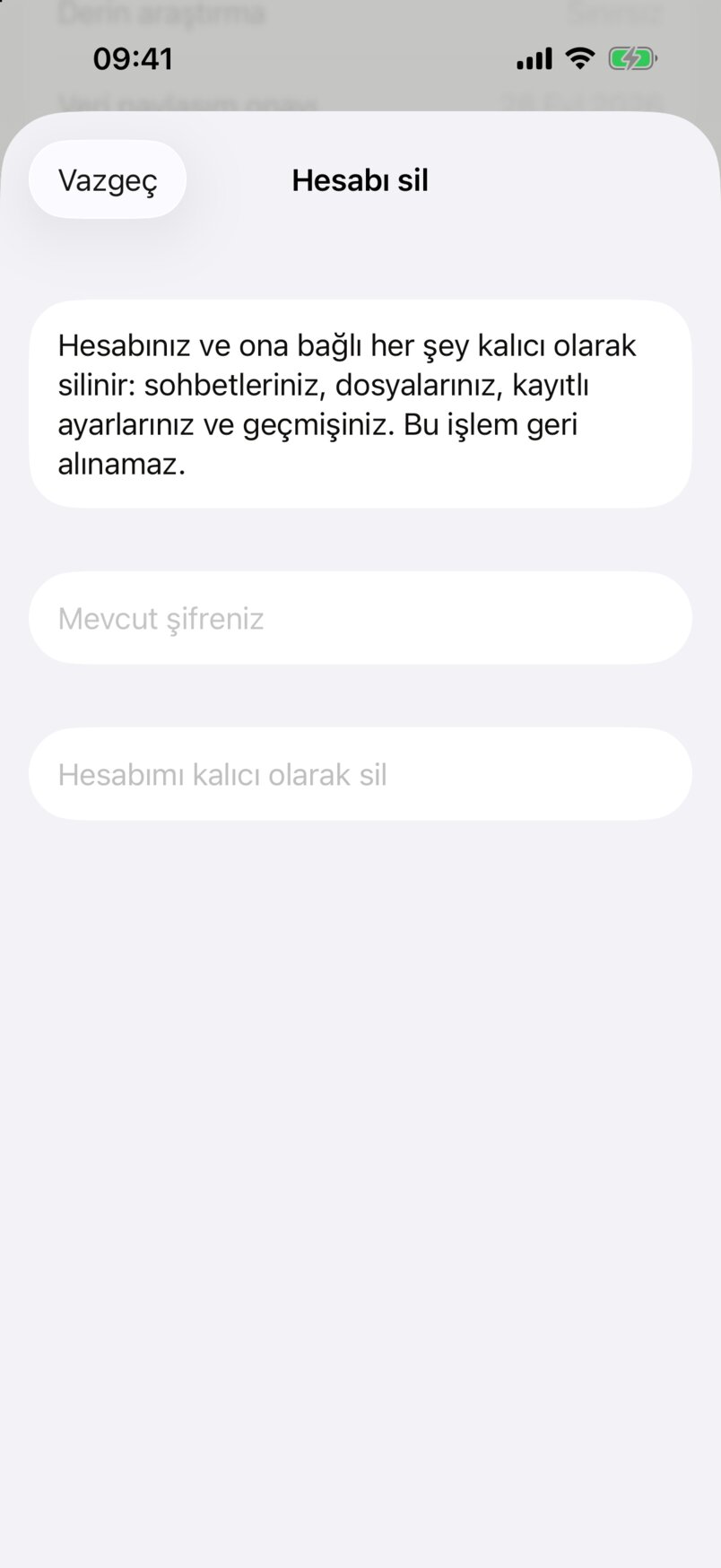
- What is deleted: your conversations, files, saved settings and history.
- Mevcut şifreniz (Your current password): to confirm the deletion.
- Hesabımı kalıcı olarak sil (Delete my account permanently): enabled once the password is typed.
- Vazgeç (Cancel).
- Tap Hesap → Hesabımı sil.
- Read the text and type your password in Mevcut şifreniz.
- Tap Hesabımı kalıcı olarak sil. Once the account is deleted, the app signs out.
Deleted: your account, sessions, your records on vesika.ai, favorites, history, files and saved settings; the AI service provider is also asked to delete your conversations. Usage records are kept, separated from your identity. For a company account your company membership ends as well; the company's other accounts and shared templates are not affected. The AI consent on the iPhone is removed too.
A deleted account cannot be restored. Save the answers and files you need before deleting. If you are your company's last administrator, you cannot delete your account.
Limits and things to check
- Name, e-mail, plan and company cannot be changed in the app; contact your administrator.
- The app version is shown at the bottom of the tab; mention it when you ask for support.
- When less than a day of your session is left, a Oturumunuz sona eriyor (Your session is ending) warning appears above the tabs.